# Terminate Defect Action
!!! info "Available from SMT Template version 3.1.0 onwards"
## Overview
When a board is terminated in the MES, it is still part of a panel with several other valid boards. This represents an X-out scenario and the MES must be able of tracking which boards are good and which boards are X-outs. Having this use case in mind, the Terminate Defect Action keeps track of the X-out boards in an attribute stored in the panel material.
The Terminate Defect Action aims to provide the user with the ability of automatically terminating a board when a defect is found in it. This Defect Action will only be triggered when the panel is tracked out and will act on the defects that were registered between the track-in and track-out operations of the step the panel has just exited.
### Concept
When a material with a Terminate Defect Action has defects recorded against it, and is tracked out, the Terminate Defect Action will be triggered:
#### If the boards are serialized:
- Record a material loss of 1 unit on the board and **terminate it**.
- The termination of the board will trigger the [SMTUpdateUnitsExcludedOnTerminate](../../artifacts/dees.md#smtupdateunitsexcludedonterminate) DEE, which will update the panel's `SMTUnitsExcluded` attribute (assuming the board's material form is present in the [SMTBoardForms](../../artifacts/tables.md#smtboardforms) lookup table).
- The board's `MESPositionID` attribute must be configured correctly.
- If all the panels of a board are marked as defective and terminated, **the panel will be terminated**.
!!! info "Manually terminating board materials will also update the panel's *SMTUnitsExcluded* attribute"
#### If the boards are not serialized:
- Record a material loss of 1 unit on the panel and update the `SMTUnitsExcluded` attribute.
- The [SMTConventionContext](../../artifacts/tables.md#smtconventioncontext) and [SMTMapBoardIDContext](../../artifacts/tables.md#smtmapboardidcontext) must be configured for the material's product in order to update the `SMTUnitsExcluded` attribute correctly.
- Recording multiple defects on a single board will have the same effect as recording a single defect.
- If the primary quantity of the panel reaches zero, **the panel will be terminated**.
#### Telling boards and panels apart
The Terminate Defect Action has very different behaviour depending on whether it is being applied to a board or a panel:
- The [SMTBoardForms](../../artifacts/tables.md#smtboardforms) lookup table indicates the material forms that represent boards
- The [SMTPanelForms](../../artifacts/tables.md#smtpanelforms) lookup table indicates the material forms that represent panels
!!! warning "The values in these lookup tables must be mutually exclusive"
## Configure a Terminate Defect Action
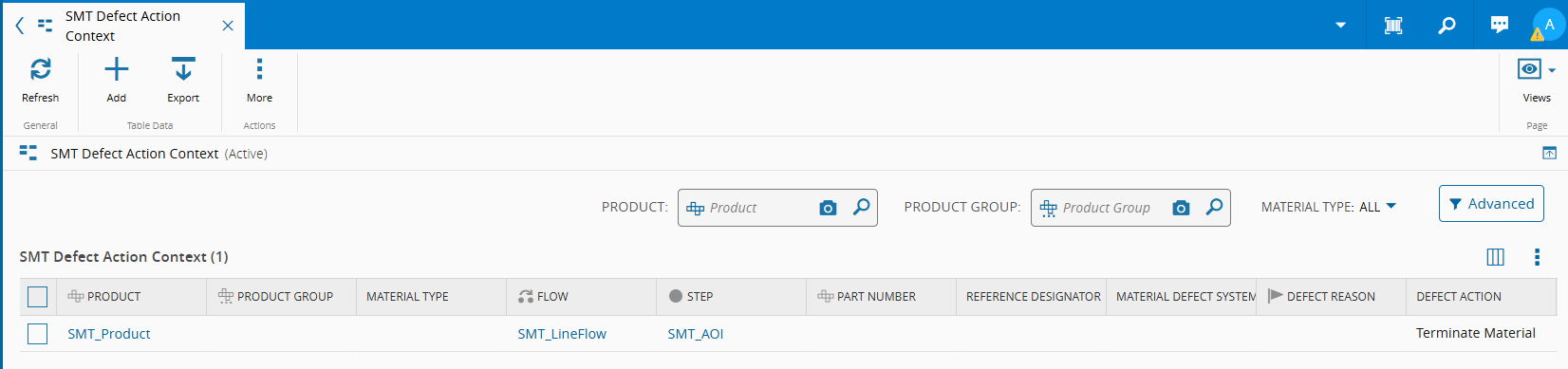
Consider a scenario where a user wants to define that, when a defect is found on a board during the Automated Optical Inspection step "SMT_AOI", the defective board should be automatically terminated. The boards' product is "SMT_Product", and each panel has 4 boards.
The boards will be manufactured in an SMT line with the following steps:
- SMT_Printing
- SMT_SPI
- SMT_Pick & Place
- SMT_Oven
- SMT_AOI
- SMT_Depanel
- SMT_Visual Inspection
- SMT_ICT
- SMT_Assembly
- SMT_Functional Test
### Configure the lookup tables
Go to the Administration menu and select tables.
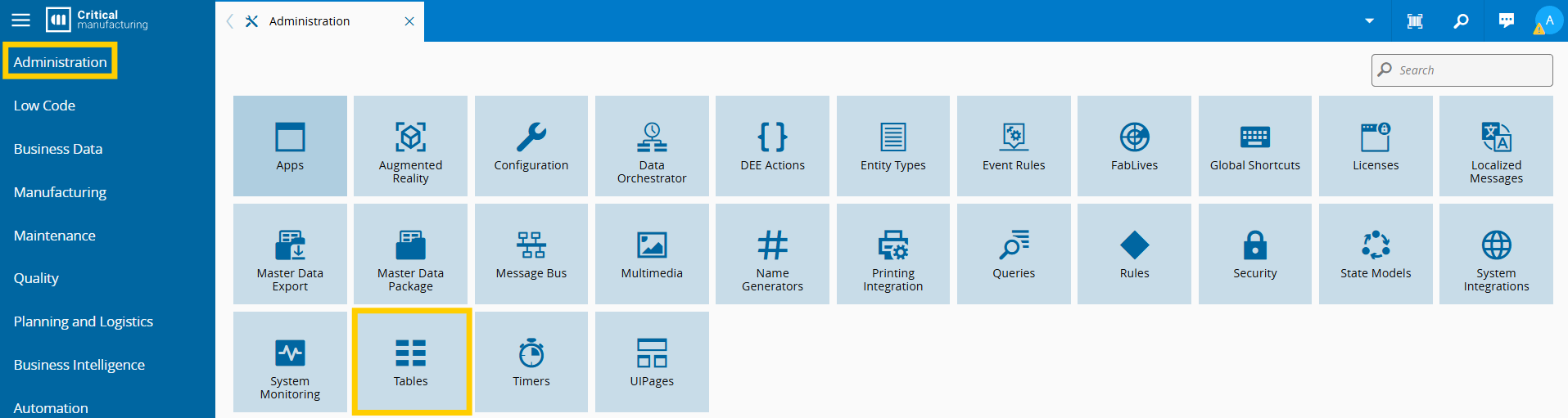
Select Lookup Tables and then select the [SMTBoardForms](../../artifacts/tables.md#smtboardforms) and [SMTPanelForms](../../artifacts/tables.md#smtpanelforms) tables.

Update them with the material forms you use to represent board and panel materials.
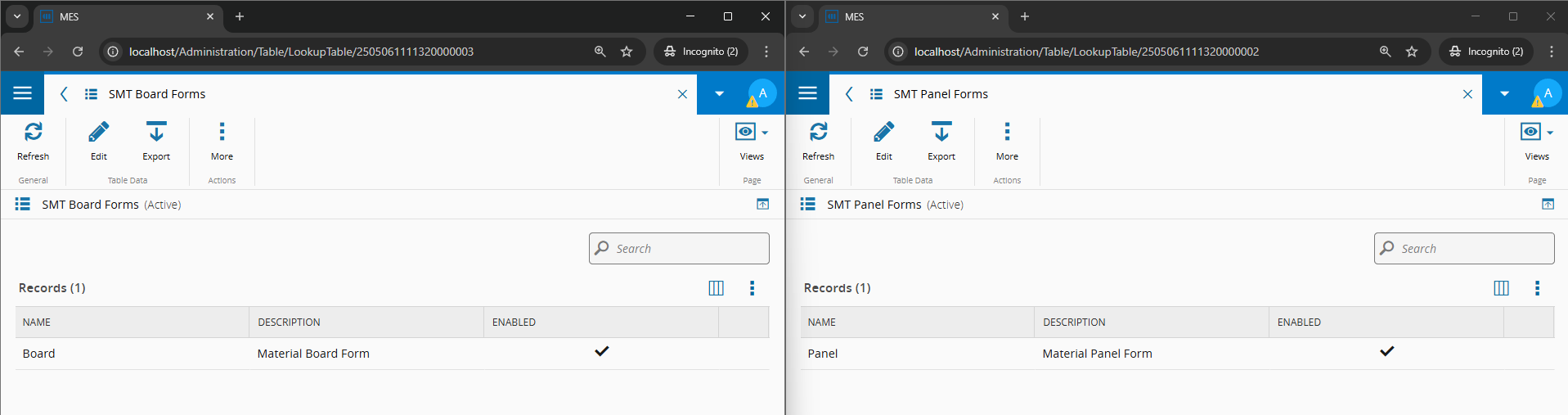
??? note "If you make a mistake, you can always disable the lookup values"
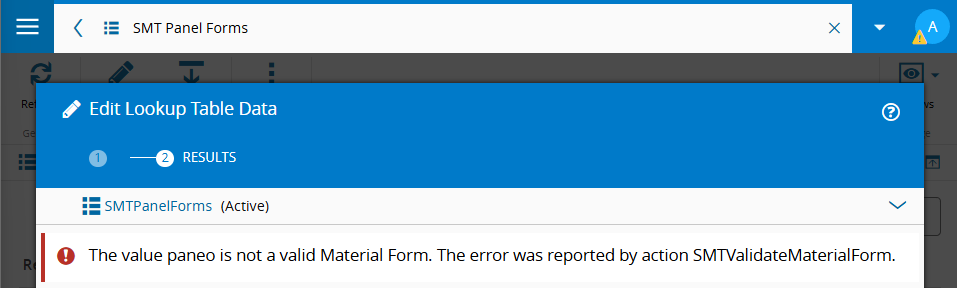
And another note: you will only be able to add values that are present in the `MaterialForm` lookup table. If you make a mistake and try to add a value that isn't a material form, you will be presented with the following error message:
### Configure the [SMTDefectActionContext](../../artifacts/tables.md#smtdefectactioncontext) smart table
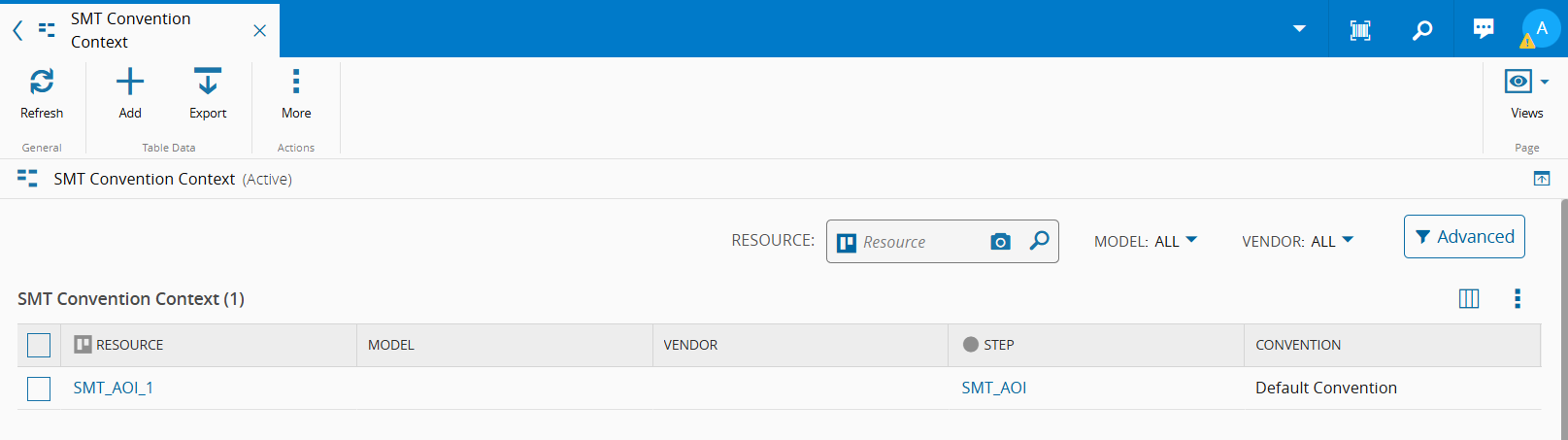
### Configure the [SMTConventionContext](../../artifacts/tables.md#smtdefectactioncontext) smart table
Machines from different manufacturers use different conventions to identify boards on a panel. This smart table is used to determine which convention should be used for boards in a specific resource and step.
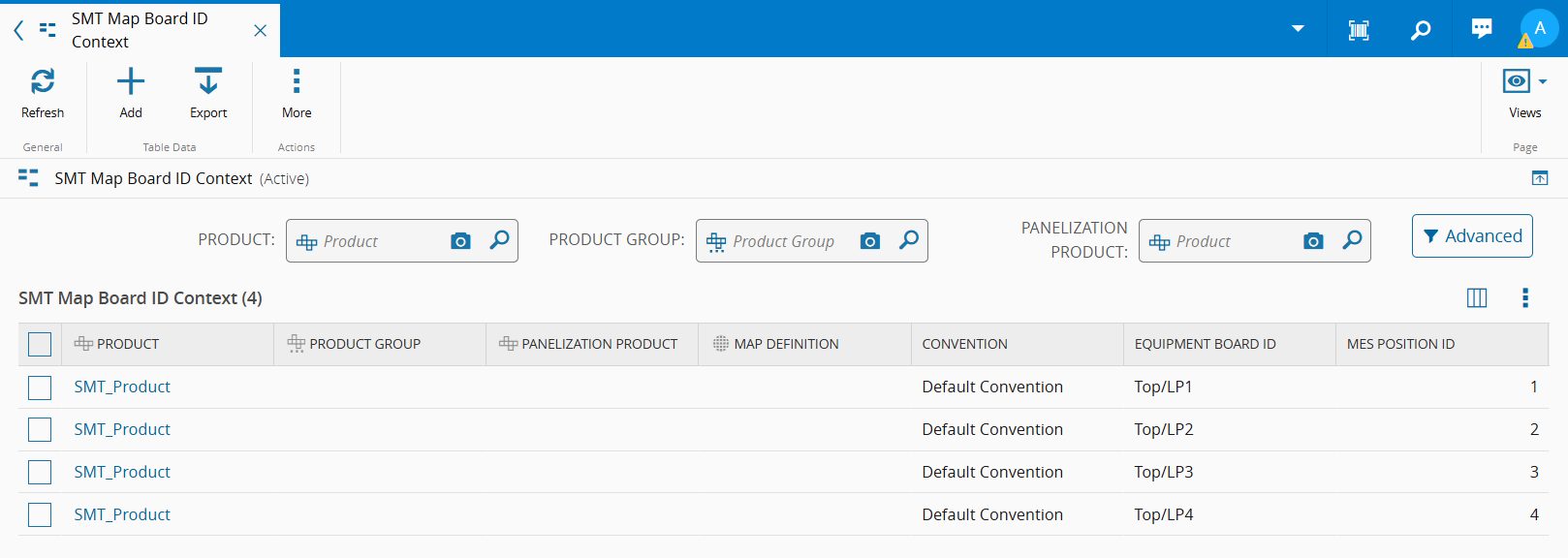
### Configure the [SMTMapBoardIDContext](../../artifacts/tables.md#smtmapboardidcontext) smart table
This smart table determines how the `MESPositionID` attribute in the board materials can be translated to a board id that can be parsed by the machines manufacturing the boards, according to a specific convention.
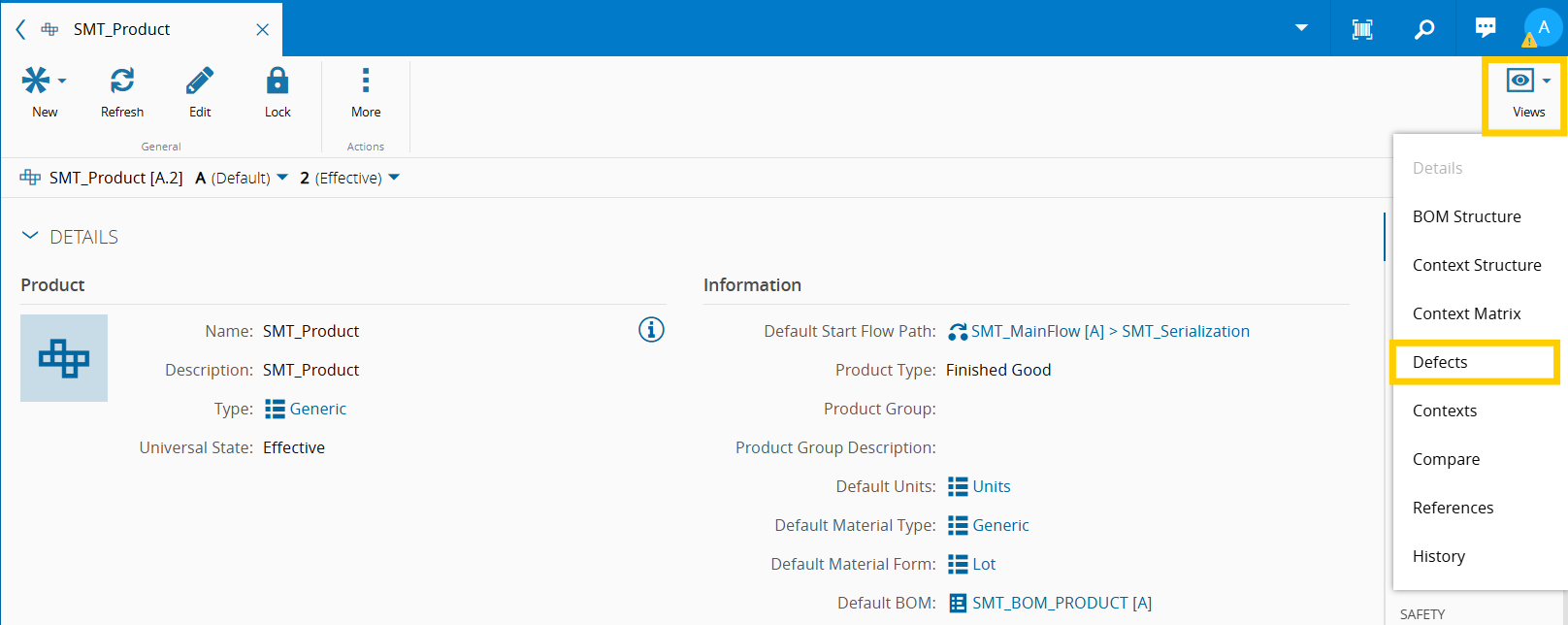
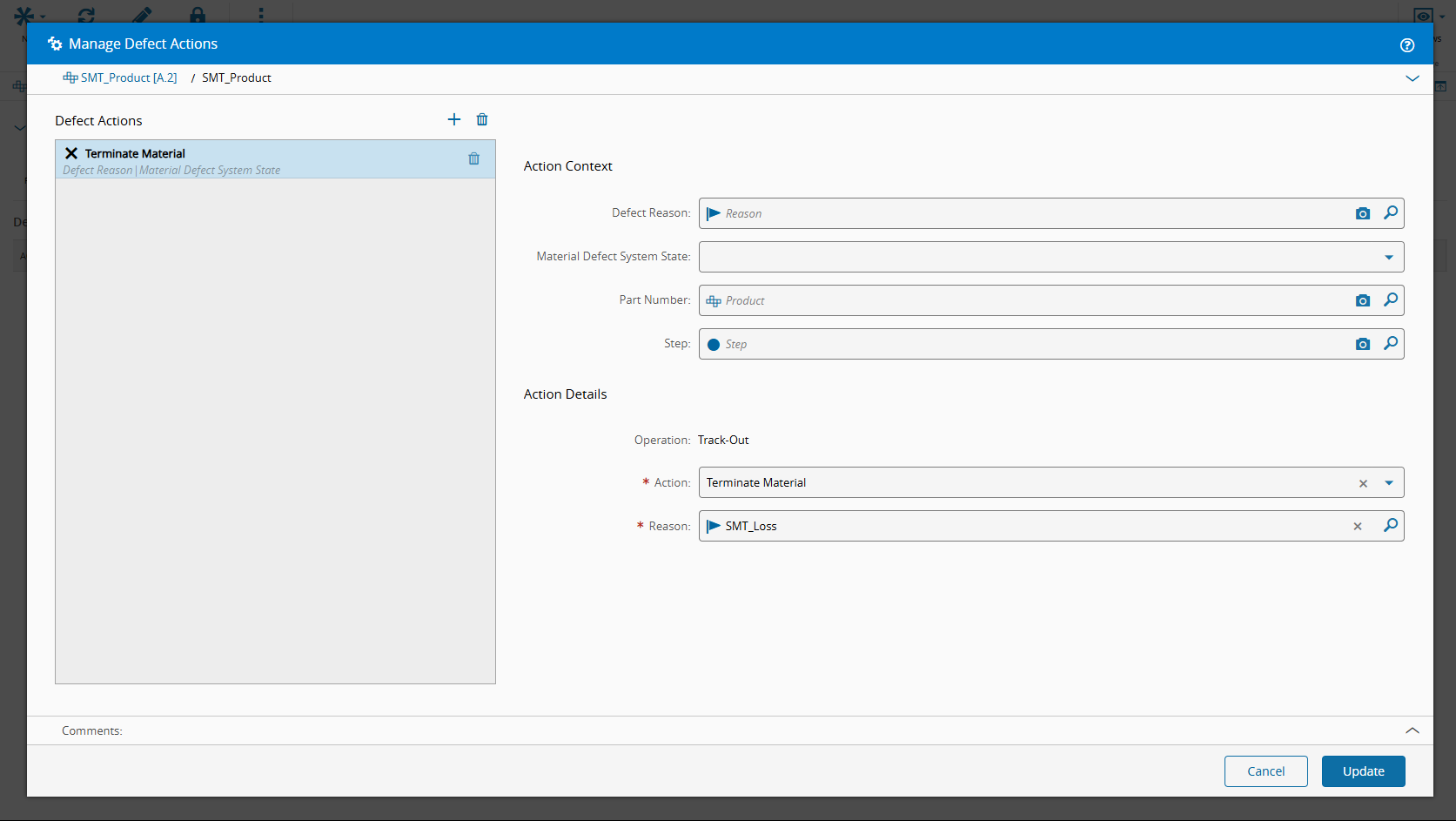
### Configure the Terminate Defect Action on the Product
Go to the Product page and select Defects under the Views dropdown.
Select the Manage Defects button.

Configure the Terminate Defect Action according to your needs.
### Configure the loss reason in the required step
Due to technical reasons, the loss reason used by the defect action has to be configured on the step _after_ the step in which the defects were recorded and the Terminate Defect Action triggered. Referring back to our scenario's [SMT Line](#configure-a-terminate-defect-action), the step after SMT_AOI is the SMT_Depanel step, and therefore that's the step that must have the SMT_Loss reason correctly configured.

??? note "What's the technical reason that makes us have to configure the loss reason in the next step?"
The Defect Actions functionality is powered by the [SMTDefectAction](../../artifacts/dees.md#smtdefectaction) DEE, which is attached to the track-out operation of the material via the following action group: `MaterialManagement.MaterialManagementOrchestration.ComplexTrackOutMaterials.Post`. Notice the `.Post`: this means that the defect actions will only be processed _immediately after the track-out operation of the material has occurred_.
For line flows, this means that the material is already queued at _the next step_, which means that you need to have the loss reason configured for the next step in order for the material to be terminated.
## Execute a Terminate Defect Action (panel with serialized boards)
Consider the scenario of a panel with 4 submaterials associated to it, which represent the boards. The boards have `MESPositionID` equal to 1, 2, 3 and 4, respectively.
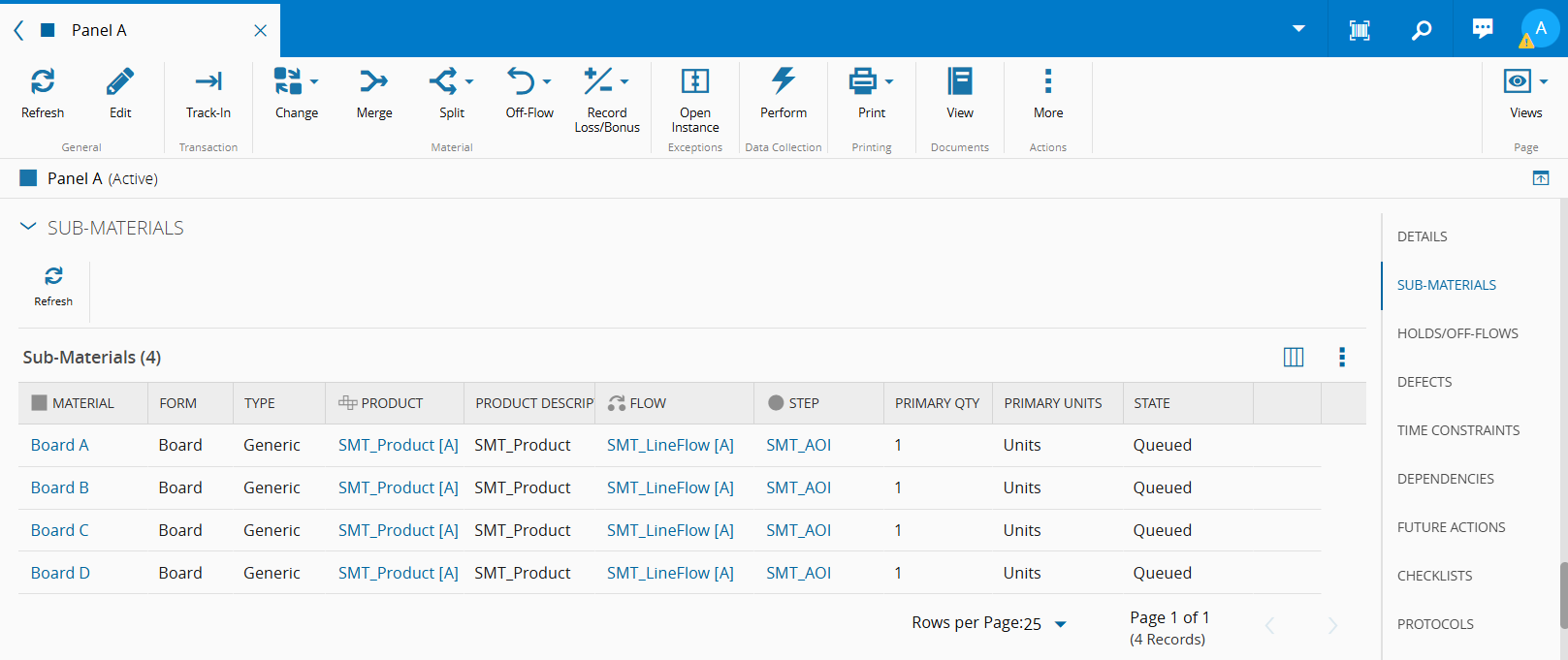
The `SMTUnitsExcluded` attribute is currently empty because no board was marked as defective.
Let's track in the material into the SMT_AOI step:

Defects can be registered on a board in two different ways:
1. Register the defect directly on the board:

2. Register the defect on the panel and specify the board in the Sub-Material field:
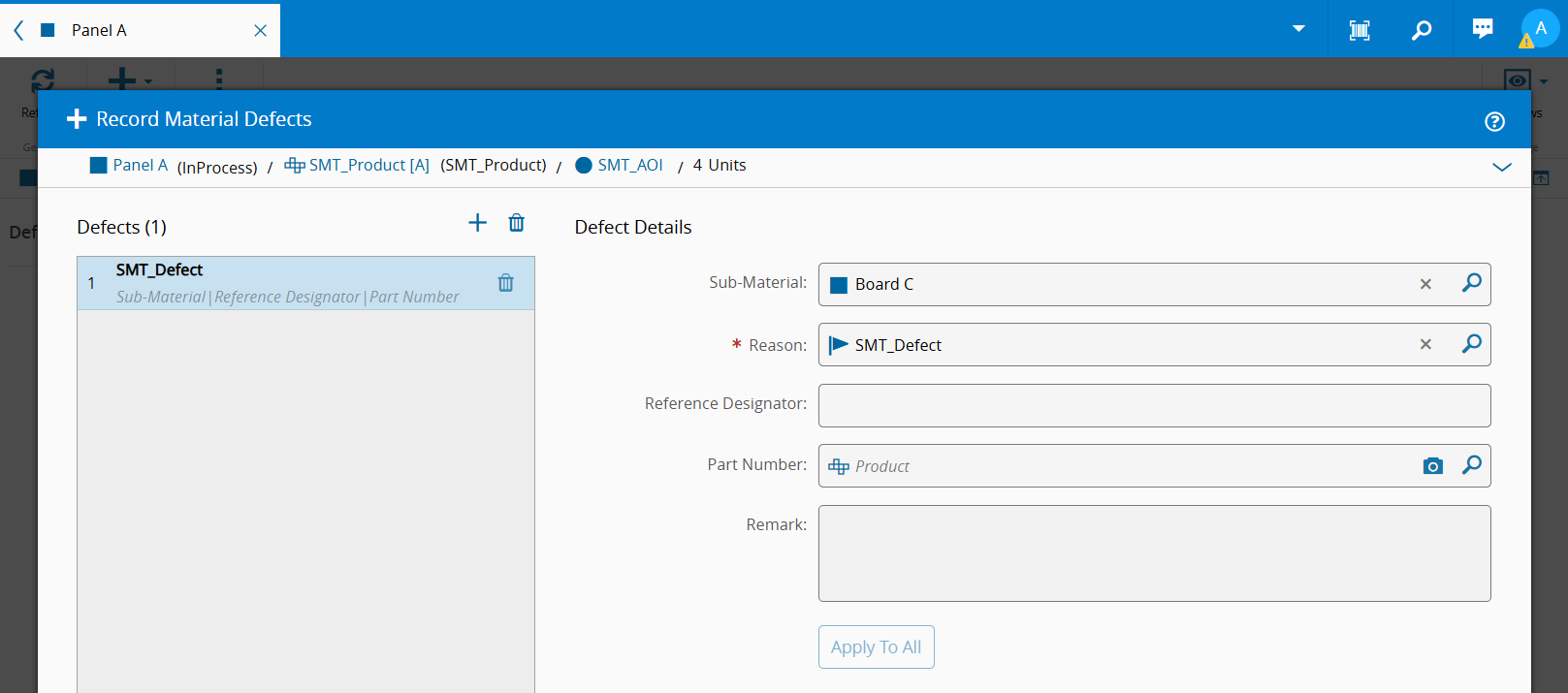
!!! warning "When registering a defect on a panel, you must always specify a submaterial"
If you try to track out a panel with a defect where no submaterial is specified, you will be presented with the following error message:

For practical purposes, this means that you can't directly terminate a panel using the Terminate Defect Action (unless, of course, you terminate all the boards in the panel in which case the panel will be automatically terminated).
### Tracking out
After tracking out the panel, notice what happens:
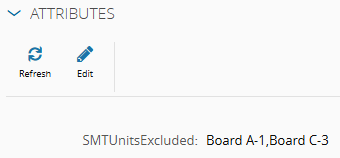
- The boards A and C have been terminated
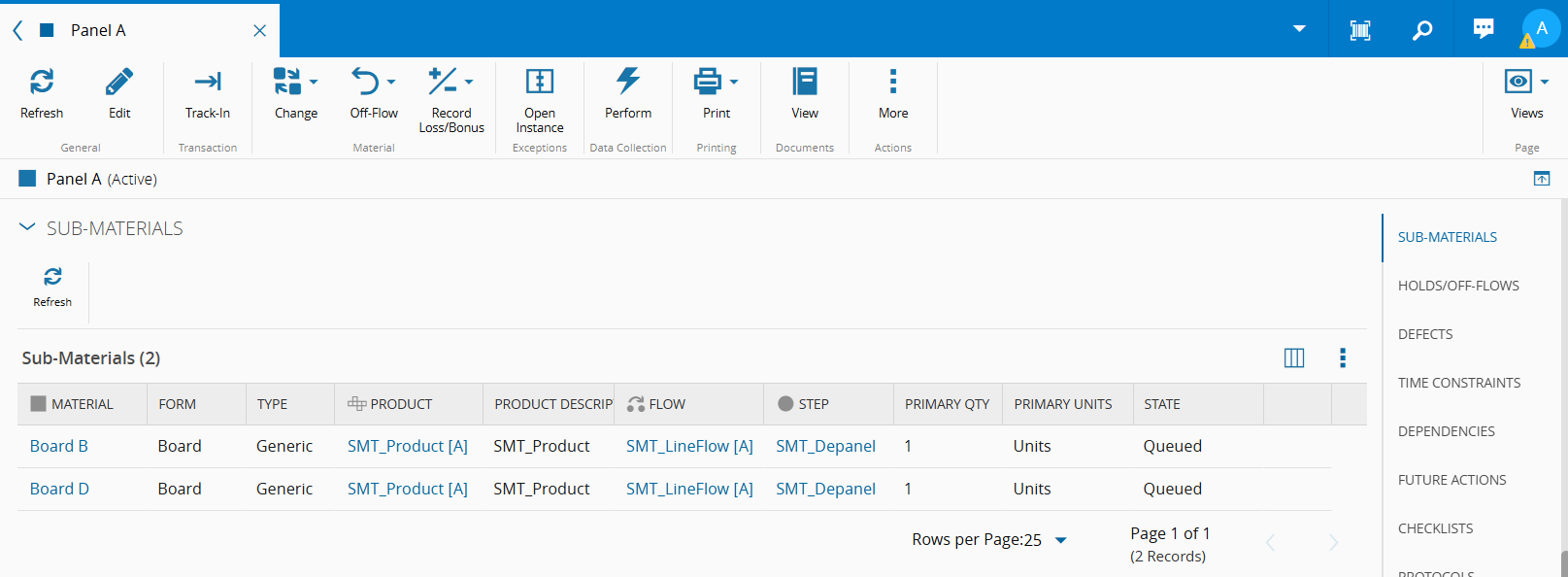
- The panel's `SMTUnitsExcluded` attribute has been updated (notice the "material name-`MESPositionID`" convention)
??? info "Manually terminating a board will also update the _SMTUnitsExcluded_ attribute"
Let's terminate Board B:
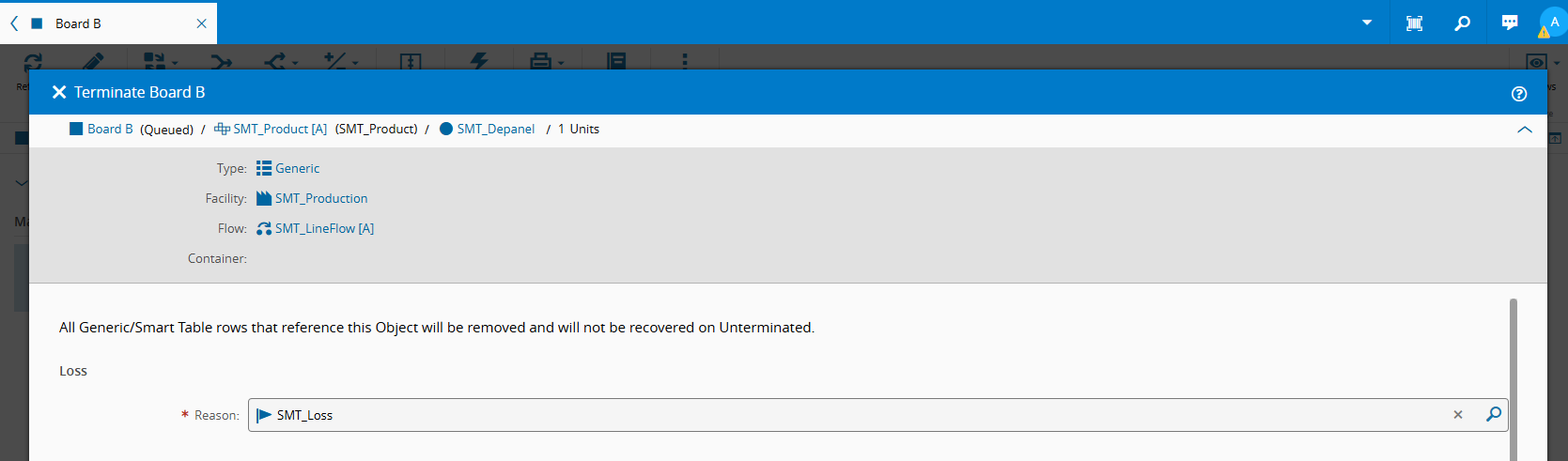
The panel's `SMTUnitsExcluded` attribute was updated accordingly:

## Execute a Terminate Defect Action (panel with non-serialized boards)
Consider the scenario of a panel with 4 non-serialized boards. The panel's `SMTUnitsExcluded` attribute is currently empty because no board was marked as defective.
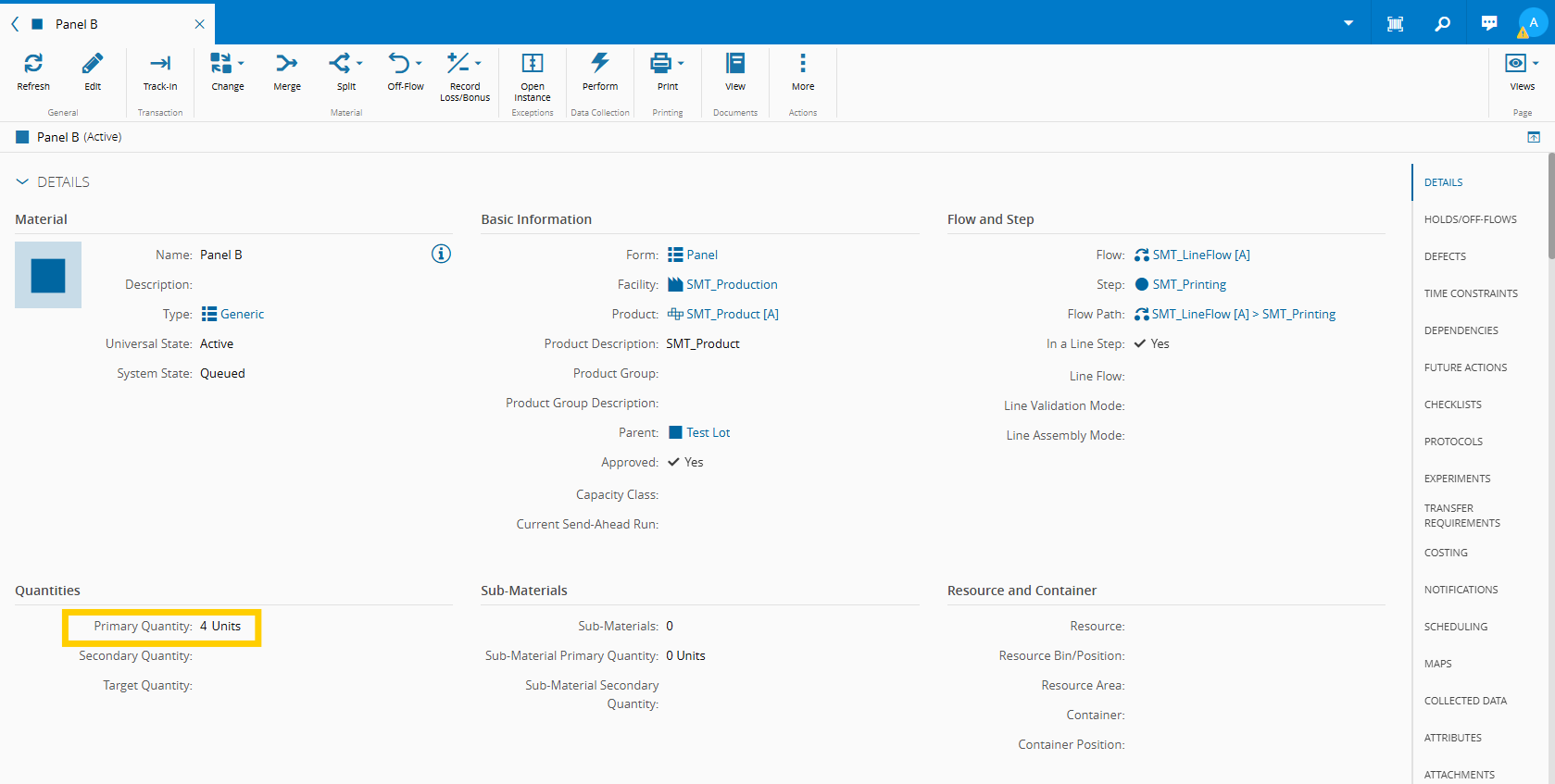
Let's track in the material into the SMT_AOI step and record defects on boards 3 and 4:
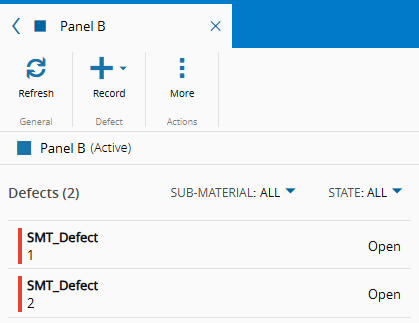
The only way of identifying the boards is with the `MESPositionID`s [specified in the SMTMapBoardIDContext smart table](#configure-the-smtmapboardidcontext-smart-table).
??? note "Specifying multiple boards in a single defect"
You can specify multiple boards in a single defect in the following manner:

### Tracking out
After tracking out the panel, notice what happens:
- The panel's primary quantity goes down from 4 to 2

- The panel's `SMTUnitsExcluded` attribute has been updated. Notice how it only contains the defective `MESPositionID` of the defective boards, as opposed to [previously](#tracking-out) where the board's name was also included