---
alias: user-guide-using-automation-tasks-library-settings
description: "This documentation details configuring task settings using a structured JSON format for automation workflows"
---
# Using Automation Tasks Library Settings
Automation tasks have settings to define their behavior, inputs, and outputs. These settings are configured within the **Automation Task Library** using a structured JSON format.
## Settings Format
Settings are represented by a JSON object using a hierarchical tree format (Tabs, Sections, and Settings):
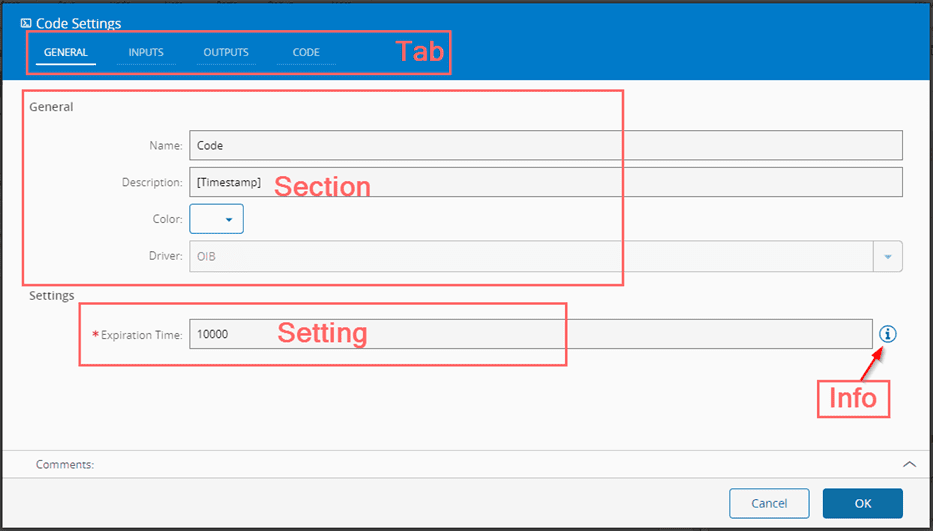
- **Tabs**: The top-level organization, presented as a tab in the task settings UI.
- **Sections**: Groups of settings within a tab.
- **Settings**: Individual fields where data is entered.
**Example:**
This task's settings includes:
- **Tabs**: "General", "Inputs", "Outputs", and "Code"
- **Sections** within the "General" Tab: "General" and "Settings"
- **Setting** within the "General" Section: "Name"
```json
{
"General": {
"General": [
{
"displayName": "Name",
"name": "name",
"settingKey": "nameSetting",
"dataType": "String",
"defaultValue": "Code",
"isMandatory": true,
"infoMessage": "The name for the code task"
}
],
"Settings": [
{
"..."
}
]
},
"Inputs": {},
"Outputs": {},
"Code": {}
}
```
This configuration generates the following Settings Wizard:
!!! Note
If the section is a string instead of an array with settings, then the GUI will render an information block without any settings.
## Task Settings
A setting is composed of the following properties:
| Property | Description | Notes |
| -------- | ----------- | ----- |
| Name | Name of the setting | Mandatory, Unique, String |
| DisplayName | Text to display in the GUI, defaults to Name if not defined. | Optional, String |
| SettingKey | Key of the settings where the value will be stored. Must be unique within the entire set of settings in the task. | Mandatory, String |
| IsMandatory | Flag indicating if this setting must be filled. | Optional, Boolean, defaults to false |
| EnumValues | List of possible values when the Type is Enum.
Use object if the display value and the value are different. The display value is the key, the value is the value.
Note: This key is left here for compatibility reasons, but it should be deprecated. This field should be used inside the Settings object. | Optional, list of strings or Object |
| InfoMessage | Text to display in the hint box when hovered. | Optional, String |
| InfoMessageBlock | Text to display in the hint box when hovered using a block HTML view where the text can be formatted with new lines, tabs, etc. | Optional, String |
| DefaultValue | Value to use as default. | Optional, any |
| Condition | Expression (MathJS) that will be parsed to identify if this setting is to be displayed.
Example: `timerType != null && timerType != "CronJob"` | Optional, string |
| Settings | Extra settings to use to model the behavior of the field. These settings are different per control to use. | Optional, Object |
| PropertiesToSave | Optional setting to define the properties to store in the settings if the value is an object.
Can define sub-objects.
Example: `[“$type”, “name”]`
Note: Subfields are not supported. To achieve that use the BeforeSave trigger scripts. | Optional, Array of Strings |
| FlattenProperty | Name of the property to store instead of the whole object, when the value is an object. The setting stores only the value of that property, and the GUI restores the object from it when the task settings are opened. Can be combined with PropertiesToSave and used in the LeafDefinition entries of a Dynamic input or output.
Example: with `"Name"`, the setting stores `"MyEvent"` instead of `{ "Name": "MyEvent" }`. | Optional, String |
## Setting types
The settings can be of primitive types (like String, Boolean, Integer, etc.) or complex types. The following subsections detail these types.
### Settings Primitive types
The following primitive types are supported:
- String
- Integer
- Decimal
- Long
- Boolean
- Object
- Text
- Password
- Note
- HTML
**Example**:
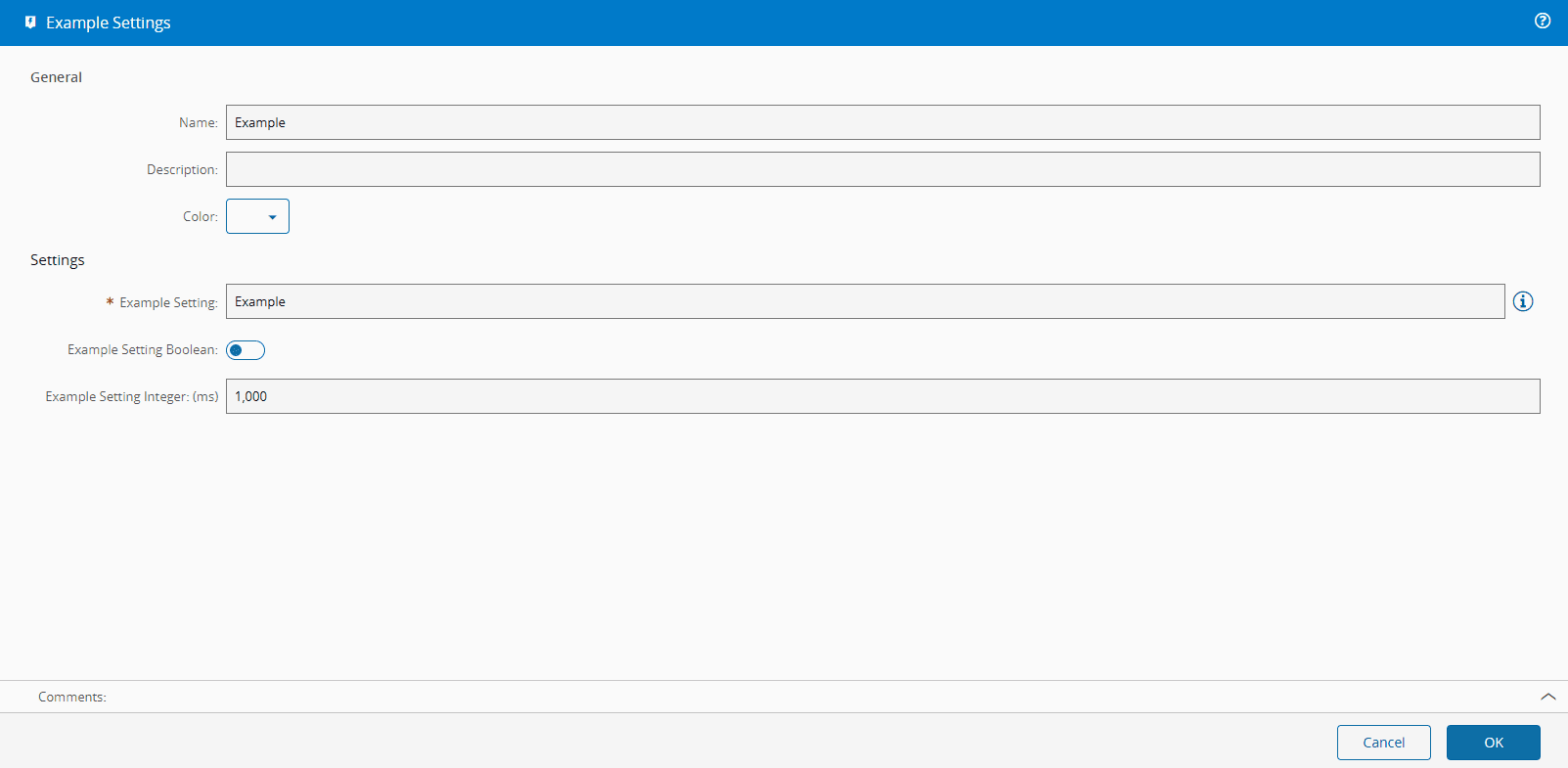
This example defines a `General` tab containing a `Settings` section with three settings: a string, a boolean, and an integer. The integer setting includes type-specific configuration that specifies a minimum value and a unit symbol.
```json
{
"settings": {
"General": {
"Settings": [
{
"displayName": "Example Setting",
"name": "exampleSetting",
"settingKey": "exampleSetting",
"dataType": "String",
"defaultValue": "Example",
"isMandatory": true,
"infoMessage": "Super Example"
},
{
"displayName": "Example Setting Boolean",
"name": "exampleSettingBoolean",
"settingKey": "exampleSettingBoolean",
"dataType": "Boolean"
},
{
"displayName": "Example Setting Integer",
"name": "exampleSettingInteger",
"settingKey": "exampleSettingInteger",
"dataType": "Integer",
"defaultValue": 1000,
"settings": {
"symbol": "ms",
"min": 0
}
}
]
}
}
}
```
This configuration generates the following Settings Wizard:
### Settings Complex Types
The following table lists the supported complex data types and their configurable properties.
| DataType | Property | Description | Notes |
|------------------------------|----------------------|--------------------------------------------------------------------------------------------------------------------------------------------------------------------------|------------------------------------------------------------------------------|
| **Lookup** | | Provides a value selected from a predefined lookup table. | |
| | TableName | Name of the table to use for this lookup (must be a Lookup table). | Mandatory, String |
| | OnChange | Script to execute when the value changes. | Optional, AutomationTaskScript |
| **Enum** | | Provides a value selected from a predefined set of enumerated values. | |
| | EnumValues | List of possible values when the Type is Enum.
Use object if the display value and the value are different. The display value is the key, the value is the value. | Mandatory, list of strings or Object |
| | OnChange | Script to execute when the value changes. | Optional, AutomationTaskScript |
| | Data | Script to execute to fill the possible values. | Optional, AutomationTaskScript |
| **EntityType** | | Provides a value selected from a set of entities returned by a query. | |
| | Query | Script that returns a query object. | Mandatory, AutomationTaskScript |
| | ValueReferenceType | Optional, defaults to "EntityType". | Optional, String |
| | NestedEditorType | Optional, defaults to "EntityComboBox". | Optional, String |
| | DataComparisonField | Optional, defaults to "Name". | Optional, String |
| | OnChange | Script to execute when the value changes. | Optional, AutomationTaskScript |
| **FindEntity** | | Provides an entity selection mechanism based on a query and an explicit entity type. | |
| | Query | Script that returns a query object. | Mandatory, AutomationTaskScript |
| | ReferenceTypeName | Type of entity configured to use by the FindEntity. | Mandatory, String |
| | OnChange | Script to execute when the value changes. | Optional, AutomationTaskScript |
| | Data | Script to execute to fill the possible values. | Optional, AutomationTaskScript |
| **ListView** | | Displays a list of items generated dynamically and supports configurable selection behavior. | |
| | Data | Items to show on the ListView (by default it is the `defaultValue` falling back to an empty array). | Optional, AutomationTaskScript |
| | DataQuery | It runs on init to replace the data property to show on the ListView. Exposes the entire context of the GUI. | Mandatory, String |
| | OnChange | Script to execute when the value changes. | Optional, AutomationTaskScript |
| | PropertyDataToRender | Expects a property to be rendered. | Optional, String |
| | IsDataItemChecked | It expects a boolean to check if the item is selected. Exposes the item itself (`this.item`) and an array with current value of the setting (`this.items`). | Optional, AutomationTaskScript |
| | SelectionType | Enum to indicate how the ListView should behave. | Optional, from an enumeration:
• Single (default)
• Multiple
• None |
| | EmptyMessage | Message to render when the `data` property is empty. | Optional, String |
| **ExtendedPropertiesViewer** | | Shows extended properties from a JSON formatted object, in the ATLs. | Optional, JSON formatted object |
| | Dependencies | Setting key of the task property that this viewer depends on. The extended properties exposed by this viewer are directly linked to the value of the referenced setting. | String |
| | dynamicDependency | Reference to a task setting key provided dynamically through a Dynamic configuration. | String |
| | extendedDataType | Specifies which extended data type, defined as part of the authorization protocol, is used to determine the extended properties displayed by this viewer. | enum |
### Automation Task Scripts
Automation Task settings can have associated scripts. For more information, see [AutomationTaskScript](using_automation_tasks_library_task.md).
**Example**:
The following setting demonstrates script associations:
- An `onChange` event for the `Event` property
- The associated script is `eventDefinitionNameOnChange`
- The script executes when the setting value changes
```json
[...]
{
"displayName": "Event",
"name": "eventDefinitionName",
"settingKey": "eventDefinitionName",
"dataType": "FindEntity",
"isMandatory": true,
"settings": {
"referenceTypeName": "IoTEventDefinition",
"onChange": {
"type": "Reference",
"script": "eventDefinitionNameOnChange"
}
}
}
[...]
"scripts": {
"eventDefinitionNameOnChange": "dGhpcyBpcyB0aGUgYmFzZSA2NCBleGFtcGxlIDI"
}
```
### JSON Schema Validation for Settings
A setting whose value is JSON (for example, the **Templates** setting on the [[user-guide-automation-task-core-customtemplates|Custom Driver Definition]] task) can attach a JSON schema. When the user edits that setting, the value editor will validate the input in real time, show hover descriptions and offer auto-completion based on the schema. See [[user-guide-automation-json-schema-validation-in-editors]] for the editor behavior.
The schema is attached on the setting through the `settings` object using two optional fields:
| Property | Description | Notes |
|--------------------|----------------------------------------------------------------------------------------------------------------------------------------------------------------------------------------------------------|----------------------------------------------------------------------|
| `schemas` | Array of JSON Schema objects (Draft-07) to enforce on the value of this setting. Multiple schemas can be supplied - they are all loaded for validation and intellisense. | Optional, array of JSON Schema objects |
| `schemaValidation` | Severity used to surface schema violations: `error` (red markers, prevents save), `warning` (yellow markers, allows save), or `ignore` (loads the schema for hover/completion only without reporting). | Optional, defaults to the editor's default behavior when not defined |
Table: JSON Schema Setting Properties
**Example:**
```json
{
"displayName": "Templates",
"name": "Templates",
"settingKey": "Templates",
"dataType": "Object",
"settings": {
"schemaValidation": "warning",
"schemas": [
{
"$schema": "https://json-schema.org/draft-07/schema#",
"type": "object",
"properties": {
"property": { "type": "array", "items": { "type": "object" } },
"event": { "type": "array", "items": { "type": "object" } },
"command": { "type": "array", "items": { "type": "object" } }
}
}
]
}
}
```
### Information Section
In the Task settings, information blocks can be added.
**Example**:
```json
{
"General": {
"Settings": [
{
"name": "JobName",
"displayName": "Job Name",
"settingKey": "JobName",
"dataType": "string"
}
],
"Information Section": "Testing the information Section. Here you can explain something as you want."
}
}
```
### CheckList
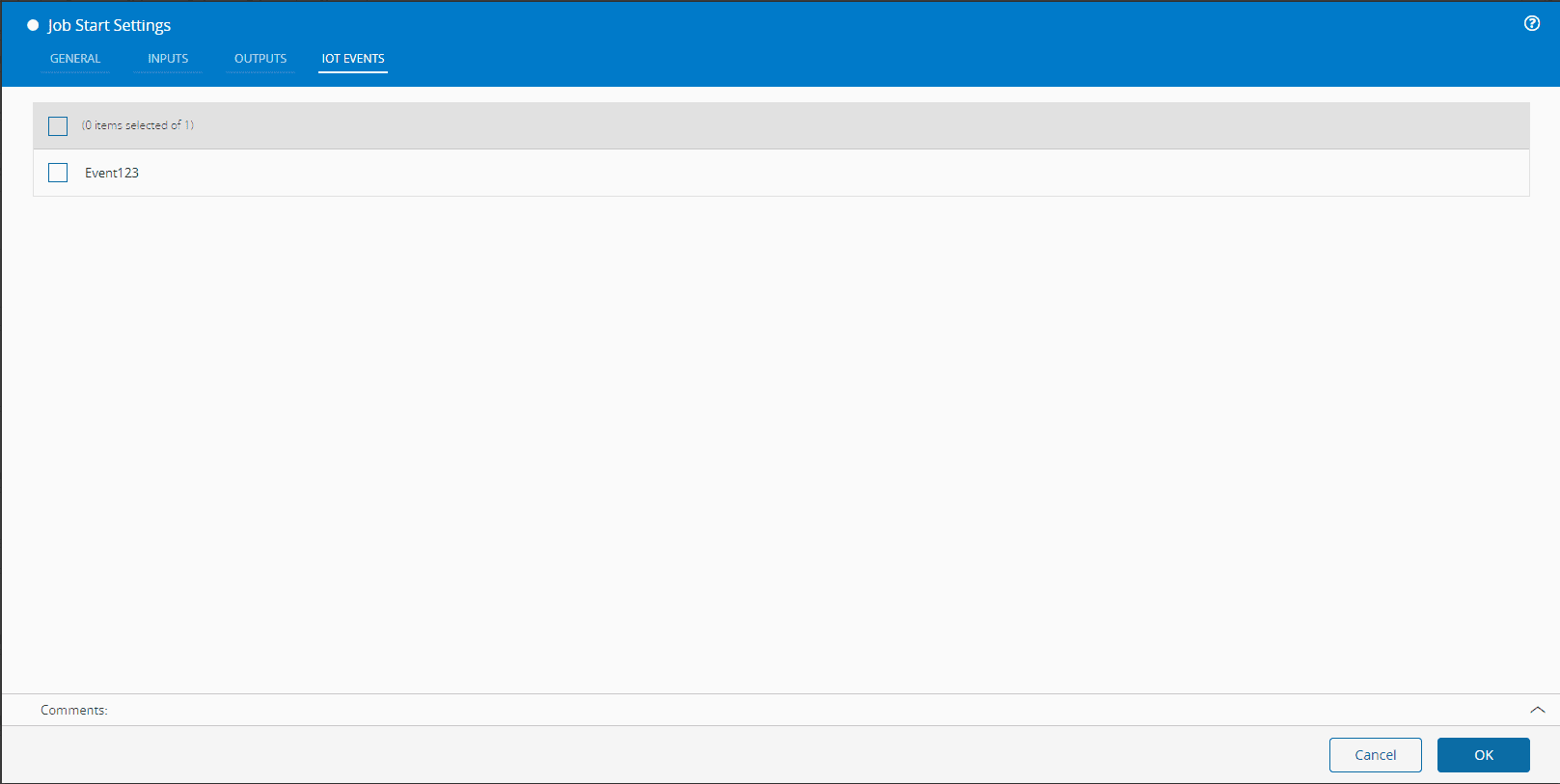
The CheckList component displays a list of items that supports single or multiple selection with custom item templates.
**Example**:
To implement a CheckList, add a new tab with the following structure:
```json
{
"settings": {
"IoT Events": {
"" : [
{
"settingKey": "_availableEvents",
"dataType": "ListView",
"settings": {
"selectionType": "Multiple",
"emptyMessage": "No events to show"
}
}
]
}
}
}
```
The configuration requires an empty section name (`""`) containing an array of settings with one **ListView** dataType setting. The component requires both a `selectionType` and an `emptyMessage` property. The `selectionType` can be set to `Single`, `Multiple`, or `None`.
## Exploring Examples
To see real-world implementations:
1. Open **MES** and navigate to the **Automation** section.
2. Open the **Task Libraries** page.
3. Select an existing library and click **Edit**.
4. Navigate to the **Metadata** tab to view the JSON configuration for the selected library.