---
alias: installation-guide-database-servers-index
description: "This documentation outlines the steps to install and configure a database server for Critical Manufacturing’s MES databases, utilizing Always On"
---
# Database Servers
This guide will walk you through the steps to successfully plan and install a database server to host Critical Manufacturing MES databases.
## Planning for disaster recovery and high-availability
Critical Manufacturing recommends adopting the Always On for Availability Groups disaster recovery and high-availability solution for database systems hosting Critical Manufacturing databases. If you are not familiar with the process, the [Always On Guide](alwaysgroups.md) contains technical information on the subject. This guide is intended to serve as a summary and does not cover the technical details included in the above-mentioned guide.
An individual cluster for online, for ODS and for DWH to maximize the availability should be created, though the solution will also work if you decide to create a single cluster. In both cases, it is necessary to create an availability group for each of the product databases. This process is detailed below.
## Database Server pre-requisites
The following software requirements must be met in all database nodes:
| Name | Requisite | Supported Versions | Checked |
|---------------------------------------------------------------|--------------------------------------------------------------------------------------------------------------------------------------------------------|--------------------|---------|
| **Operating System** | Microsoft Windows Server | 2016 to 2022 | |
| **Microsoft Windows Server Roles and Features Configuration** | Microsoft Distributed Transaction Coordinator Configuration
Microsoft Advanced Firewall Configuration
Windows Server Failover Clustering **1** | | |
| **Microsoft SQL Server** | Microsoft SQL Server Database Engine
Microsoft SQL Server Reporting Services
Microsoft SQL Server Analysis Services | 2019 to 2022 | |
| **Microsoft OLE DB Driver for SQL Server** | Microsoft OLE DB Driver for SQL Server **2** | | |
Table: Database Server pre-requisites
!!! note
**1** Failover clustering is only necessary when building an Always On for Availability Groups solution.
!!! note
**2** Only required if the Analysis Services and SQL Server are installed on different machines. In that case, please make sure to install Microsoft OLE DB Driver for SQL Server on the Analysis Services machine. More information on the installation of Microsoft OLE DB Driver for SQL Server here: .
## SQL Server Licensing
This section contains licensing information regarding SQL Server 2019 and SQL Server 2022.
SQL Server 2019 and SQL Server 2022 Standard editions are licensed in Core-Based and Server + CAL modes, whereas SQL Server 2019 and SQL Server 2022 Enterprise editions are licensed only in Core-Based mode.
When running Critical Manufacturing on SQL Server Standard edition, the following limitations apply:
* Database instance maximum hardware consists of 128 GB or the lesser of 4 CPUs or 24 Cores (SQL Server 2019 and SQL Server 2022).
* Mobile reports and KPIs are not available.
* Power BI Report Server is not available.
For more information about SQL Server licensing, see the URLs below:
* [SQL Server 2019](https://download.microsoft.com/download/f/0/d/f0d7004e-9e39-4991-853b-2aa09e4ce456/SQL%20Server%202019%20%20Licensing%20Datasheet.pdf)
* [SQL Server 2022](https://download.microsoft.com/download/0/f/4/0f4c1b3c-cbc4-4495-97e4-2050543f49b3/SQL_Server_2022_Licensing_Datasheet.pdf)
## Always On for Availability Groups pre-requisites
If you have decided to implement an high-available SQL Server solution using Always On for Availability Groups, these additional requirements and preparation steps must me met:
| Task | Notes | Checked |
|--------------------------------------------------------|-------------------------------------------------------------------------------------------------------------------------------------------------------------------------------------------------------------------------------------------------------------------------------------------------------------------------------------------------------------------------------------------------------------------------------------------------------------------------------------------------------------|---------|
| Define names for the Availability Groups | We **recommend** adopting the following naming convention to name the Availability Groups and to use the same names for the Availability Group Listeners. At this time, you should have chosen the name to give to this Critical Manufacturing installation, referred to as ``SystemName``
``AG`` - the AG that will host the online database
``AGODS`` - the AG that will host the **ODS** database
``AGDWH`` - the AG that will host the **DWH** database | |
| Install WSFC | The Failover Cluster role must be enabled in all database nodes | |
| Enable Always On for Availability Groups in SQL Server | | |
Table: Always On Availability Groups pre-requisites
## Preparing Windows Server Failover Cluster
To prepare the WSFC cluster, follow the instructions on this [guide](https://msdn.microsoft.com/enus/library/ms189134.aspx). Because we use Always On for Availability Groups, we do not require any kind of storage resource in the cluster. You can also choose the quorum solution that best fits your environment.
## Microsoft Distributed Transaction Coordinator (MS-DTC) Configuration
This section describes how to install and configure Microsoft Distributed Coordinator (MS-DTC). MS-DTC is a component that is used to managed distributed transactions and the two-phase commit protocol. Microsoft Distributed Coordinator (MS-DTC) is installed as part of the operating system installation but it needs to be configured in order for Critical Manufacturing to work correctly.
!!! note
Microsoft IIS needs to be installed in all Critical Manufacturing Application and Database servers.
The instructions for configuring Microsoft Distributed Coordinator (MS-DTC) according to Critical Manufacturing requirements are the same for Windows Server 2008 and for Windows Server 2012 and can be found in the URL: . For convenience, the configuration procedure is described in this section.
* Start the **Component Services** management console by typing **comexp.msc** in the start command and pressing **OK**.
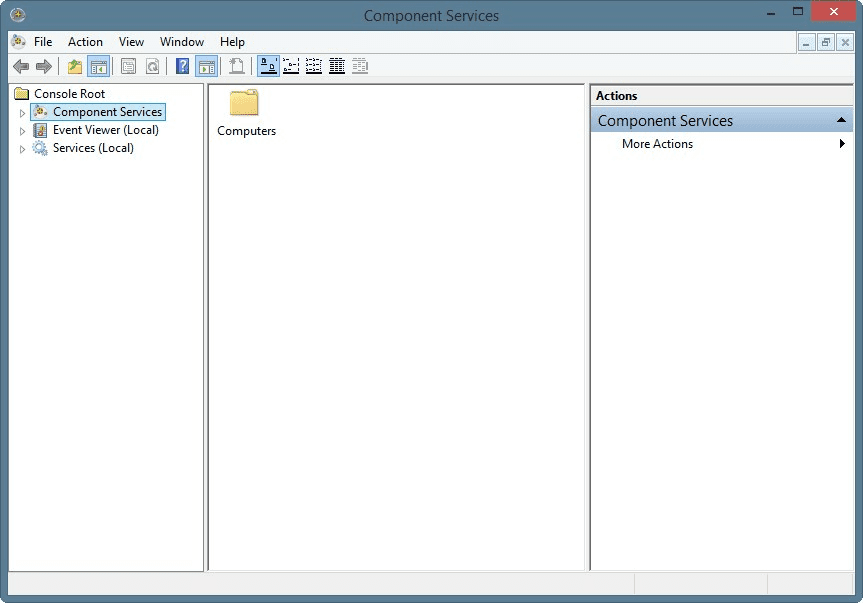
* Drill-down by clicking on **Component Services** > **Computer** > **My Computer** > **Distributed Transaction Coordinator** > **Local PC**.
* Right-click on the **Local PC** under **Distributed Transaction Coordinator** and then select **Properties**.
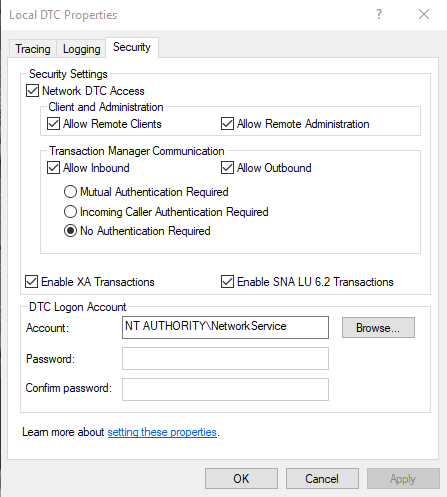
* Click on the **Security** tab and then make sure that the following options are checked as shown in the picture below:
* Network DTC Access
* Allow Remote Clients
* Allow Remote Administration
* Allow Inbound
* Allow Outbound
* Enable XA Transactions
* Enable SNA LU 6.2 Transactions
## SQL Server Installation
To implement Always On for Availability Groups, first you need to perform a **single node** installation of SQL Server on **each of the nodes** of the cluster. This procedure can also be used to setup a development environment where a high-availability solution is not required.
| Feature | Description | Remark |
|--------------------------------|----------------------------------------------------------------------------------------|-------------------------------------------------------------------------------|
| **SQL Server Engine Services** | The core SQL Server engine. | Mandatory for all database servers. |
| **Analysis Services** | The analysis services engine used by the data warehouse and necessary for data mining. | Mandatory for the Operational Data Store and Data Warehouse database servers. |
| **Reporting Services** | The SQL Server engine used for reporting. | Mandatory for the Operational Data Store and Data Warehouse database servers. |
Table: SQL Server pre-requisites
!!! warning
Reporting Services must be installed separately from this installation.
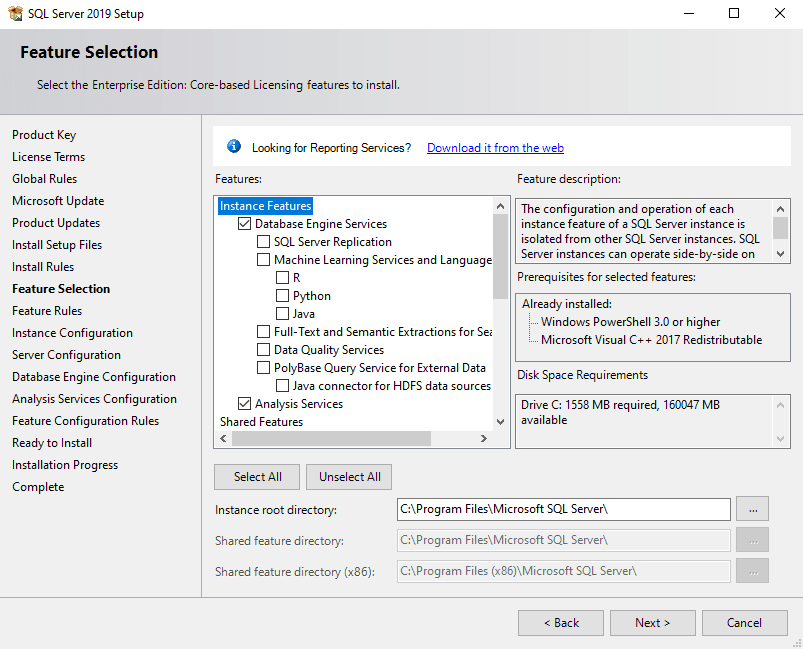
The next picture shows the *Feature Selection* screen for **SQL Server**. It represents the features required by Critical Manufacturing.
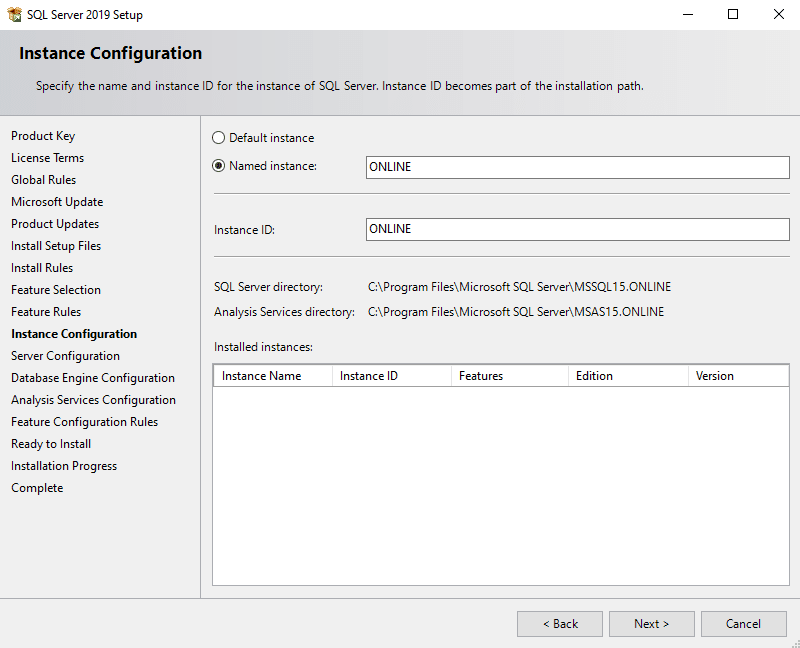
Next set the name of the instance to install. Critical Manufacturing recommends deploying three instances of SQL Server (Online, ODS and DWH) ideally on different physical machines. In that sense this procedure should be repeated for each of the instances.
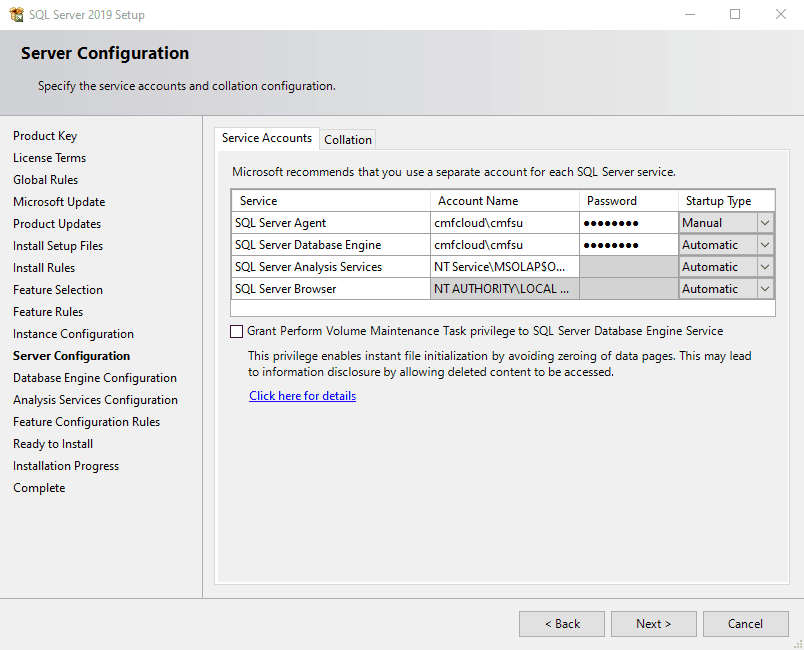
Next set the service account to run the engine service and the agent service. This account should be the domain account, which requires rights to access the file system.
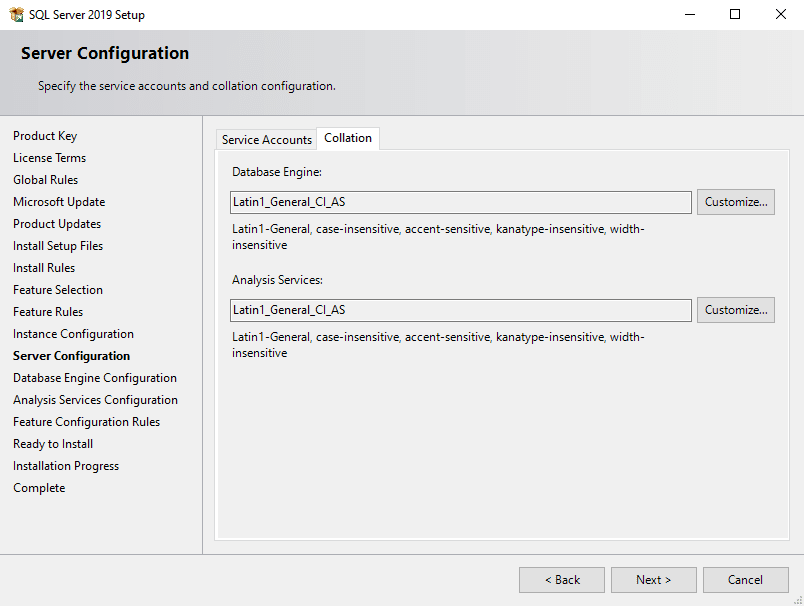
It is necessary to check that the collation is exactly **Latin1_General_CI_AS**. The deployment software will verify this setting and **will fail if it differs**.
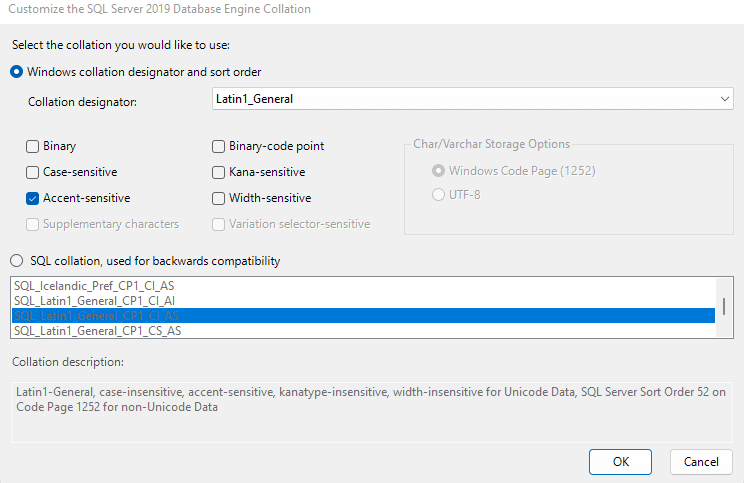
If the values do not match choose the "Customize..." action and configure it as shown here:
Now configure the database engine. Set the authentication mode to "Mixed mode" and set the sa account password to a value of your choice.
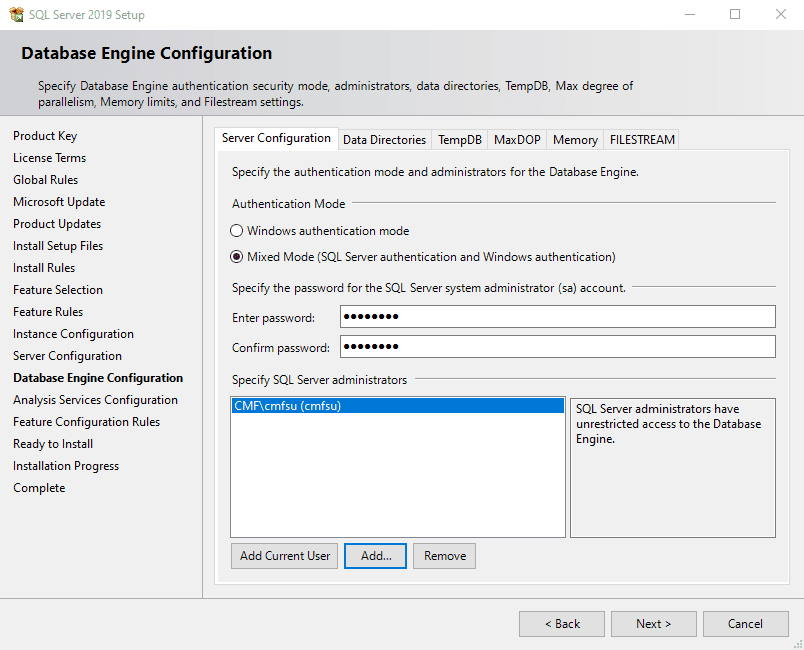
Now configure the data directories. Critical Manufacturing recommends separating the data files and at this moment you should have already prepared the disk drives on all nodes.
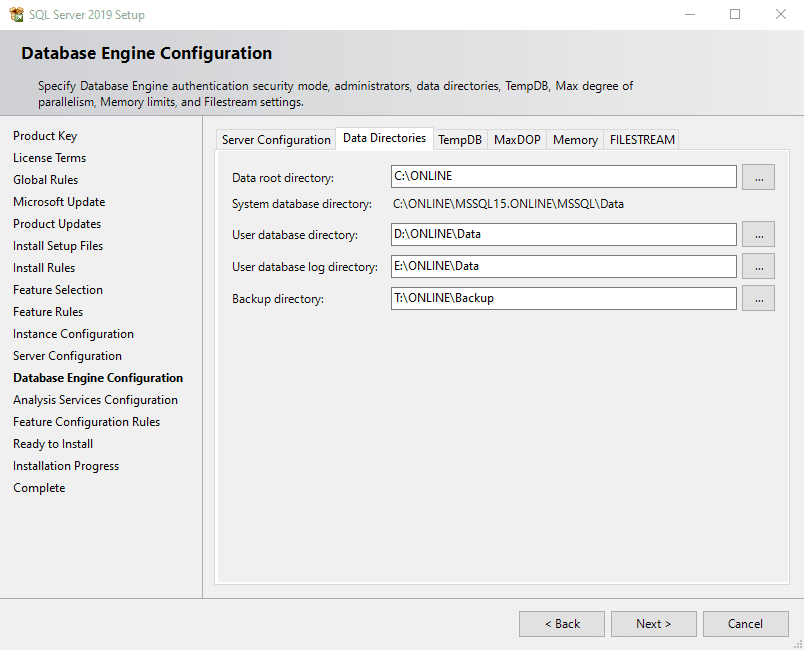
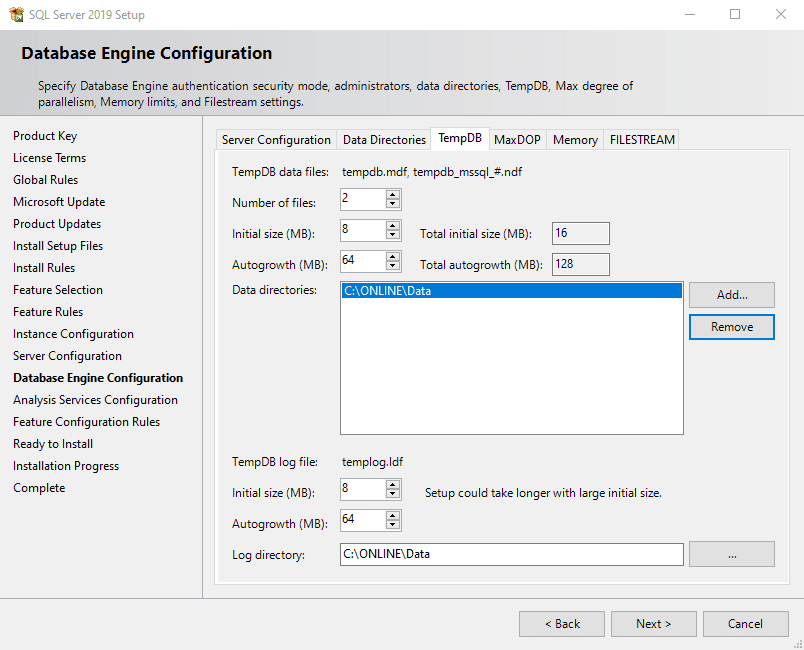
The same recommendation is applicable to the TempDB database.
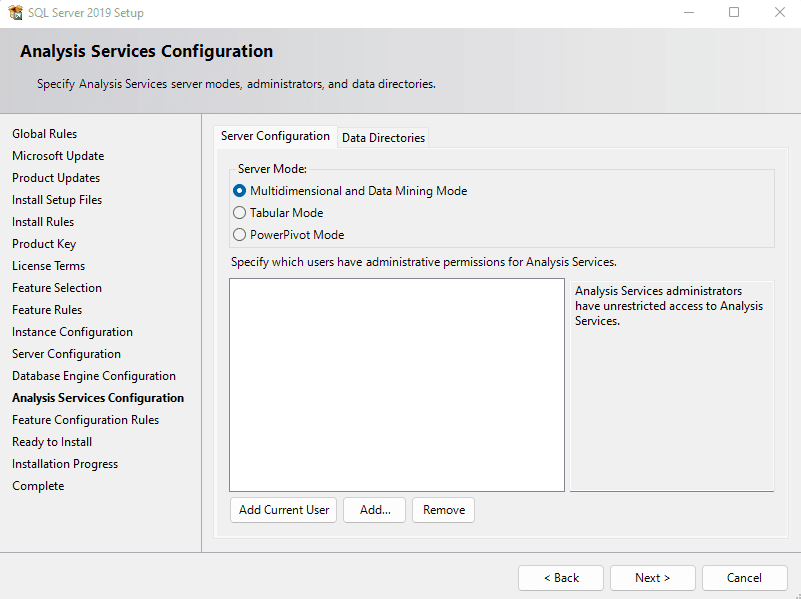
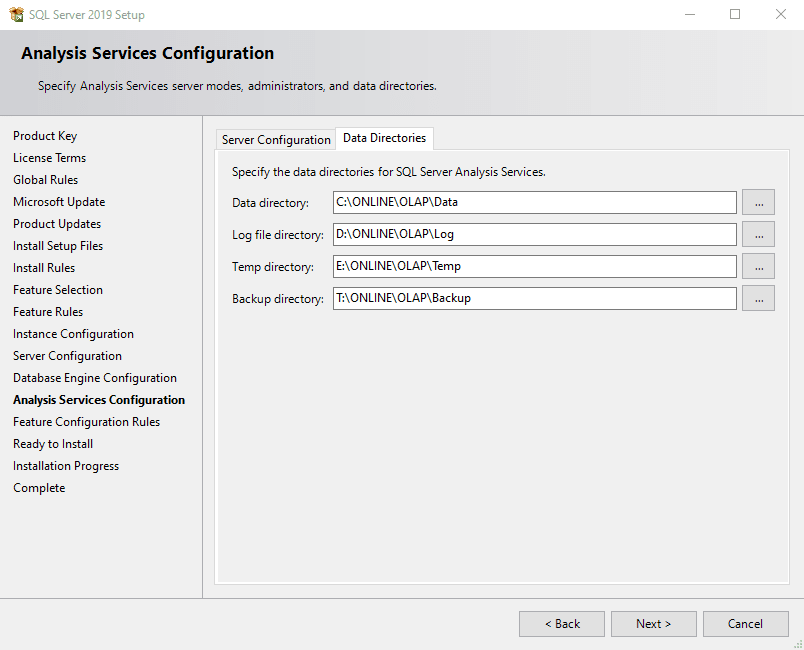
And also to the Analysis Services database files.
!!! note
When installing SQL Server, the Analysis Services must be installed in **Multidimensional** mode.
## SQL Server Reporting Services
SQL Server Reporting Services server installation is performed outside the main SQL Server installation. This guide from Microsoft provides assistance to install this feature: .
### Configuring Reporting Services for Critical Manufacturing
To configure reporting services for Critical Manufacturing in Always On on Availability Groups you need to create the database in its own availability group. Please refer to [this](https://docs.microsoft.com/en-us/sql/database-engine/availability-groups/windows/reporting-services-with-always-on-availability-groups-sql-server?view=sql-server-ver15) Microsoft article for instructions on how to configure reporting server on that scenario.
The following changes should be performed on `ReportServer.Config`.
#### Reporting Services Authentication
!!! warning
Basic authentication is a requirement for container-based installations. For more information on how to enable basic authentication, visit . The host is able to use basic authentication but it must be manually enabled. Otherwise, it should be configured in `ReportServer.Config`:
```xml
```
#### Reporting Services Concurrent Connections
By default Microsoft Reporting Services have the maximum number of requests per user set to 20. Given the nature of our system we recommend this limit to be increased to maximum number of users seeing reports simultaneously. If in doubt, increase it to at least 500.
```xml
```
## Creating Availability Groups in SQL Server
Pre-conditions:
* All database servers have **WSFC** installed;
* All SQL Servers have the **Always On High Availability** for Availability Groups enabled.
The most universal way (in place since the initial versions of SQL Server that support Always On High Availability) to create an Availability Group is as follows.
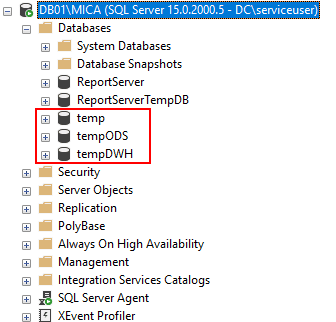
Create a temporary database for each planned Availability Group. If you want to create an Availability Group for Online, ODS and DWH, you need to create 3 temporary databases.
Start by creating a temp, tempODS and tempDWH:
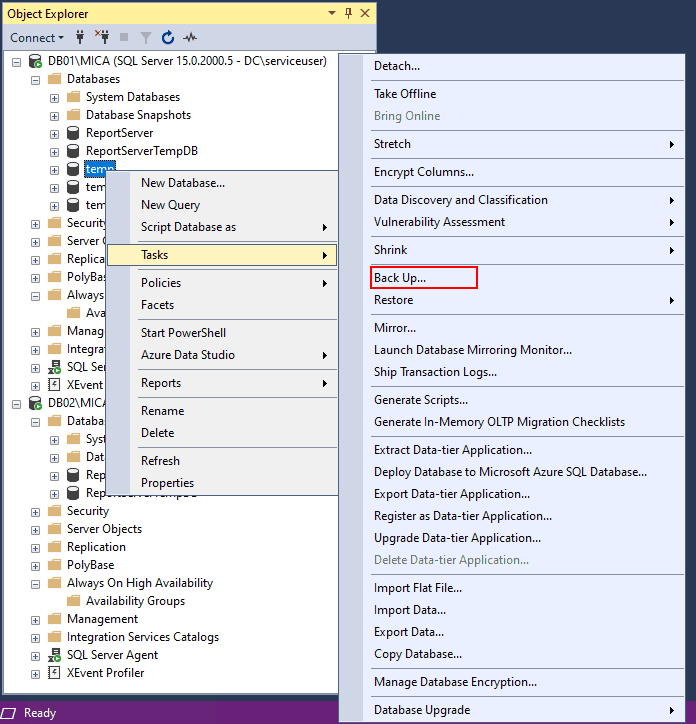
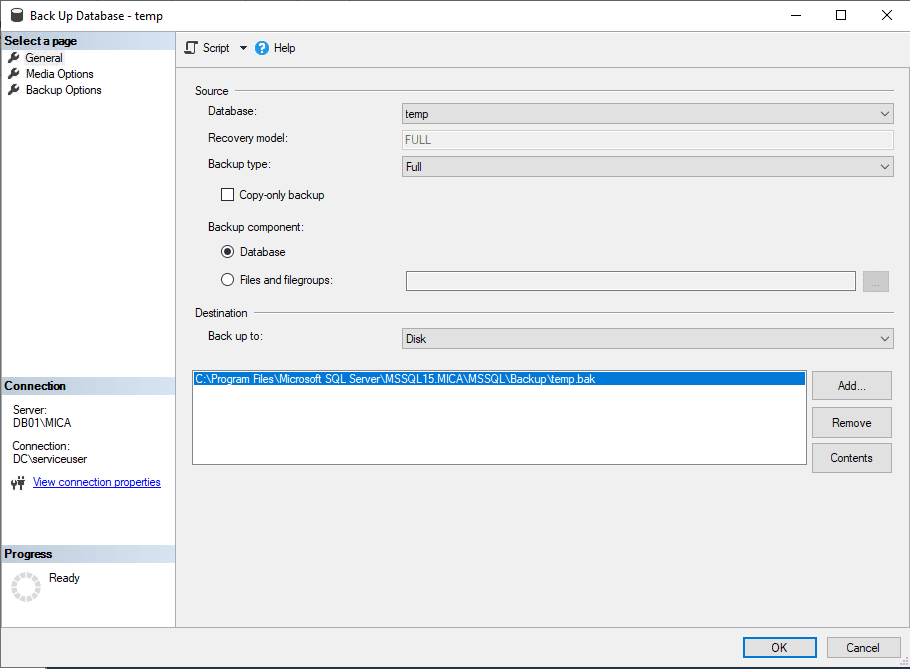
Before creating the Availability Group, you need to perform a full backup of each database:
Then, go to the Always On High Availability folder and right click on it to start the **New Availability Group Wizard**:
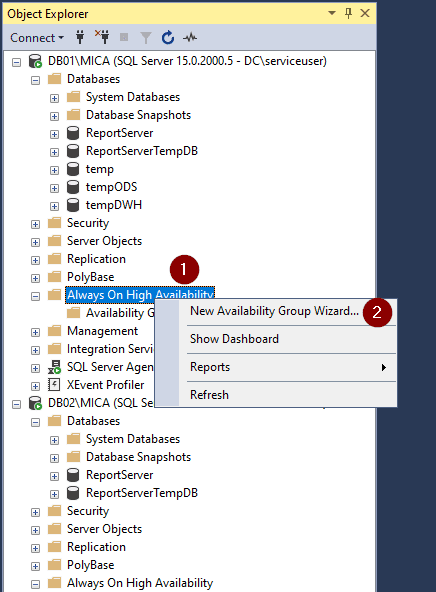
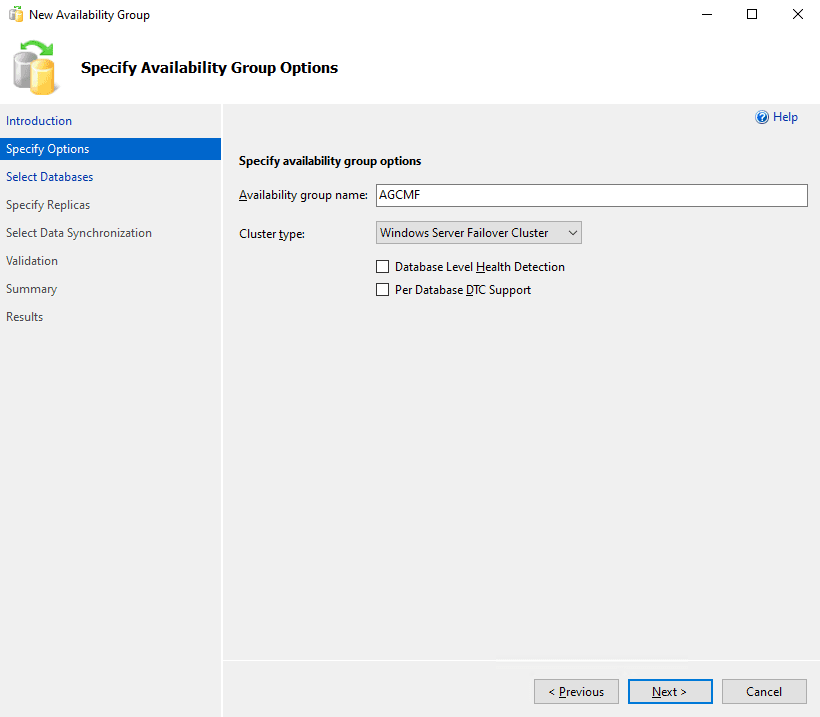
After this you must select the name of the Availability Group. In this case the system will be called `CMF` and three availability groups will be created (Online, ODS and DWH). According to the guidelines, the names will be `AGCMF`, `AGCMFODS` and `AGCMFDWH`:
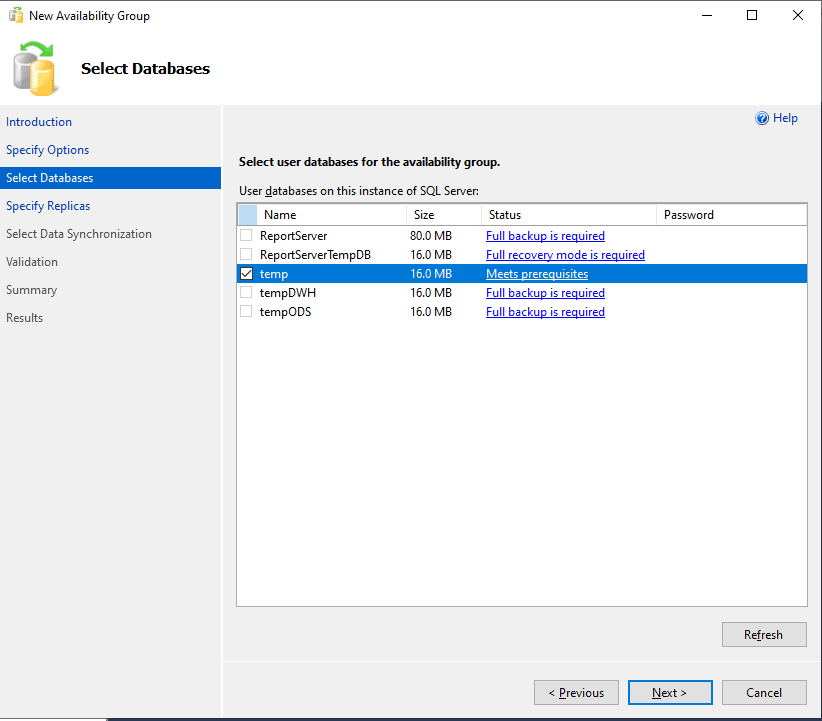
Now select the database that will be associated to this Availability Group:
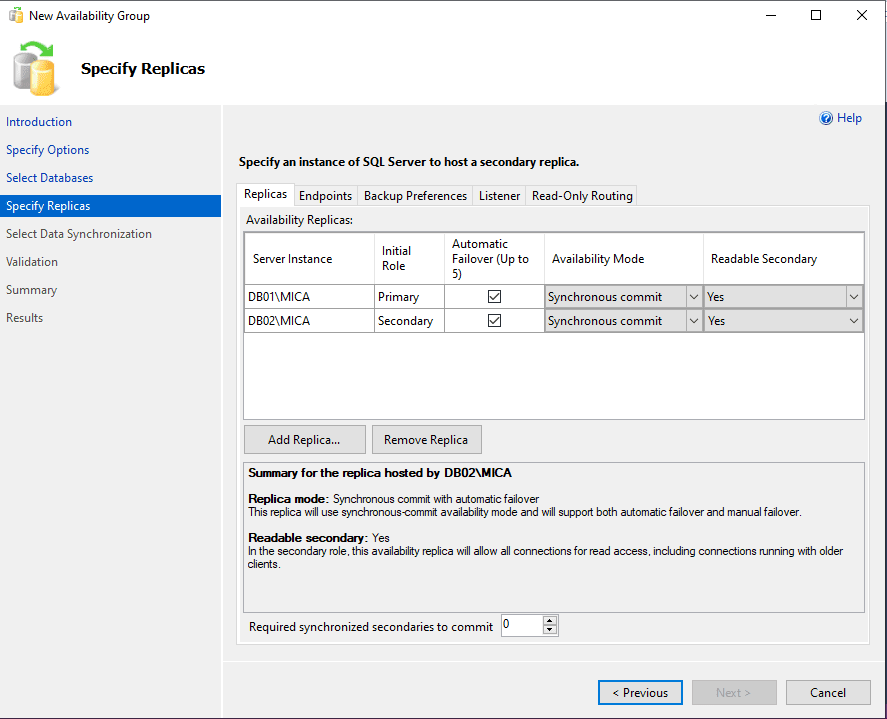
Next set the replicas that you need and set how you want the availability groups to work:
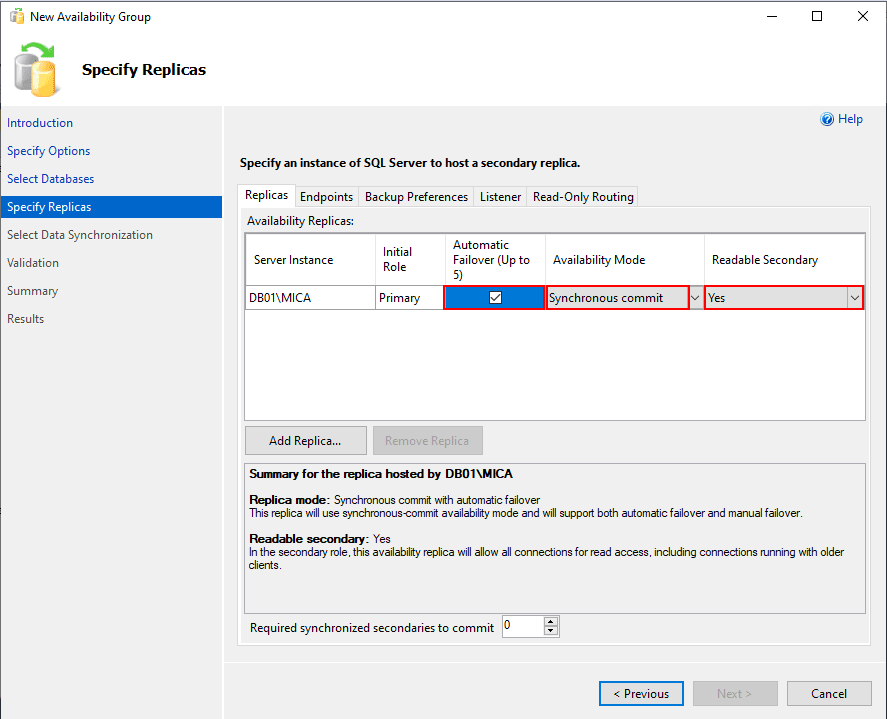
Change the default settings of the original replica and then add a another replica:
It is also possible to create the listeners for each Availability Group. Follow the guidelines and give the listener the same name as the Availability Group. Hence, the listener will be named `AGCMF`:
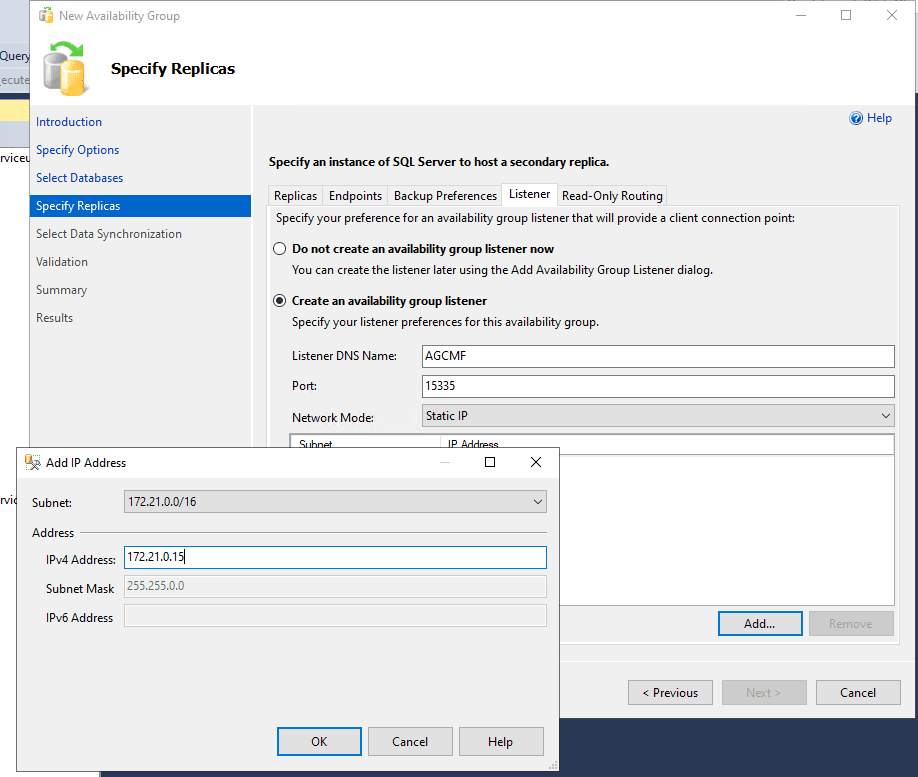
The port and IP Address must be selected according to the available values. Do not forget that the listener will be the **public address** of the Availability Group. Therefore, this will be the value that you will use when preparing the database server in the MES setup:
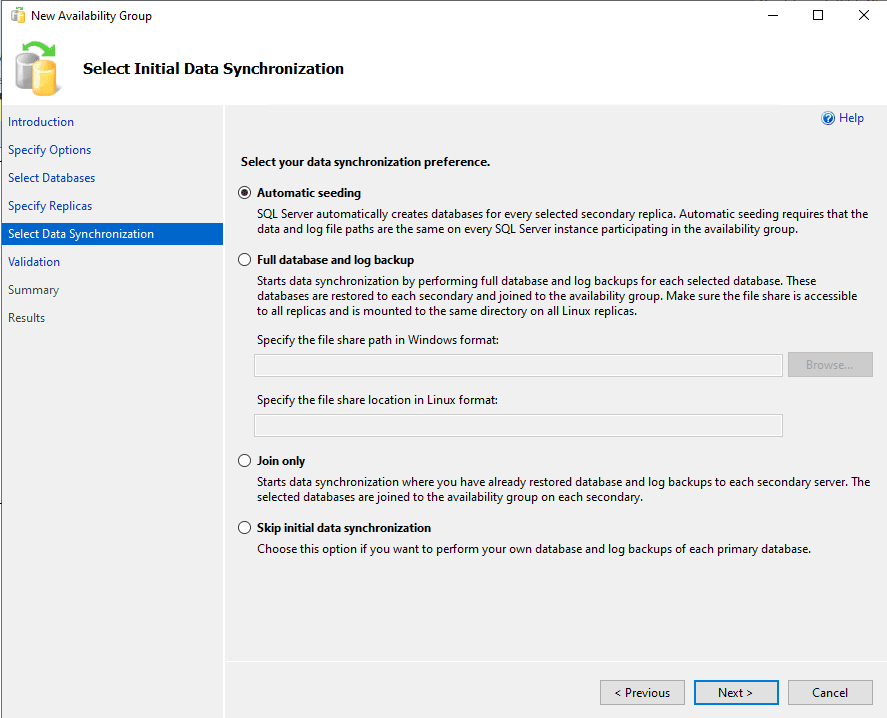
Use **Automatic seeding** as your data synchronization preference because experience has proved it to be the most stable, and it is recommended that all the SQL Server machines directory structure be the same.
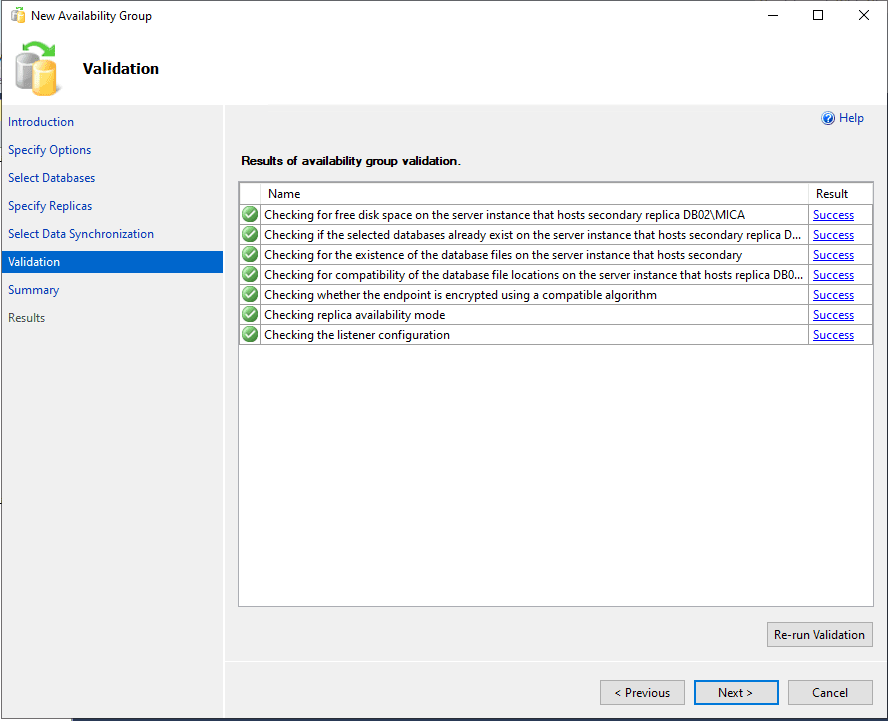
The validation step should have an all green result:
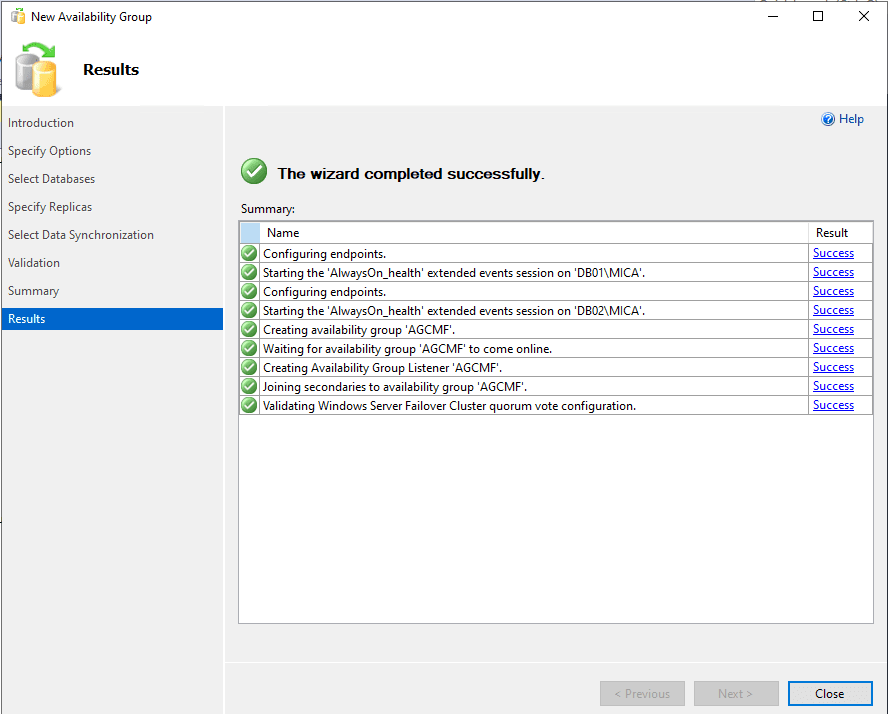
Finally, select **Next** and wait for the creation of the Availability Group. If no problem is found, the successful result will be clear:
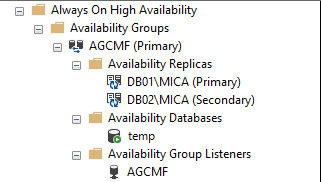
If you now go to the **Availability Groups** folder, you will see the new Availability Groups:
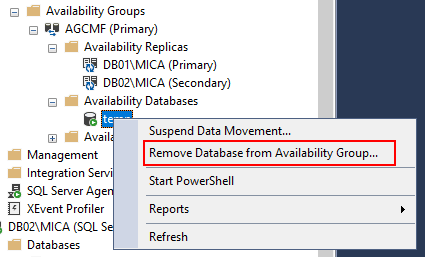
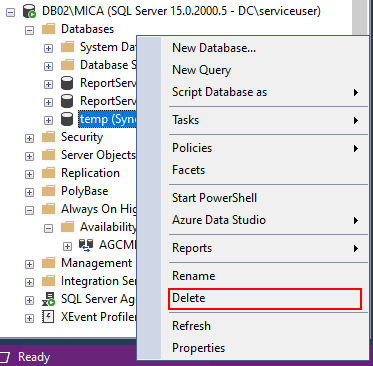
After creating the Availability Group, you can delete the temporary database. First remove the database from the Availability Group:
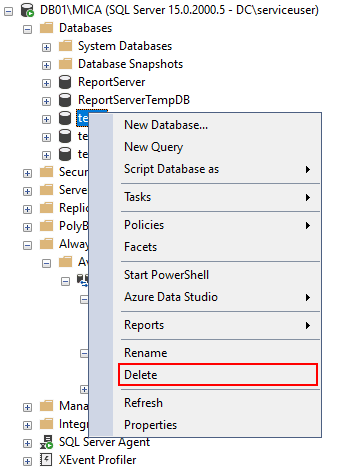
And then delete the database from all the nodes:
!!! note
The secondary database might be in a restoring state. This is not a problem as it is a temporary database:
!!! info
You need to repeat these steps for the other two Availability Groups.
For more information about SQL Server Always On for Availability Groups please refer to [SQL Server AlwaysOn Availability Groups](https://docs.microsoft.com/en-us/sql/database-engine/availability-groups/windows/always-on-availability-groups-sql-server)
## Microsoft Advanced Firewall Configuration
The following inbound ports must be allowed in the database servers for proper operation:
| Port Number | Purpose |
|-------------|----------------------------|
| `1433` | SQL Server Database Engine |
Table: Advanced Firewall Configuration
## SQL Server Installation Advanced Topics
In this section, we present some guidelines and considerations for optimizing SQL Server at the installation phase.
* [Breaking Up SQL Server Databases into Multiple Files](breakingup.md)
* [Database Filegroups and Data Files](databasefilegroups.md)
* [TempDB Database Configuration](tempdbdatabase.md)
* [Storage and RAID Levels](storageraidlevels.md)
* [Recommendations for SQL Server Installation Options](recommendationforsql.md)
## Installing to an Azure managed instance
Critical Manufacturing can use an Azure SQL Managed Instance as the database. This will require having the files located in the actual instance, together with the proper configuration in the installation process.