Tutorial: Material Reprocess#
Estimated time to read: 3 minutes
Objective#
Learn how to configure and execute material reprocess.
Step 1: Configure Reprocess Behavior#
- Go to system configuration
- Under
/SMT/MaterialTracking/ReprocessMaterials/, set:AllowWizardlessReprocessOperationfalse(default): clicking Reprocess opens the wizardtrue: clicking Reprocess executes the operation without the wizard
AllowAutomaticTrackInAtProcessResource- Sets the initial Automatic Track-In at Previous Resource choice (default
true)
- Sets the initial Automatic Track-In at Previous Resource choice (default
Step 2: Configure Reprocess Limits#
- Configure the
SMTReprocessLimitContextSmart Table to define the maximum number of reprocesses allowed
Note
The initial processing pass is not counted. A limit of 0 allows initial processing but blocks any reprocess.
Step 3: Grant Permission#
- Make sure the operator has access to
SMT.PerformMaterialReprocess
Step 4: Select the Material#
- Use one of the following views:
- Material entity page: open the Material
- Resource entity page > Views > Dispatch View: select exactly one Material in the Dispatch List or Materials at Resource
- Step entity page > Views > Step View: select exactly one Material in the Step Materials list
The Material must be in the Queued or Processed state and not be on hold.
Step 5: Start Reprocess#
- Open the entity page view:
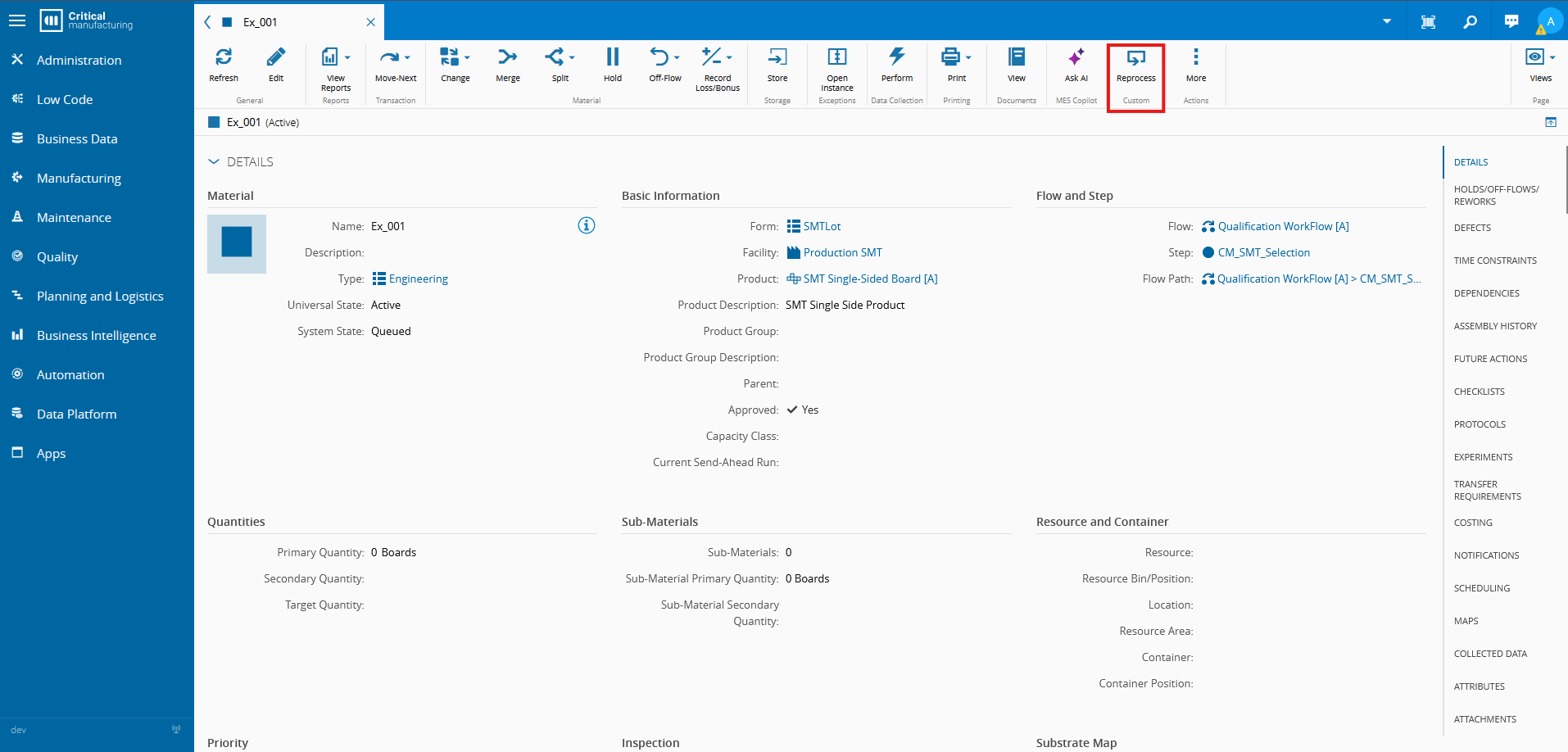
- Click Reprocess in the action bar
- If the wizardless operation is enabled, the operation runs now and the next step is skipped
- If the wizardless operation is disabled, the wizard modal will pop-up
- Click Reprocess in the action bar
Step 6: Review and Finish (Wizard)#
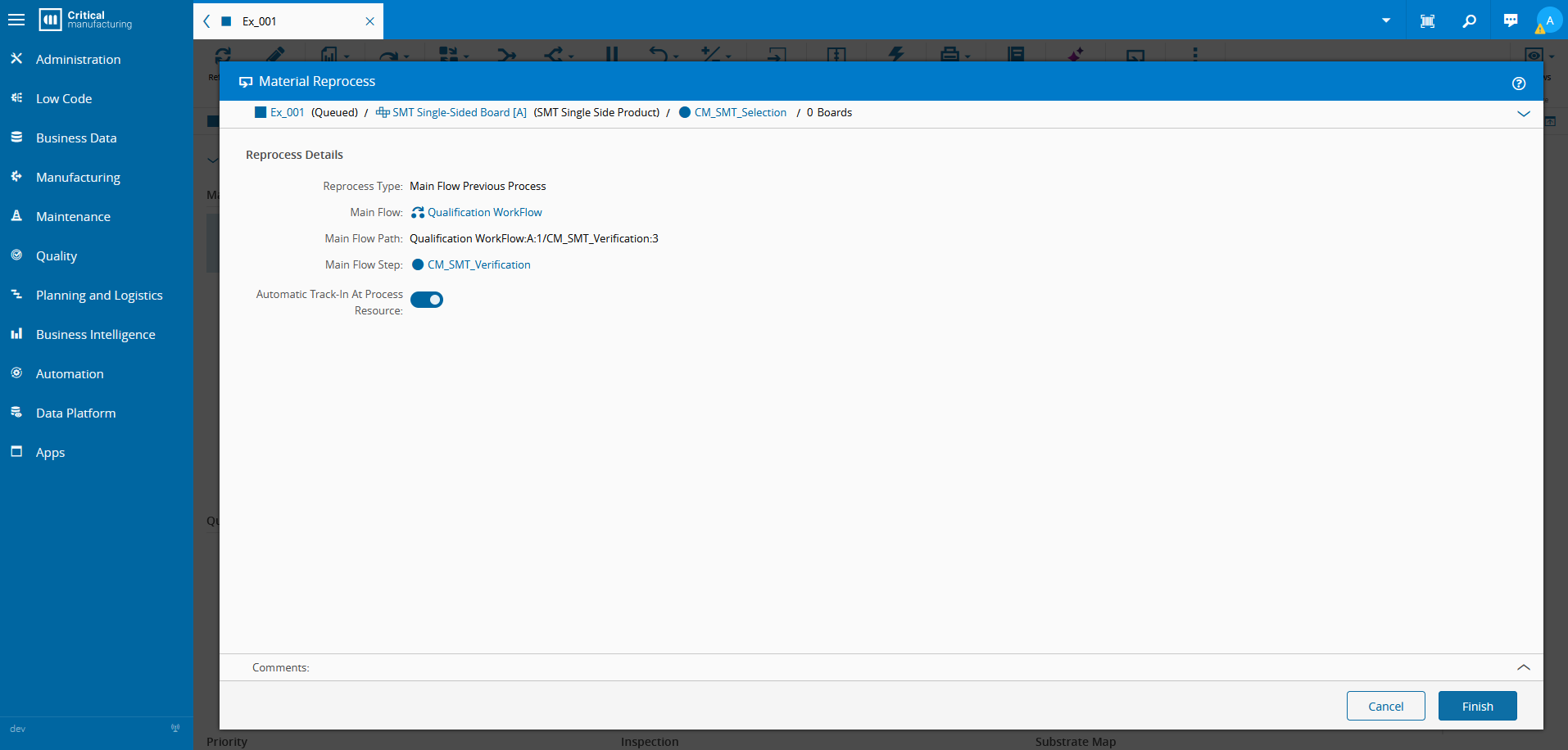
- In the Details step, review the resolved Reprocess Type and routing information
- Set Automatic Track-In At Process Resource as required
- Click Finish
Expected Result#
- The Material is moved to the resolved main-flow or line-flow process
- If Automatic Track-In is enabled, the Material is tracked into the target process Resource
- If Automatic Track-In is disabled, the Material is routed but not tracked-in into the target process Resource
- Success or error feedback is displayed

Frequent Configuration Questions#
Why is the Reprocess action not available?#
Verify the following:
- The operator has access to
SMT.PerformMaterialReprocess. - Exactly one Material is selected.
- The Material state is
QueuedorProcessedand it is not on hold. - The Material complies with the configured reprocess limits.
- The last process Step of the Material is in its current main Flow or main Flow Line Flow.
Why is the wizard not displayed?#
AllowWizardlessReprocessOperation is set to true. Set it to false to display the wizard.
Why can't I change the routing in the wizard?#
The target routing is resolved automatically from the Material's latest execution history and current flow context. Only Automatic Track-In At Process Resource can be changed.
Why was the Material not tracked in after reprocess?#
Check that Automatic Track-In is enabled. If it is enabled, a valid target process Resource must exist, otherwise the operation is rejected with an error.
Why is the Material blocked by the reprocess limit?#
The number of reprocesses allowed in SMTReprocessLimitContext was reached. A limit of 0 blocks all reprocessing at the matched Step.