Scenario 1: Adding Entries During a Shift#
This scenario shows how to confirm automatic logbook creation and add entries with different category and severity levels.
Access the Active Shift Logbook#
- Navigate to Manufacturing > fabExplorer.
- Expand the relevant Area.
- Confirm Shift Logbooks is visible with Resources and Steps.
- Open the active Shift Logbook.
The Shift Logbook name follows this format: AreaName_[Date]_Shift[N].
Add the First Entry#
- Select Add Entry.
- Fill fields with the following sample data.
| Field | Value |
|---|---|
| Title | Production start confirmed |
| Category | Manufacturing |
| Severity | Normal |
| Resource | Leave blank |
| Description | Shift started on time. All production lines operational. No issues at start-up. Team on duty. |
Table: First Shift Logbook entry
- Select Add.
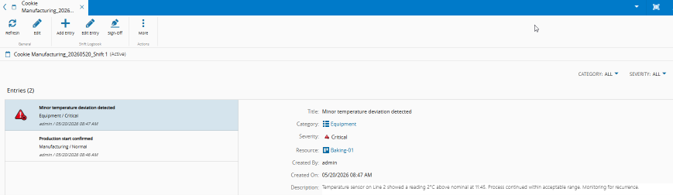
The entry appears with category and severity labels, timestamp, and creator.
Add a Critical Entry Linked to a Resource#
- Select Add Entry.
- Fill fields with the following sample data.
| Field | Value |
|---|---|
| Title | Minor temperature deviation detected |
| Category | Equipment |
| Severity | Critical |
| Resource | Select a resource |
| Description | Temperature sensor on [Resource Name] showed a reading above nominal at 11:45. Process continued within acceptable range. Monitoring for recurrence. |
Table: Second Shift Logbook entry
- Select Add.
Warning
Only the user who created an entry can edit it later with Edit Entry. Other users can view entries but cannot modify another user's entries.