---
pdfexport: true
alias: tutorials-linematerialtracking
timetoread: true
tags:
- unit tracking
tutorial: full
description: "Line Material Tracking guides users through setting up a production line within a manufacturing system, managing material flow, and tracking"
---
# Line Material Tracking
Material Tracking is at the core of any Manufacturing Execution System (MES). A typical plant will have many different types of **Materials** and a variety of **Resources** that may be linked to form a processing line.
As **Materials** change their characteristics during the course of the manufacturing process, capturing the real-time state of **Materials**, and having a clear understanding of what is happening, and how, to **Materials** as they progress from one **Resource** to the next, is essential for production floor operations.
Knowing how to manage and process **Materials** in a Line Resource (**Resource** with Processing Type defined as Line) is at the core of Line Material Tracking and is a critical part of an effective process in the discrete manufacturing sector.
This document will guide you through the setup of a Line and the Material Tracking whilst on it.
## Overview
In the context of this tutorial, a Line consists of a set of linked **Resources** (example: equipment connected through a conveyor belt). Material Tracking throughout a Line differs from the regular Material Tracking, so over the next sections it is explained how to model a production process with a **Resource** that has its Processing Type defined as Line (Line Resource), and how to track a **Material** through it.
The image below shows a Surface Mount Technology (SMT) Line and its individual **Resources**, a practical example of a Line Resource:
![Line Example][LMT_image2]
### Concepts
The table below describes the main concepts related to Line Material Tracking:
| Concept | Description |
|-----|-------|
|**Main Flow** | The Main Flow defines the **Flow** for the Main Material. |
|**Line Step** | The Line Step represents the complete Line Resource set of operations. The Main Material is simply tracked in and tracked out through the Main Step. |
|**Line Flow** | A **Flow** which contains the In Line Steps. |
|**Sub-Step** | A **Step** of the Line Flow. **Sub-Materials** are tracked through the different Sub-Steps. |
|**Service** | A **Service** is a certain process capability that is required by a **Material** for a certain context, and that is provided by **Resources**. When a **Resource** provides the **Service** that is required by the **Material**, the **Material** can be dispatched and processed at that **Resource**. |
|**Sub-Resource** | A physical **Resource** that is used to process **Material** at a Sub-Step. |
|**Line Resource** | A virtual **Resource** which represents the complete line. The Processing Type of this **Resource** must be Line. |
Table: Line Material Tracking main concepts
To link the concepts presented above, the object model is shown in the figure below:
![Line Material Tracking Object Model][LMT_image1]
## Setting up a Line
To track a **Material** through a Line, you need to create not only the Line Resource, but also the **Sub-Resources**, as well as all the Sub-Steps of the Line Flow. The next sub-sections will cover the Line production process configuration steps in more detail.
### Create a Line Flow
The Line Flow describes the sequence of Sub-Steps matching the individual operations performed throughout the **Sub-Resources** of the Line Resource. The Line Flow is intended for **Sub-Materials**. To create a Line Flow, the **Steps** of Processing Type defined as Process (Sub-Steps) must already be created.
The Line Flow must have the Flow Type defined as Line, as shown in the image below:
![Line Flow creation][LMT_image3]
### Create a Main Flow
The Main Flow describes the sequence of high-level **Steps** intended for the Main Material which also includes the Line Step. To create a Main Flow, the Processing Type of the **Steps** must be defined as Process and the Line Flows must already be created.
The Main Flow must have the Flow Type defined as Sequential, Alternate or Non-Sequential Block.
The production **Step** for the Line Resource must be marked as a Line Step and one or more Line Flows must be added to the Line Step, as shown in the image below:
![Line Flow creation][LMT_image4]
!!! info
To track a Material throughout the Sub-Steps, the Line Step must have the Sub-Material Track State Depth set to `1`.
In the Line Step, the Line Flow Context must be defined. This context will determine which Line Flow will be used when tracking in a **Material** in the Line Step, since there may be more than one Line Flow for the same Line Step. The Line Flow Context configuration is shown in the table below:
| Property | Description |
|----|--------|
|**Line Validation Mode** | Defines the point in time when the Line configuration will be validated. The validation is performed for the BOM, Durables, and Recipe.
The following options are available:
- **AtEverySubTrackIn**: each one of the Material Line Flow Resources will be validated at every track-in on a Sub-Resource.
- **AtFirstSubTrackIn**: each one of the Material Line Flow Resources will be validated at the first track-in on a Sub-Resource.
- **AtTrackIn**: each one of the Material Line Flow Resources will be validated at the track-in on the Line Resource.
- **None**: no validation is performed. |
|**Line Assembly Mode** | The Assembly Mode that will be performed for the Top-Most Material in the Line Step.
The following options are available:
- **AutomaticAtTrackIn**: the assembly will be performed at track-in. For the Top-Most Material Primary (or Secondary) Quantity matching the BOM Units, it is automatically consumed for every Step of the Material Line Flow having the BOM Assembly Type defined as AutomaticAtTrackIn, taking the first Resource for every In Line Step.
- **AutomaticAtTrackOut**: the assembly will be performed at track-out. For the Top-Most Material Primary (or Secondary) Quantity matching BOM Units, it is automatically consumed for every Step of the Material Line Flow having BOM Assembly Type defined as AutomaticAtTrackOut, taking the first Resource for every In Line Step.
- **None**: no assembly is performed. |
Table: Line Flow Context properties
### Create a Line Resource
The Line Resource is a virtual **Resource** that represents all the **Sub-Resources** that make up the Line. To create a Line Resource, the **Sub-Resources** of the Line must already be created with the Processing Type defined as Process.
The Line Resource must have the Processing Type defined as Line and the option Enable Sub-Material Tracking must be set to `true`.
In the Manage Resource Structure wizard, the **Sub-Resources** of the Line should be configured, as shown in the image below:
![Manage Resource Structure][LMT_image8]
### Configure the Required Services
A **Resource** provides **Services** and **Materials** require **Services** at a **Step**, as defined by the Service Context. To configure the **Services**, they must already be created in Critical Manufacturing MES with the Processing Type defined as Process.
!!! info
The Sub-Resource must provide the same Service as the one required in the Sub-Step.
!!! info
The Line Resource must provide the same Service as the one required in the Line Step.
The **Service** is configured through the Manage Services wizard found either through the **Resource** or in the **Service** page, as shown in the image below:
![Resource Service Configuration][LMT_image7]
Considering the given SMT Line example and the concepts described so far, the combination of both schemes is shown in the following figure:
![SMT Line Example Modeling][LMT_image5]
Caption:
![SMT Line Example Modeling Caption][LMT_image6]
### Configure the Bill-of-Materials Context
The **Material** consumption for the production of a **Product** (Target Product) in a **Step** is defined through the configured **Bill-of-Materials** (BOM).
The **BOM** must have the Scope defined as Materials and the Units must match the Step Units.
The **BOM** is configured in a **Step** through the Add BOM Context Record wizard, as shown in the image and detailed in the table below:
![Manage BOM Context][LMT_image11]
| Property | Description |
|----|--------|
|**Assembly Type** | How the BOM Materials will be assembled.
The following options are available:
- **AutomaticAtTrackIn**: the Material will automatically be assembled when a Material is tracked in.
- **AutomaticAtTrackOut**: the Material will automatically be assembled when a Material is tracked out.
- **Explicit**: the Material is manually assembled and its quantity is not increased.
- **ExplicitAdd**: the Material is manually assembled and its quantity is increased.
- **ExplicitLongRunning**: the Material total quantity is manually assembled, but you do not have to complete the assemble of all the components.
- **Mixed**: allows different Assembly Type consumptions. |
|**Track-In Check Mode** | Only used for the AutomaticAtTrackOut mode, to check if the required consumables are attached at the Resource. |
Table: BOM Context properties
!!! note
If the Material consumption tracking occurs at the Sub-Steps level, then the BOM should be configured in the Sub-Steps. If the Material consumption tracking occurs at the Line Step level, then the BOM should be configured in the Line Step.
The table below describes how the Line Assembly Mode, as defined in the Line Flow Context, works together with the Assembly Type, as defined in the BOM Context:
| Line Assembly Mode | Assembly Type | Description |
|-----------------------------|-----------------------------|----------------------------------|
| **AutomaticAtTrackIn** | **AutomaticAtTrackIn** | Assembly will be automatically performed at the Top-Most Material track-in, for all the In Line Steps having AutomaticAtTrackIn Assembly Type configured at the BOM Context. |
| **AutomaticAtTrackIn** | **AutomaticAtTrackOut, Explicit or ExplicitAdd** | No automatic assembly is performed at the Top-Most Material track-in. |
| **AutomaticAtTrackOut** | **AutomaticAtTrackOut** | Assembly will be automatically performed at the Top-Most Material track-out, for all the In Line Steps having AutomaticAtTrackOut Assembly Type configured at the BOM Context. |
| **AutomaticAtTrackOut** | **AutomaticAtTrackIn, Explicit or ExplicitAdd** | No automatic assembly is performed at the Top-Most Material track-out. |
| **Explicit or ExplicitAdd** | **AutomaticAtTrackIn, AutomaticAtTrackOut, Explicit or ExplicitAdd** | No automatic assembly is performed. |
Table: Line Resource Material consumption
![Consumable Feeds Configuration][LMT_image10]
### Configure the Durables Context
The **Durables** required in a **Step** are defined through the configured Bill-of-Durables.
The **BOM** must have the Scope defined as Durables.
The BOM Items are configured through the Manage BOM Items wizard of the **BOM**, as described in the table below:
| Property | Description |
|----|--------|
|**Product** | Durable Product. |
|**Step** | Step in which the Material of the Durable Product is found, if filled. |
|**Position** | Position where the Durable must be found in the Resource. |
|**Optional** | If set to `true`, the Durable must be present in the Resource when tracking in the Material. |
|**Usage Step** | Step in which the Durable is required. |
Table: Manage BOM Items properties
The **BOM** is configured in a **Step** through the Add Durables Context Record wizard, as shown in the image below:
![Manage Durables Context][LMT_image12]
### Configure the Recipe Context
To process a **Material** in a **Step**, and if a **Recipe** is needed in the Line Flow, this **Recipe** must exist and be added in the Recipe Context. At the **Resource** level, the property Recipe Management Enabled must be `true`.
The **Recipe** is defined through the Add Recipe Context Record(s) wizard, as shown in the image below:
![Manage Recipe Context][LMT_image14]
### Configure the Checklist Context
If a **Checklist** is required the necessary context information must be defined.
The **Checklist** is defined through the Add Checklist Context Record(s) wizard, as shown in the image below:
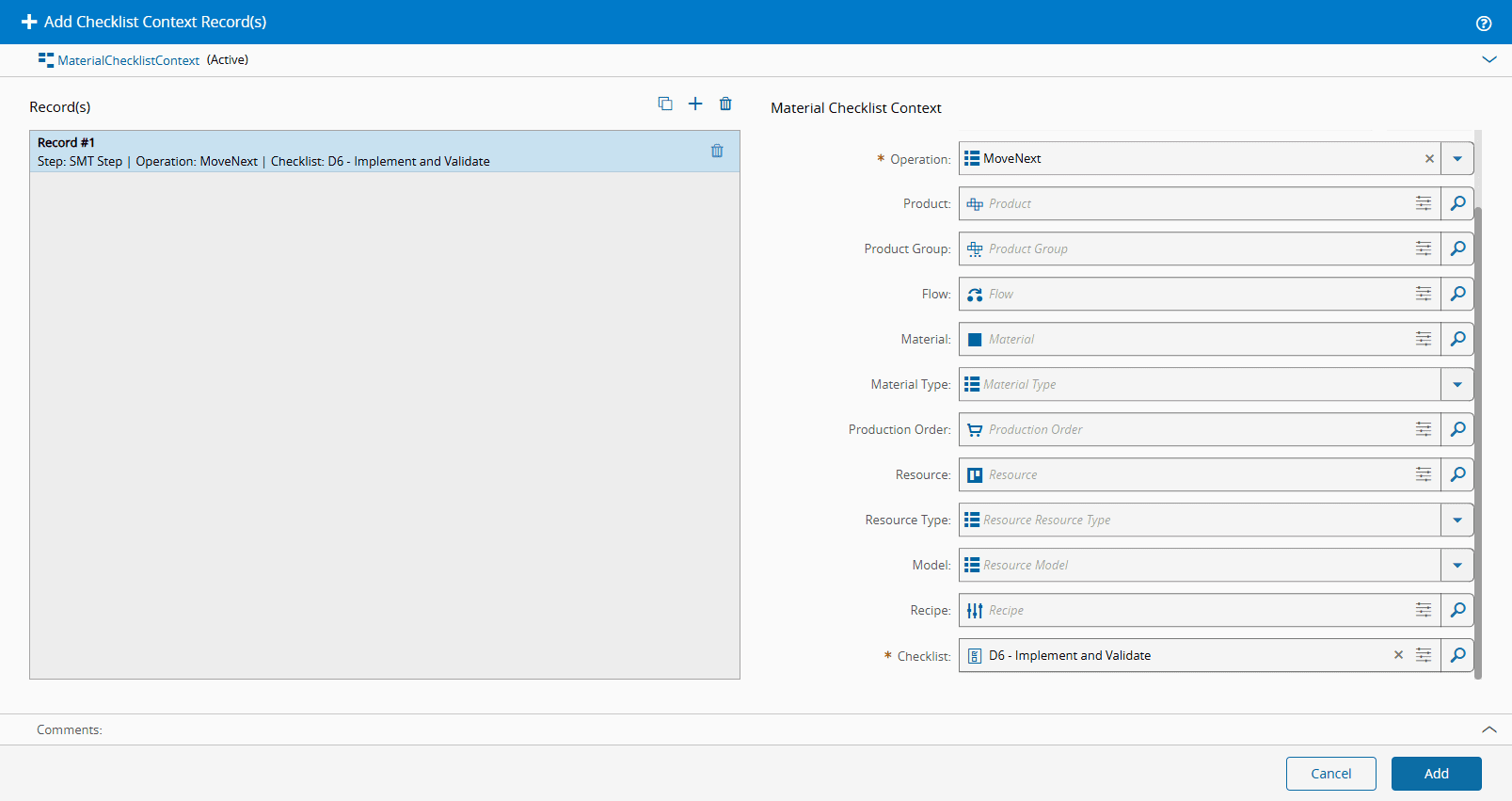
### Line Context Resolution and Validation
The Line Flow Context resolution is performed when tracking in the Main Material in the Line Step. At this moment, the Line Flow for the **Sub-Materials** is selected.
For the Line Step, the **Recipe**, **Durables**, **BOM**, **Data Collections**, **Documents**, and **Checklists** are resolved normally for the Main Material and the **Recipe** and **BOM** of Durables Instances are created for the Main Material.
At the same time, for the Sub-Steps, the **Recipe**, **Durables**, **BOM**, and **Data Collections** are resolved always using the Main Material in the Context resolution. Any **Recipe** and **BOM** of Durables Instances are created at this time and will be applied for all the **Sub-Materials** when tracking through the Sub-Steps.
The validation of **Durables** and **Consumable Feeds** required throughout the Line Flow is performed depending on the defined Line Validation Mode.
## Using a Line
Before tracking in a **Material** in a Line Resource, it is necessary to set up the Line. Depending on the Line configuration, there are validations regarding the Line **Durables**, **Consumables**, and **Recipe Parameters** definition.
### Perform Setup
The Line set up information can be accessed in the View Setup wizard. This is available in the Resource View of the **Resource**, with the Processing Type defined as Line, by selecting the **Material** to be tracked in, as shown in the image below:
![View Setup for Material at Resource][LMT_image15a]
The View Setup For Material at Resource wizard will display the available information in each of its tabs:
![View Setup for Material at Resource][LMT_image15]
Taking an example of a Line Resource with the Line Validation Mode defined as At Track In, all the Line Sub-Resources will be validated, at Track-In, regarding:
- The **Durables** required through the different Line Sub-Steps that must be attached to the **Sub-Resources** Position as defined in the BOM of Durables, as shown in the image below.
- The **Consumables** required throughout the Line Sub-Steps that must be attached to the **Sub-Resources** Consumable Feeds Position as defined in the **BOM**.
![BOM of Durables][LMT_image16]
### Track-In a Material
At track in, information on **Durables**, **BOM**, and **Recipe** is displayed for the entire Line and Line Sub-Resources. For the Line Resource **Recipe**, the Recipe Parameters can be filled and edited, as shown in the image below:
![View Setup Recipe][LMT_image17]
When tracking in the Main Material in the Line Step, the Flow Path of the **Sub-Materials** is defined and the **Sub-Materials** are moved to the first Sub-Step of the resolved Line Flow.
!!! note
It is not possible to Track-in the Material if the BOM associated has Use Mixed Assembly enabled and the Material is in a Line Step.
If the Line Step has the Sub-Material Track State Depth set to `1`, then the **Sub-Materials** can be tracked in, as shown in the image below.
The Assembly in the Sub-Steps may be performed when tracking in the Main Material, depending on the defined Line Assembly Mode:
![Sub-Material track-in][LMT_image18]
The **Sub-Materials** can be tracked in and tracked out in the **Sub-Resources** through the Line Resource or Line Step Views, as shown in the image below:
![Sub-Material track-in for the Resource view][LMT_image21]
!!! info
When configured, a Checklist will be resolved and displayed considering the Material Line Step Resource and Material Line Step Recipe contexts for Track-In.
### Material Information
After tracking in a **Material** in a Line Resource, the processing information regarding the **Sub-Steps**, **Sub-Resources**, **Durables**, **BOMs**, and **Recipes** of the **Sub-Material** throughout the Line Flow can be viewed in the View Line Setup wizard, as shown in the images below:
![View Line Setup][LMT_image19]
The View Line Setup wizard will display the available information in each of its tabs:
![View Line Setupa][LMT_image19a]
!!! info
This view can be accessed through the Resource View page.
### Record Material Losses
To record losses on **Sub-Materials**, you can select the **Sub-Material** and open the Record Material Los/Bonus wizard, or you can select the Top-Most **Material** and opening the Record Sub-Material Losses wizard, as shown in the image below:
![Record Sub-Material Losses wizard][LMT_image22]
!!! note
For both wizards, the Loss/Bonus Reasons available for selection are the ones defined in the current Sub-Material Step.
#### Losses with Loss Step Considerations
When trying to record losses with a Loss Step, you need to know that for the loss to be considered for analytical purposes (such as the Resource and Material Cubes, the Yield, Rate of Quality, and OEE KPIs), then the **Material** where the losses are being recorded must have been processed at the Loss Step.
When attempting to set up this scenario for a Line Step, containing a Line Flow, the following practical considerations are needed:
- The Loss Step must be set according to the hierarchy of the **Material** where the Loss is being recorded:
- If the **Material** is the Top-Most Material, which was processed in the Line Step itself, then the Loss Step should the part of the Line Step.
- If the **Material** is a **Sub-Material**, which was processed in the **Steps** of the Line Flow, then the Loss Step should be one of the **Steps** of the Line Flow. Alternatively, it can also be collapsed into the Top-Most Material, and then the loss can be recorded with the Loss Step being the Line Step - consider that, in this last case, the loss will not be traceable to the **Sub-Material**.
- If a Split is required between the Line Step and the Step where the Loss is recorded, then the quantity where the Loss will be recorded must be kept in a **Material** which has been processed in the Loss Step. This means that:
- If the Loss is in the Top-Most Material, there are two options:
- The Split occurs when the Original Material (the **Material** that is being split) is in the Line Step, in state In Process or Processed, and the Loss is given in the New Material, that is, the **Material** created during the split.
- The Loss is given in the Original Material directly.
- If the Loss is in the **Sub-Material**, there are two options:
- The Split occurs while the **Sub-Material** has not yet reached the Loss Step in the Line Flow - in this case, the Top-Most Material may be split, with the **Sub-Material** being transferred to the new Top-Most Material.
- The Loss is given in the **Sub-Material** while its Top-Most Material is the Original Material, that is, the **Material** that was processed in the Line Step.
### Track-Out Material
The Main Material can be tracked out, as shown in the image below, if the **Step** has the Sub-Material Track State Depth set to `1`, and after all the **Sub-Materials** are processed in the last Sub-Step. If the **Step** has the Sub-Material Track State Depth set to `0`, it is possible to track out the Main Material immediately after it has been tracked in.
The Assembly in the Sub-Steps may be performed when tracking out the Main Material, depending on the defined Line Assembly Mode.
![Material track-out][LMT_image20]
!!! info
When configured, a Checklist will be resolved and displayed considering the Material Line Step Resource and Material Line Step Recipe contexts for Track-Out.
[LMT_image1]: ../../images/LMT_image1.png
[LMT_image2]: ../../images/LMT_image2.png
[LMT_image3]: ../../images/LMT_image3.png
[LMT_image4]: ../../images/LMT_image4.png
[LMT_image5]: ../../images/LMT_image5.png
[LMT_image6]: ../../images/LMT_image6.png
[LMT_image7]: ../../images/LMT_image7.png
[LMT_image8]: ../../images/LMT_image8.png
[LMT_image10]: ../../images/LMT_image10.png
[LMT_image11]: ../../images/LMT_image11.png
[LMT_image12]: ../../images/LMT_image12.png
[LMT_image14]: ../../images/LMT_image14.png
[LMT_image15a]: ../../images/LMT_image15a.png
[LMT_image15]: ../../images/LMT_image15.png
[LMT_image16]: ../../images/LMT_image16.png
[LMT_image17]: ../../images/LMT_image17.png
[LMT_image18]: ../../images/LMT_image18.png
[LMT_image19]: ../../images/LMT_image19.png
[LMT_image19a]: ../../images/LMT_image19a.png
[LMT_image20]: ../../images/LMT_image20.png
[LMT_image21]: ../../images/LMT_image21.png
[LMT_image22]: ../../images/LMT_image22.png