Hold Reason#
A Hold Reason temporarily stops a Material from progressing through the manufacturing process. When a Material is on hold, it cannot move between Steps or Resources, and the system restricts most operations.
Use Hold Reasons for situations such as:
- Quality investigations
- Pending inspection results
- Engineering review
- Equipment calibration issues
- Customer requests
- Regulatory compliance
Warning
When a material is on hold:
- It cannot move into or out of a Step or Resource.
- It cannot continue normal manufacturing operations.
- It cannot be consumed.
- It can be released when the hold condition is resolved.
- Its sub-materials are also placed on hold when the parent material is held.
Configure a Hold Reason#
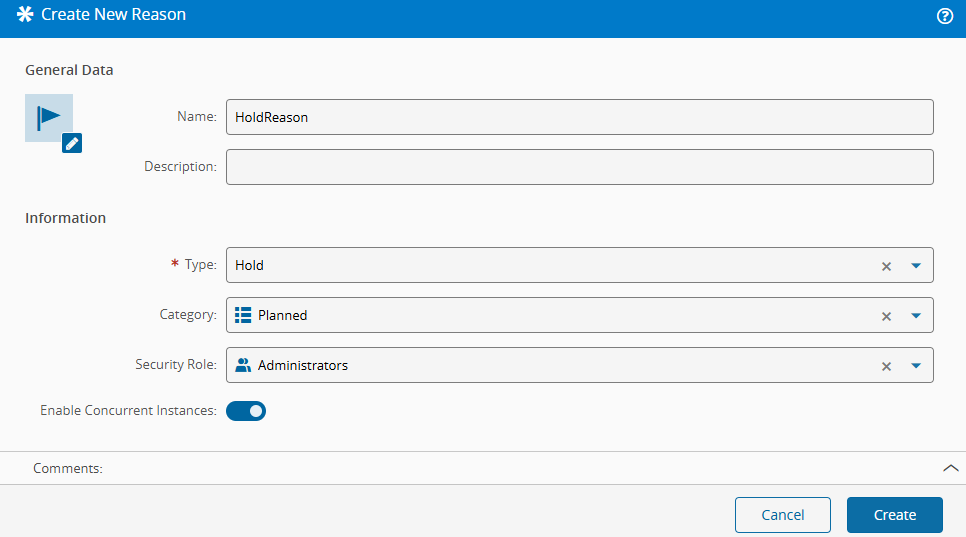
- Open the Reason module and create a new Reason.
- Enter a name for the Hold Reason.
- Select the Hold type.
- Optionally select a category from ReasonCategory.
- Optionally select a security Role. That Role restricts who can release Materials held for this Reason.
- Enable Concurrent Instances if the same Reason should be applied multiple times to the same Material.
-
Optionally define the distribution list and select Create.
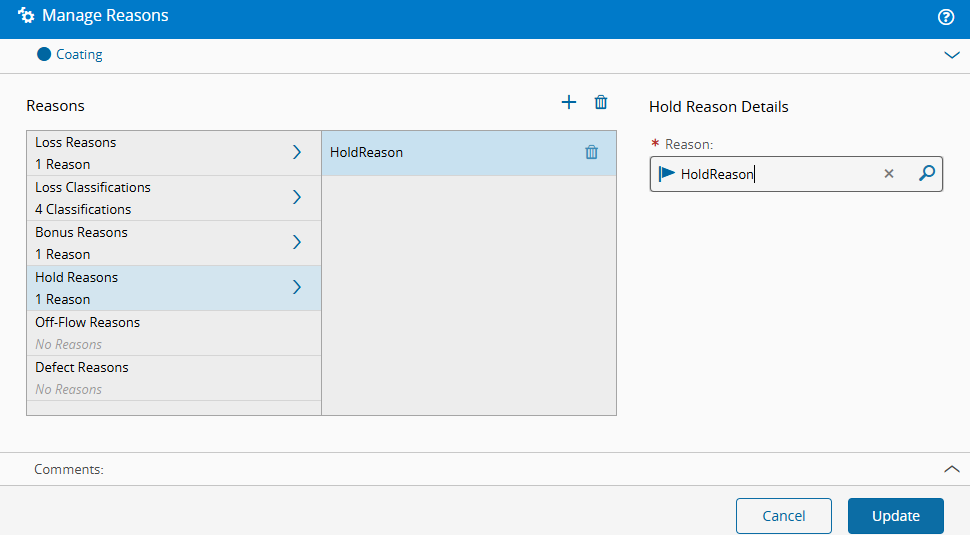
Assign the Hold Reason to the Coating Step.
Scenario 1: Hold a Single Material#
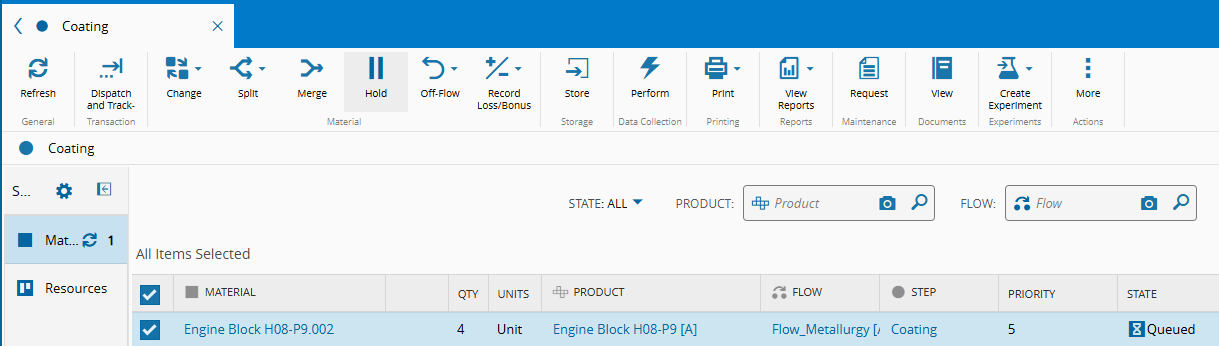
- Open the
CoatingStep view and select theEngine Block H08-P9.002Material. -
Select Hold.
-
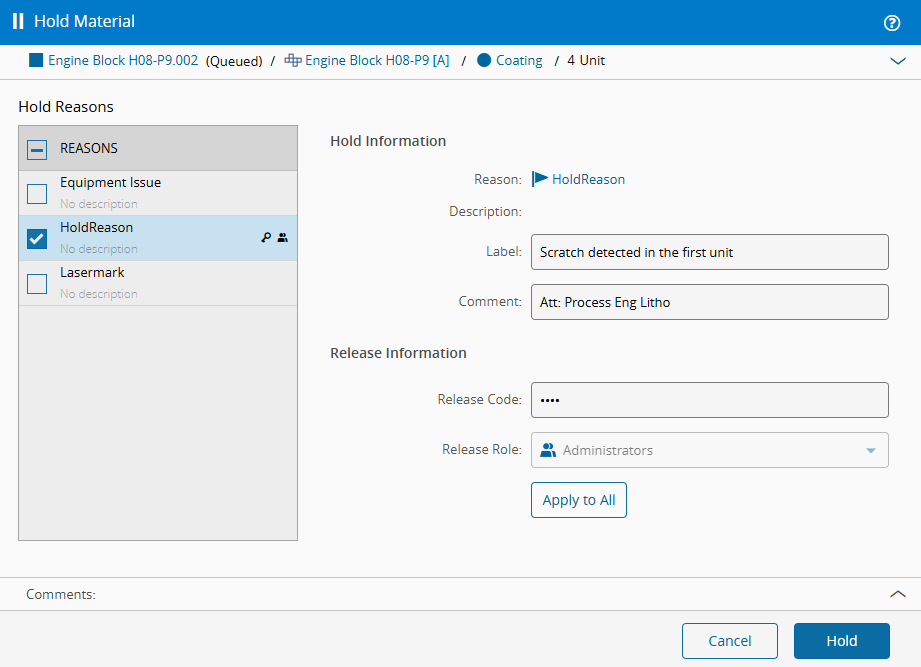
Select the Hold Reason and, if needed, enter a label, a comment, and a release code.
-
Confirm that the Release Role is filled automatically from the reason configuration, then select Hold.
-
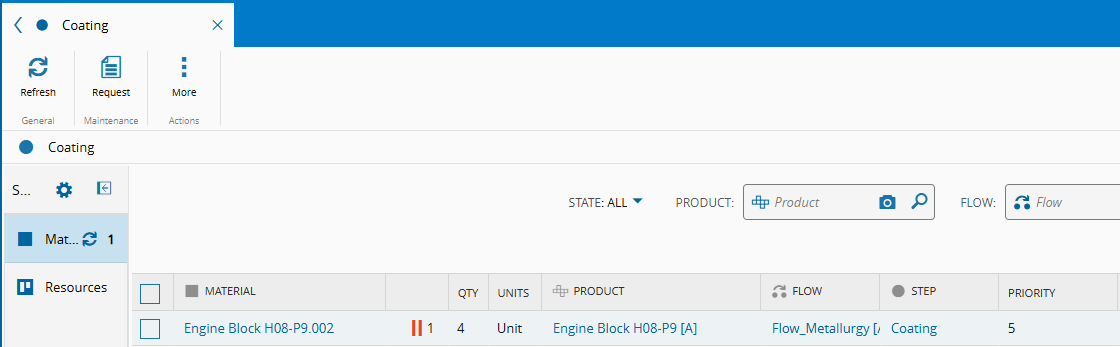
Confirm that the Material shows the hold icon in the Step view.
-
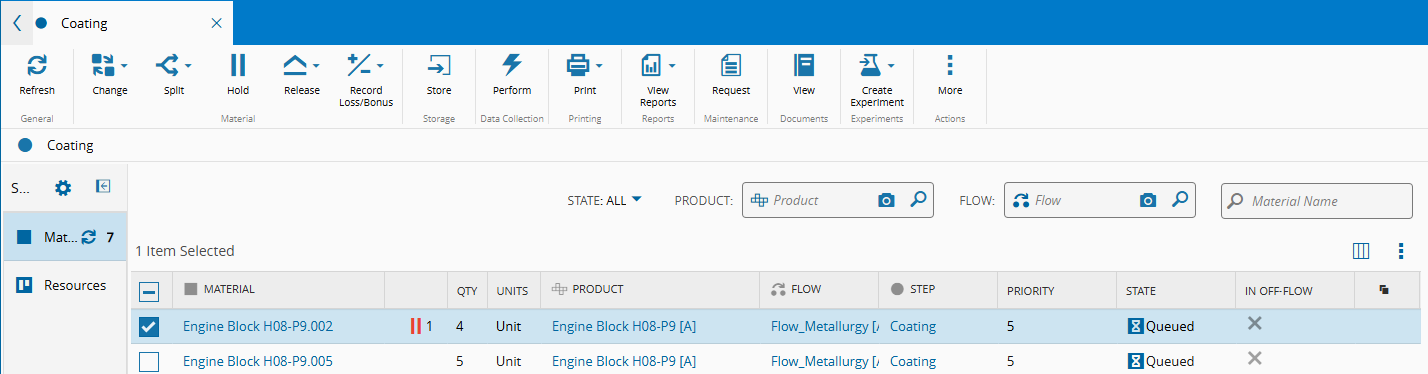
Select the same Material and choose Release.
-
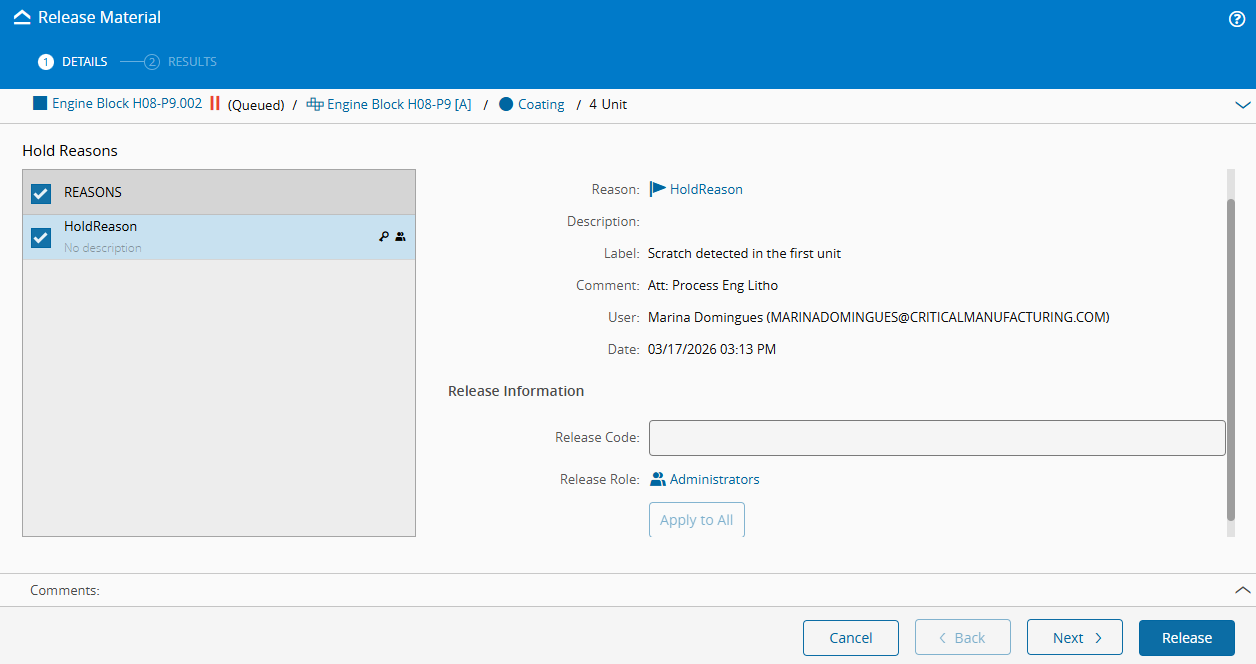
Try to release the Material without entering the release code.
-
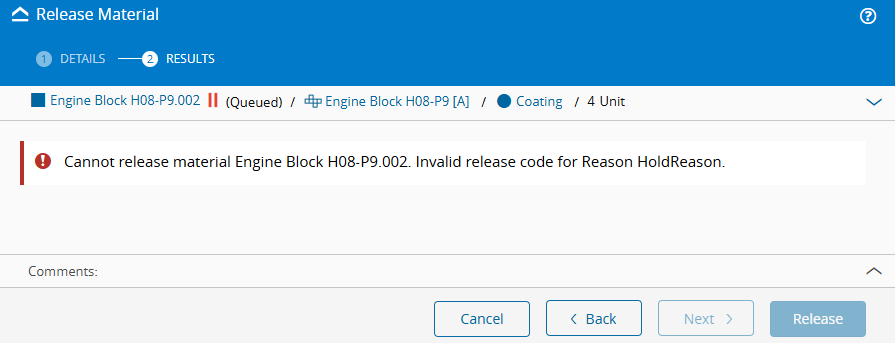
Confirm that the system shows an error.
-
Go back, enter the release code used during the hold action, and release the Material.
You can also release the Material without the code if you have access to Special Release.
Scenario 2: Hold Multiple Materials#
-
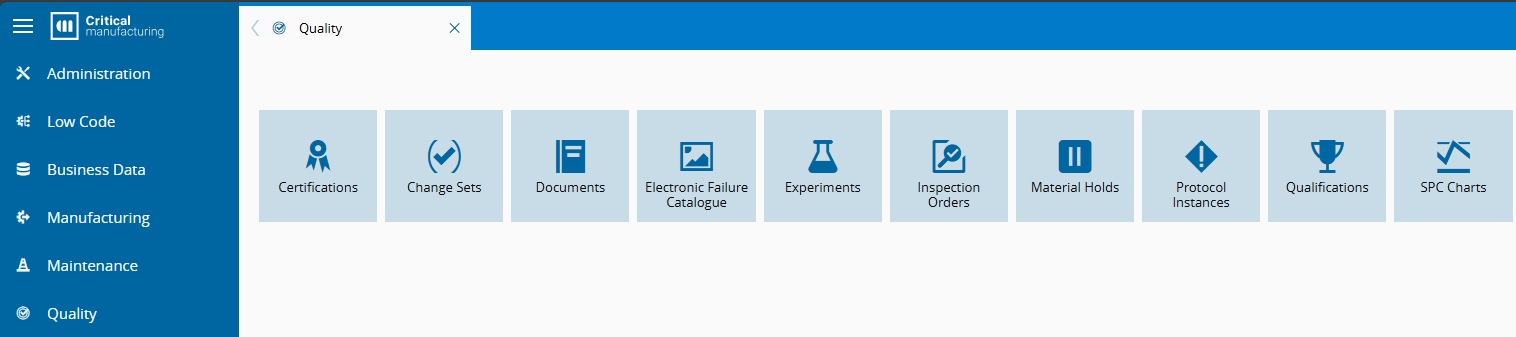
Go to Quality > Material Holds.
-
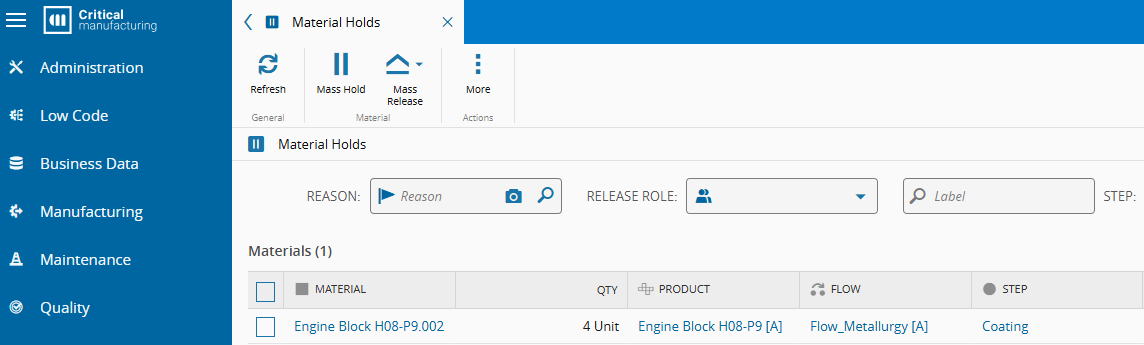
Select Mass Hold.
-
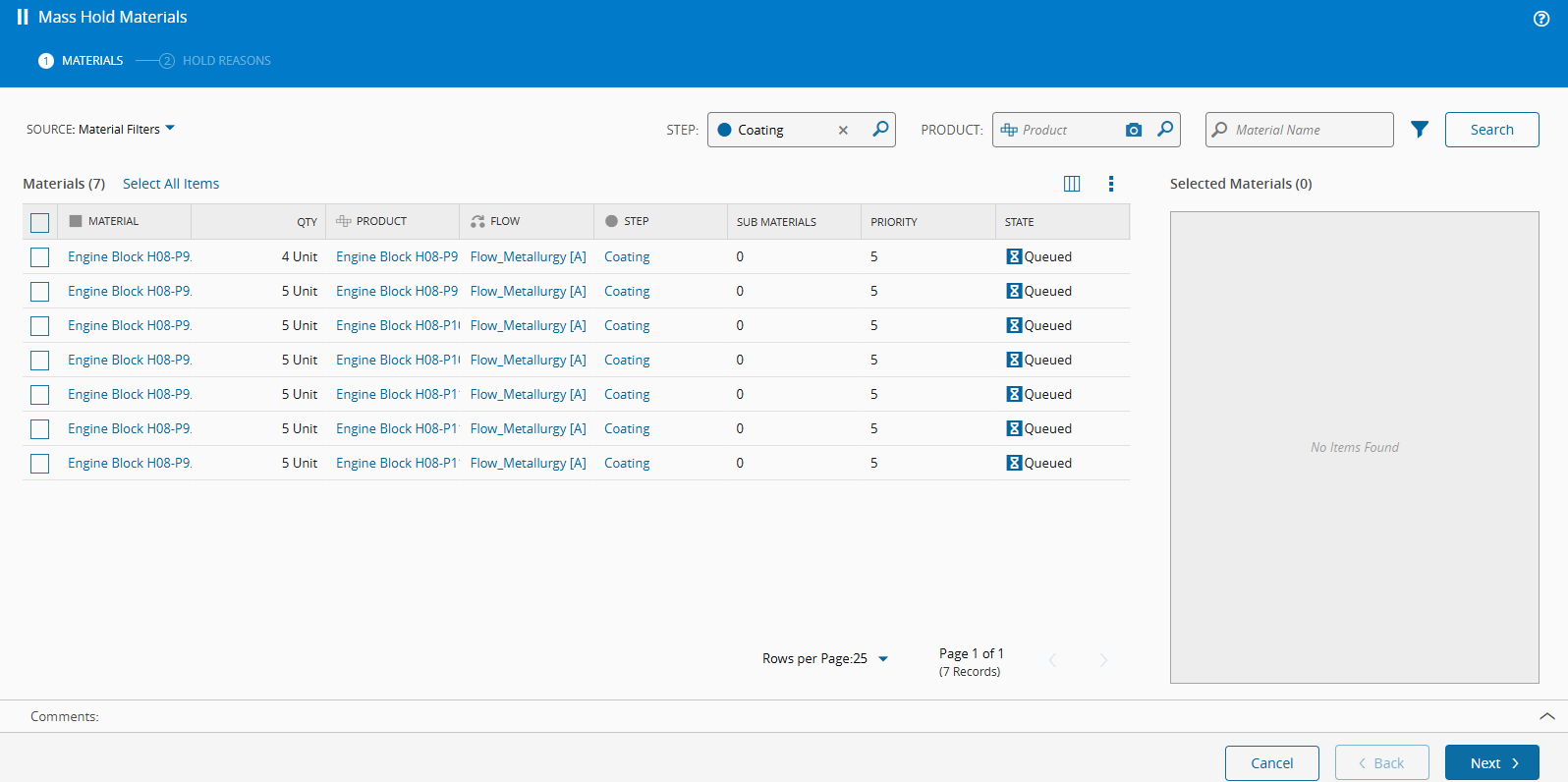
Use the standard filters, or use the Source filter, and select Search.
-
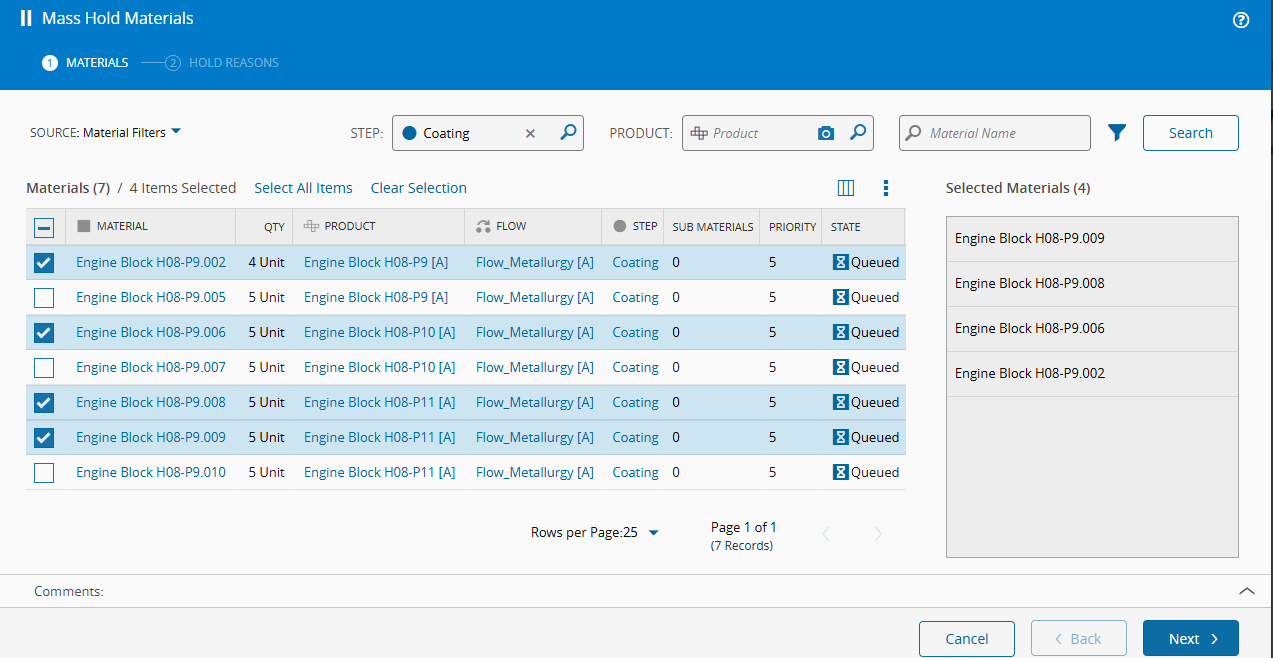
Select several Materials and choose Next.
Materials can belong to different Steps, Flows, Products, or POs, but all involved Steps must have the same Hold Reason assigned.
-
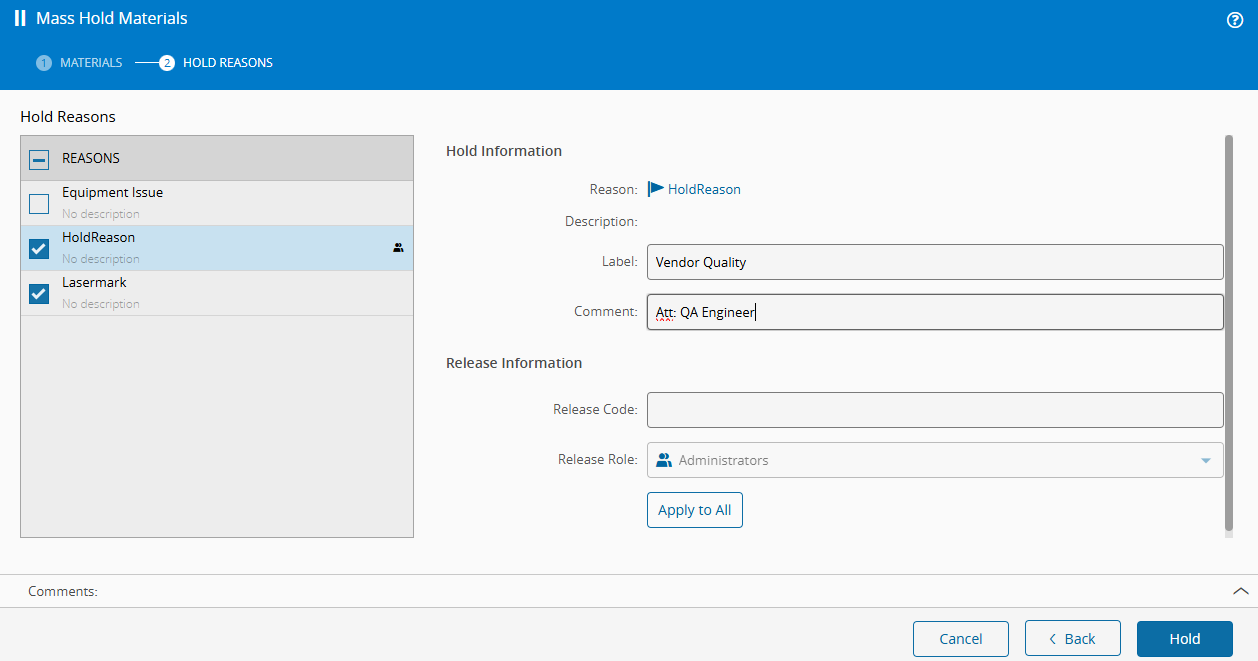
Select one or more reasons and, if needed, enter a label, a comment, and a release code.
-
Confirm that the Release Role is filled automatically, then select Hold.
-
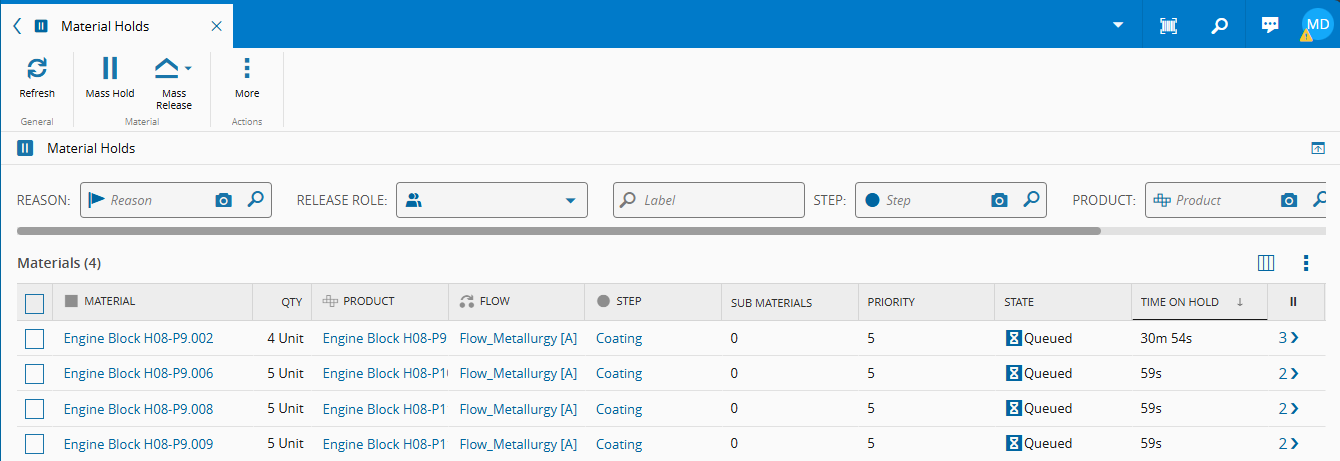
Confirm that the held lots appear in the grid.
-
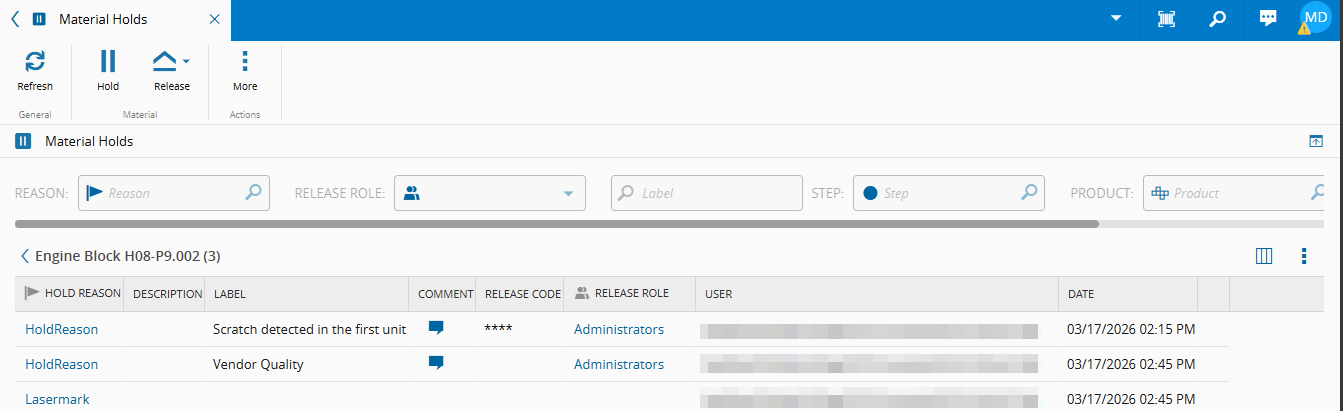
Review the last column to see how many Hold Reasons are assigned to each Material.
-
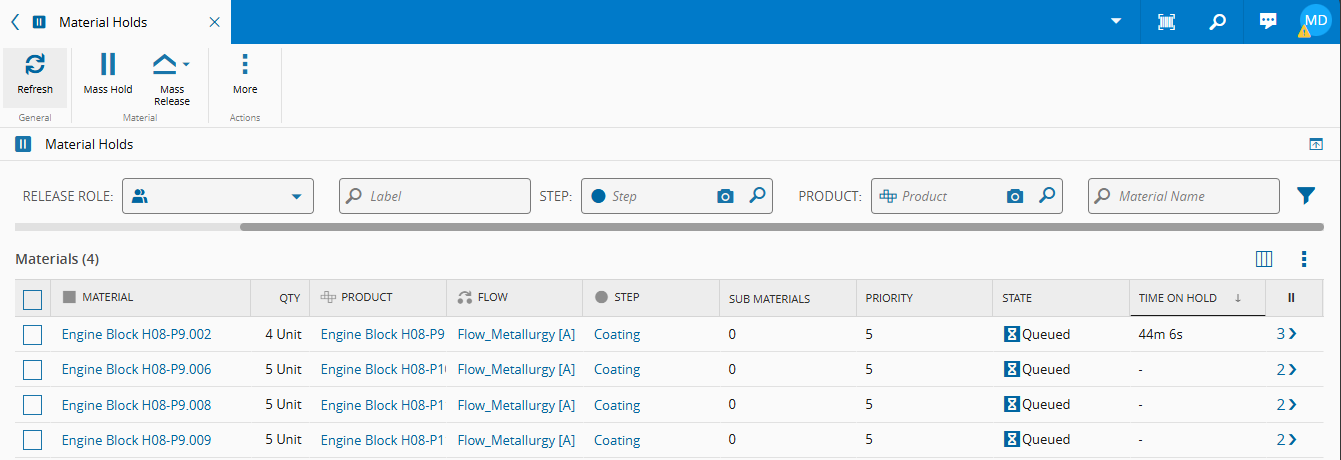
To release the lots, select Mass Release.
-
Filter by label, for example
vendor, and select Search.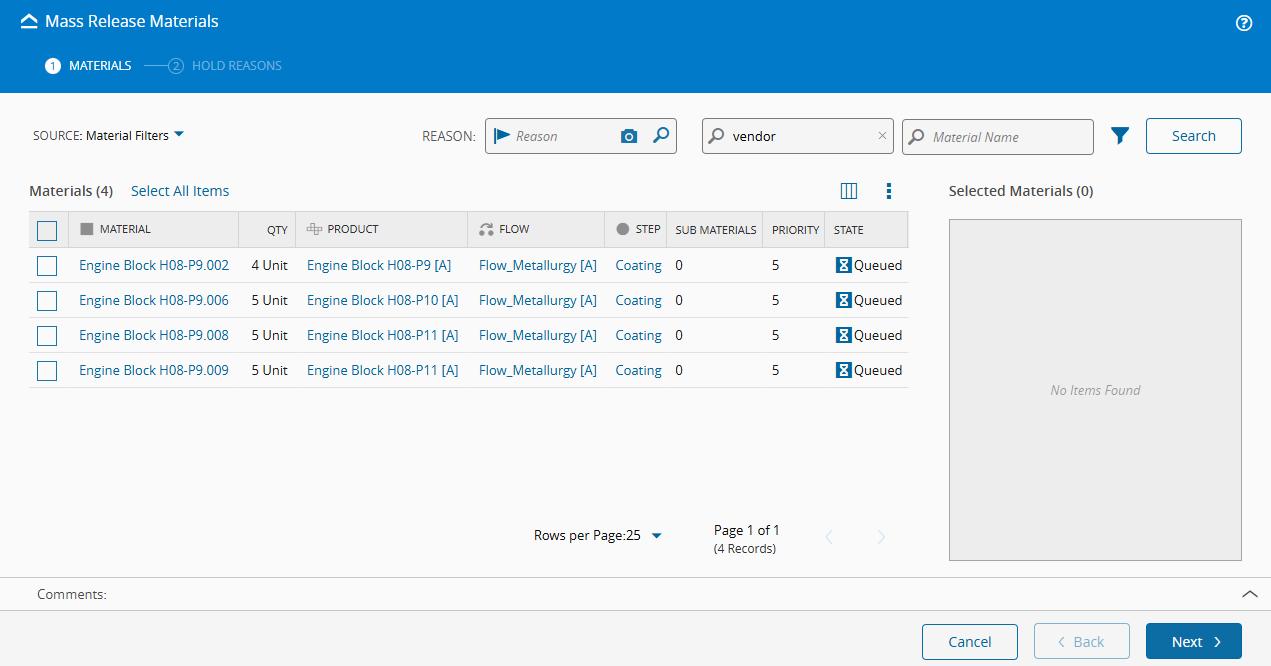
-
Select one or more lots and choose Next.
-
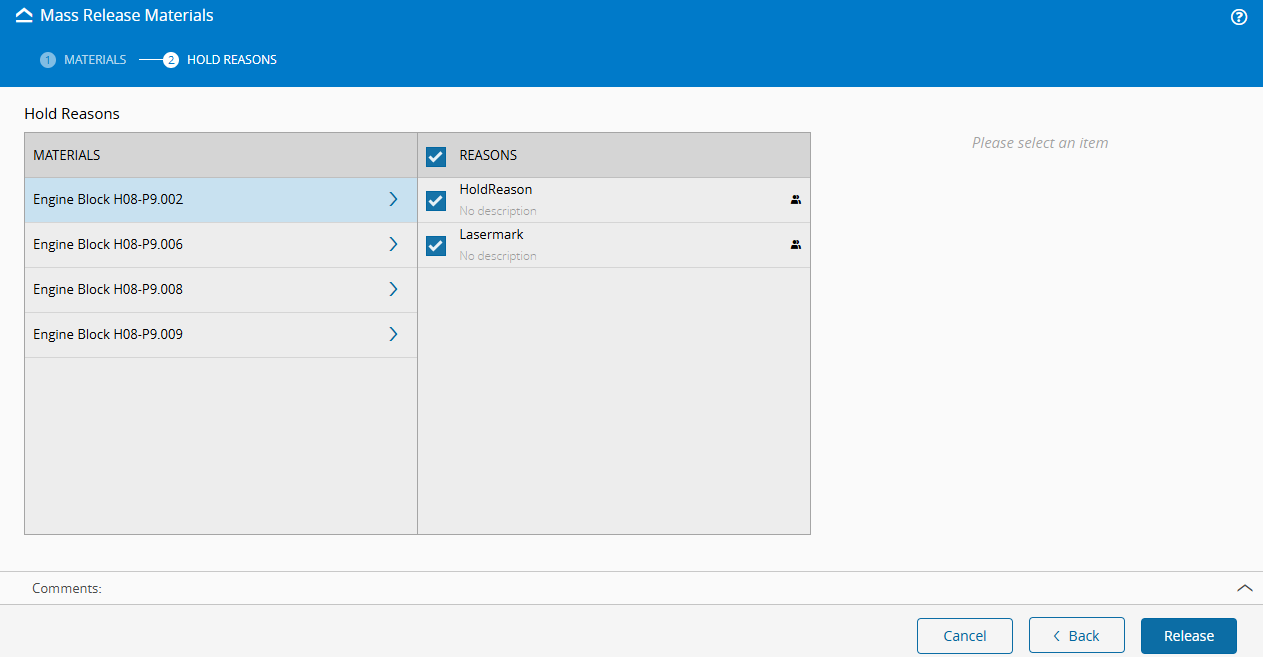
Review the selected lots and their assigned Hold Reasons, then select Release.
Next page: Pause Reason.