Manage Change Package Items#
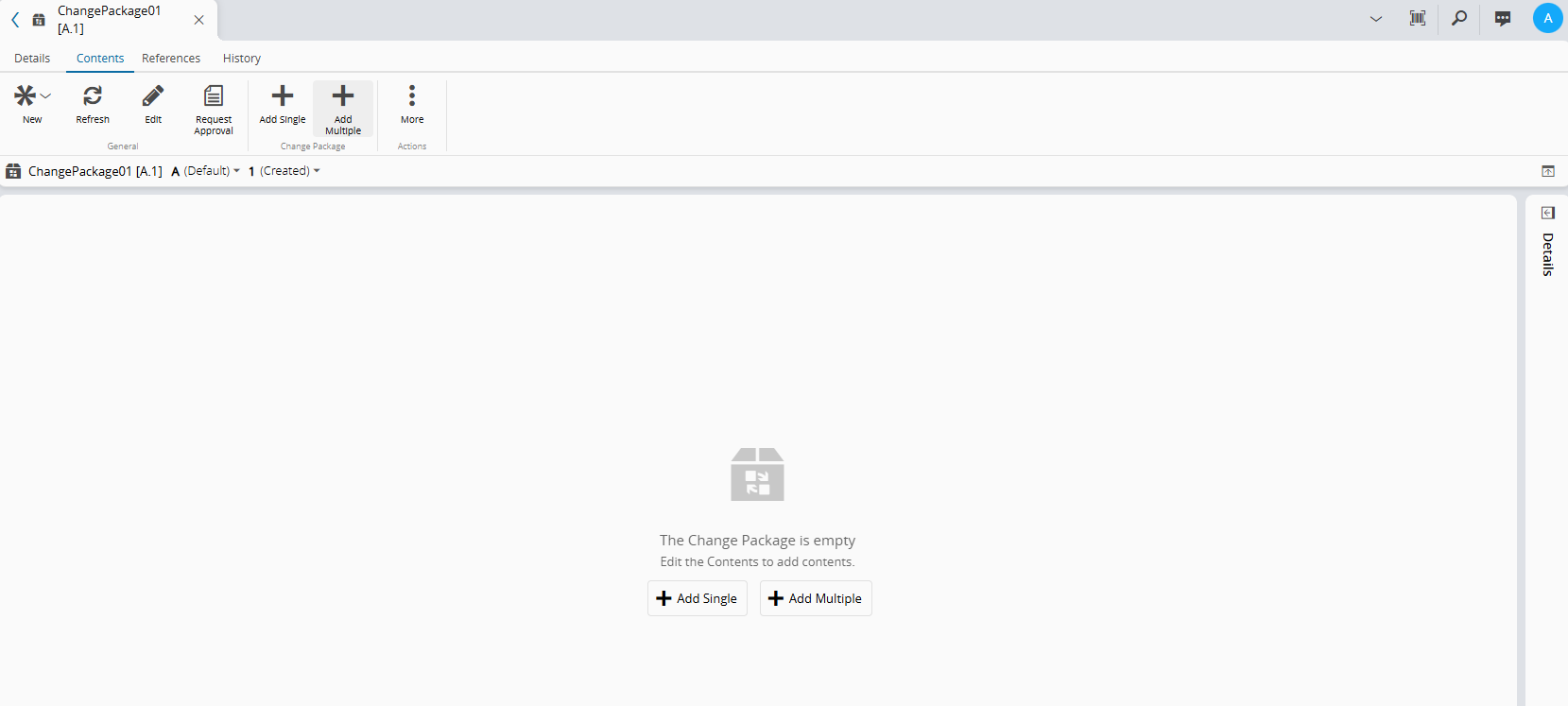
After the Change Package is created, there are no Change Package Items associated with it. You can populate the Change Package by selecting Add Single or Add Multiple from the action bar in the Contents tab.
When you add a Change Package Item, the system also includes related items that are required to transport the selected entity, such as automatically included references or related table rows.
For more information, see Change Package Item.
Content Selection Restrictions
The following rules apply when adding Change Package Items to a Change Package:
- An Entity item can only be added if the Is Exportable flag is enabled in the Entity Type configuration.
ExportAutoIncludeautomatically selects related top-level objects when you add an entity object. You can clear these objects in the dependency tree before adding them to the Change Package.- The system includes Smart Table rows where the selected entity is referenced as a key or value, and Generic Table rows where it is referenced in any column.
- Entity items must be top-level objects. They cannot be instances or parts of another object.
- Non-versioned objects must be Active.
- Versioned objects must be Effective.
- Items whose Owner Instance identifies another Customer Environment cannot be added.
- An item can appear through multiple dependency branches, but it appears only once in the grid view.
Sequence of Steps#
Add Single#
-
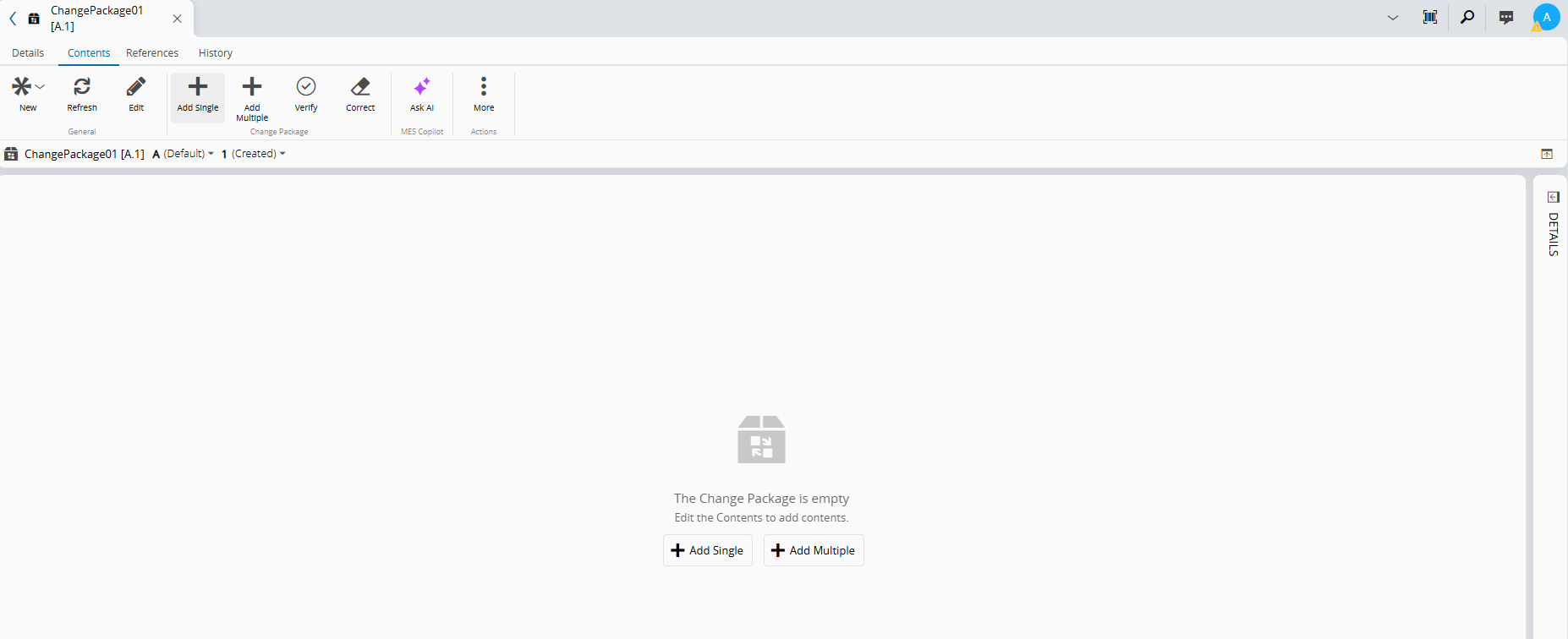
To add an Entity Type to the Change Package, select the Add Single from the action bar.
Info
The Add Single action supports only Entity Type items. To add Generic Table, Lookup Table, or Smart Table items, use Add Multiple.
You can also select Add Single or Add Multiple from the empty-state area.
-
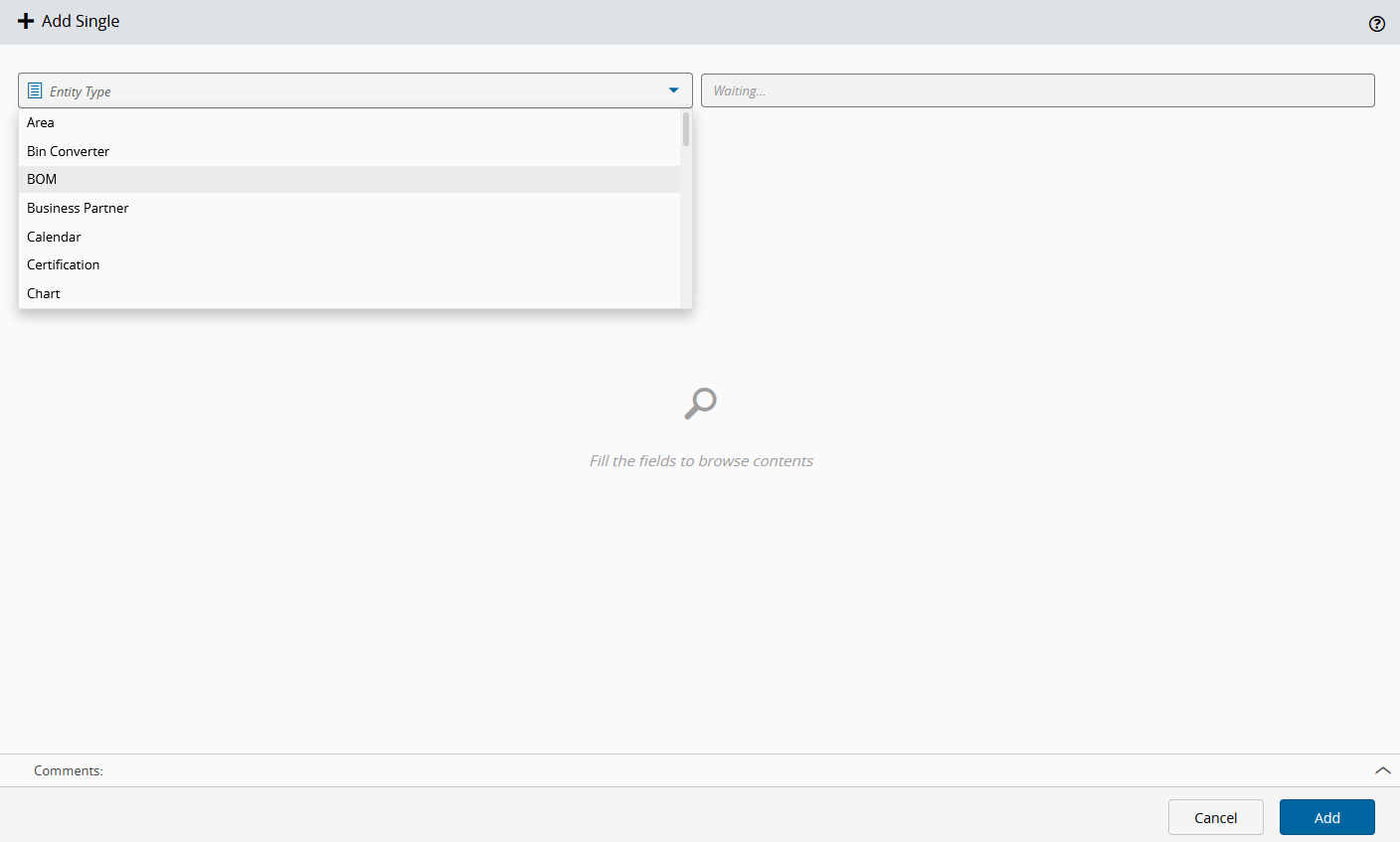
In the Add Single wizard, select the Entity Type you want to add from the first dropdown list.
-
From the second dropdown list, select the object you want to add. Optionally, use the or the Search bar to identify a specific object.
-
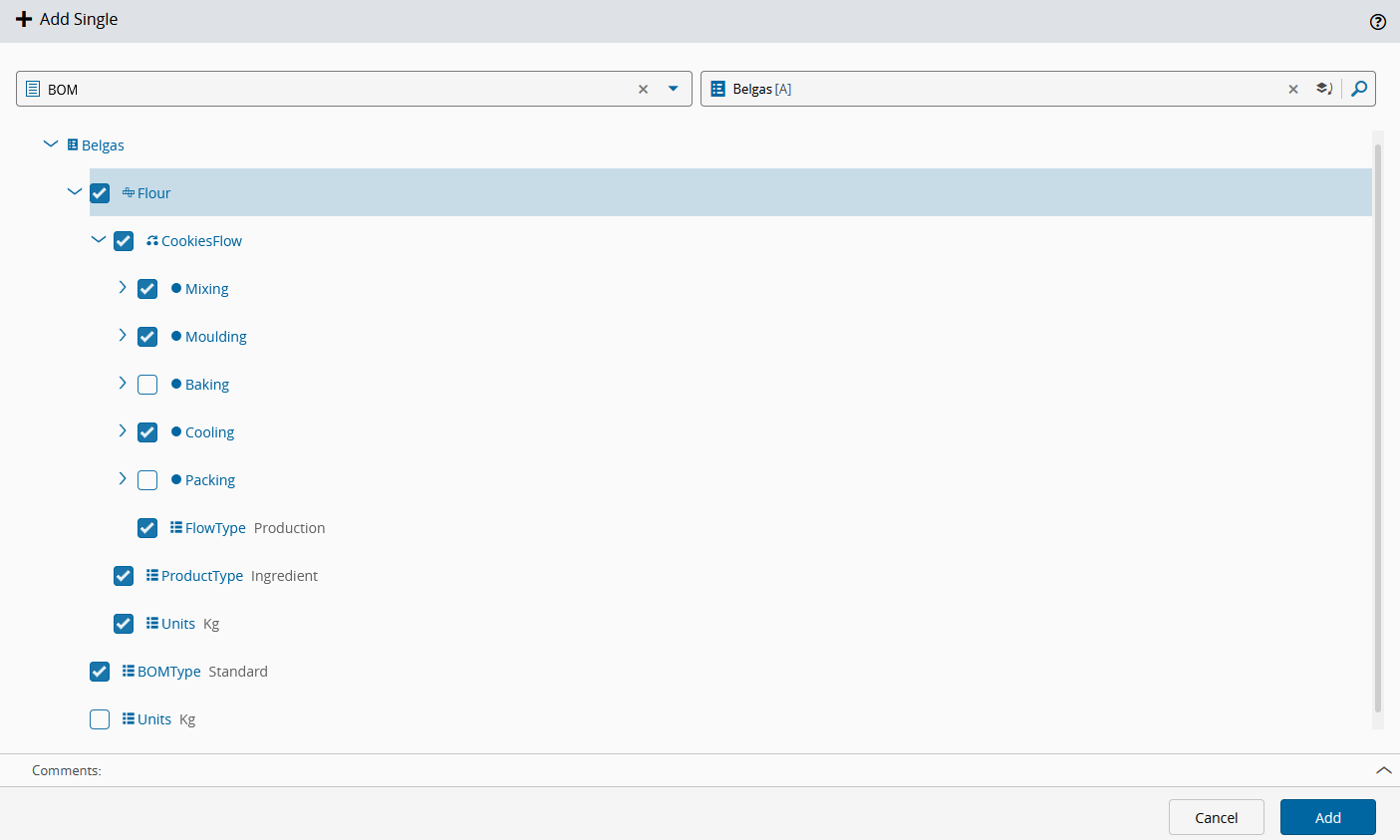
After selecting an object, review and edit the dependency tree. Related items configured for automatic inclusion are preselected.
Note
From this wizard, you can edit the dependencies of the selected top-level items before adding them to the Change Package. You can check or uncheck items beneath a top-level item, but you cannot deselect the top-level item itself. In the example above, the BOM
Belgas [A]is the top-level item. You can select or clear dependencies such asFlour,CookiesFlow, andBaking, but you cannot remove the BOM itself. -
Select Add to confirm your selection and complete the operation.
Add Multiple#
-
To add multiple Change Package Items, select the Add Multiple from the action bar.
Info
You can also add contents to the Change Package by navigating to the Contents tab and selecting Add Single or Add Multiple.
-
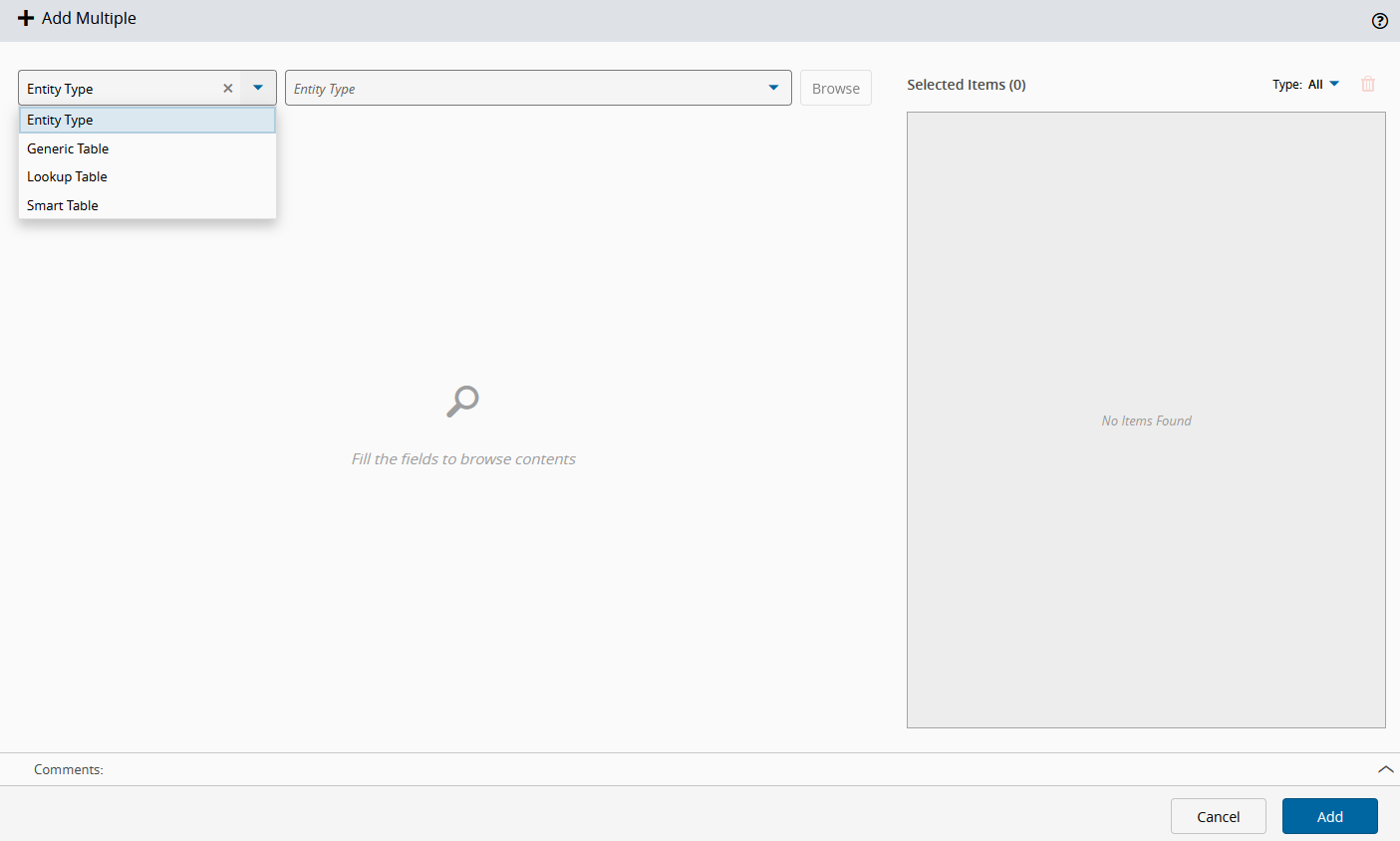
In the Add Multiple wizard, select the content type to add from the first dropdown list:
- Entity Type
- Generic Table
- Lookup Table
- Smart Table
-
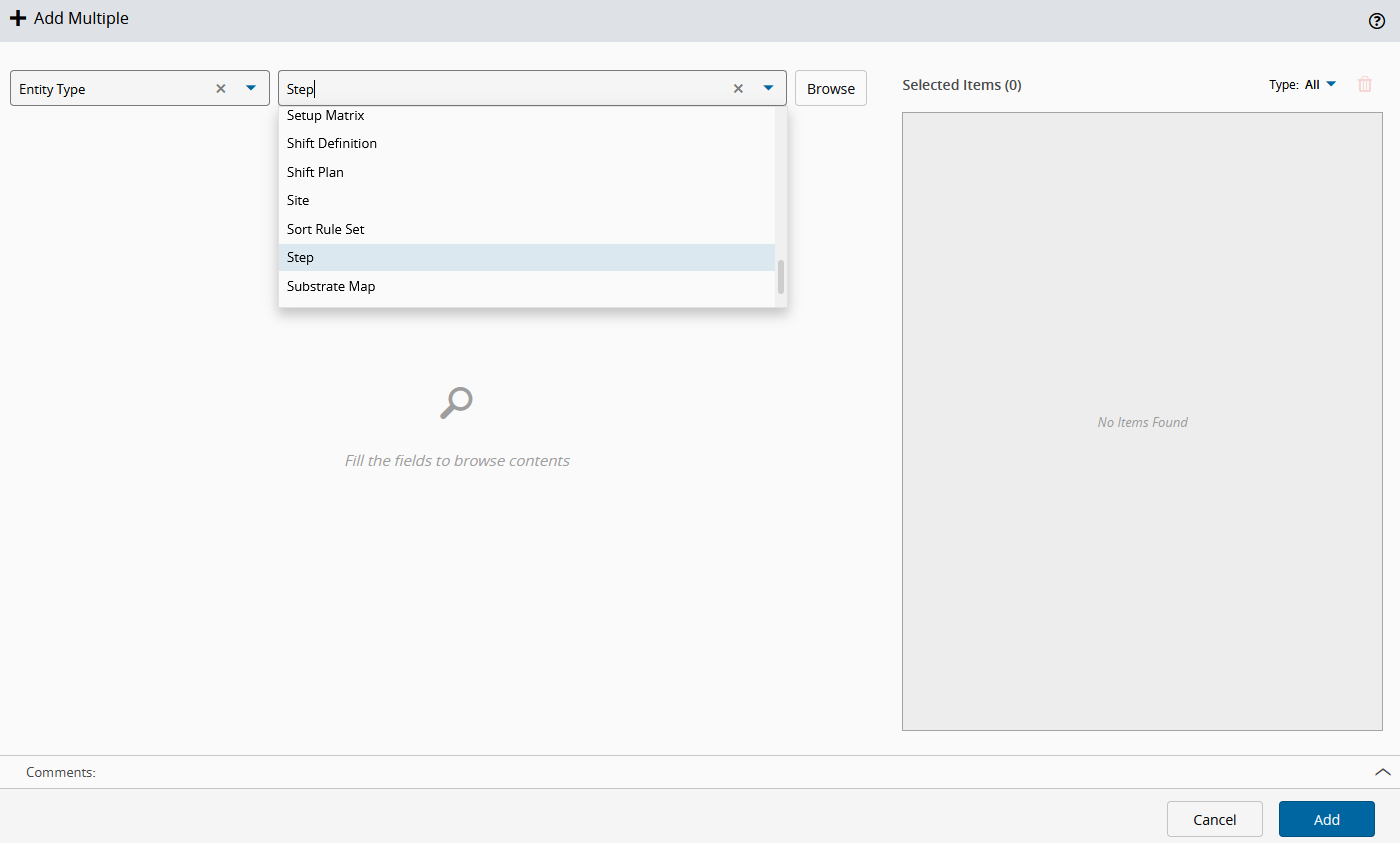
Choose the specific entity type or table from the second dropdown list.
-
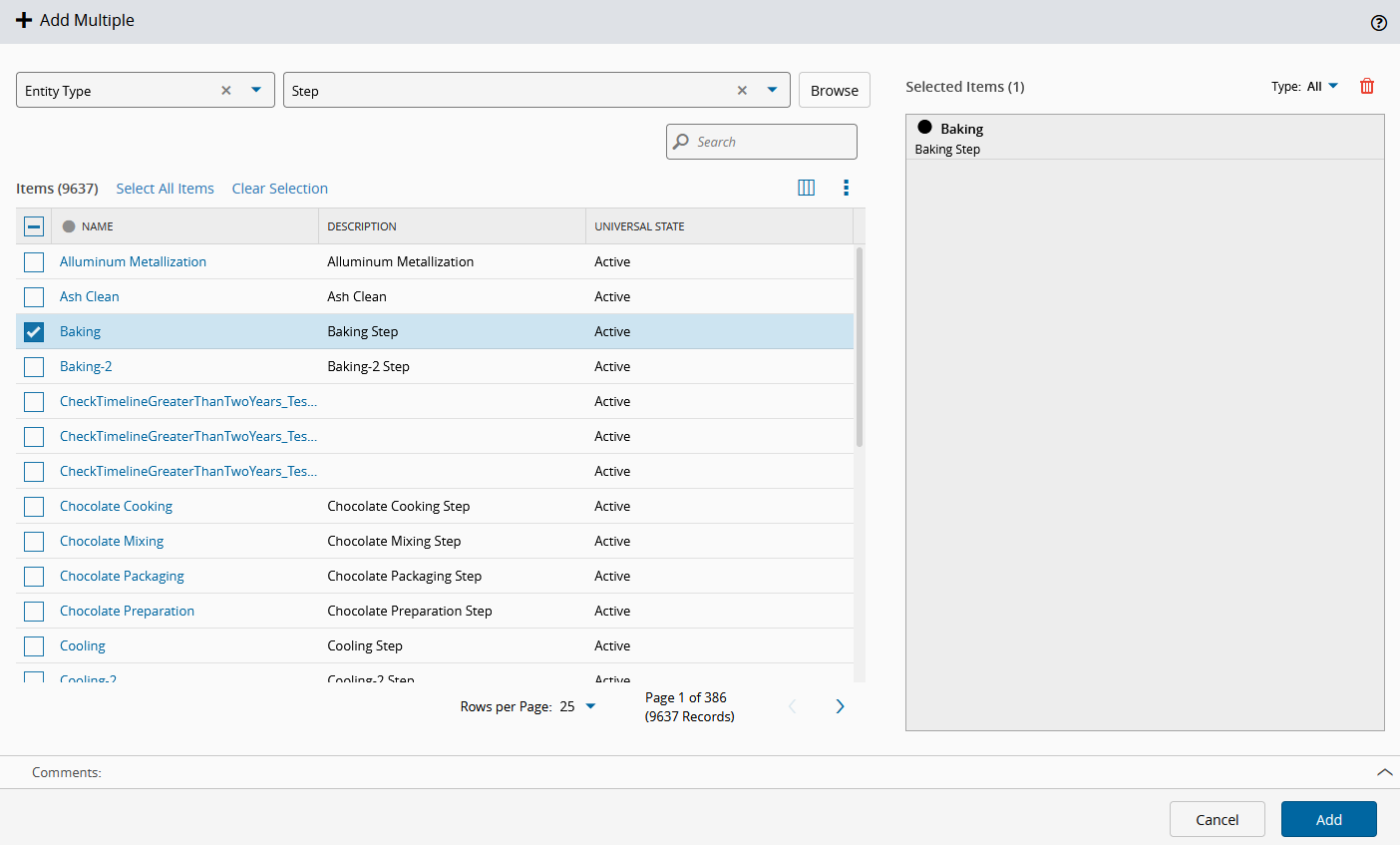
Select Browse to display all objects or tables related to the selections you have made.
Info
For Entity Types, use the Search bar to easily find the desired item.
For tables, the available filters vary according to their key column values. You can also configure additional column filters.
-
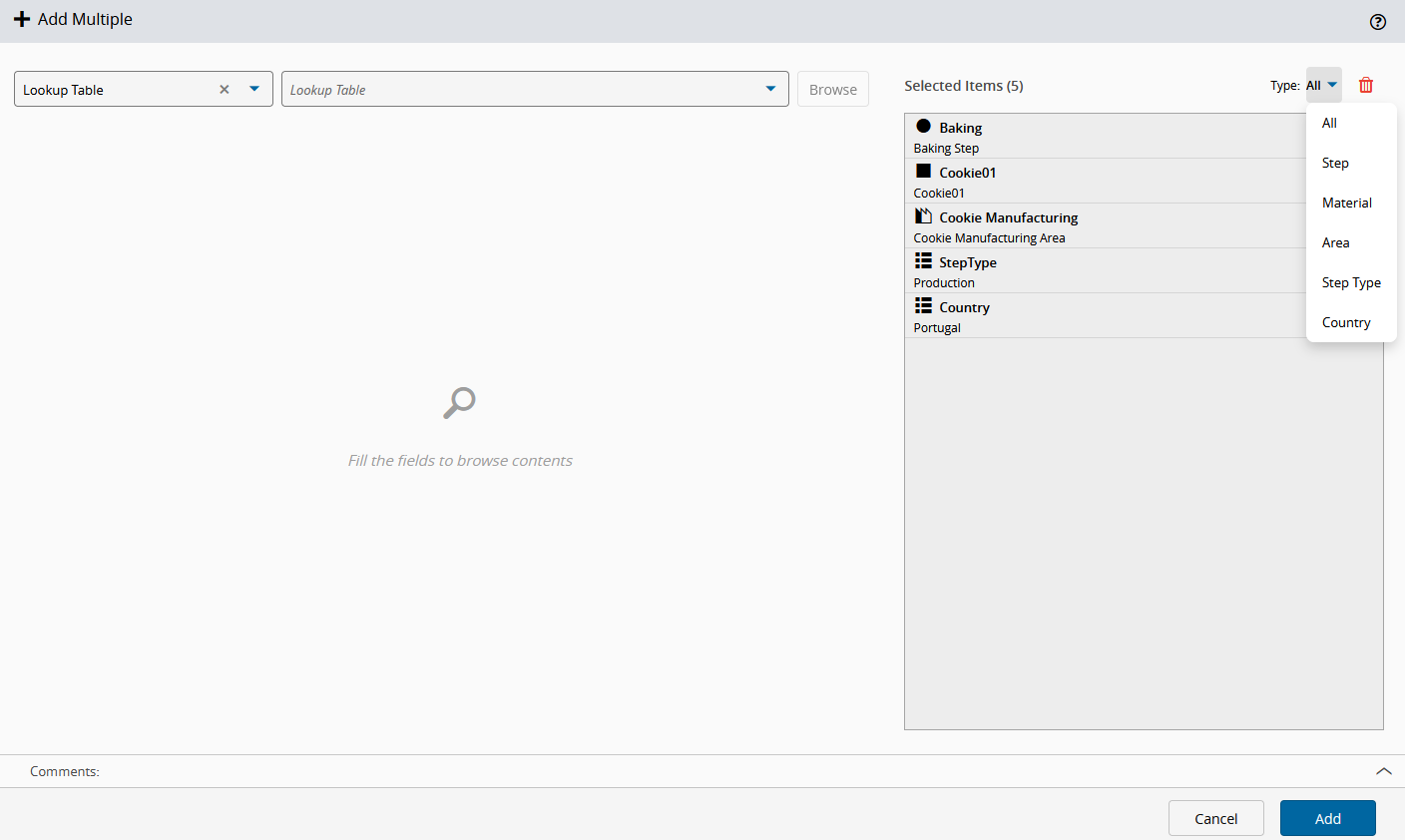
To add items to the Change Package, select the desired objects from the left-side table. The right-side table displays the selected items.
-
Optionally, you can filter the selected items on the right-side table by type. To remove items from the current selection, press . You can remove items individually or remove all by selecting the same button on the top ribbon. Related items configured for automatic inclusion are preselected.
-
Select Add to confirm your selection and complete the operation.
Remove Added Items#
You can remove top-level items that have already been added to a Change Package.
- Open the Contents tab of the Change Package.
-
In the tree view, select next to a group node to remove the entire group, or next to a top-level item to remove only that item. To edit a top-level item’s dependencies, select next to it.
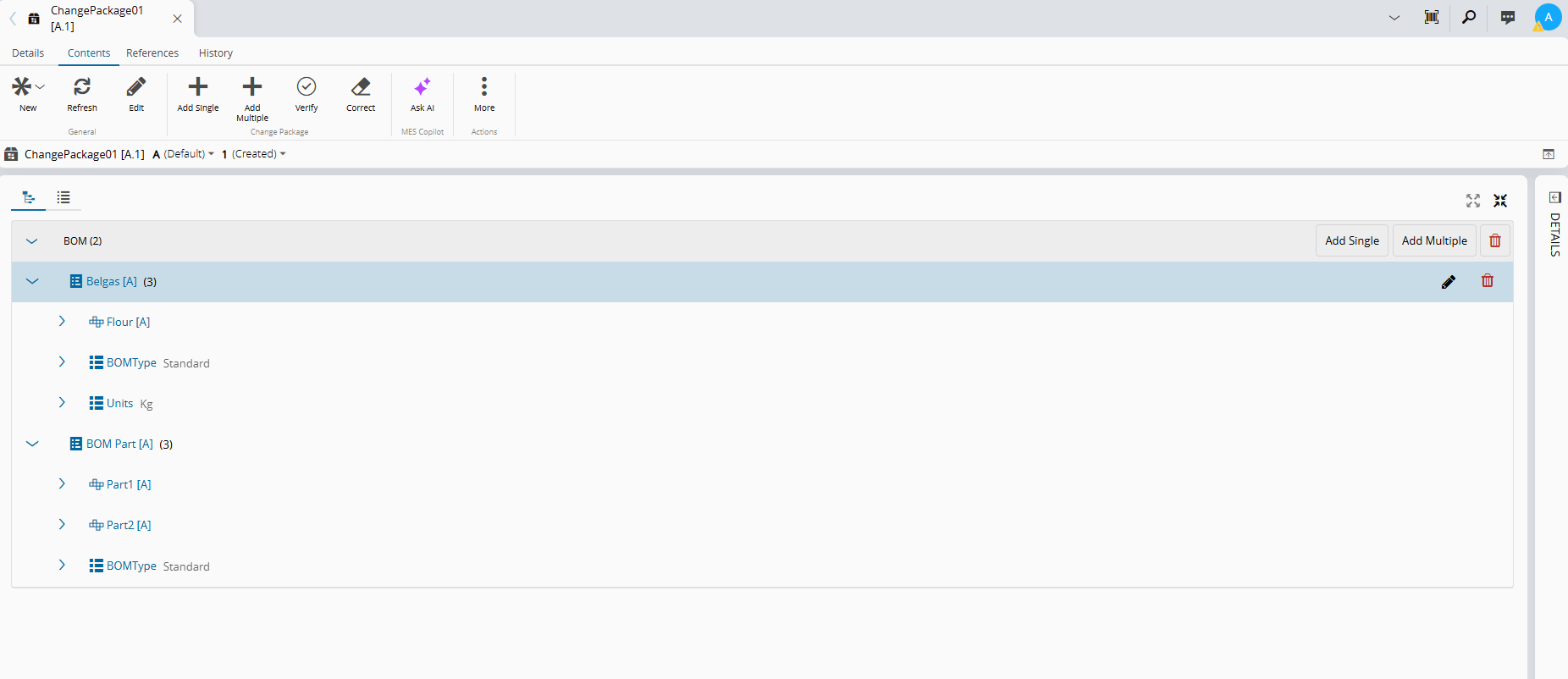
Note
When you remove an item from one dependency branch, it remains in any other branches where it is included. For example, when you remove a Flow as a dependency of one Product, it may still be included in the final exported Master Data file if it is also a dependency of another Product or was explicitly added.
-
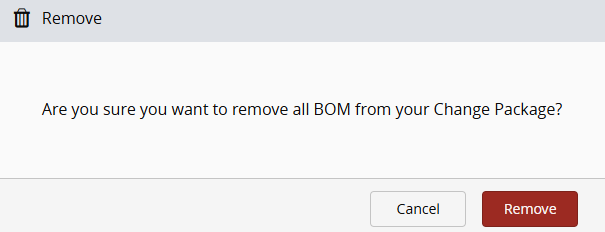
Select Remove to complete the operation.