Generate UI Pages with AI#
 UIPage.Create
UIPage.Edit
UIPage.Save
Overview#
Use AI to generate an initial UI Page structure from a natural language prompt. The generated result is intended to accelerate the first iteration of a page by creating a structured layout, a component model, and a basic configuration that you can continue refining manually.
This capability is especially useful when you want to create a first version of a workspace or screen without placing all widgets and links manually.
Before You Begin#
Make sure that:
- The Generative AI Infrastructure is deployed and configured in your environment.
- You have permission to create and edit UI Pages.
- The AI Editor is available only for UI Pages whose UI Type is set to
Page. - The AI configuration required for UI Page generation is available in the environment.
For more information on the AI configuration, see Prompt Configuration, AI Agent, and AI MCP Server.
Sequence of Steps#
- Create a new UI Page or open an existing one that you want to design.
- Enter the Design View.
-
Open the available AI generation panel in the Page Builder.
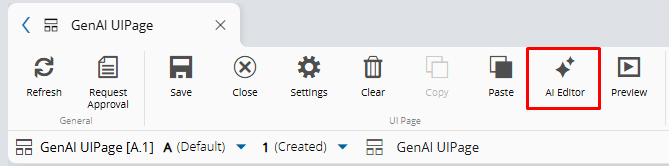
-
Enter a prompt that describes the intended business context, page layout, and main interaction elements.
Example prompt:
Create a workspace for medical products with grids for materials and consumables and 3 main actions.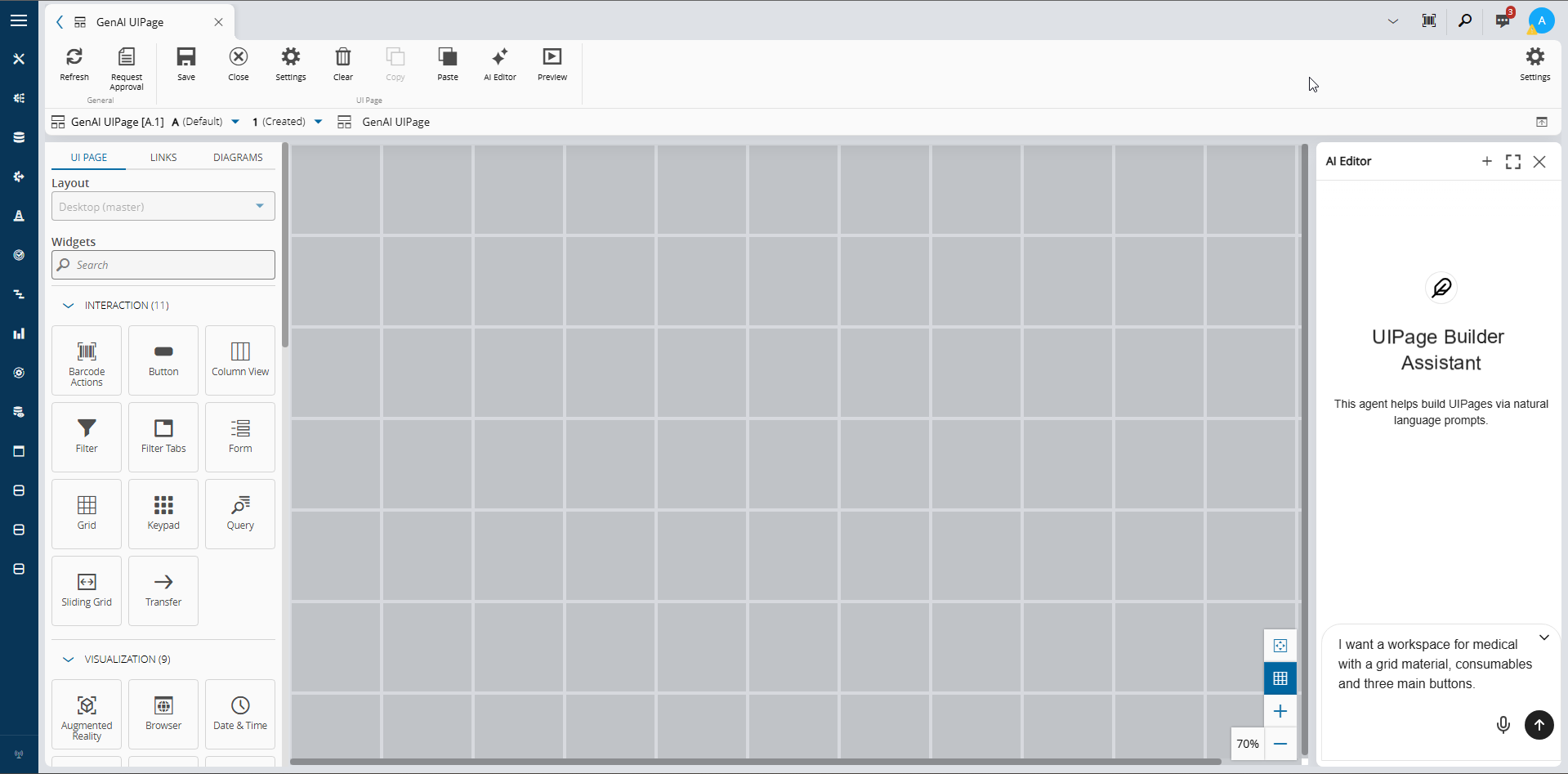
-
Start the generation.
- Review the generated result in the Page Builder.
- Refine the generated UI Page manually as needed.
- Select Save to keep the generated page for later editing or reuse.
Prompt Guidance#
To get more useful initial results, describe:
- The business scenario or workspace purpose.
- The main data or entities that should be visible.
- The most important widgets or interaction areas.
- The main actions that users should perform on the page.
- Where each button should appear, such as in the page layout or the UI Page ribbon. If the location is unclear, AI asks whether you want a Button widget or an Action Button. For more information, see Button.
If the generated result does not match the intended layout, refine the prompt and generate the page again.
Generation Feedback#
During generation, the system can show progress information, return a generated result, or require a prompt adjustment when the request is ambiguous or incomplete.
After Generation#
After the initial generation, continue working in the Page Builder as you would for any other UI Page:
- Adjust the layout.
- Add, remove, or replace widgets.
- Configure Properties, Tasks, Action Buttons, and Links.
- Preview the page and save the final result.
For more information on manual editing, see Create UI Page and Design UI Page.
Expected Behavior#
The generated result is a starting point, not a final locked page. You can continue editing the UI Page after generation and save it as a regular UI Page for later reuse.
Depending on the active configuration, the generation flow may rely on a dedicated AI Agent and an external MCP Server to produce the initial UI Page definition.