Synchronize Automation Business Scenario#
 AutomationBusinessScenario.Create
Overview#
This operation allows you have a tgz package with several scenarios and synchronize them to the system. It will automatically create the business scenarios and flag them with a package name and package version.
Setup#
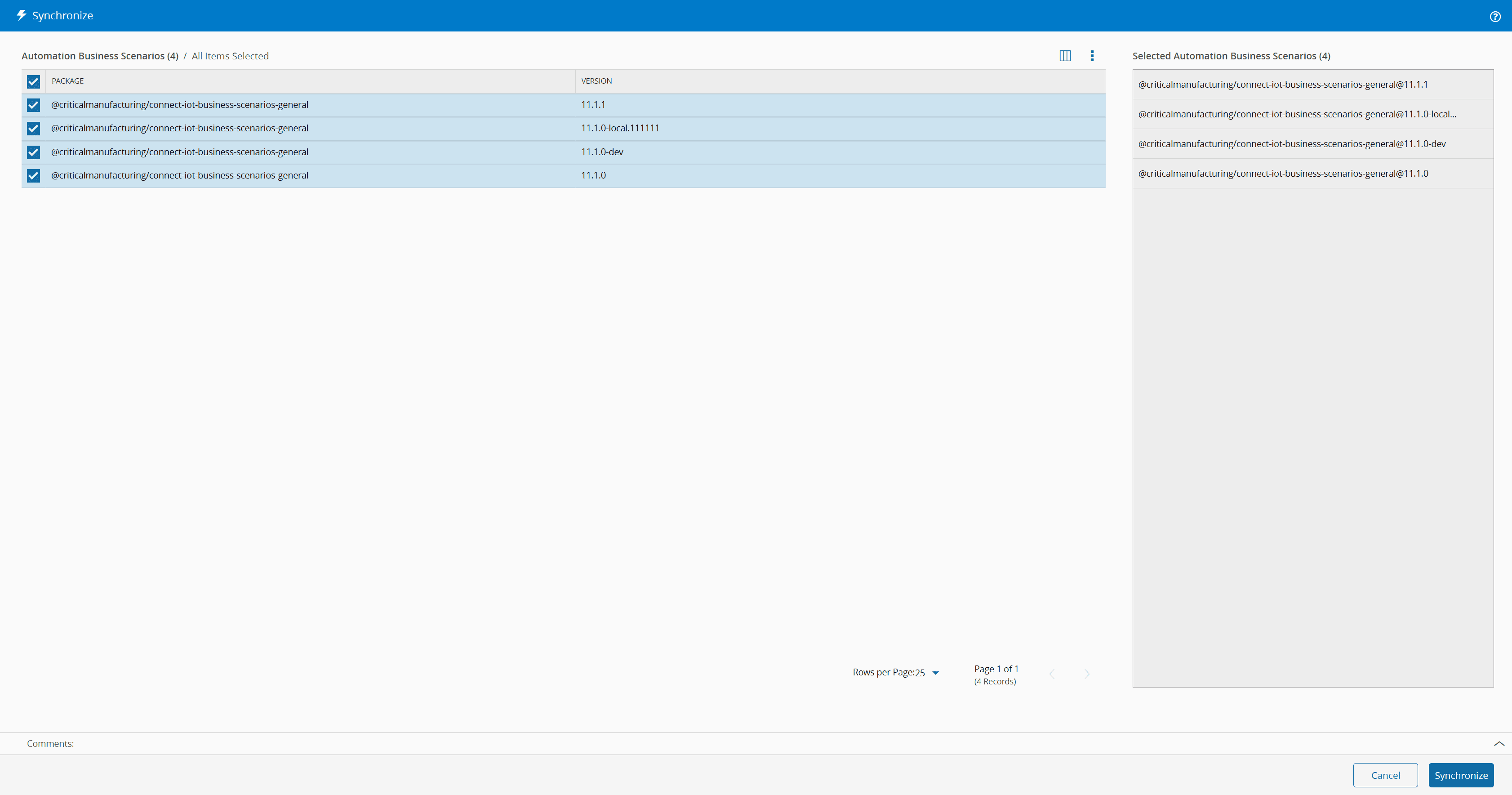
The Synchronize menu will show all packages that are currently in the Automation Repository that contain Automation Business Scenarios. You can then import a selection of those packages to the system.
A package is identified as a package with business scenarios if the name of the package matches the token for the business scenario package name. This token is defined in the configuration entry /Cmf/System/Configuration/ConnectIoT/BusinessScenarioPackageNameFilter/ and has a default value of @criticalmanufacturing/connect-iot-business-scenarios-
Sequence of Steps#
Step 1: General Data#
- Select Synchronize.
- Choose a packages and select Synchronize to continue the operation.
Warning
In order to upload a business scenario of the same name, but of a different package name, the user must first terminate the business scenario.
Performance Considerations#
The wizard behaves the same for Directory and NPM repositories: it retrieves the matching packages and inspects their contents to confirm they contain business scenarios. This is acceptable because only a small number of packages is expected to match the BusinessScenarioPackageNameFilter configuration.
For NPM repositories (for example, Nexus, Verdaccio) every matching package is downloaded from the registry at discovery time. If the filter is broadened or if the NPM server is remote or slow, the wizard may open slowly or time out. Keep the filter as specific as possible.