---
alias: user-guide-create-bin-converter
tags:
- mapping
description: "Create a Bin Converter object with configurable conversion rules and data attributes"
---
# Create Bin Converter
:lock: BinConverter.**Create**
:lock: BinConverter.**CreateTemplate**
:lock: BinConverter.**CreateFromTemplate**
## Overview
This operation is used to create a **Bin Converter**. A template can also be created using a similar procedure and there is also the possibility of using a template to create the new object as well. This selection can be done in the main entity menu.
## Setup
No specific setup is required other than to meet the preconditions of the transaction.
## Sequence of Steps
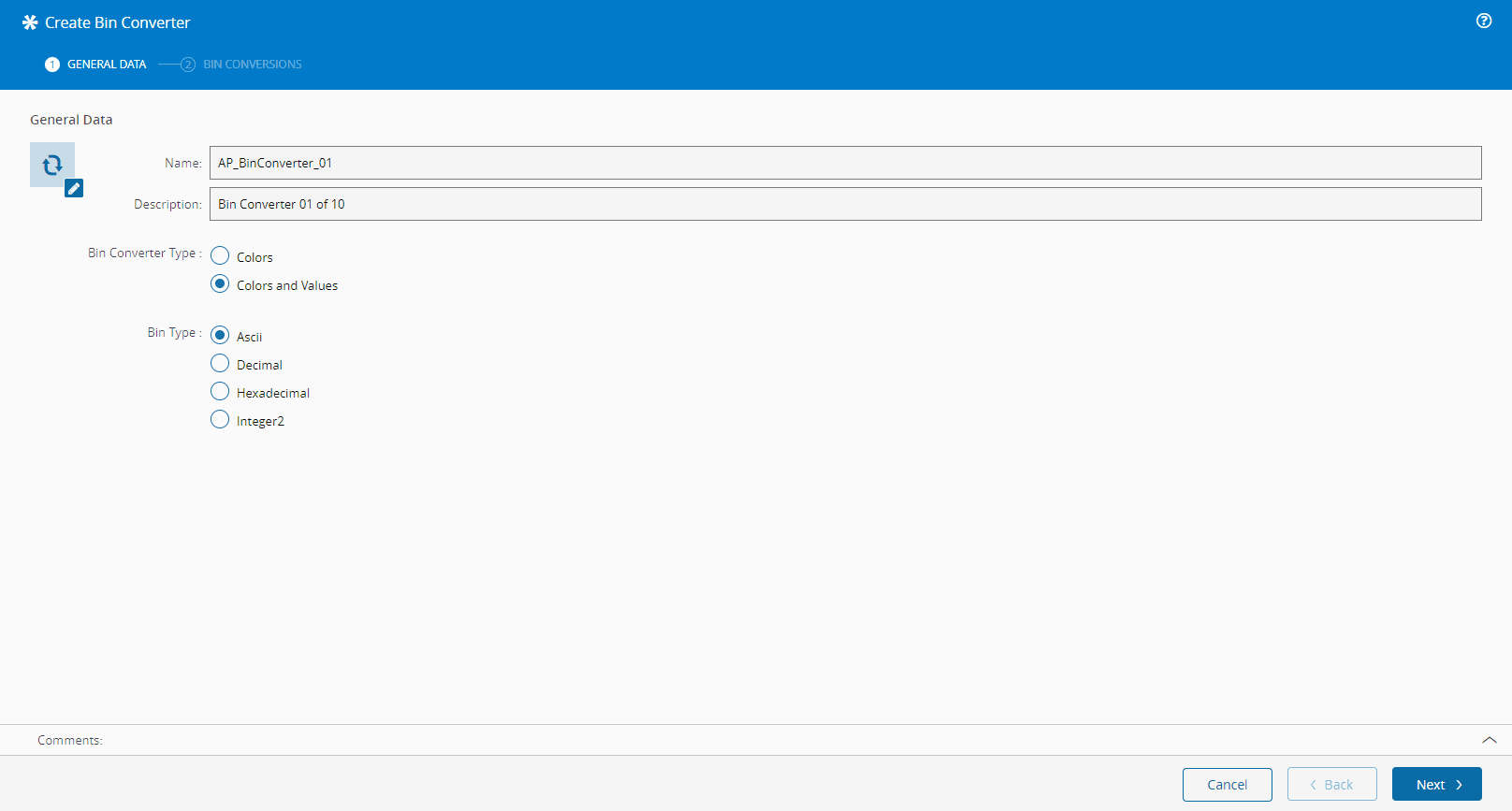
### Step 1: General Data
1. Enter the **Name** (must be unique).
2. Enter the **Description**.
3. Define the **Bin Converter Type**:
* Colors
* Colors and Values
4. Define the Bin Type:
* Ascii
* Decimal
* Hexadecimal
* Integer2
5. Select **Next** to continue.
### Step 2: Bin Conversions
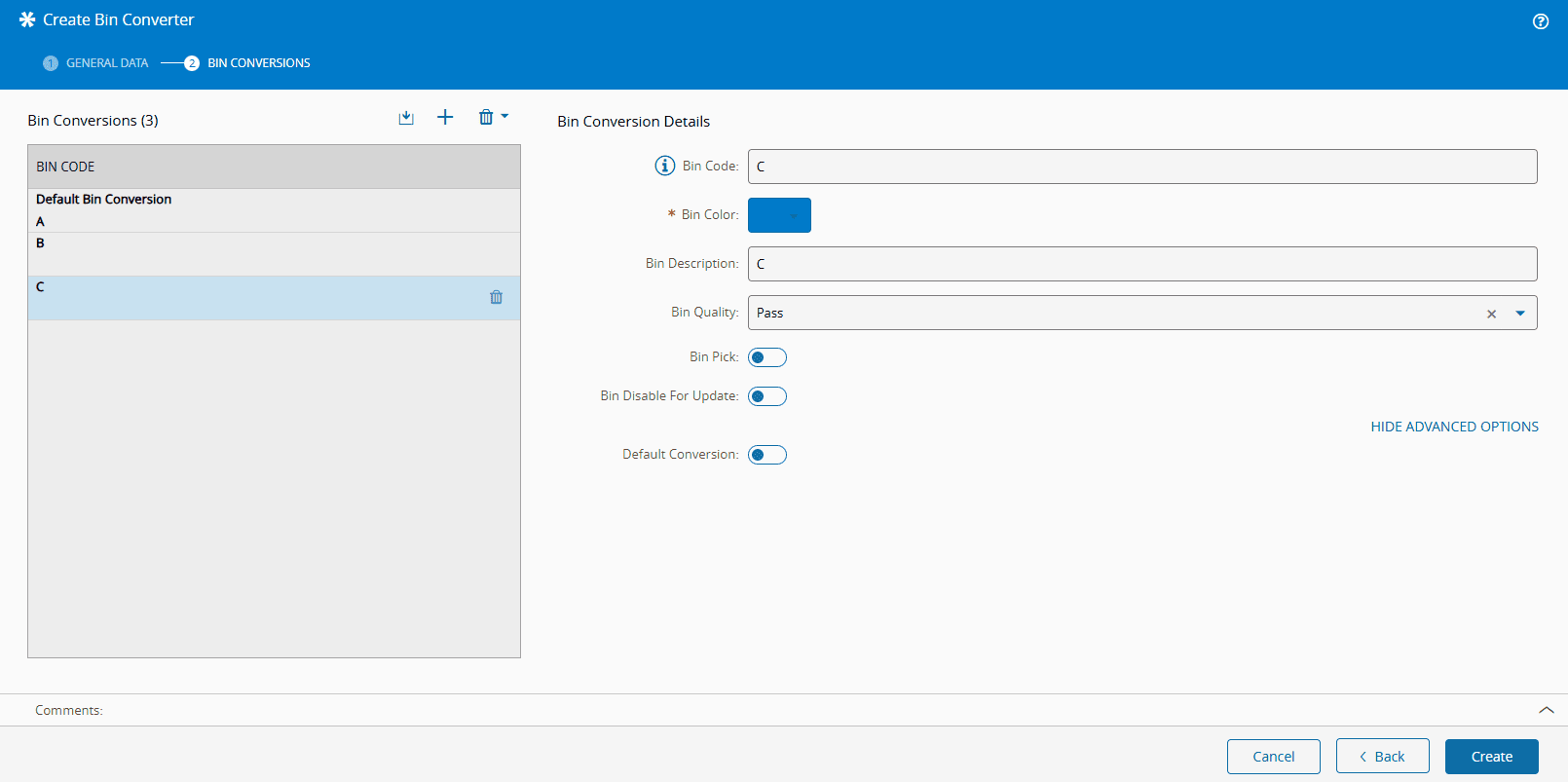
1. You can add, remove or update a Bin Conversion record, providing for each:
* If the Bin Converter Type is Colors:
* Bin Code - must match the Bin Type of the Bin Converter and be unique within the Bin Converter
* Bin Color
* Bin Description
* Bin Quality (Fail, Null, Pass, Unknown, Picked, Custom - if Custom is set, you must define a To Bin Quality Custom Value from the [[substratemapbinquality-lt]] Lookup Table)
* Bin Pick
* Bin Disable for Update - specifies if From Bin is disabled for updates (defaults to `false`)
* Default - you can specify whether the Bin Conversion is default (defaults to false)
!!! note
At most, there can only be one Bin Conversion per Bin Converter where the Default is set to `true`.
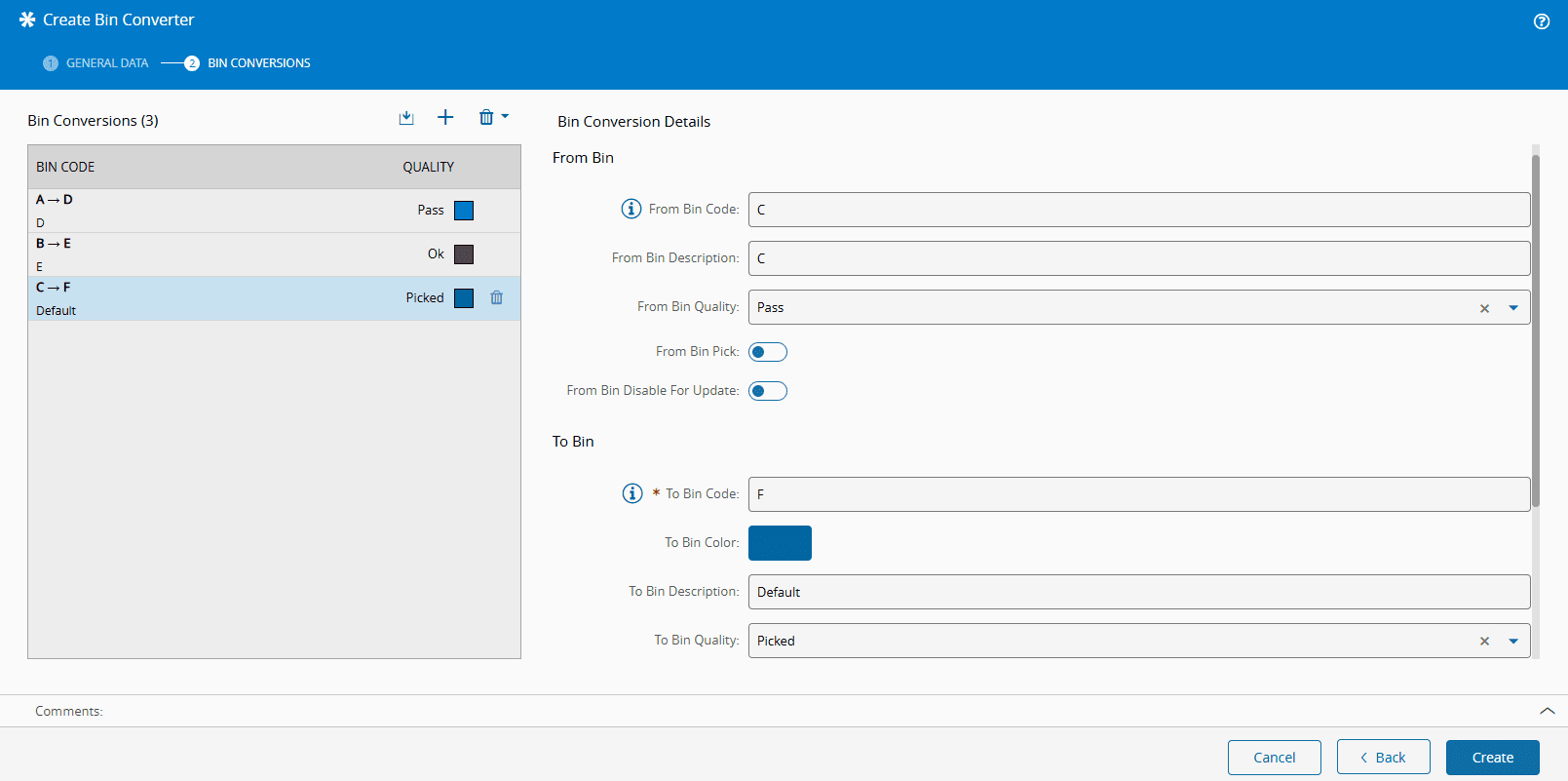
* If the Bin Converter Type is Colors and Values:
* From Bin Code - must match the Bin Type of the Bin Converter and be unique within the Bin Converter
* From Bin Description
* From Bin Quality (Fail, Null, Pass, Unknown, Picked, Custom - if Custom is set, you must define a To Bin Quality Custom Value from the [[substratemapbinquality-lt]] Lookup Table)
* From Bin Pick
* From Bin Disable for Update - specifies if From Bin is disabled for updates (defaults to `false`)
* To Bin Code
* To Bin Color
* To Bin Description
* To Bin Quality (Fail, Null, Pass, Unknown, Picked, Custom - if Custom is set, you must define a To Bin Quality Custom Value from the [[substratemapbinquality-lt]] Lookup Table)
* To Bin Pick (defaults to `false`)
* To Bin Disable for Update - specifies if To Bin is disabled for updates (defaults to `false`)
* Default - you can specify whether the Bin Conversion is default (defaults to false)
!!! note
At most, there can only be one Bin Conversion per Bin Converter where the Default is set to `true`.
* Transparent (defaults to `false`)
* Use For Reverse Conversion - if another Bin Conversions for the same To Bin Code exists, you can specify whether the From Bin Code is the default source (only if From Bin Disable for Update is `false`) or not
!!! info
The following properties must be equal for all the records with the same To Bin Code:
To Bin Color
To Bin Description
To Bin Quality
To Bin Pick
To Bin Disable For Update
!!! note
The bin code value must be presented in the right format according to the Bin Type. The INFO pop-up provides that information.
2. Select **Create** to complete the operation.