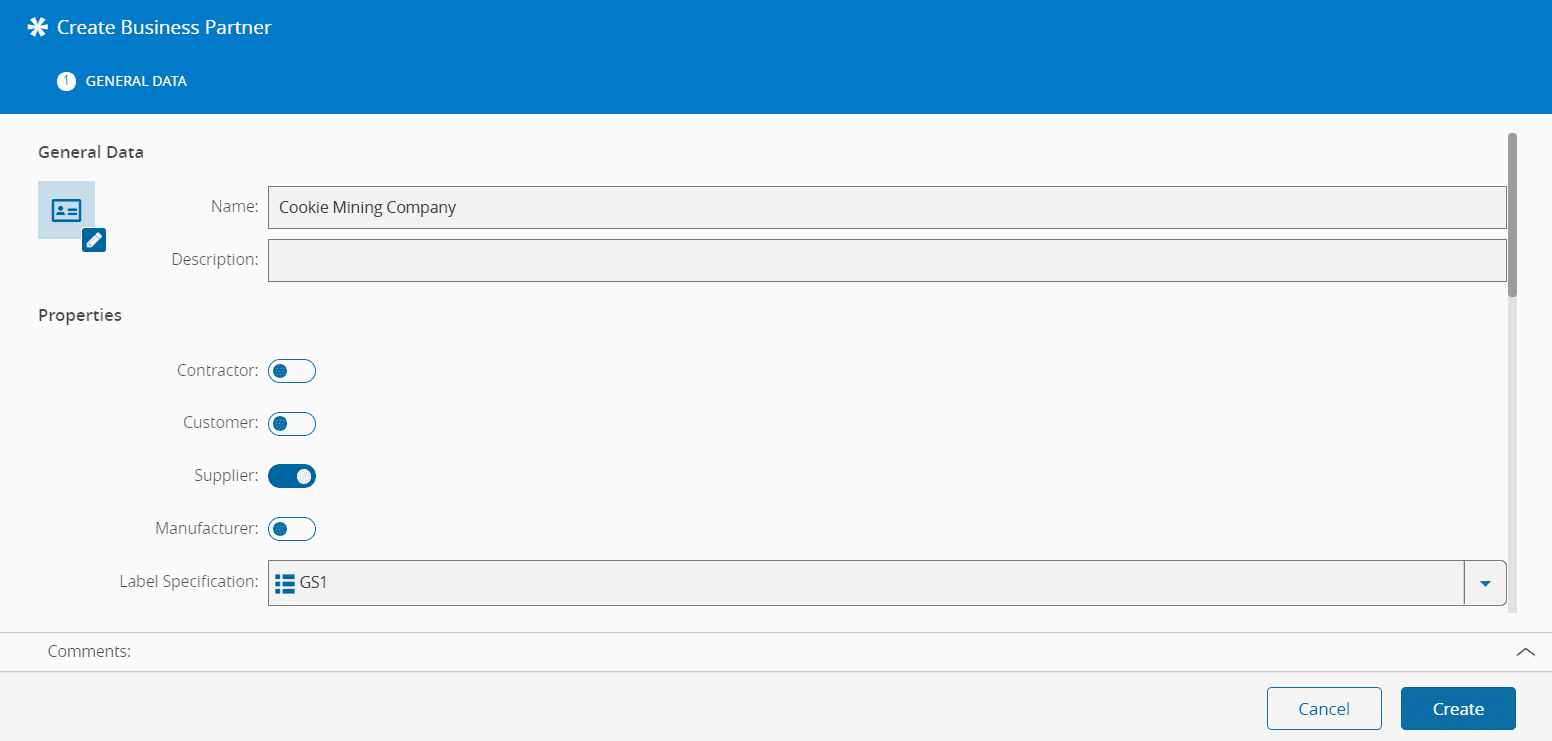
Create Business Partner#
 BusinessPartner.Create
BusinessPartner.CreateTemplate
BusinessPartner.CreateFromTemplate
Overview#
This operation is used to create a Business Partner. A template can also be created using a similar procedure and there is also the possibility of using a template to create the new object as well. This selection can be done in the main entity menu.
Setup#
No specific setup is required other than to meet the preconditions of the transaction.
Preconditions#
- The Business Partner does not currently exist in the system.
Sequence of Steps#
Step 1: General Data#
- Provide a name for the Business Partner.
- Optionally, provide a description of the Business Partner.
- Assign at least one property to the Business Partner:
- Contractor
- Customer
- Supplier
- Manufacturer
- Optionally, if the Business Partner is a Supplier or a Manufacturer, define the Label Specification to be used when printing labels. Possible values are retrieved from the LabelSpecification Lookup Table.
- Optionally, enter the address information:
- Address (line 1 and 2)
- ZIP Code
- Country (values selected from the Country Lookup Table)
- State
- City
- Optionally, enter the contact information:
- Title
- Name
- Business Phone
- Business Fax
- Mobile Phone
- Optionally, enter additional information:
- Tax Number
- Website
- Select Create to complete the operation and the new Business Partner will be created.
Note
Roles are not mutually exclusive, so a Business Partner can hold multiple roles simultaneously.
Note
The Label Specification field is only enabled when Supplier or Manufacturer is selected. If both are disabled, the field is disabled and automatically cleared.