View Resource Reports#
 Resource.HistoryReport
Resource.MaintenanceHistoryReport
Overview#
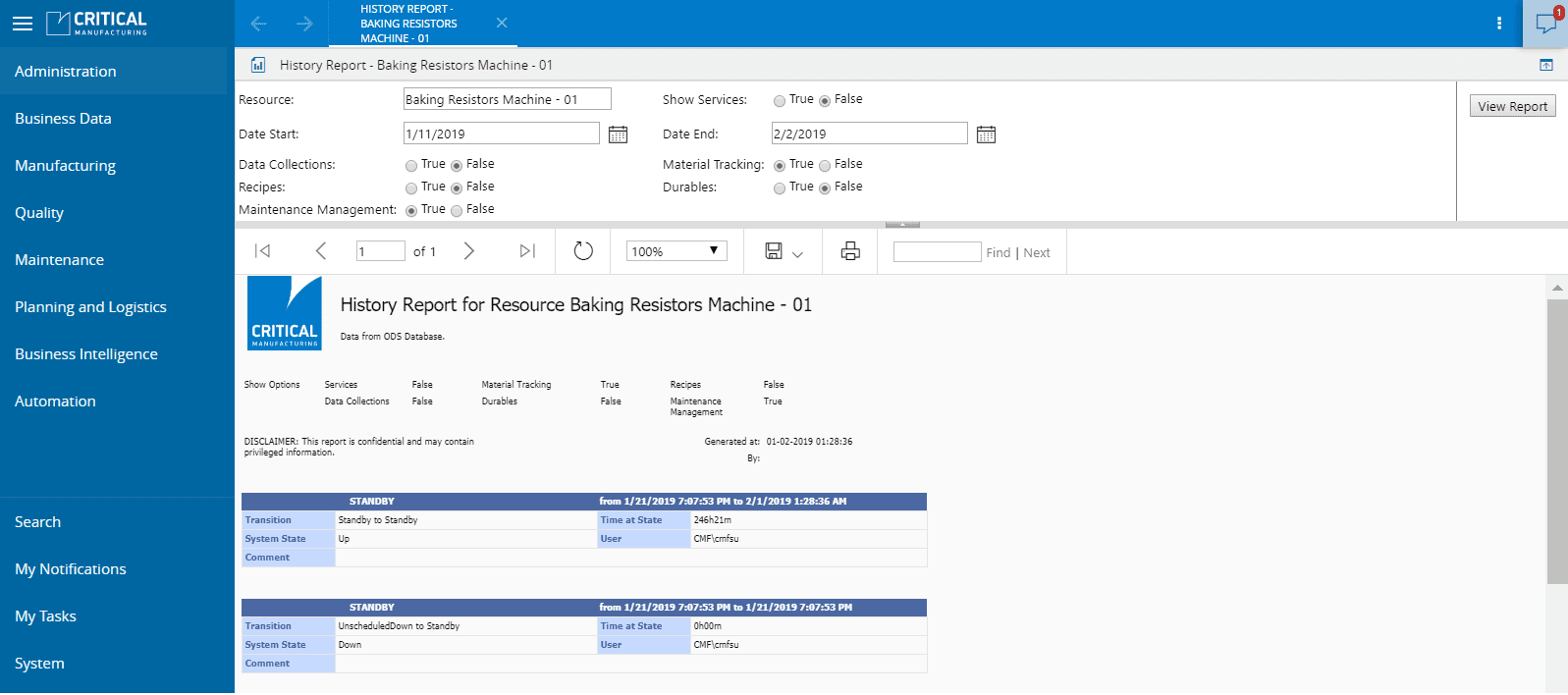
This operation is used to generate and visualize reports on a Resource history.
Setup#
No setup is required other than to meet the preconditions of the transaction.
Preconditions#
- The Resource exists and it is Active in the system.
Note
For the user to have access to the reports tree, permission must be granted in the report server. For more information please refer to Report Folders section in the User Guide.
Sequence of Steps#
- Select a Resource and select View Reports.
-
You will be given the option to select different reports on the specific Resource, namely:
- Resource History (for more information, see Resource History/)
- Maintenance History (for more information, see Maintenance History/)
-
Select one of the options, fill in the blank fields and set the buttons to
trueorfalseaccording to your preferences. - Select Submit.
- The system will generate the report. If you want to save it, you can do so by selecting the Save icon which will enable you to export and save the report in different formats.