---
alias: user-guide-substrate-map-page
tags:
- mapping
entityname: Substrate Map
description: "This documentation details a Substrate Map interface for visualizing and managing substrate data"
---
# Substrate Map Page
:lock: SubstrateMap.**Show**
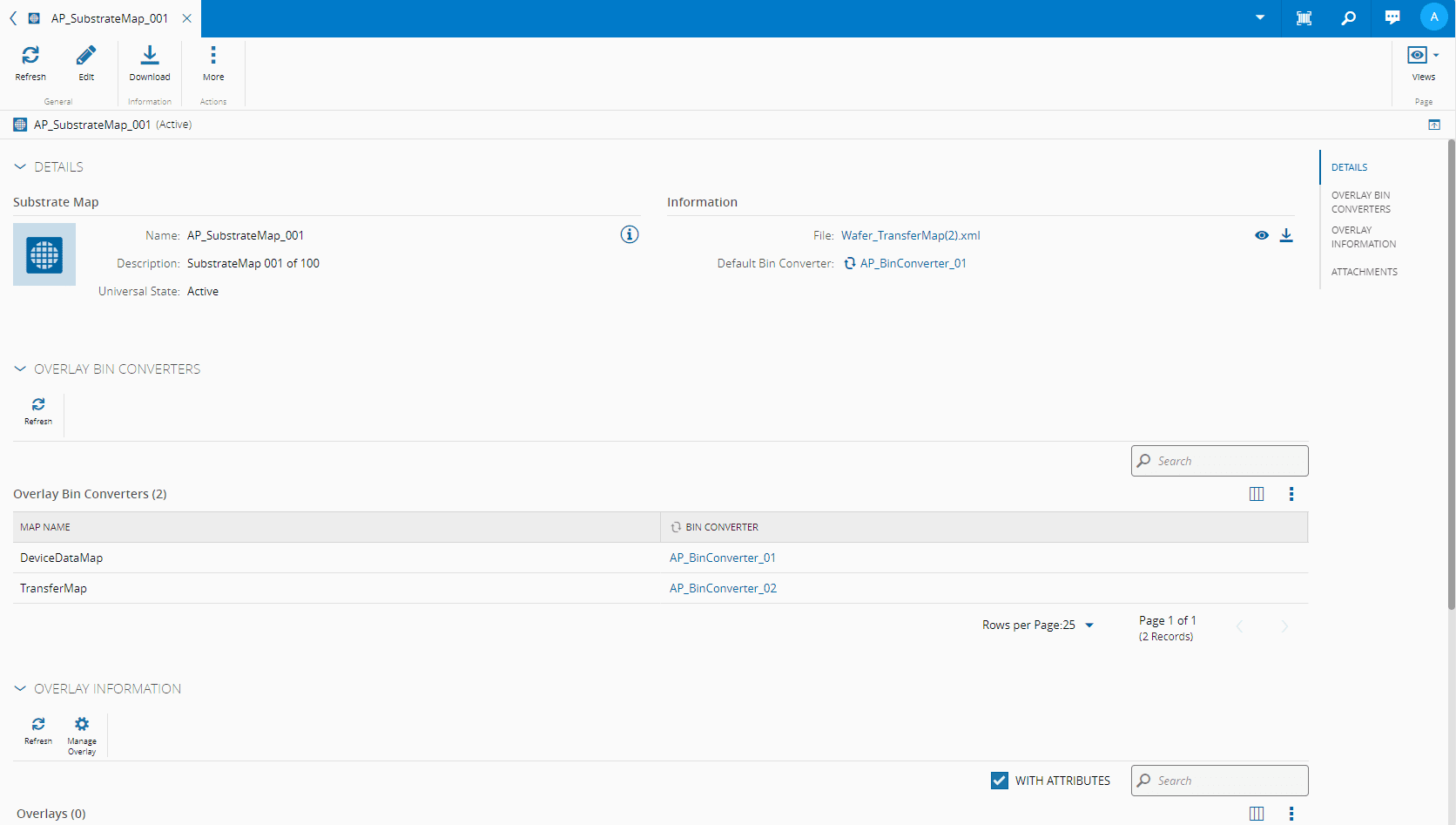
The **Substrate Map** page displays general information on the specific **Substrate Map**. In addition, it enables you to perform all the operations that can be performed on a specific **Substrate Map**.
## Details View
Depending on the optional modules that are licensed in the system, the **Details** view will display some or all of the following page sections:
* **Details** - displays general information on the **Substrate Map**.
* **Overlay Bin Converters** - enables the visualization of existing **Overlay Bin Converters**.
* **Attributes** - enables the visualization of existing **Attributes** and the possibility to create new ones. For more information, see [[attributes-section]].
* **Overlay Information** - enables the visualization of existing **Overlay Information** and the possibility to manage the selected Overlay. For more information, see [[user-guide-manage-substrate-map-overlay-information]].
* **Attachments** - shows the documents that are attached to the **Substrate Map** and enables you to attach additional documentation to it.
!!! info
The Download button on the top ribbon allows you to download the Substrate Map and Apply Bin Converter.
## Content View
This view displays a visual representation of the contents of the **Substrate Map**.
On the left panel of the **Substrate Map**, you can browse and search the complete substrate hierarchy. The following icons are used to represent each object type:
| Icon | Description |
| -------------------------------------------------------------------------- | --------------------- |
| :mes-static-substrate-lg:{ class="twemoji blue-icon medium-icon" } | Substrate objects |
| :mes-entitytypes-substratemap-lg:{ class="twemoji blue-icon medium-icon" } | Substrate Map objects |
| :mes-static-bincodemap-lg:{ class="twemoji blue-icon medium-icon" } | Bin Code Map overlay |
| :mes-static-deviceidmap-lg:{ class="twemoji blue-icon medium-icon" } | Device ID Map overlay |
| :mes-static-transfermap-lg:{ class="twemoji blue-icon medium-icon" } | Transfer Map overlay |
| :mes-static-devicedatamap-lg:{ class="twemoji blue-icon medium-icon" } | Data Map overlay |
Table: Substrate Map related icons
When an Overlay is defined as Active, the system indicates this by marking the corresponding version with a :material-circle:{ class="twemoji green-icon small-icon" }, as shown below.
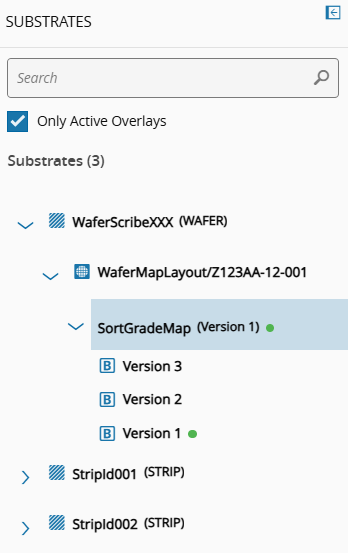
You can also designate a different Overlay as the Active version. To do so, choose the desired Overlay and select **Set Overlay As Active** on the top ribbon.

On the right panel you will have access to general information, such as:
* Substrate
* Overlay
* Layout
* Unit
* Bin Codes
* Navigator
* Settings
If you select a cell, a pop-up will provide you with information that is specific to that cell:
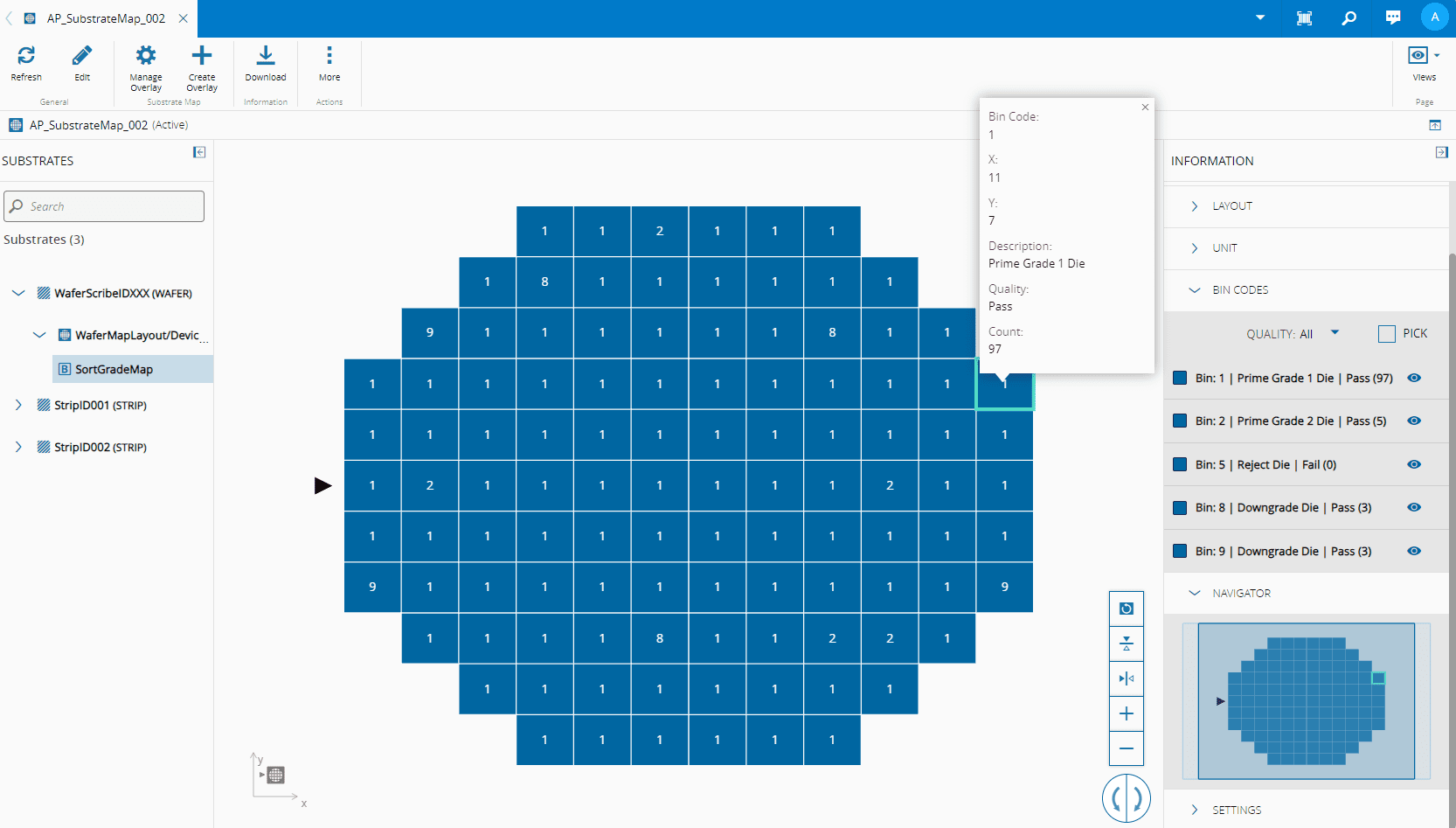
You can also use the tools listed below to manipulate the **Substrate Map**.
| Icon | Functionality | Description |
| ----------------------------------------------------------------------------- | ----------------------- | -------------------------------------------------------- |
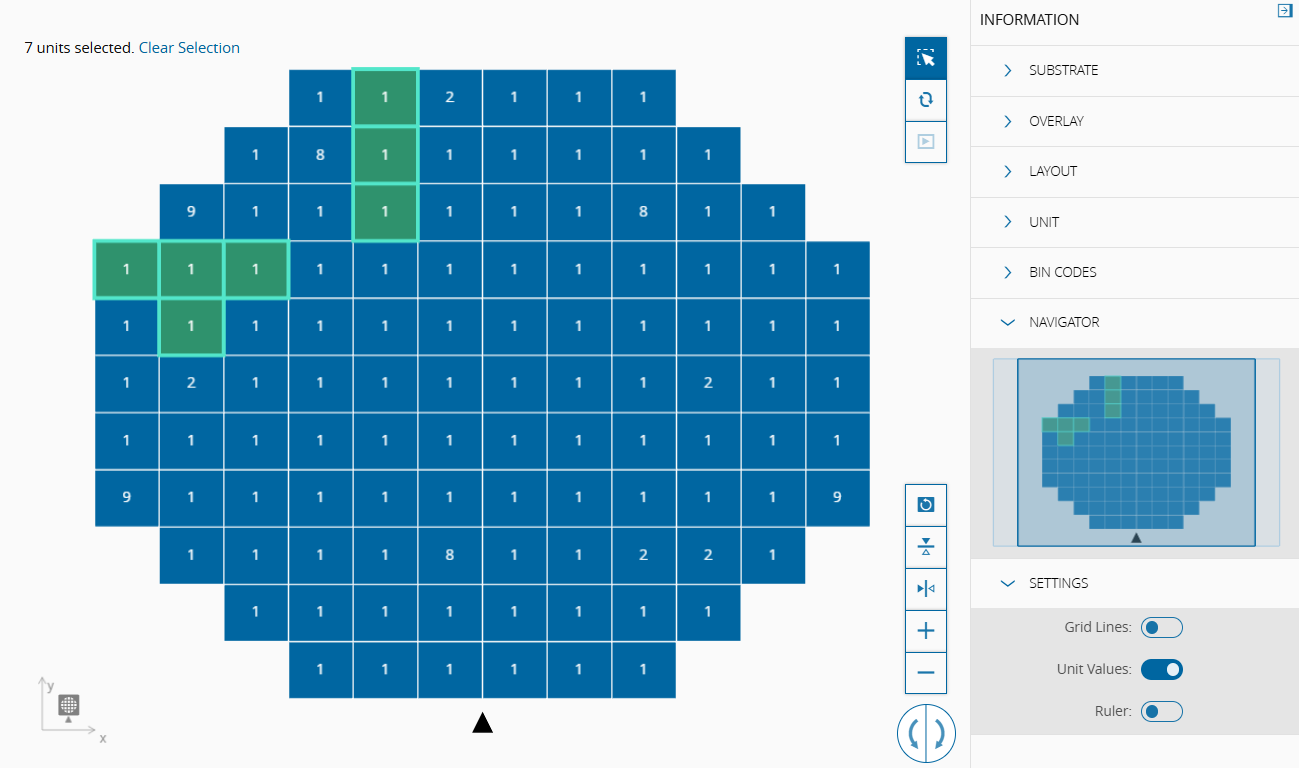
| :mes-static-selection-lg:{ class="twemoji blue-icon medium-icon" } | Select Mode | Allows you to select individual cells. |
| :core-static-converter-lg:{ class="twemoji blue-icon medium-icon" } | Convert Mode | Applies the Bin Converter. |
| :core-static-preview-lg:{ class="twemoji blue-icon medium-icon" } | Reference Device Mode | Displays the coordinates of the Reference Devices. |
| :mes-static-resetview-lg:{ class="twemoji blue-icon medium-icon" } | Reset View | Restores the view to its default layout and orientation. |
| :core-static-flip-vertical-top-lg:{ class="twemoji blue-icon medium-icon" } | Flip Vertically | Flips the map vertically. |
| :core-static-flip-horizontal-top-lg:{ class="twemoji blue-icon medium-icon" } | Flip Horizontally | Flips the map horizontally. |
| :core-static-add-sm:{ class="twemoji blue-icon medium-icon" } | Zoom In | Increases the zoom level of the map. |
| :core-static-remove-sm:{ class="twemoji blue-icon medium-icon" } | Zoom Out | Decreases the zoom level of the map. |
| :core-static-rotatedisplayright-sm:{ class="twemoji blue-icon medium-icon" } | Rotate Counterclockwise | Rotates the map counterclockwise. |
| :core-static-rotatedisplayleft-sm:{ class="twemoji blue-icon medium-icon" } | Rotate Clockwise | Rotates the map clockwise. |
Table: Substrate Map Functionalities
Some examples of these tools are presented in the images below:
=== "Select Mode"
=== "Convert Mode"
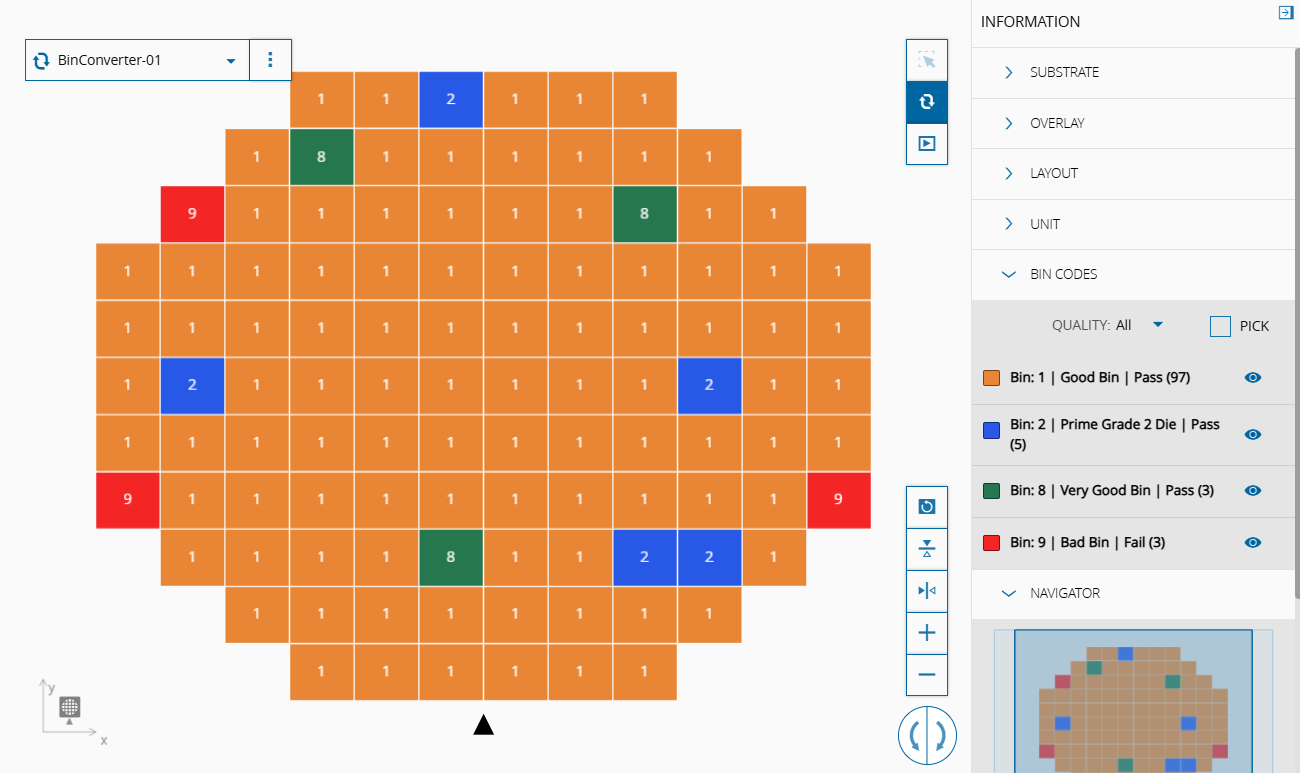
=== "Reference Device Mode"
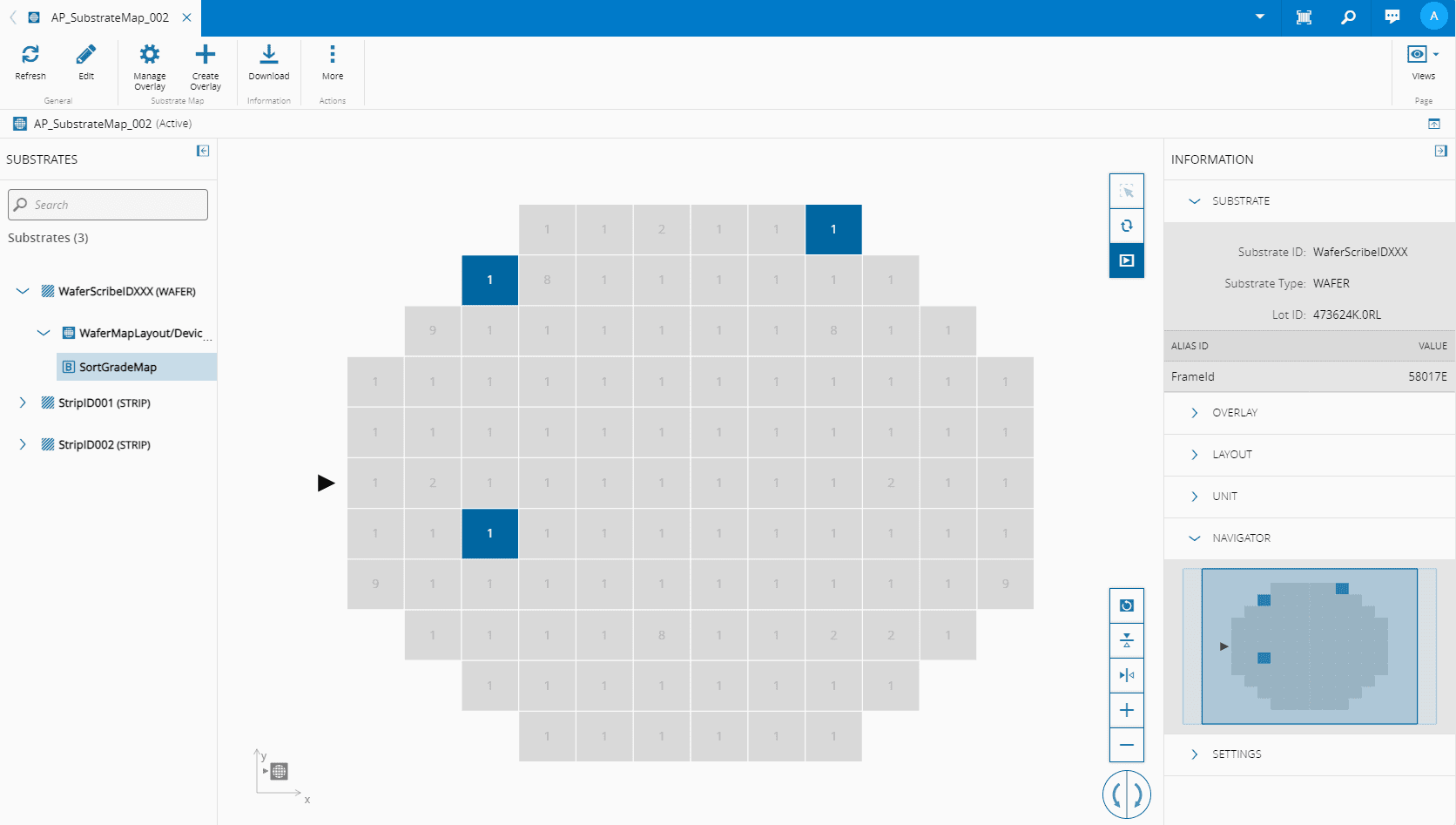
=== "Flip Horizontally"
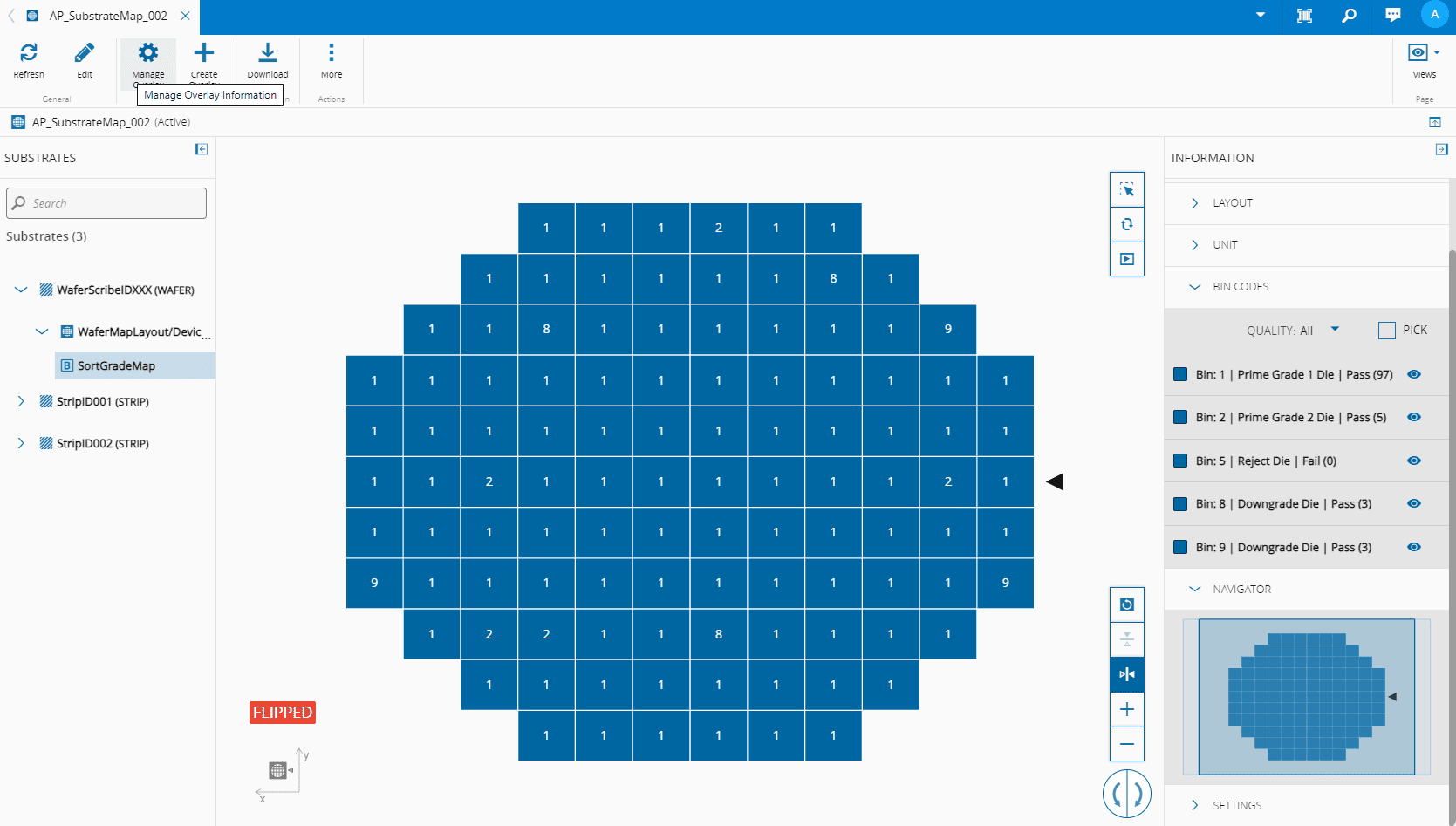
Additionally, when you [[user-guide-create-substrate-map]] you can:
* Define a Default **Bin Converter**.
* Associate a **Bin Converter** to an existing Overlay in the **Substrate Map**.
In this **Substrate Map** Content View, the Overlay appears converted (Convert Mode enabled) or not (Convert Mode disabled) according to the **Bin Converter** information. This is, if the Overlay has an associated **Bin Converter**, and its Bin Type matches the Bin Type of the Overlay, the map that appears is converted using that **Bin Converter**:
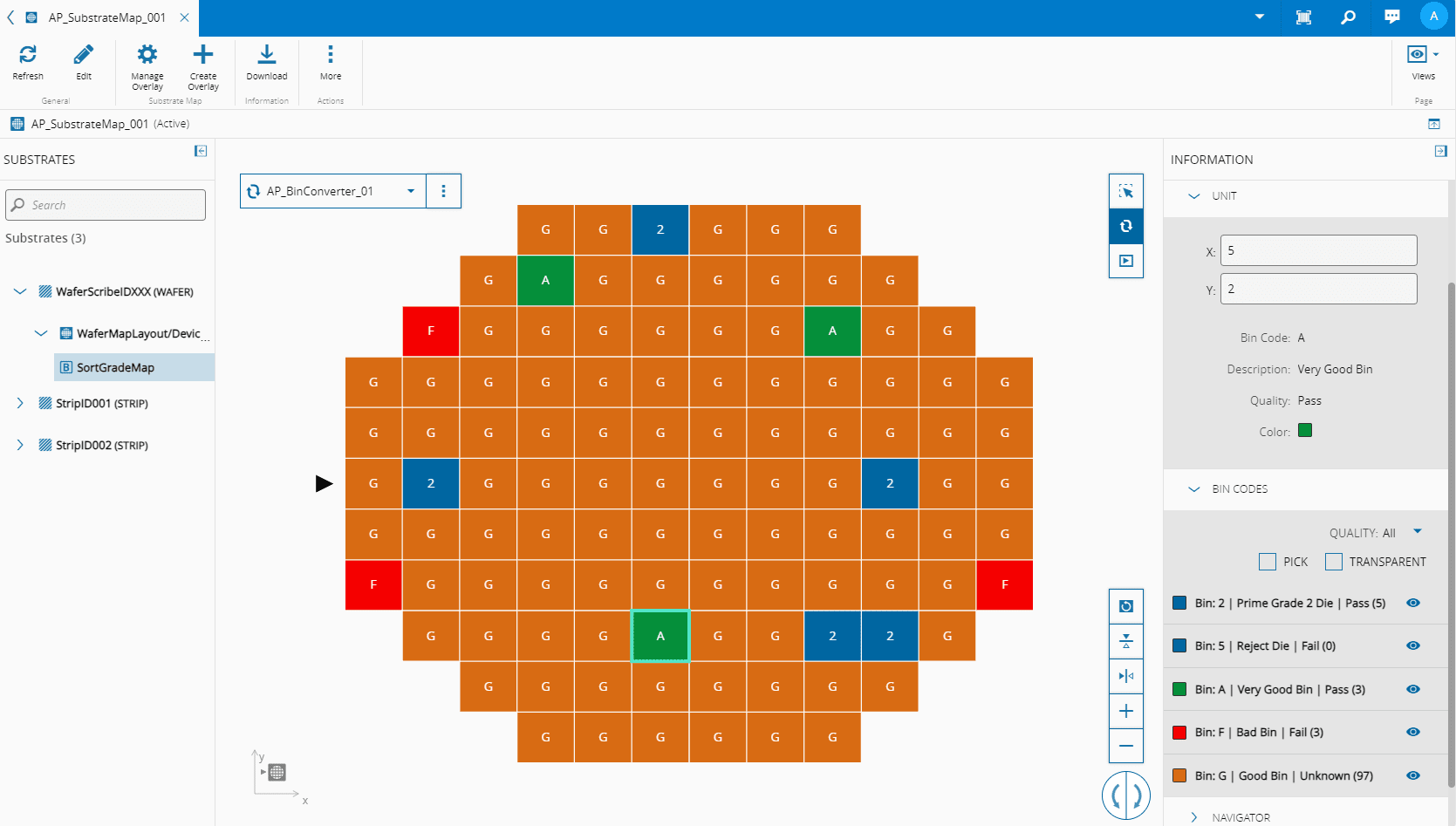
!!! info
When applying a Bin Converter, the map will display the standard Pass and Fail Bin Qualities, as well as any Custom Bin Quality values defined. You can also filter the map by Pass, Fail, or any Custom Bin Quality.
If there is no valid **Bin Converter** associated with the Overlay and there is a Default **Bin Converter** defined with a Bin Type matching the Overlay, the system uses the Default **Bin Converter**:
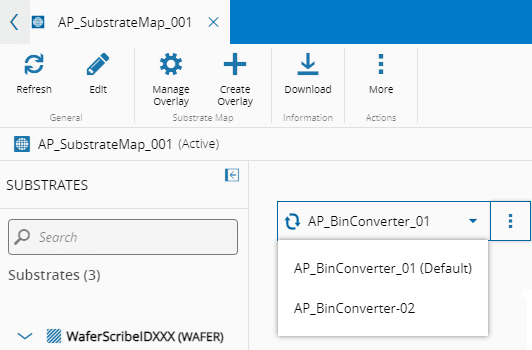
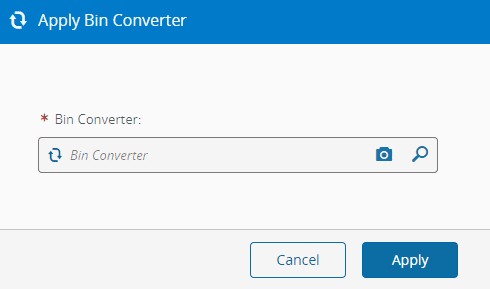
Otherwise, the Overlay is not converted, and you must use the Apply other **Bin Converter** (:material-dots-vertical:) option:

And select another **Bin Converter** that exists in the system if you want to convert the Overlay:
!!! info
Right panel contains Transparent bin option. This is only available when there is at least one Converter applied with the To Bin Code set to Transparent. Additionally, the Bin Converter must be Colors and Values because only this Bin Type can define transparency. To view the transparent bin codes you need the following security feature: :lock: SubstrateMap.ViewTransparent.
Here you can access a sample [Substrate Map](./images/substrateMapExample.xml) XML file and see the details of the document tree.
## Bin Code Map XML representation according to the Map Type
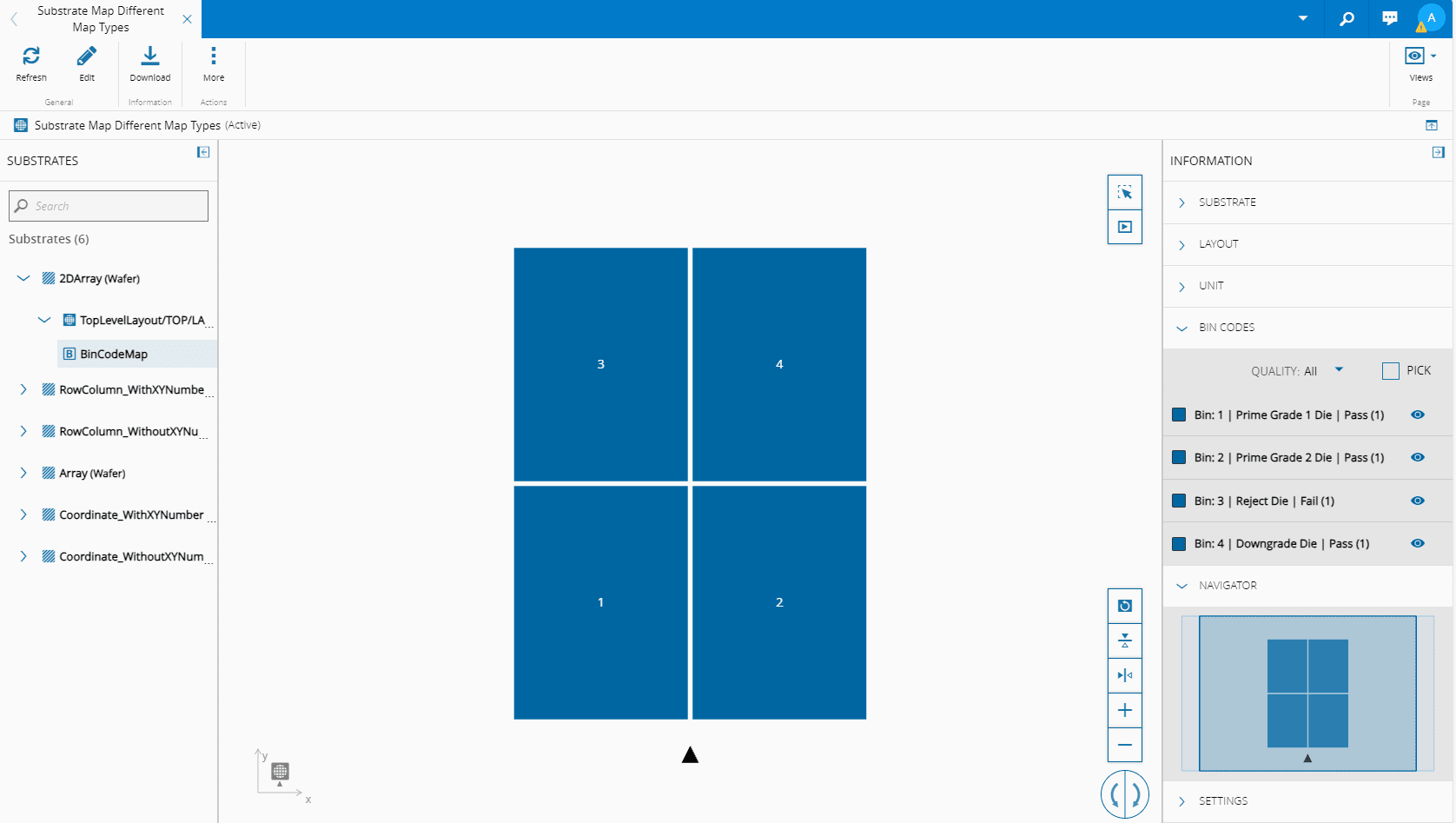
The Bin Code Map above can be represented in the following Map Types:
### 2DArray Format (most common)
```xml
.34.
.12.
```
!!! note
The order of rows should match the order that appears when viewing the map, independent of Origin Location and Axis Direction. Also, the number of units must match the layout dimension.
### Row/Column Format
=== "Option 1"
```xml
12
34
```
=== "Option 2"
```xml
(Data structure: ...)
1 0 2 1 2
1 1 2 3 4
```
!!! note
The values of Coordinates X and Y depends of the Origin Location and Axis Direction, and are zero-based numbered.
### Array Format
```xml
(Data structure: ......)
.34..12.
```
!!! note
The order of rows should match the order that appears when viewing the map, independent of Origin Location and Axis Direction. Also, the number of units must match the layout dimension.
### Coordinate Format
=== "Option 1"
```xml
1
2
3
4
```
=== "Option 2"
```xml
Data structure: …
1 0 1 2 0 2
1 1 3 2 1 4
```
!!! note
The values of Coordinates X and Y depends of the Origin Location and Axis Direction, and are zero-based numbered.
## Examples of Hierarchical Layout
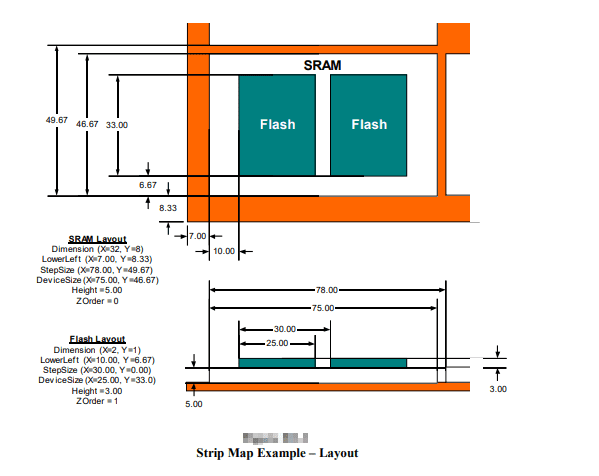
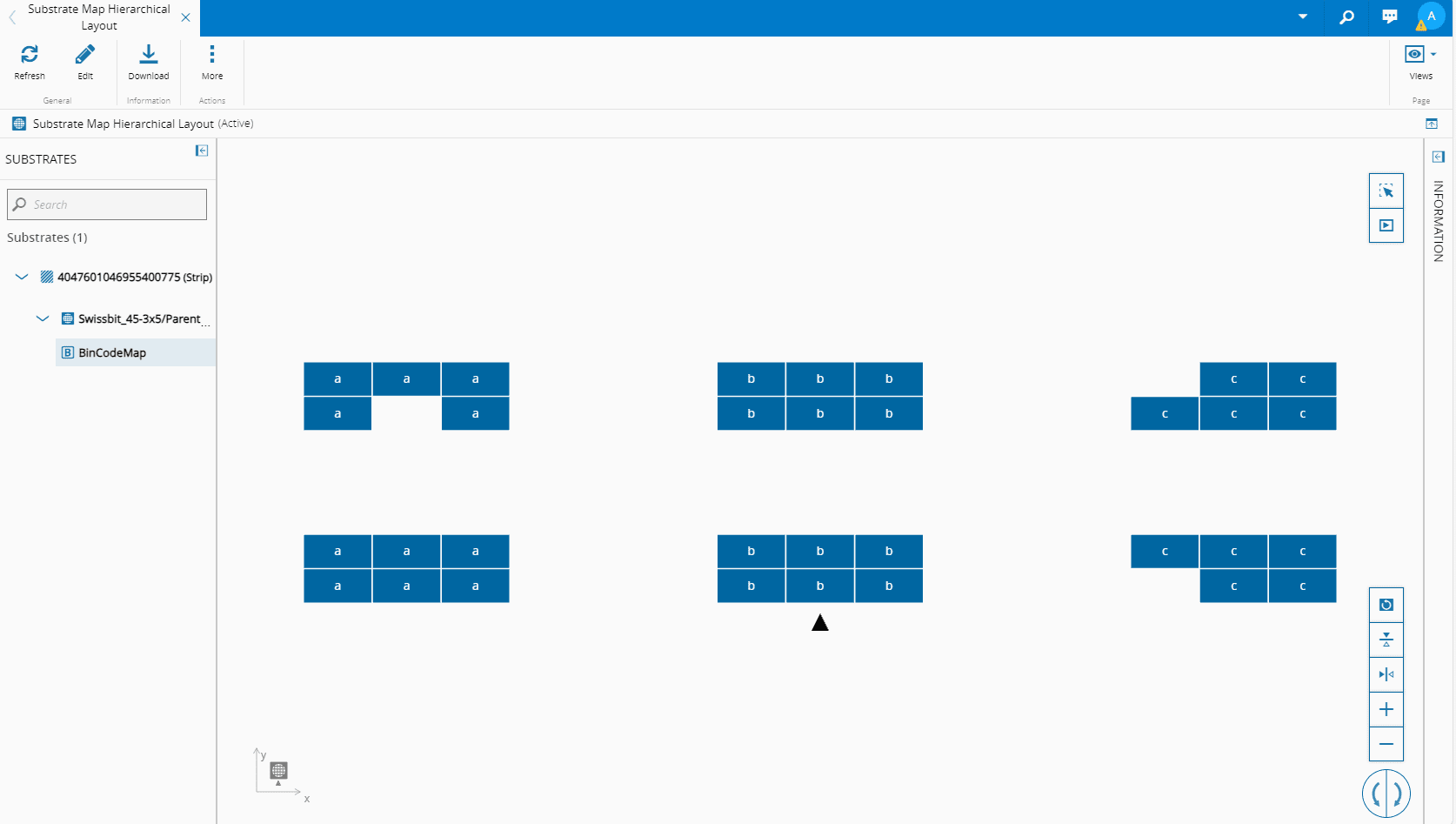
Here you can access a sample [Substrate Map Hierarchical Layout](./images/substrate_hierarchical_layout.xml) XML file and see the details of the document tree.
It may also be useful to look at [[user-guide-cm-semi-e142-schema]].
## Compare View
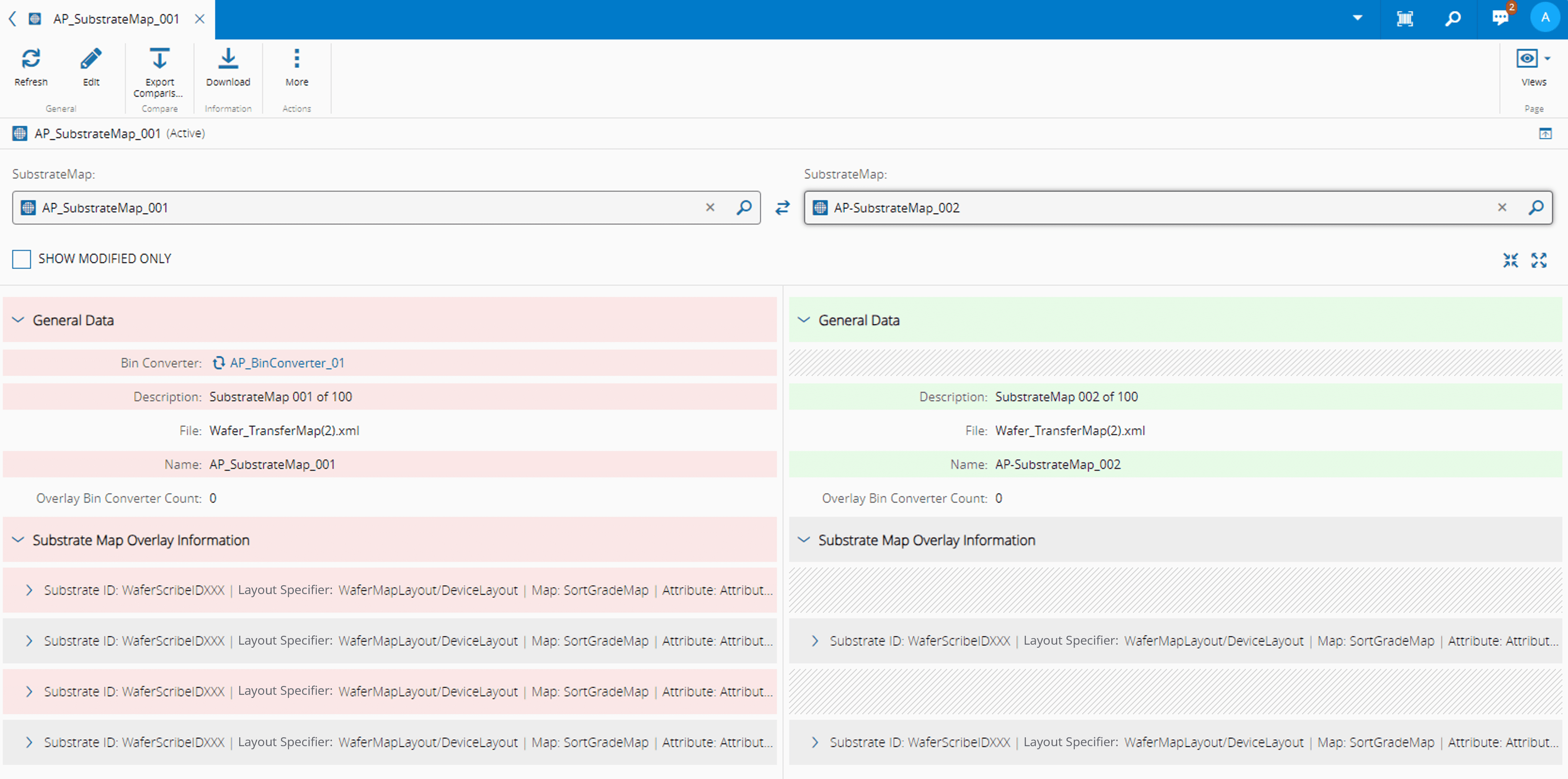
{% include-markdown 'includes/views/compare_view.md' %}
## References View
{% include-markdown 'includes/views/references_view.md' %}
## History View
{% include-markdown 'includes/views/history_view.md' %}