AI#
 AI.AskAI
AI.Compare
AI.ViewSummary
Overview#
AI provides generative AI capabilities inside Critical Manufacturing MES. You can use these features to ask questions about entity-related content, generate summaries, and compare different versions of the same entity or document.
The main AI actions are:
- AI - start a conversation with an available AI Agent.
- Ask AI - ask questions about the selected entity, document, or attachment.
- Compare - compare two versions of the same entity or document.
- View Summary - generate a summary of the selected document or attachment.
This section is organized as follows:
- AI - explains how to start and manage conversations with available AI Agents.
- Available AI Agents - describes the standard AI Agents and the tasks for which to use each one.
- Security Features - explains the security features that control access to AI actions.
- Using AI - shows where the AI buttons appear and how the actions behave.
- Prompt Configuration - explains how to configure prompts, models, agents, and MCP servers.
- Supported Sources - explains what content AI can use as input.
- Azure OpenAI - explains how to prepare the Azure AI Foundry side of the integration.
Preconditions#
- The Generative AI Infrastructure must be deployed and configured in your Critical Manufacturing MES environment.
Info
To deploy the Generative AI Infrastructure, follow the steps in the AI section of the Installation guide.
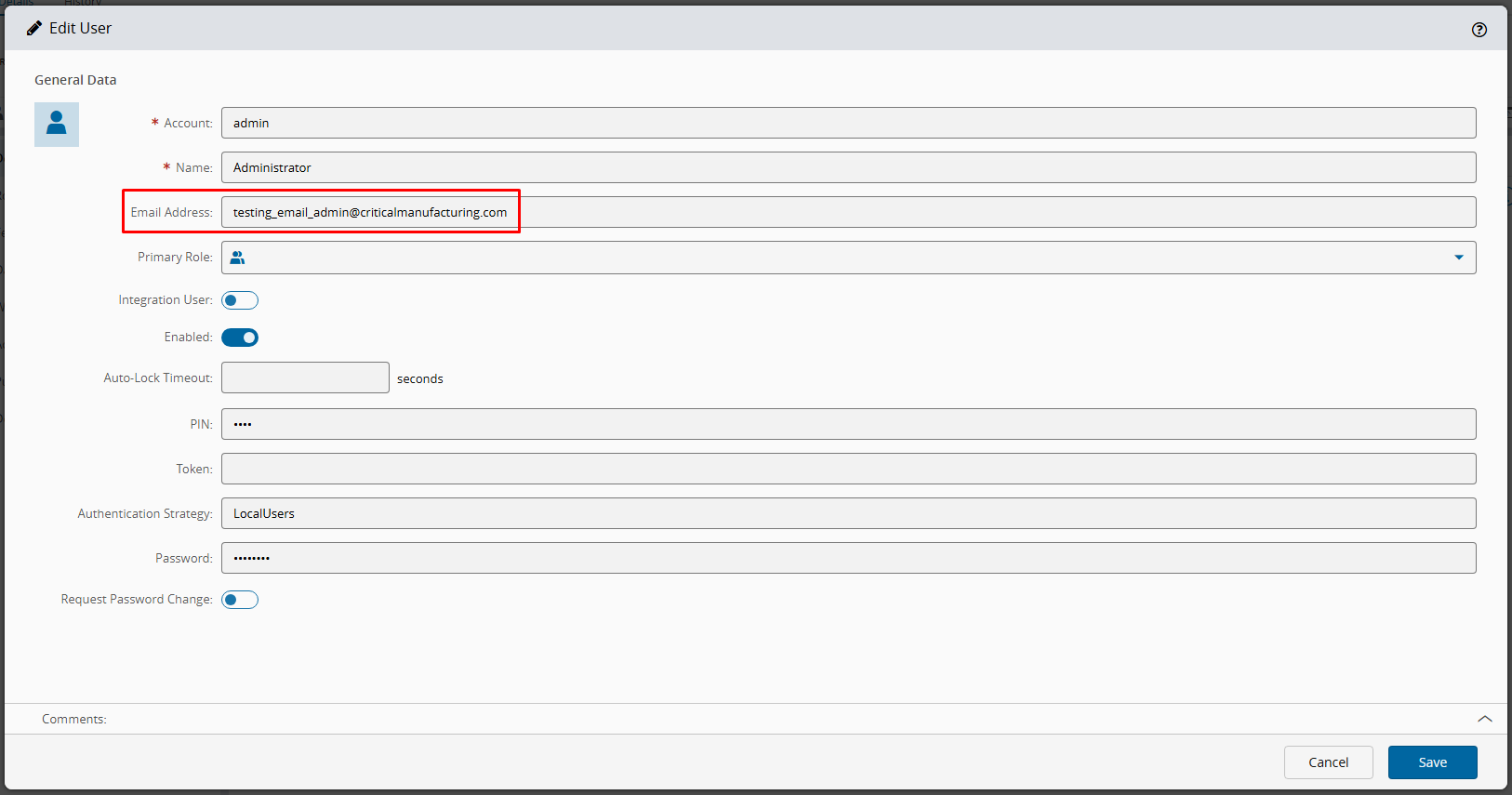
- A valid email address must be configured for the User who will use AI.
- A large language model (LLM) is configured in the system.
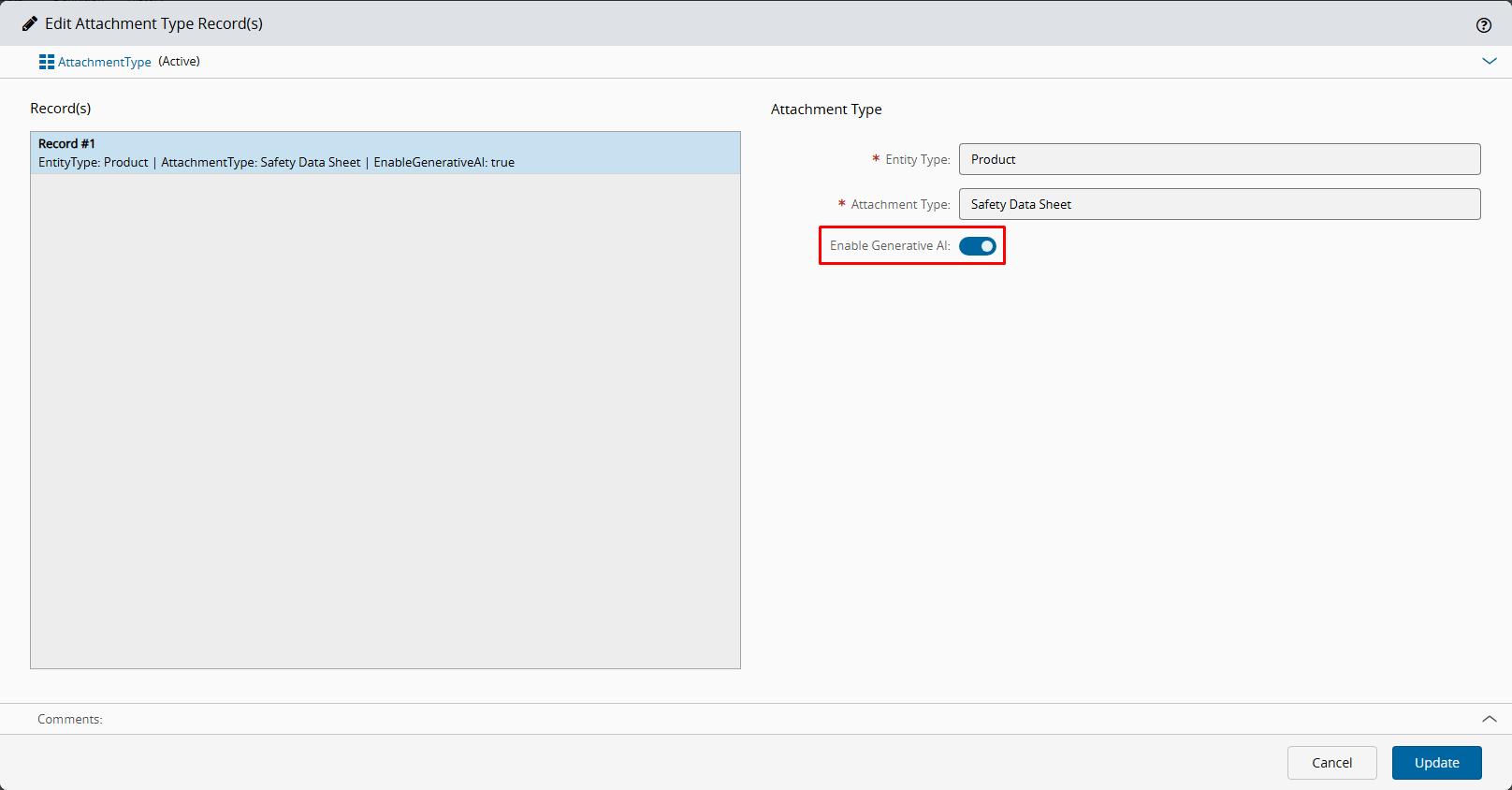
- The Attachment Types that can be processed by the LLM are configured.
Basic Configuration#
Add an Email Address#
- Go to Administration > Security > Users.
- Select the User who will use AI.
-
Verify that the Email Address field is defined.
Enable Generative AI for Attachments#
- Go to Administration > Tables > Generic Tables.
- Open the AttachmentType Generic Table.
-
Enable the column Enable Generative AI for each Entity Type and Attachment Type that you want AI to process.
For prompt-related configuration, see Prompt Configuration.