Using AI#
Use AI from supported entity pages and related content areas. To start a conversation with an available AI Agent, see AI.
Available Actions#
The following actions may be available:
- AI - start a conversation with an available AI Agent.
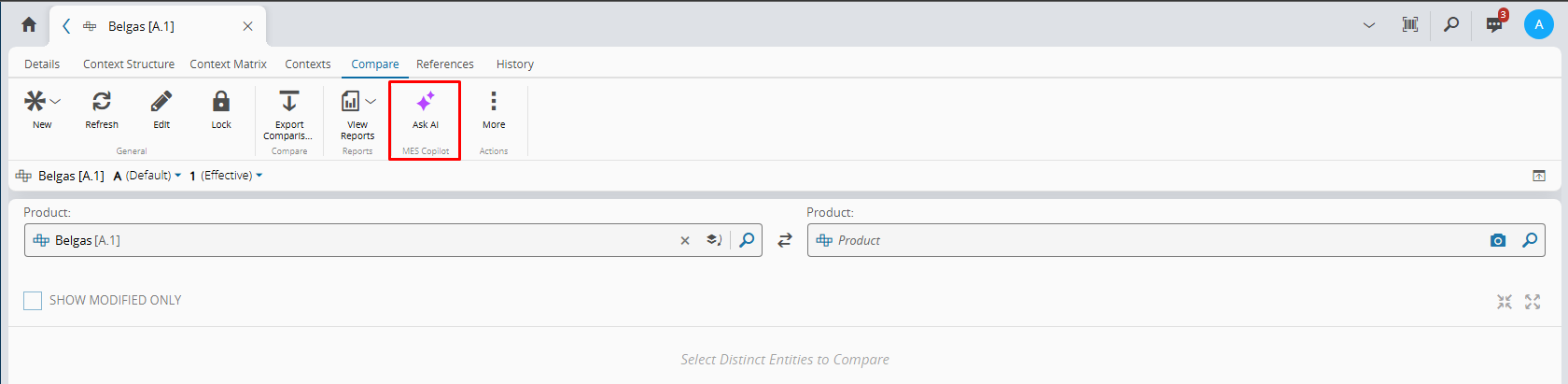
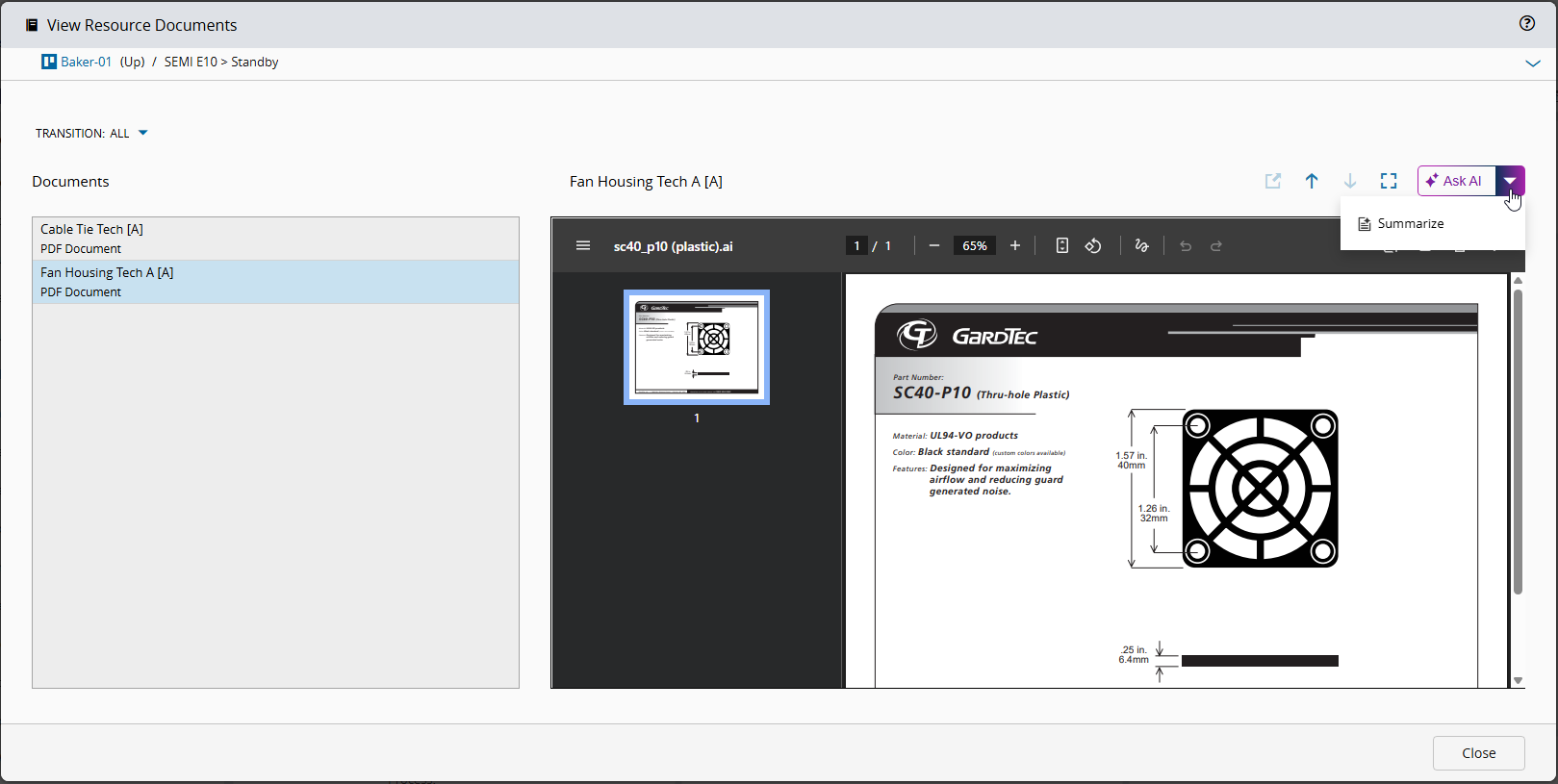
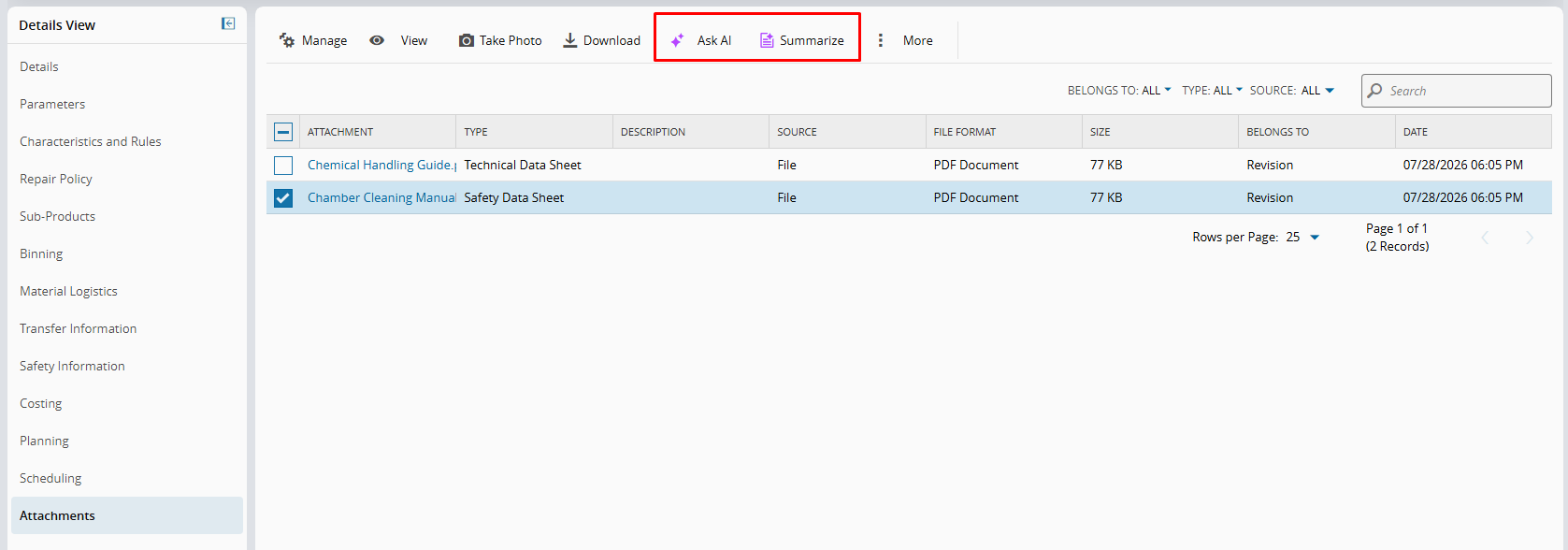
- Ask AI - ask questions about the selected entity, document, or attachment.
- Compare - compare two versions of the same entity or document.
- View Summary - generate a summary of the selected document, attachment, or supported operational context.
Access Points#
From the main navigation menu, select AI. AI loads an available AI Agent. Use the agent selector in the header to switch to another available AI Agent, then enter a prompt to start a conversation.
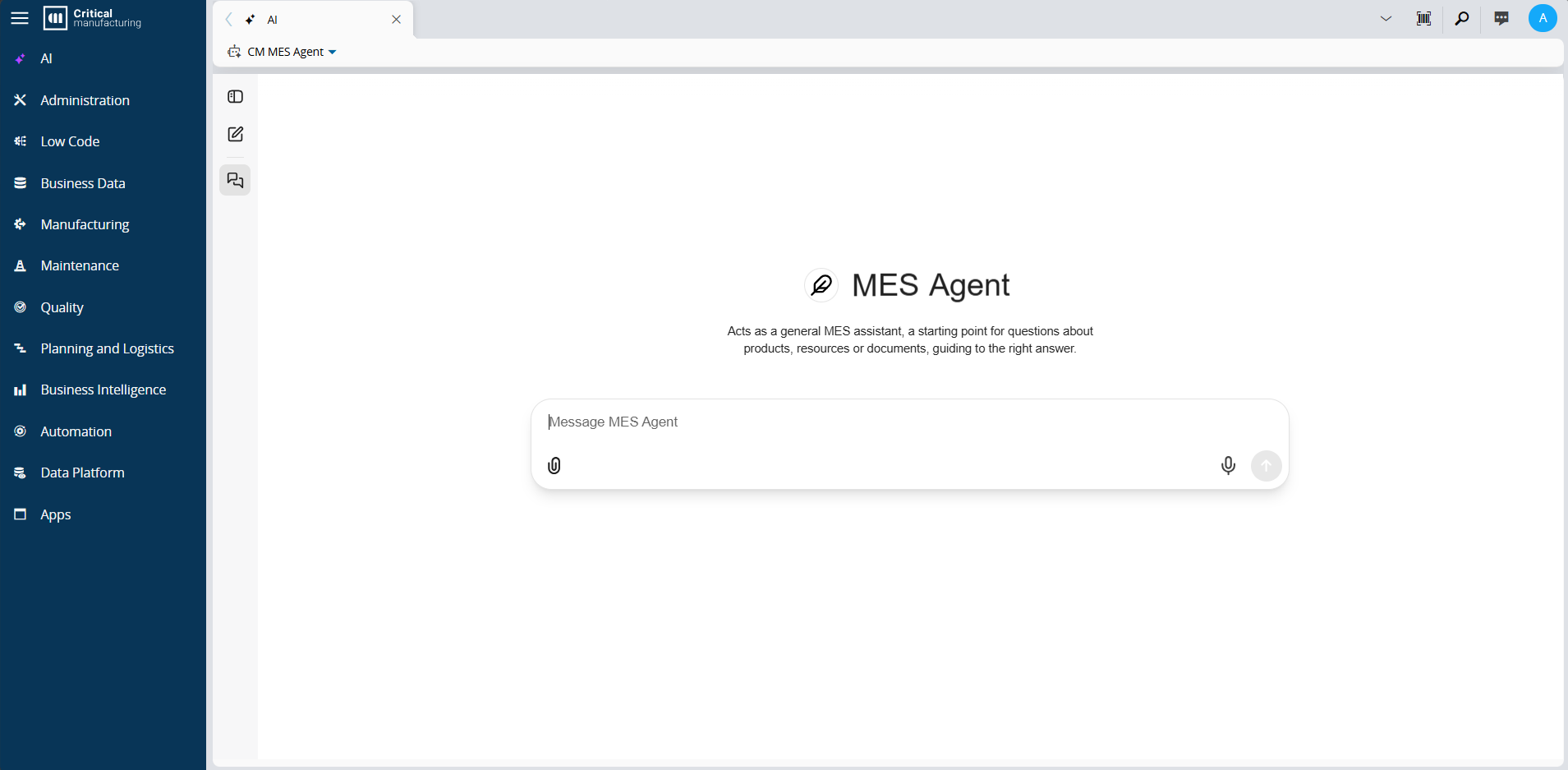
Use New Chat to start a separate conversation, or select a conversation from the history to continue it. You can also attach files to a conversation.
From the entity toolbar, select Ask AI in the MES AI group.

From the entity toolbar, select Compare when the entity supports version comparison.
From the View Documents window, use the available AI actions.
From the Documents or Attachments section of the entity page, use the available AI actions.
Panel Behavior#
When you use AI from a wizard, the panel opens over the wizard. This lets you review the wizard while you use AI.
On desktop, select More in the panel header to change how the panel is displayed:
-
Select Fullscreen to expand the panel. Select Exit fullscreen to restore its previous size.
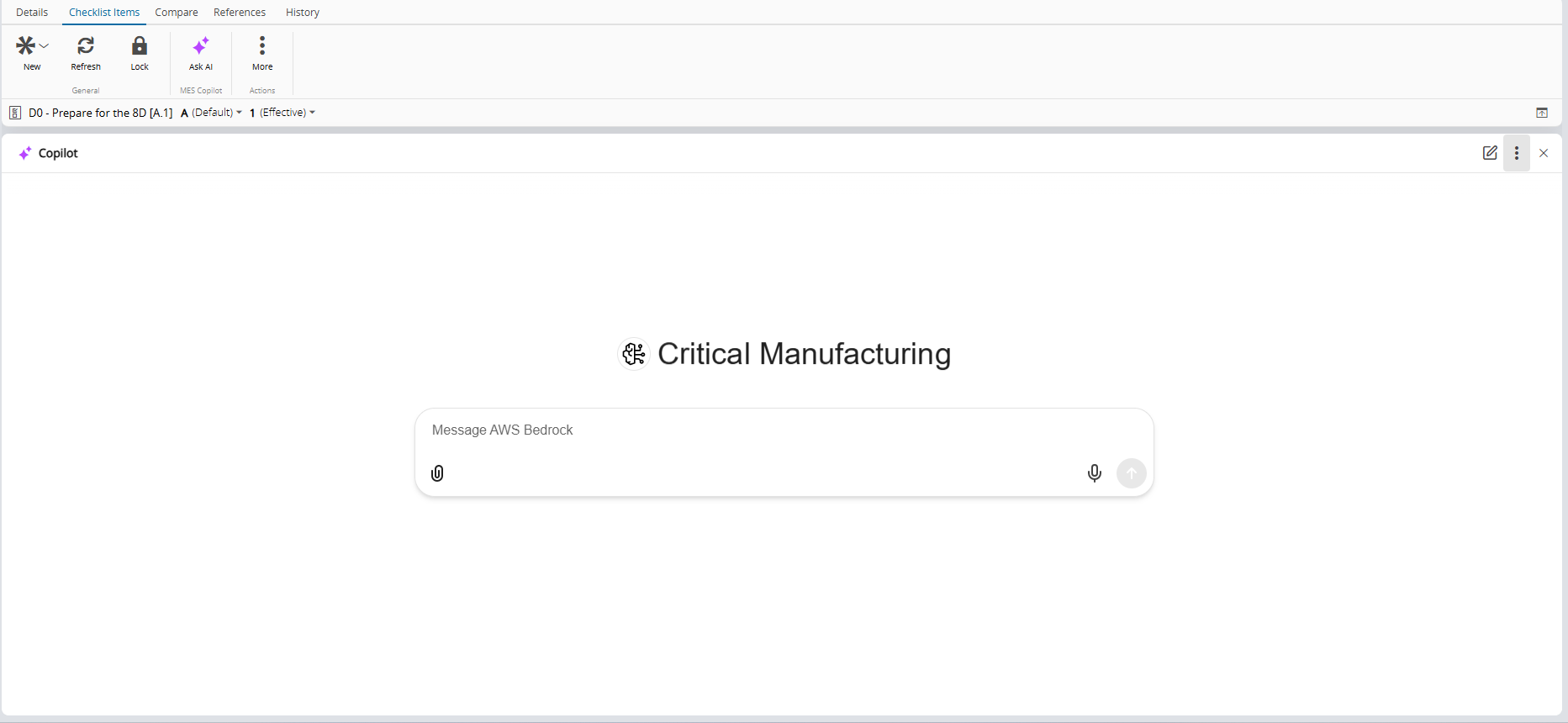
-
Select Float to detach the panel from the page. Move the floating panel by dragging its header, and resize it as needed.
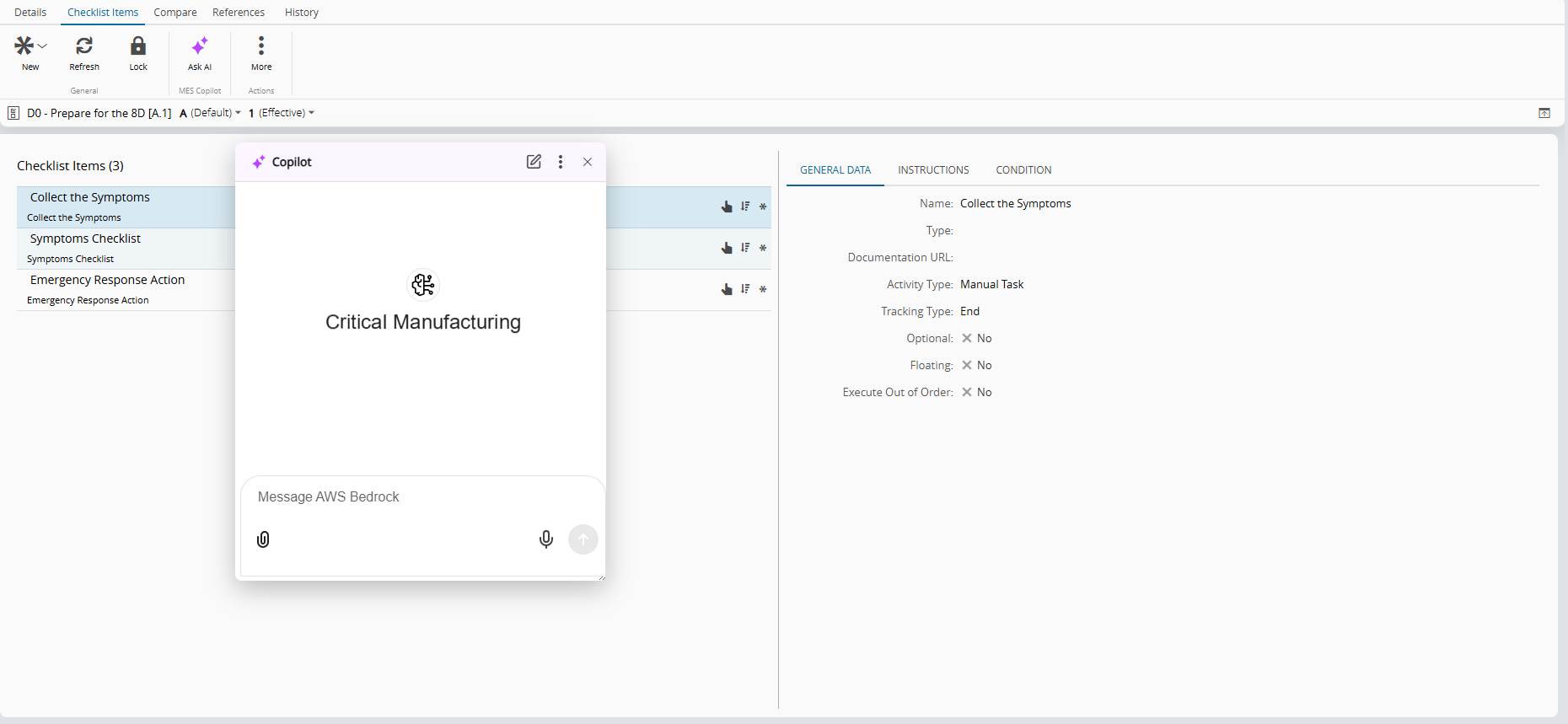
-
Select Docked to return a floating panel to the side of the page.
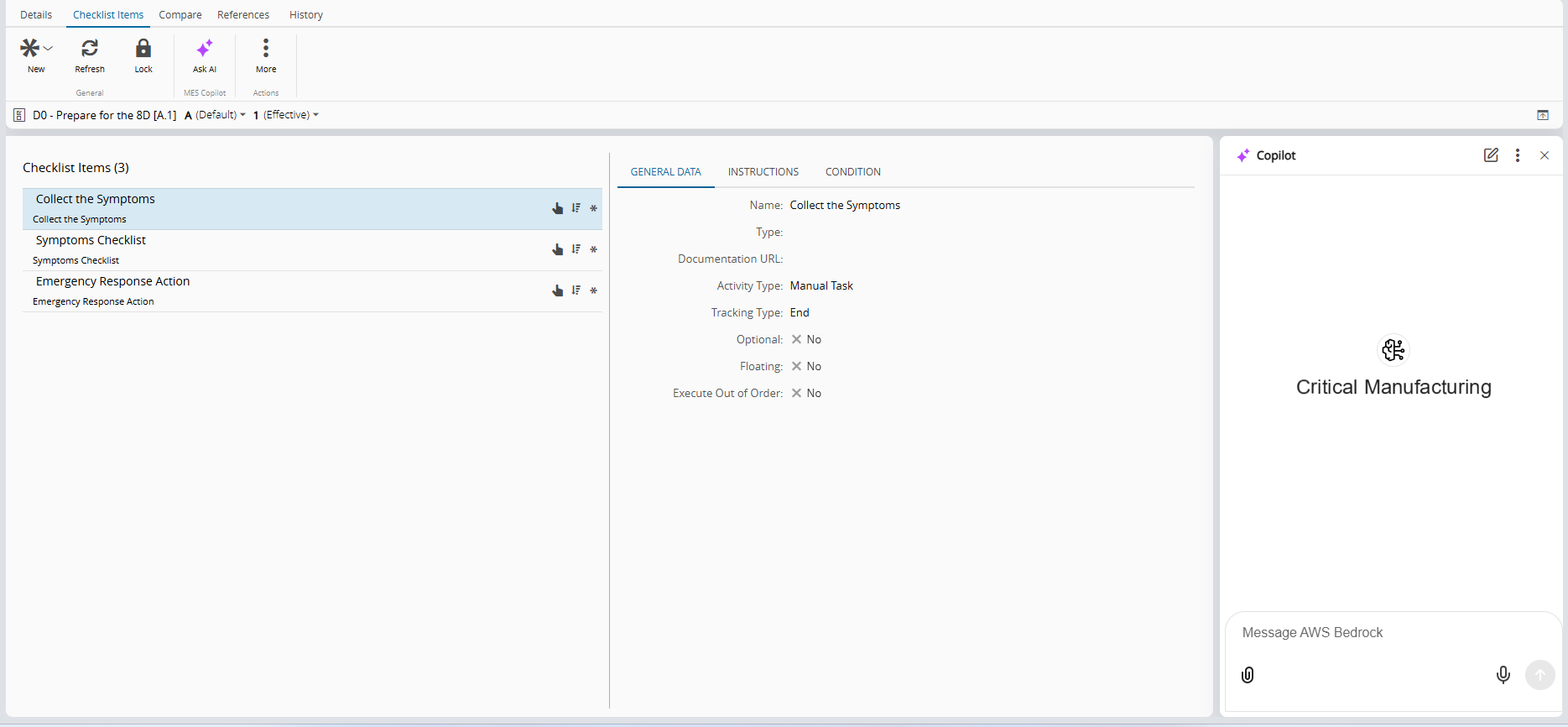
Documents and Attachments#
When you use AI from the Documents or Attachments section:
-
If you select one document or attachment, both Ask AI and View Summary may be available.

-
If you select multiple documents or attachments, only Ask AI is available.

-
If you open a single document, the menu may provide both Ask AI and View Summary.
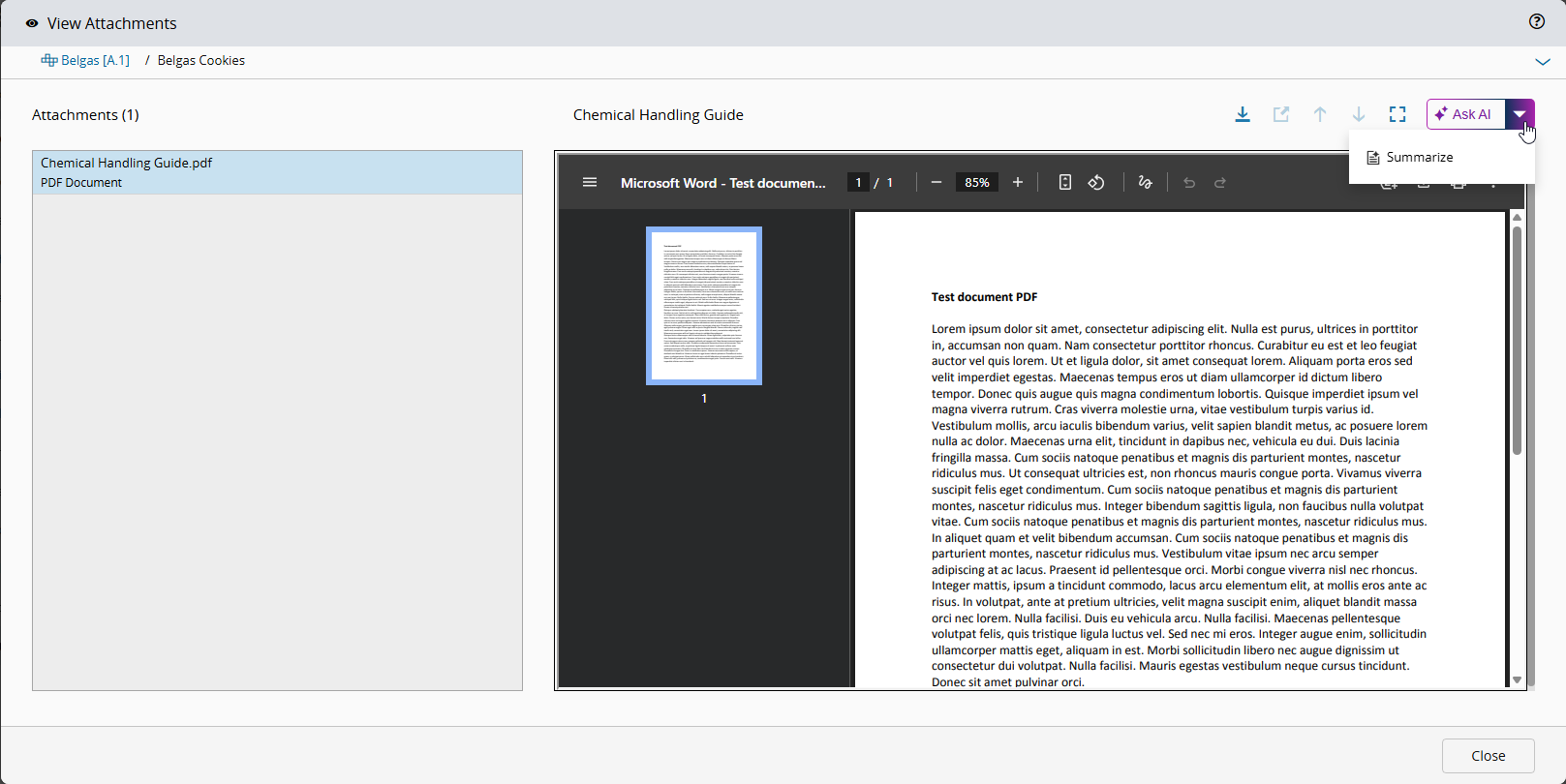
An Ask AI conversation opened from selected attachments is separate from a conversation opened from the entity. Ask AI does not reopen the entity conversation when you switch to an attachment.
Expected Interaction#
When the AI panel opens, the system sends context information to the configured LLM. Depending on the action, this context can include the current entity, the selected documents or attachments, and an optional initial prompt.
For more information on prompt customization, see Prompt Configuration.