Automatic Explicit Add#
Overview#
The Automatic Explicit Add feature aims to enhance the execution of Assemble operations with assembly type Explicit Add by automatically determining and consuming the required BOM Products from the consumable feeds configured on the processing resource.
This eliminates the need for the operator to manually select source Materials, simplifying the assembly process and reducing operational effort.
The system calculates a consumption plan using the available feed Materials and applies it during execution, either automatically or with operator confirmation depending on configuration.
Concept#
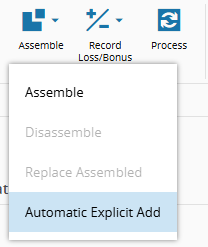
When the Material is in a Step with an Explicit Add BOM, the operator can execute the Automatic Explicit Add operation.
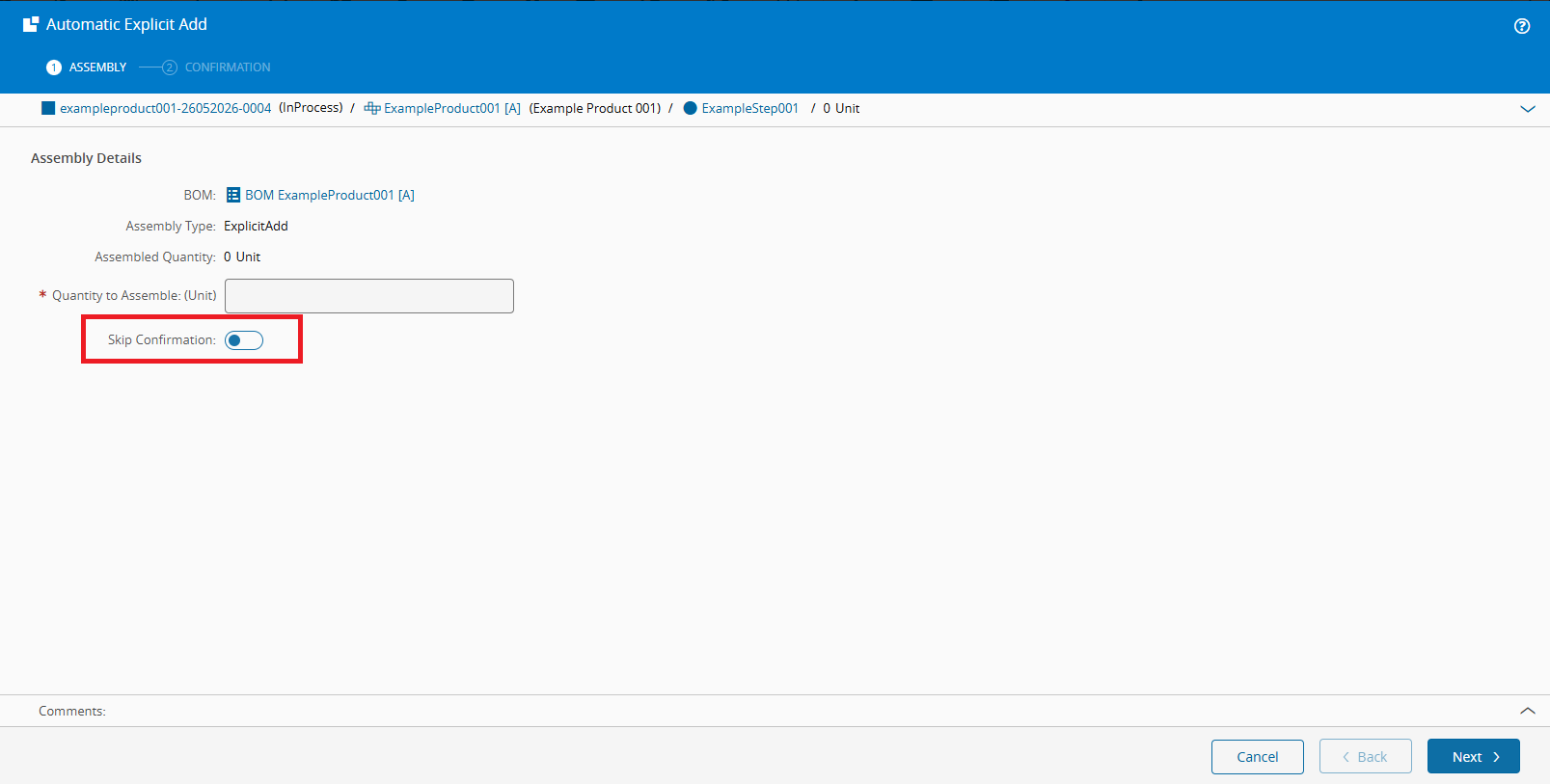
The wizard keeps the same base information as the standard Assemble wizard and adds a Skip Confirmation flag. The system always calculates the automatic consumption plan in the backend. The flag only controls whether the operator reviews the plan before the Assemble is executed.
The initial value of Skip Confirmation can be configured through the standard GUIElementDefaultValue generic table. When an enabled entry exists for Context = MedDev.AutomaticExplicitAdd and Element = ShowConfirmation, the wizard applies the entry Value as the default value of Skip Confirmation. Accepted values are True and False, case-insensitive. If the entry does not exist, or if it exists but is disabled, the wizard keeps its standard default behavior.
For each BOM Product, the system consumes Materials in the feed queue using FIFO (First-In, First-Out) logic until the required quantity is fulfilled.
Assumptions#
To use the Automatic Explicit Add logic, the process should follow the following assumptions:
- A valid
Explicit AddBOM is configured for the Material. - The Material is associated with a processing Resource (In Process).
- The Resource has properly configured Consumable Feeds.
- Consumable Feeds are loaded with Materials corresponding to the required BOM Products.
- The operator has the required permissions to execute the operation.
Enabling Automatic Explicit Add#
Security Features#
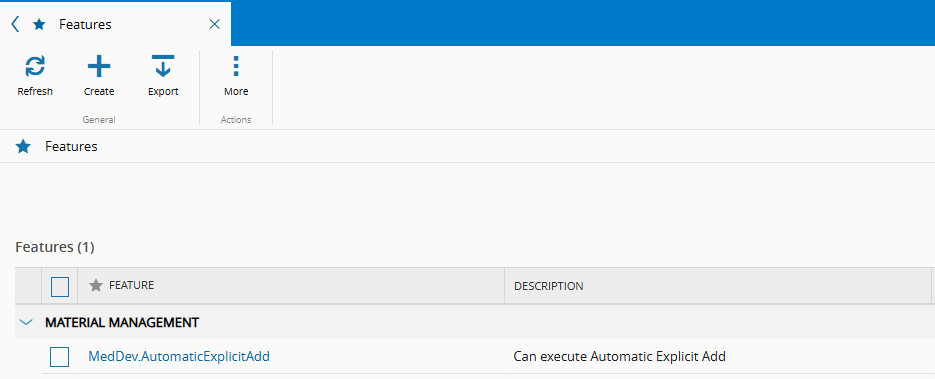
The operation requires the functionality MedDev.AutomaticExplicitAdd: - If feature-level security is enabled, the user must be assigned this functionality.
BOM Consumption Logic#
The system applies a FIFO consumption strategy per BOM Product.
Consumption Rules#
For each BOM Product:
Partial Consumption
If the first available Material has more than the required quantity:
- Only the required amount is consumed.
- The Material remains active in the Consumable Feed with the remaining quantity.
Exact Consumption
If the Material quantity matches exactly:
- The Material is fully consumed.
Multi-Material Consumption
If the Material quantity is insufficient:
- It is fully consumed.
- The system continues consuming the next available Materials of the same Product in Consumable Feed, following FIFO order, until the required quantity is fulfilled.
Insufficient Quantity Handling#
If the system is unable to fulfill the required quantity for any BOM Product:
- The automatic consumption plan cannot be completed.
- The Assemble operation is not executed, regardless of the confirmation mode:
- With confirmation (
Skip Confirmation = OFF) - Without confirmation (
Skip Confirmation = ON)
- With confirmation (
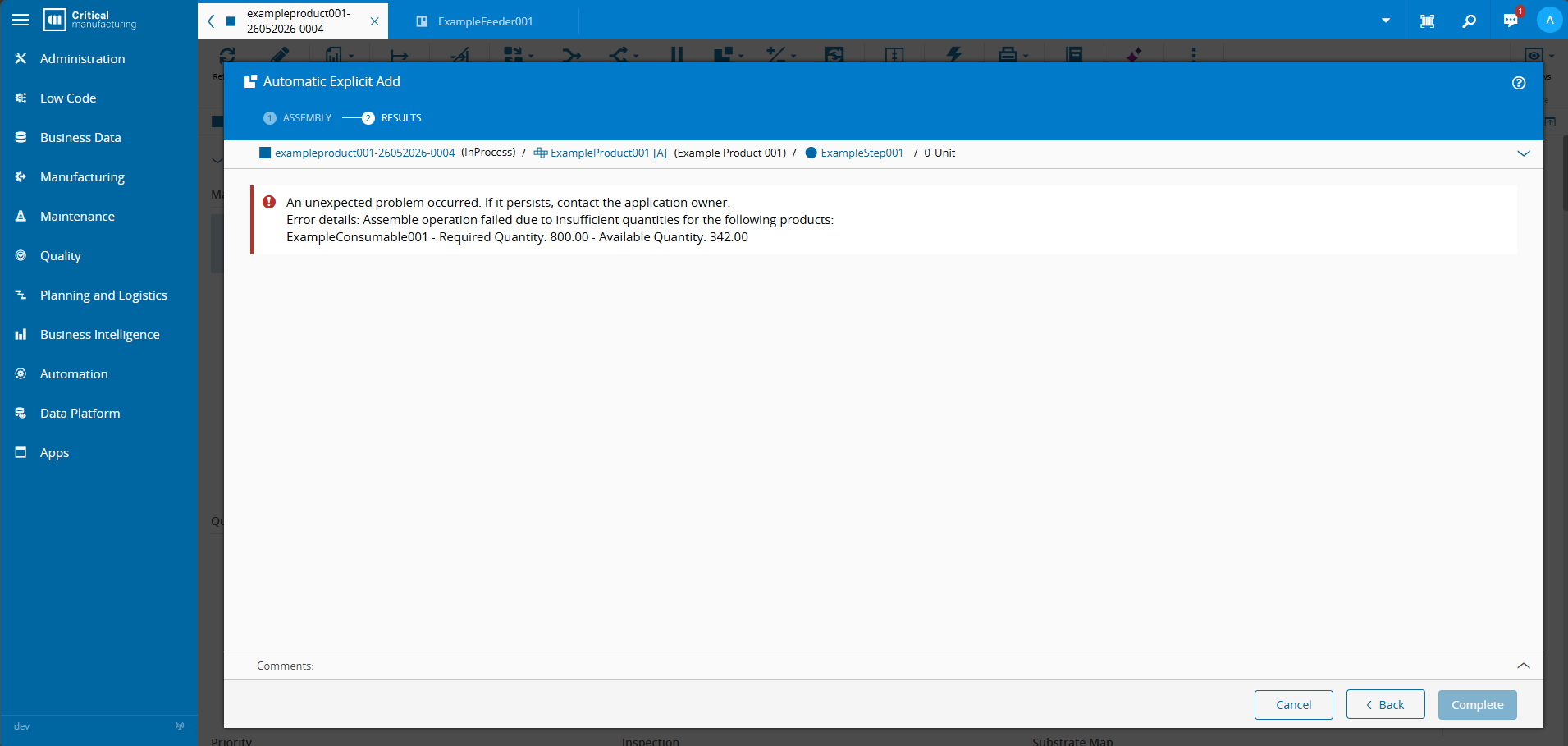
In both cases the system blocks the operation and a message is displayed to the operator indicating insufficient quantity, with details per BOM Product. This ensures that no partial or inconsistent assembly is performed and that all required consumables are available before execution.
Setting Up Automatic Explicit Add#
BOM Requirements#
The Material must have a current BOM with:
- Assembly Type =
Explicit Add - BOM Products with quantity greater than zero
Resource and Consumable Feeds#
The Material must be linked to a processing Resource. The Resource must have:
- Consumable Feeds configured
- Consumable Feeds loaded with Materials matching BOM Products
The operation resolves the Consumable Feeds configuration from the setup information of the current Resource and uses these Consumable Feeds as the source for automatic consumption.
Default Skip Confirmation Value#
Client projects can define the default value of the Skip Confirmation flag in the standard GUIElementDefaultValue generic table. No default entry is delivered by the MedDev template.
Create an enabled row with the following values:
| Column | Value |
|---|---|
| Context | MedDev.AutomaticExplicitAdd |
| Element | ShowConfirmation |
| Value | True or False |
| Is Enabled | Enabled |
When the row is enabled, Value is applied as the default value of Skip Confirmation when the wizard opens. When the row is disabled, or when no row exists for this context and element, the wizard keeps its standard default behavior.
Executing Automatic Explicit Add#
Wizard Overview#
The operation is triggered via the Automatic Explicit Add wizard. Displayed information includes:
- BOM
- Assembly Type
- Assembled Quantity
- Quantity to Assemble (mandatory, > 0)
- Skip Confirmation flag
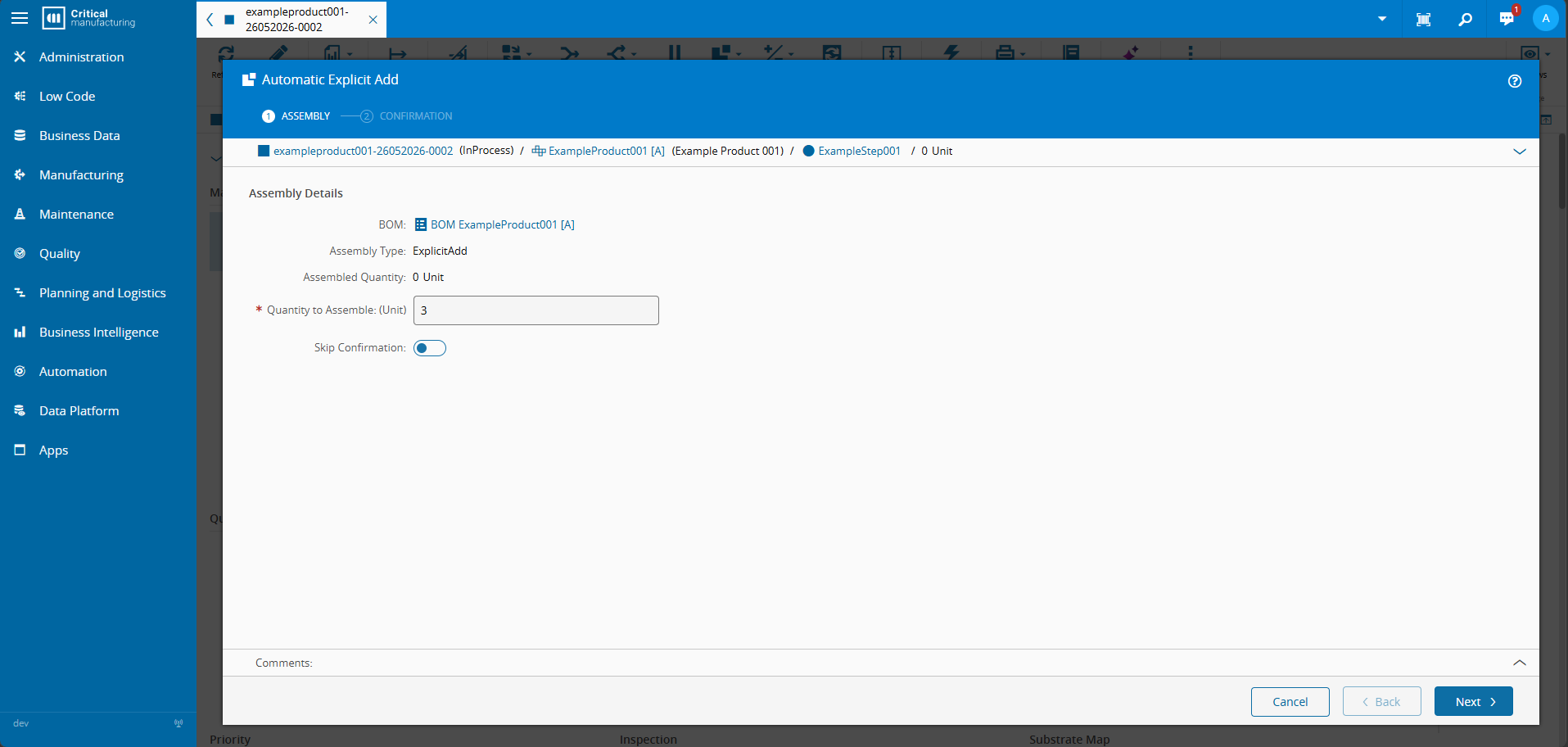
The wizard validates the quantity entered by the operator:
Quantity to Assembleis mandatory and must be greater than zero.
Confirmation Modes#
The system always calculates the consumption plan in the backend. The behavior differs based on the Skip Confirmation flag.
With Confirmation#
Skip Confirmation =
OFF
- Operator enters quantity to be assembled and marks Skip Confirmation to
OFF - System automatically calculates the planned source Materials and eligible feed Materials
- The wizard populates the standard BOM confirmation step with the planned Materials and quantities, operator can review and confirm
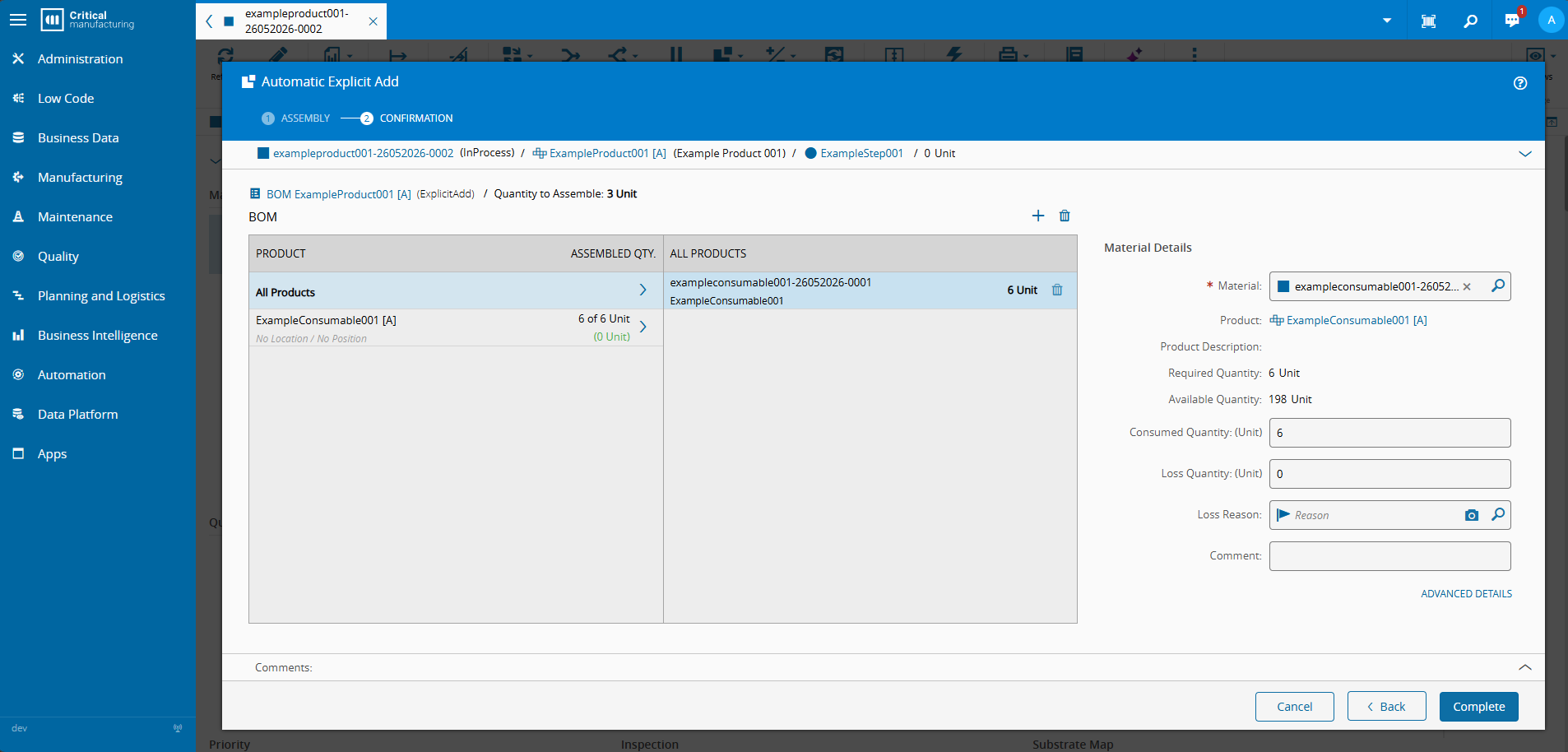
- On completion, the wizard calls the standard
AssembleMaterialservice with the confirmed source Materials and quantities
Without Confirmation#
Skip Confirmation =
ON
- Operator enters quantity to be assembled and marks Skip Confirmation to
ON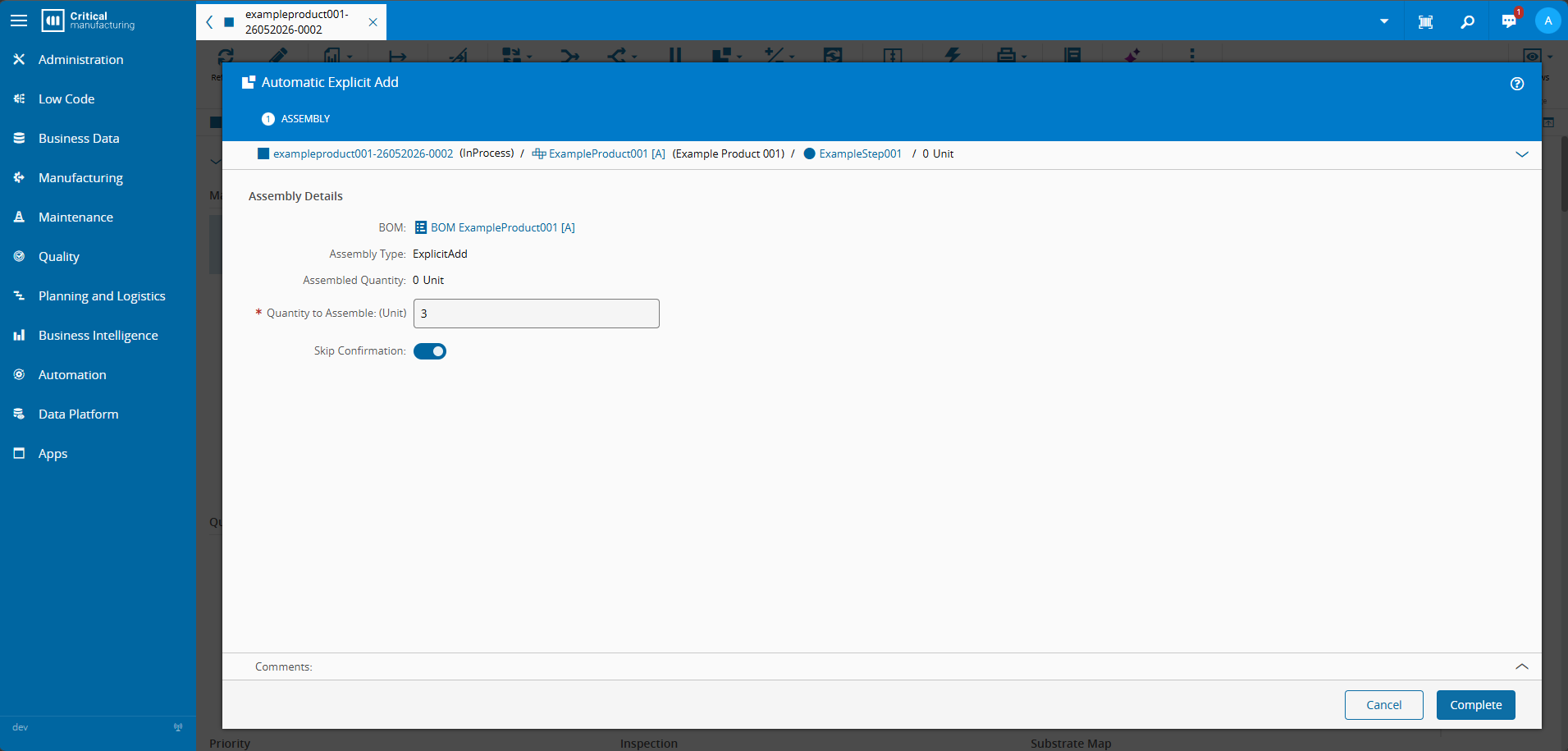
- System automatically calculates the planned source Materials and eligible feed Materials
- The confirmation step is skipped and the wizard calls directly the standard
AssembleMaterialservice with the computed source Materials and quantities
Backend Planning#
During execution, the feature performs the following sequence:
- Resolves the Material and its associated processing Resource
- Load the current BOM and determine the eligible BOM Products to consume
- Calculate the required quantity for each BOM Product based on the quantity to assemble.
- Resolve the Consumable Feeds from the processing Resource.
- Read the queued Materials available in the Consumable Feeds.
- Apply FIFO consumption planning for each BOM Product.
- Return the plan to the wizard or call the standard
AssembleMaterialservice directly, depending onSkip Confirmation.
Example Scenario#
This section includes an example of an Automatic Explicit Add execution, with and without sufficient consumable quantities, and illustrates the system behavior in both confirmation modes.
Scenario Setup#
In the example that follows, it is assumed that:
- A target Material is tracked-in (In Process) on a processing Resource
- A BOM is configured with assembly type Explicit Add
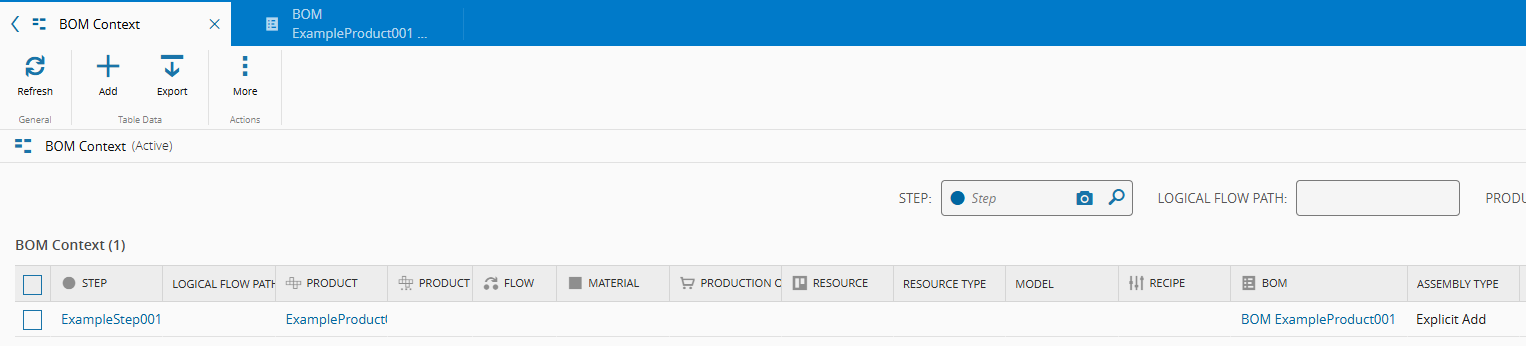
- To assemble 1 unit, it is required to consume a fixed quantity of a consumable Product
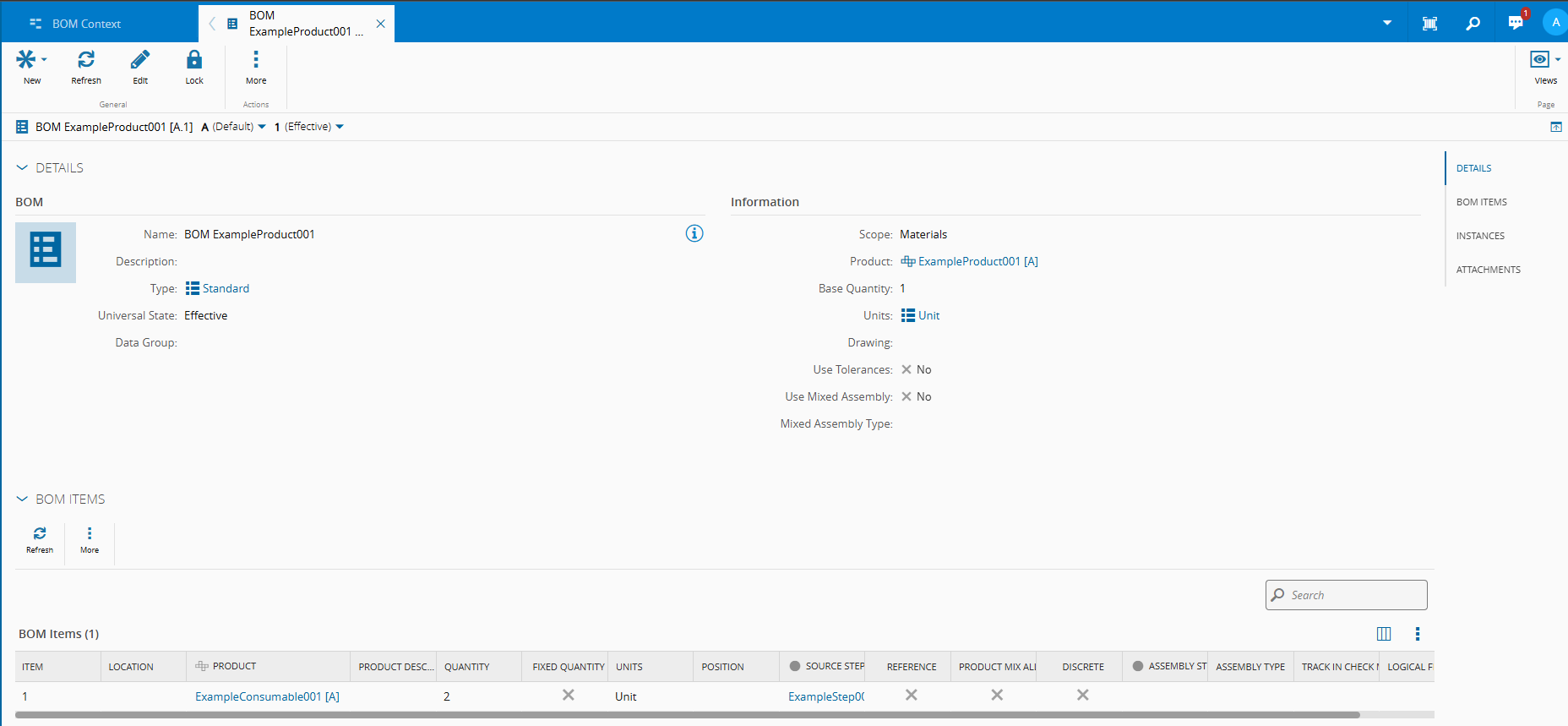
- The process Resource is configured with Consumable Feeds
Automatic Explicit Add Execution (With Confirmation)#
For the first scenario, the Consumable Feeds contain Materials of the required Product, organized in FIFO order. 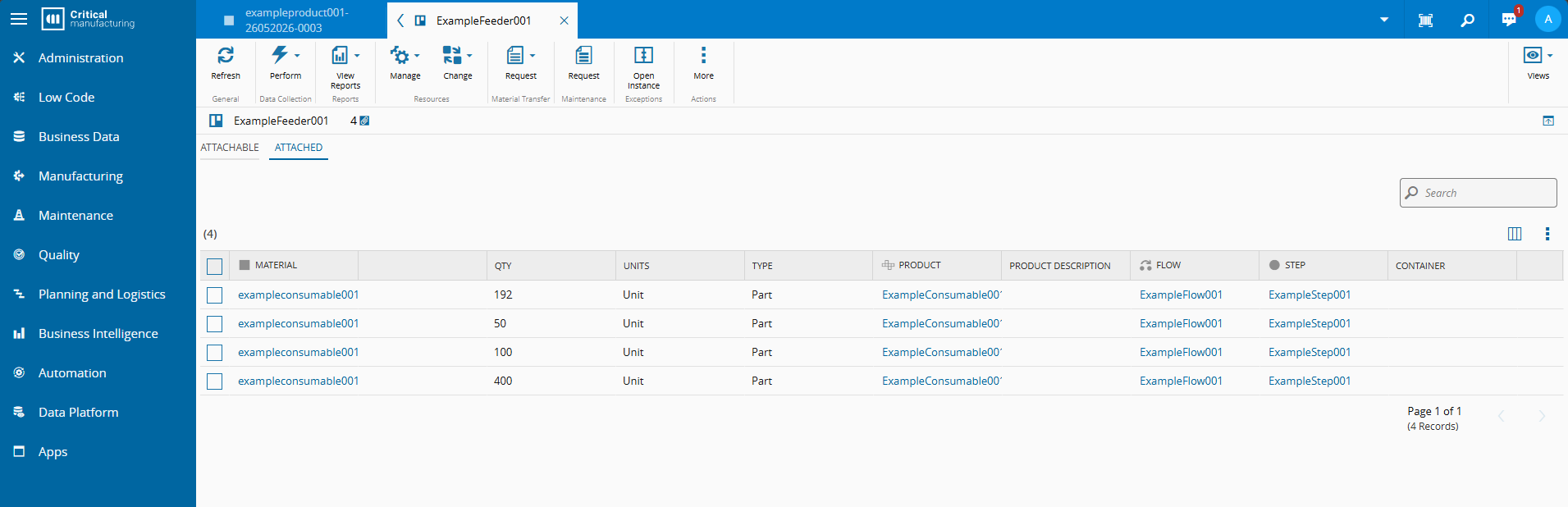
To execute the operation:
- Open the Automatic Explicit Add wizard
- Enter the Quantity to Assemble
- Set Skip Confirmation =
OFF
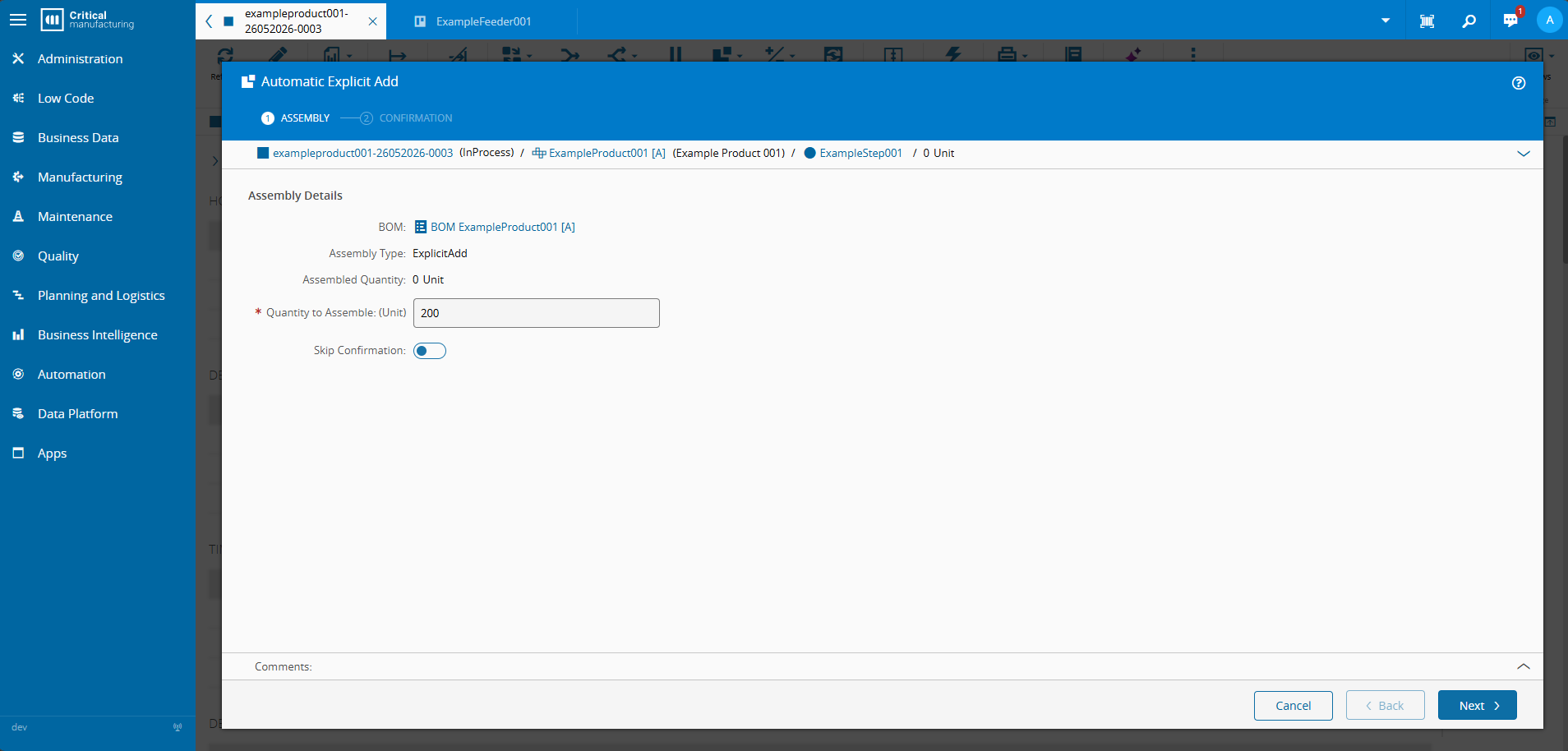
The system calculates the total required consumable quantity based on the BOM and the requested assembly quantity. It then retrieves the available Materials from the Consumable Feeds and applies FIFO logic to determine the consumption plan. The confirmation step is displayed, pre-populated with:
- The selected Materials from the Consumable Feed
- The respective quantities to be consumed
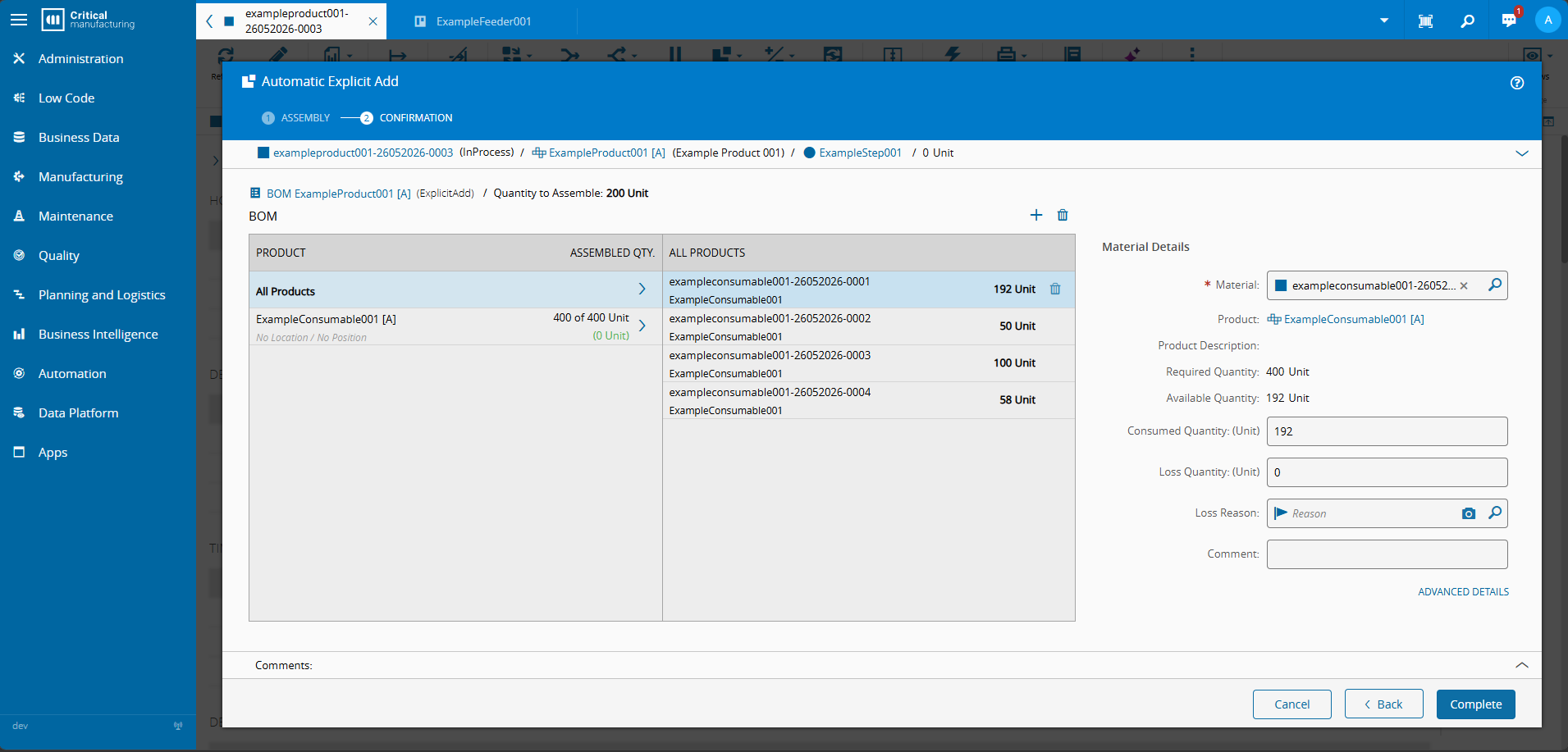
After reviewing the proposed consumption, the operator completes the wizard and the system executes the Assemble operation successfully.
Automatic Explicit Add Execution (Insufficient Quantity)#
In a second scenario, a new Material is processed under the same conditions, but the Consumable Feeds no longer contain sufficient quantity to fulfill the BOM requirements. 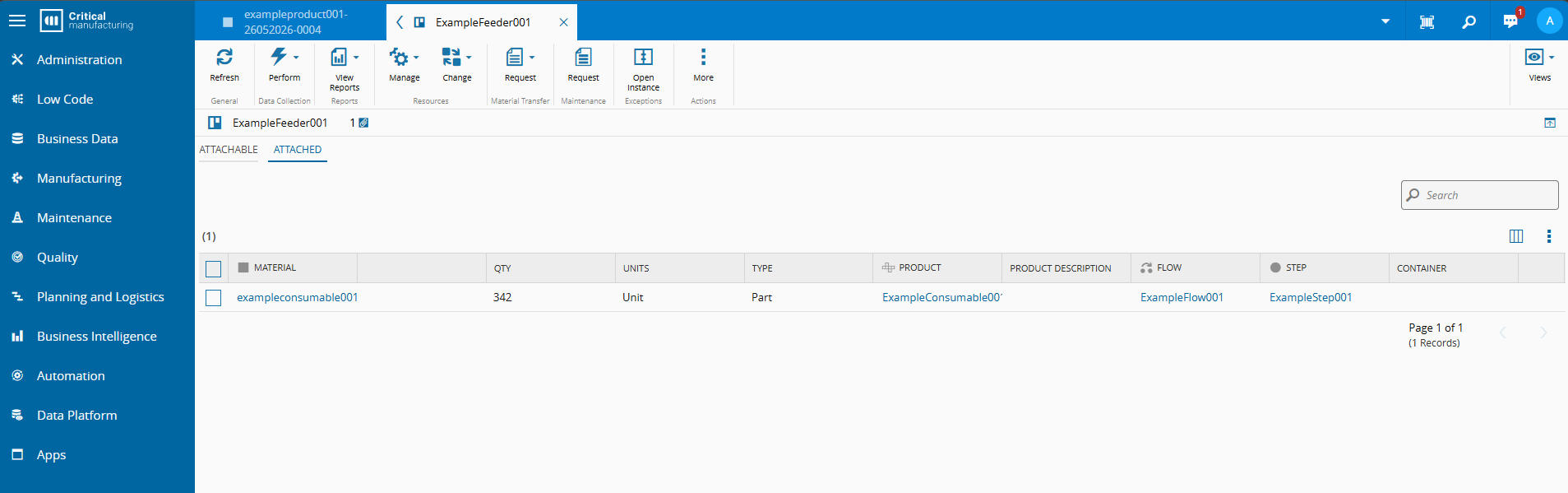
Execution with Confirmation (Skip Confirmation = OFF)#
To execute the operation:
- Open the Automatic Explicit Add wizard
- Enter the Quantity to Assemble
- Set Skip Confirmation =
OFF
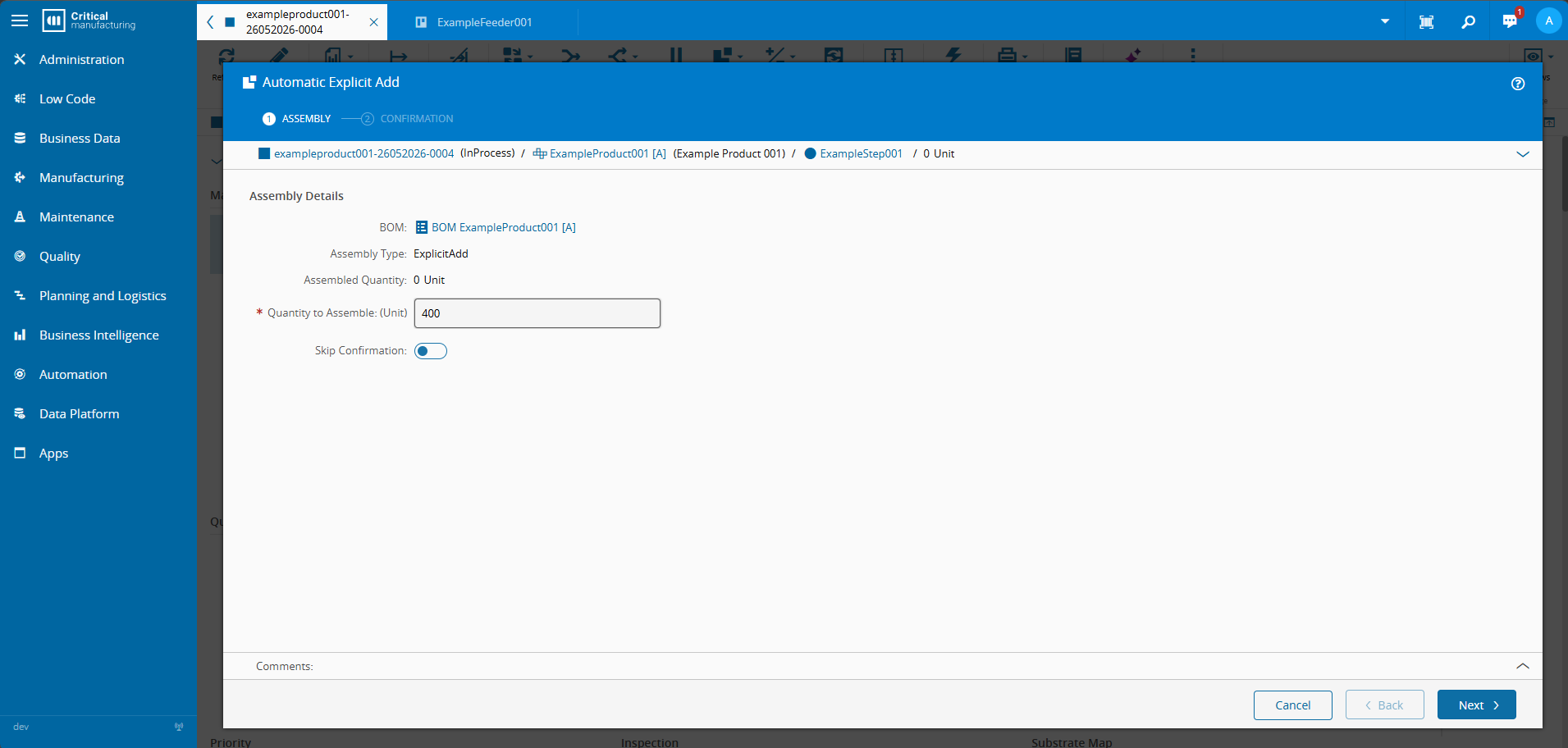
The system attempts to calculate the automatic consumption plan. Since the available quantity is insufficient, the system cannot complete the planning. As a result:
- The operation is blocked
- The confirmation step is not completed
- A message is displayed indicating insufficient quantity
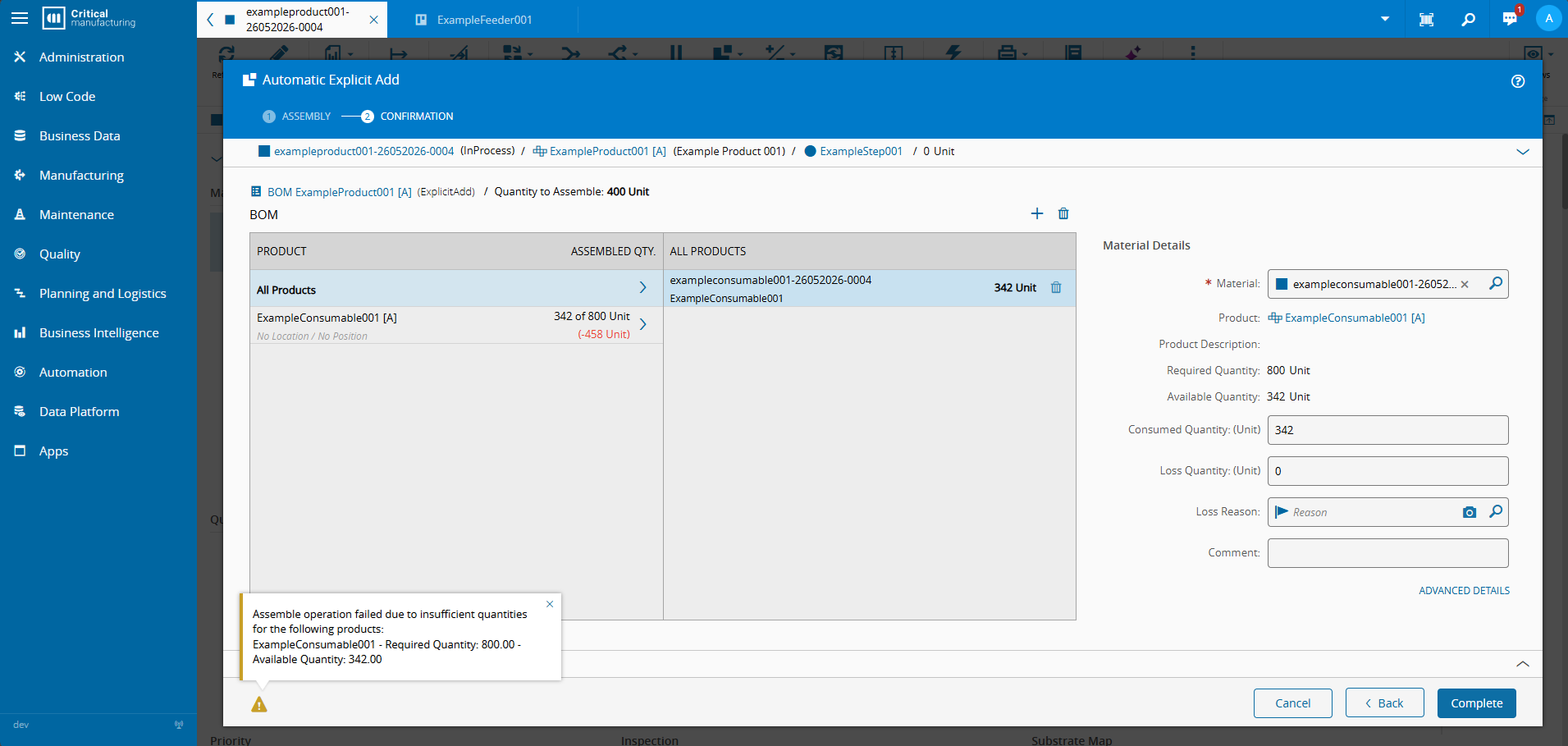
Execution without Confirmation (Skip Confirmation = ON)#
To execute the operation:
- Open the Automatic Explicit Add wizard
- Enter the Quantity to Assemble
- Set Skip Confirmation =
ON
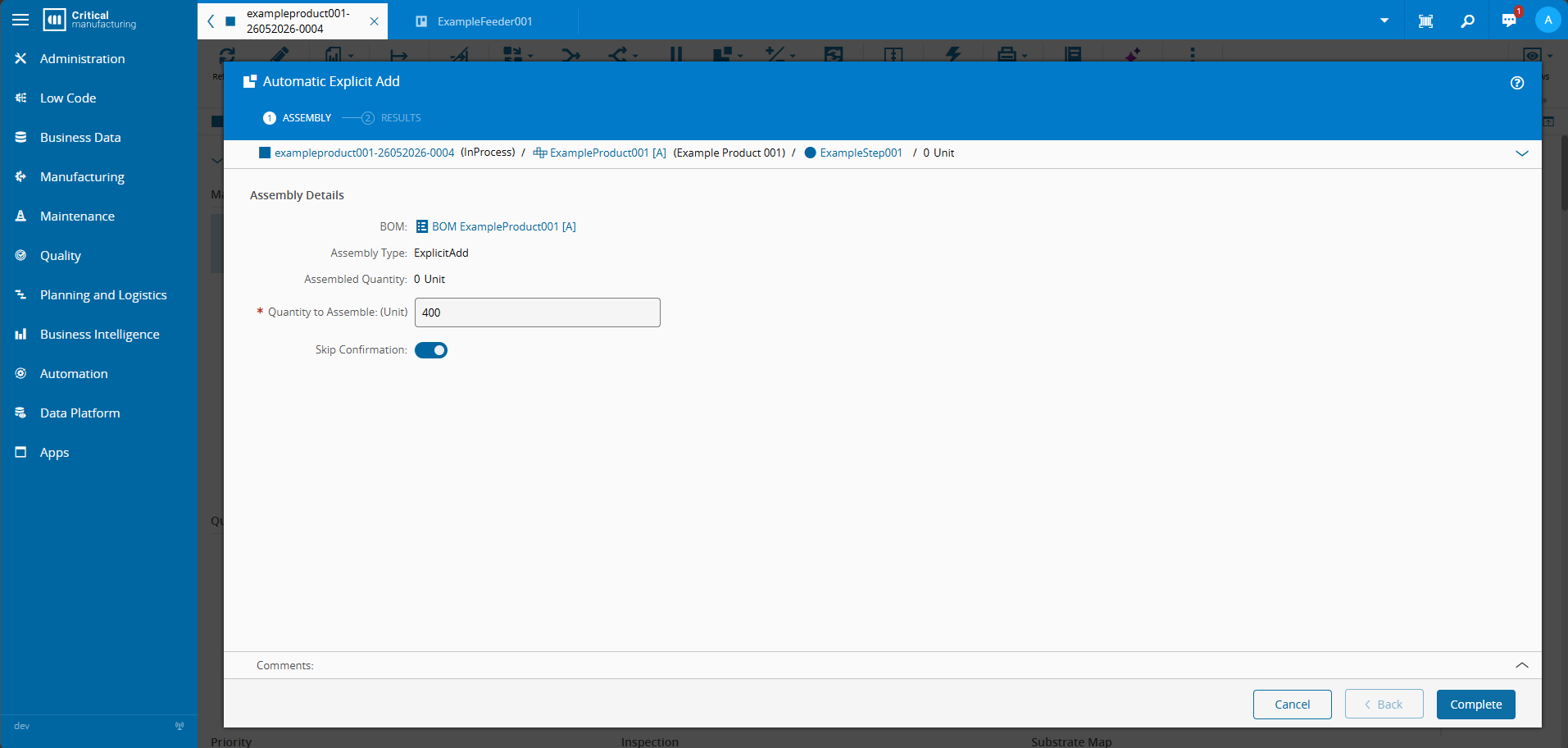
The backend attempts to calculate the consumption plan. As the required quantity is still insufficient:
- The Assemble operation is not executed
- The system blocks the transaction
- An insufficient quantity message is displayed