---
alias: fab-explorer-index
description: "The fabExplorer provides a visual interface for navigating and managing a factory's production data, displaying information from enterprise to step"
---
# FabExplorer
:lock: Manufacturing.**fabExplorer**
## Overview
The fabExplorer page provides a visual exploration for the overall factory model contained within Critical Manufacturing MES. It allows you to drill down from the top to the bottom level. The current hierarchical structure is as follows:
* **Enterprise**
* **Site**
* **Facility**
* **Area**
* **Step** or **Resource**
## Navigation
The fabExplorer has different levels of visualization:
### Enterprises
The highest level, and also the landing page when fabExplorer is opened, presents an overview of the different existing **Enterprises** and remote **Sites** on the left navigation pane, where you can select how to drill-down into the bottom levels and the entire list of available **Facilities** is displayed on the right data pane. It is also possible to filter the results by using either the *Type* filter or the *Search* bar.
![Enterprise View][enterprise_view]
### Sites
Selecting a specific **Enterprise** will list the **Sites** that belong to it. Selecting one of the **Sites** will display the **Facilities** that belong to it on the right data pane.
![Site View][site_view]
### Facilities
The third highest level is displayed by default as a list when fabExplorer is opened and presents an overview of the different existing **Facilities**. It is also possible to filter the results by using either the *Type* filter or the *Search* bar. It is also possible to see the number of **Areas** that the **Facility** contains at the bottom-right corner of every **Facility** tile.
On the right side of the screen you can find the **Materials** that are ready to be received at the **Facility**.
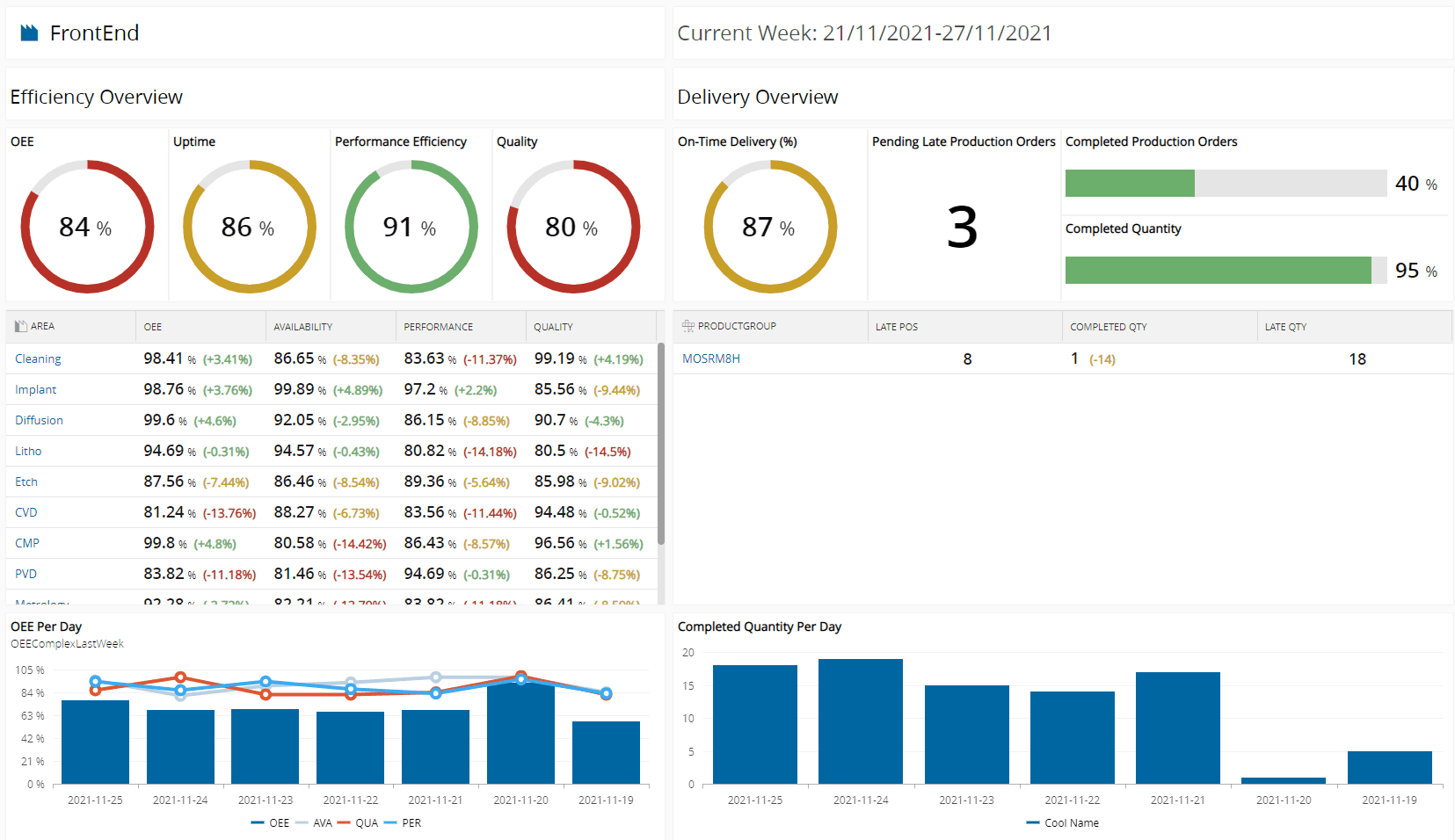
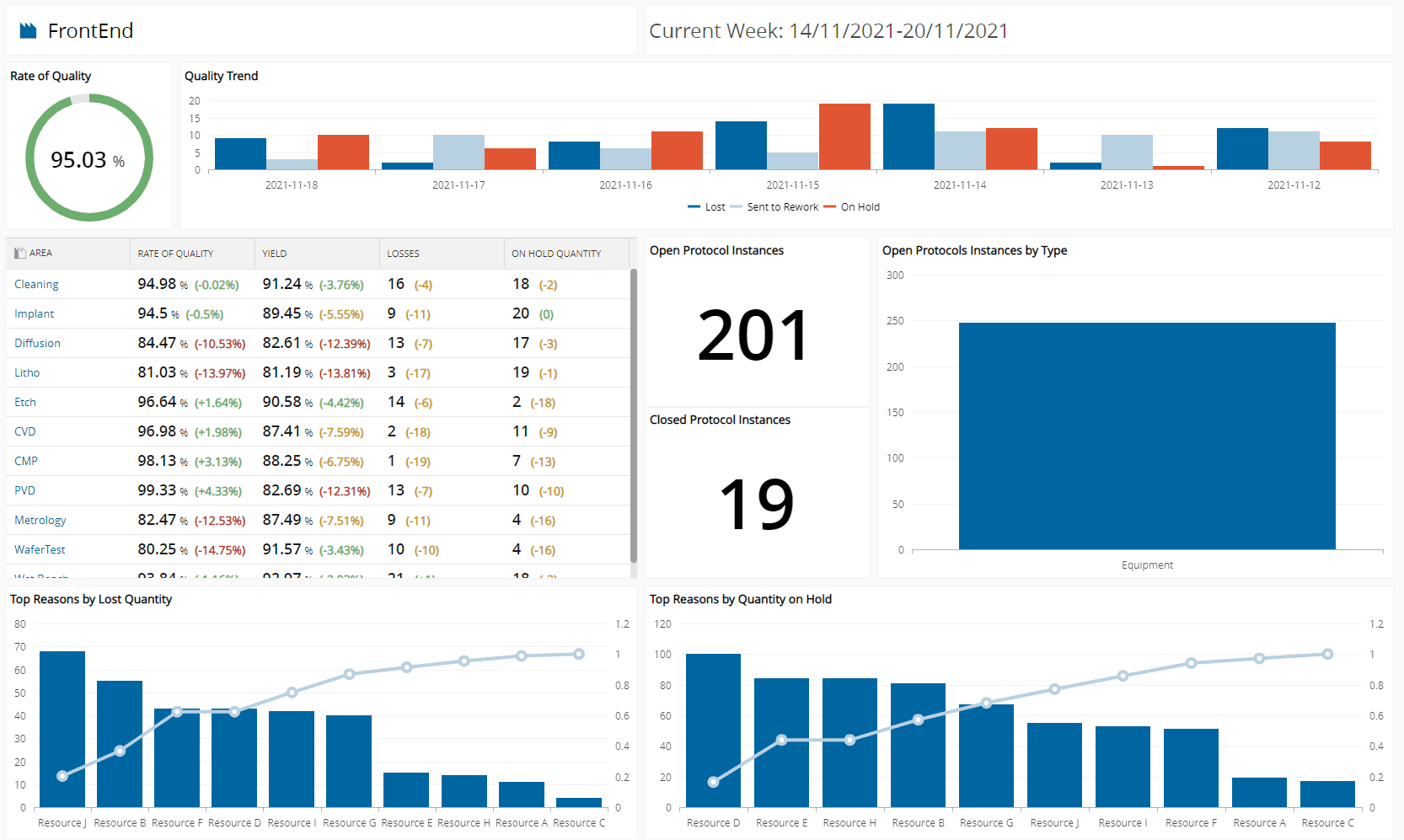
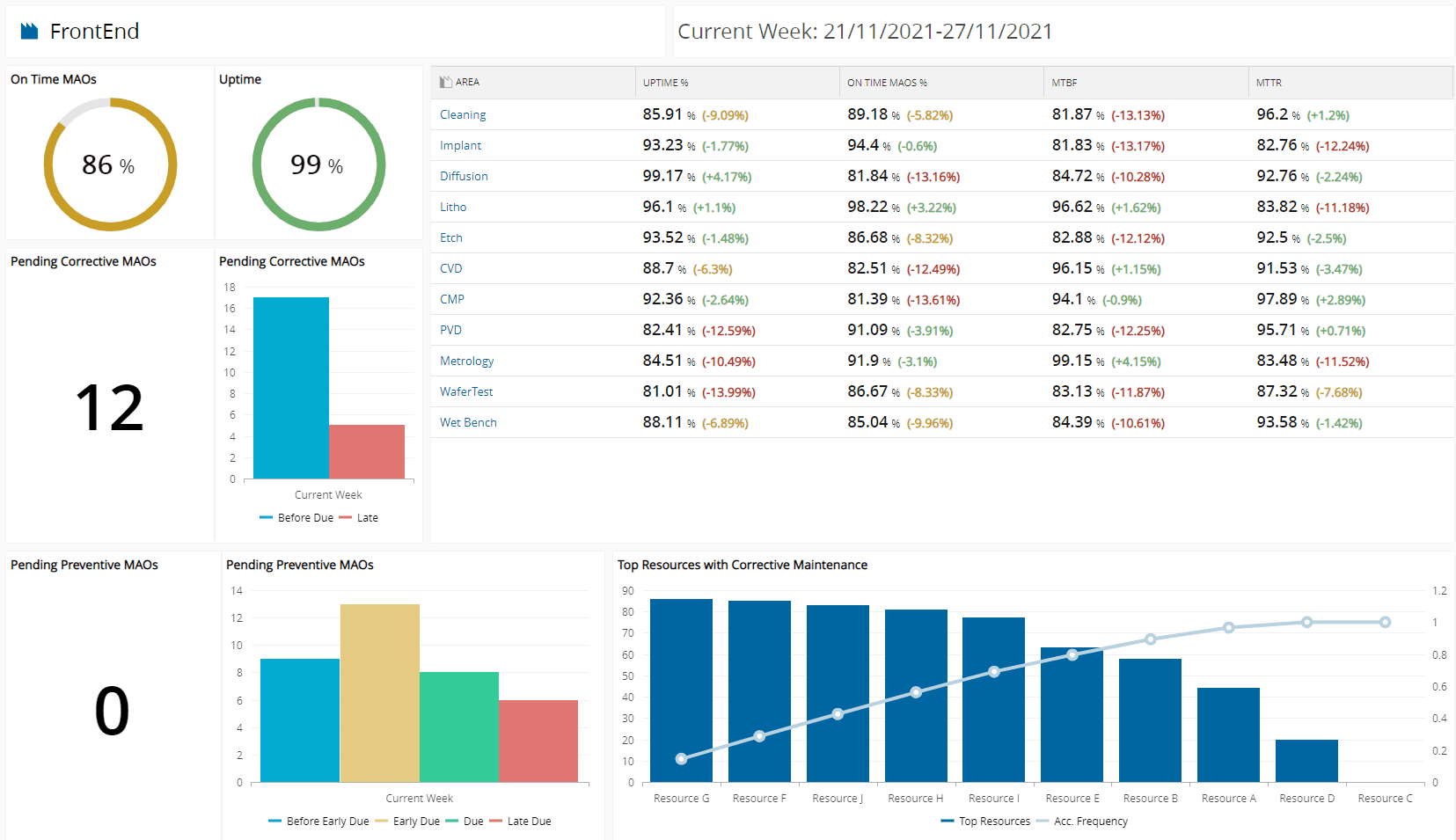
Expanding the top ribbon of the Facility View reveals a button that allows quick access to the different dashboards available out of the box that provide a snapshot on the current state of the **Facility**:
* **Manufacturing**
* **Quality**
* **Maintenance**
### Facility View
Selecting a **Facility** in the previous view results in the opening of the **Areas** view for the chosen **Facility**. The different **Areas** are listed, with the added information of how many resources are within them, in each particular state: *Up*, *Down* and *Maintenance*.
![facility_view]
These states are subject to being changed by clicking on the **Change Resources** button, in the header.
When the wizard is displayed, select the Resource(s) whose state you want to modify and select the desired new state on the next page, followed by **Finish**, as demonstrated below:
![change_area_resources_states][change_area_resources_states]
In addition, it is possible to modify the Employees or Trainees that are linked to a specific **Resource**, by selecting [Manage Resource Employees](../business-data/resource/manage_resource_employees.md) or [Manage Resource Trainees](../business-data/resource/manage_resource_trainees.md), respectively.
Here, the Materials Tab is also visible for the first time, showing how many local and remote materials are to be received.
### Area View
This view, opened by pressing one of the **Areas** is one detailing the **Steps**, as well as the **Resources** that can have the necessary **Services** for a certain **Step**. Here, there is also the indication of how many **Materials** are at a certain **Step**; for each **Resource**, it is possible to identify the state in which the resource is, by observing its color:
* Green - Up
* Red - Down
* Gray - Non-Scheduled
In addition, four more pieces of information are displayed: Number of Processed **Materials**, Number of Checked-in **Employees**, Number of In-Queue **Materials** and the Number of In-Process **Materials**.
The tab on the left holds information on any Undispatchable **Materials** that may exist in this **Area**.
From here, it is possible to navigate to two views:
* The Step View, by clicking on one of the **Steps**.
* The Resource View, by clicking on one of the **Resources**.
![area_view][area_view]
### Step View
:lock: BusinessData.NavigationPane
:lock: Manufacturing.fabExplorer
:lock: Step.Show
:lock: UIPage.Show
The Step view lists all the **Materials** currently at that **Step**, as well as their state:
![step_view_materials][step_view_materials]
A list of the **Resources** that are be used to process **Materials** on that particular **Step** can also be displayed:
![step_view_resources][step_view_resources]
!!! info
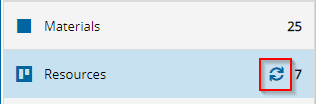
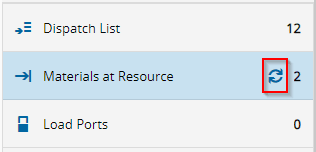
Should you need to refresh the information for a specific category, use the refresh button in the category box, which will only refresh that category and not the entire page.
From the Step View, it is possible to perform the following operations:
* [Change Resource State](../business-data/resource/index.md) - Change the state of a certain **Resource**.
* [Dispatch](../business-data/material/dispatch_material.md) - Assign a **Material** to be processed at a certain **Resource**.
* [Dispatch and Track-In](../business-data/material/dispatch_and_track_in_material.md) - Perform both *Dispatch* and *Track-In* at once.
* [Undispatch](../business-data/material/undispatch_material.md) - Unassign a **Material** from the dispatched **Resource**.
* [Track-In](../business-data/material/track_in_material.md) - Begin the processing of a **Material** at the dispatched **Resource**.
* [Track-Out](../business-data/material/track_out_material.md) - End the processing of a **Material** at the dispatched **Resource**.
* [Track-Out and Move-Next](../business-data/material/track_out_and_material_move_next.md) - Perform both *Track Out* and *Move Next* at once.
* [Move-Next](../business-data/material/material_move_next.md) - Moves a **Material** from the current **Step** to next one in its **Flow**.
* [Special Move-Next](../business-data/material/special_material_move_next.md) - Moves a **Material** from the current **Step** to a any **Step** in any **Flow**.
* [Abort](../business-data/material/abort_material_process.md) - Stop processing a **Material**.
* [Split](../business-data/material/split_material.md) - Splits a **Material** into two or more **Materials**
* [Merge](../business-data/material/merge_material.md) - Merges two or more **Materials** into one.
* [Change Material Type](../business-data/material/change_material_type.md) - Changes the *Type* of a **Material**.
* [Rework](../business-data/material/rework_material.md) - Sends a **Material** to *Rework*.
* [Record Material Loss/Bonus](../business-data/material/record_material_loss_bonus.md) - Records a Quantity Loss or Bonus for a **Material**.
* [Record Assembled Loss/Bonus](../business-data/material/record_assembled_material_loss_bonus.md) - Records an assembled quantity loss or bonus for the **Material**.
* [Record SubMaterial Losses](../business-data/material/record_submaterial_losses.md) - Records a quantity loss or bonus for all **SubMaterials** (first level only/).
* [Hold Material](../business-data/material/hold_material.md) - Puts a **Material** on hold.
* [Release Material](../business-data/material/release_material.md) - Releases a **Material** from one or more hold reasons.
* [Post Data](../business-data/data-collection/data-collection-instance/post_data_to_data_collection.md) - Posts data to **Material** for a long running **Data Collection**.
* [Perform Checklist](../business-data/material/perform_material_checklist.md)/[Perform Checklist - New](../business-data/material/perform_material_checklist_new.md) - Performs a long running **Checklist** for a **Material**.
### Resource View (Process)
In the **Resources** Tab, you can see the different **Resources** which provide the necessary **Services** for this Step.
The Resource View shows an overview of the available **Materials** for processing at the selected **Resource** in the *Dispatch List* tab which includes only **Materials** in state *Queued*. In the *Materials at Resource* tab, the system displays all the **Materials** which are currently associated with the Resource. The total count for each of these states is shown alongside the **Resource** *Name* and *State*.
![Resource View][resource_view_full]
Selecting each of the categories on the left will load specific information about the **Resource** and the objects that are associated to it in any given time on the right-side panel, which may include an extra right-hand panel with additional information.
!!! info
Should you need to refresh the information for a specific category, use the refresh button in the category box, which will only refresh that category and not the entire page.
The left side panel (as well as some of the right panels) can be customized by pressing the settings icon on the top right of each panel. The left selection panel has the following options:
![resource_view_left_panel_settings][resource_view_left_panel_settings]
Selecting the desired options and saving the layout will overwrite the previous settings and set the new layout for the Resource View.
From the Resource View, it is possible to perform the following operations:
* [Change Resource State](../business-data/resource/index.md) - Changes the state of a certain **Resource**.
* [Dispatch](../business-data/material/dispatch_material.md) - Assigns a **Material** to be processed at a certain **Resource**.
* [Dispatch and Track-In](../business-data/material/dispatch_and_track_in_material.md) - Performs both *Dispatch* and *Track-In* at once.
* [Undispatch](../business-data/material/undispatch_material.md) - Unassigns a **Material** from the dispatched **Resource**.
* [Track-In](../business-data/material/track_in_material.md) - Begins the processing of a **Material** at the dispatched **Resource**.
* [Track-Out](../business-data/material/track_out_material.md) - Ends the processing of a **Material** at the dispatched **Resource**.
* [Track-Out and Move-Next](../business-data/material/track_out_and_material_move_next.md) - Performs both *Track Out* and *Move Next* at once.
* [Move-Next](../business-data/material/material_move_next.md) - Moves a **Material** from the current **Step** to the next one in its **Flow**.
* [Special Move-Next](../business-data/material/special_material_move_next.md) - Moves a **Material** from the current **Step** to any **Step** in any **Flow**.
* [Abort](../business-data/material/abort_material_process.md) - Stops the processing of a **Material**.
* [Split](../business-data/material/split_material.md) - Splits a **Material** into two or more **Materials**
* [Merge](../business-data/material/merge_material.md) - Merges two or more **Materials** into one.
* [Change Material Type](../business-data/material/change_material_type.md) - Changes the *Type* of a **Material**.
* [Rework](../business-data/material/rework_material.md) - Sends a **Material** to *Rework*.
* [Record Material Loss/Bonus](../business-data/material/record_material_loss_bonus.md) - Records a Quantity Loss or Bonus for a **Material**.
* [Record Assembled Loss/Bonus](../business-data/material/record_assembled_material_loss_bonus.md) - Records an assembled quantity loss or bonus for the **Material**.
* [Record SubMaterial Losses](../business-data/material/record_submaterial_losses.md) - Records a quantity loss or bonus for all **SubMaterials** (first level only/).
* [Hold Material](../business-data/material/hold_material.md) - Puts a **Material** on hold.
* [Release Material](../business-data/material/release_material.md) - Releases a **Material** from one or more hold reasons.
* [Post Data](../business-data/data-collection/data-collection-instance/post_data_to_data_collection.md) - Posts data to **Material** for a long running **Data Collection**.
* [Check-In](../business-data/employee/check_in_employee.md) - Checks-in an **Employee** at a **Resource**.
* [Check-Out](../business-data/employee/check_in_employee.md) - Checks-out an **Employee** from a **Resource**.
* [Perform Checklist](../business-data/material/perform_material_checklist.md)/[Perform Checklist - New](../business-data/material/perform_material_checklist_new.md) - Performs a long running **Checklist** for a **Material**.
### Resource View (Storage)
For **Resources** of processing type *Storage*, the view will be slightly different from the one displayed for *Process* **Resources**. The stored **Materials** will be listed, as well as the **Materials** that can be stored in the **Resource**.
![Resource View Storage][resource_view_storage]
## Layout and Grids
:lock: [ StepView or ResourceView ].**SaveLayout**
:lock: [ StepView or ResourceView ].**SaveUserDefaultLayout**
:lock: [ StepView or ResourceView ].**SaveAllUsersDefaultLayout**
:lock: [ StepView or ResourceView ].**ResetToUserDefaultLayout**
:lock: [ StepView or ResourceView ].**ResetToAllUsersDefaultLayout**
:lock: [ StepView or ResourceView ].**ResetToApplicationDefault**
In both views, it is possible to configure which columns will be displayed as well as to define a customized layout.
Each grid in the Resource and Step views can be customized by:
* Opening the grid's icon and selecting the columns to be displayed.
* Sorting the order of the selected columns by dragging and dropping them or by using the up and down arrows.
* Clicking on **Apply** to implement the changes.
As for the layout, at any time it is possible to:
* **Save Layout** - saves the layout only for the current View.
* **Save as My View Default Layout** - saves the layout as the default View for the current user.
* **Save as My View Default Layout For All Users** - saves the layout as the default View for all users.
* **Reset To My View Default Layout**- resets the current View layout to the default for the users.
* **Reset To View Default Layout For All Users** - resets the current View layout to the default for all users.
* **Reset To Application Default** - resets the current layout to the the application default.
!!! info
The precedence for the layout is:
1. Specific View
2. User Default View
3. All Users Default View
4. Application Default View
![step_save_layout][step_save_layout]
You can also choose to save any selected filters in the current layout by choosing **Save filters**.
## Reset Layout
The **Reset Layout** option enables you to restore a previously defined application layout configuration for you or for all users.
To reset a configuration, select one of the options and confirm the operation by selecting **Reset**, as shown below.
![reset_layout][reset_layout]
[step_view_materials]: images/step_view_materials.png
[step_view_resources]: images/step_view_resources.png
[resource_view_full]: images/resource_view_full.png
[step_save_layout]: images/step_save_layout.png
[reset_layout]: images/reset_layout.png
[change_area_resources_states]: images/change_area_resources_states.png
[facility_view]: images/facility_view.png
[area_view]: images/area_view.png
[enterprise_view]: images/enterprise_view.png
[site_view]: images/site_view.png
[resource_view_left_panel_settings]: images/resource_view_left_panel_settings.png
[resource_view_storage]: images/resource_view_storage.png