Register Materials#
 Material.Register
Material.RegisterManual
Overview#
The Register Materials operation provides a simple Material creation process with support for barcode scanners of different types (ECIA, GS1 and MAT-Label) and, if configured to do so, writes the results to a predefined label and sends them to a predefined printer.
Setup#
-
A barcode reader should be available, either through a specific barcode reading device or a mobile device with a camera, such as a smartphone.
-
A Facility must exist in the system to which the Materials will be assigned during registration.
Note
The Register Materials operation cannot be executed in a Remote Facility.
Info
It is possible to define the default value for the Facility by editing the entry Context =
Material.Register, Element =Facilityin the Generic Table GUIElementDefaultValue. -
A Business Partner must exist in the system with the Manufacturer property set to
true.Info
The Business Partner holds the information for the barcode format that will be scanned in order to register the Materials, defined through the Label Specification property. If a Business Partner with a required label specification does not exist in the system, it must be created. For more information, see the Create Business Partner page.
-
The Register Materials operation supports the creation of Materials for Products of the following types:
- Raw Material
- Durable
- Part
These are the only Product types that support the definition of Product Manufacturers, which is a prerequisite for the registration process.
-
Depending on the label format in use, the following Lookup and Generic configuration tables define how label data is interpreted:
- LabelSpecification - Lookup Table for Label Specifications
- LabelMaterialProperty - Lookup Table for Material Properties
- LabelSpecification - Generic Table for defining the properties of the different Label Specifications
- LabelSymbologyIdentifier - Generic Table for defining label specs with symbology identifiers and barcode types
- LabelMaterialProperty - Generic Table for setting Material properties or attributes that can be referenced as a Label Specification Field
- LabelSpecificationField - Generic Table for defining each field in the label format, including prefix, length, and mapping
Preconditions#
- The Material Logistics module is properly licensed in the system.
Sequence of Steps#
Go to the Planning and Logistics menu to access the Register Materials operation. Upon opening the wizard, you can start adding materials by selecting to add each new Material. You can also select to remove a previously selected Material.
For each Material that you add, perform these steps to register new Materials in the system:
-
Select a Facility to the Material to be created.
-
Select the Manufacturer.
-
Depending on the existing entries in the configuration tables, the appropriate fields will be shown for the defined label. Select to add a new Material by scanning a barcode through an available camera and the fields will be automatically filled out. If you have the
Material.RegisterManualfeature assigned, you can input values by entering them manually.Info
The Generic Tables that define the configuration fields in the system are:
- LabelSpecification - master record with separators
- LabelSpecificationField - contains the list of known fields
- LabelSymbologyIdentifier - barcode type identifiers (optional for some Label Specifications)
If there is no Label Specification defined, you can use a barcode to read the fields as defined in the LabelMaterialProperty Lookup Table by selecting the field first and scanning it afterwards. After a successful field scan, the next field will be automatically selected until there are no more available fields to select.
Note
There is native support for Material attributes, you simply need to add the attribute to the LabelMaterialProperty Lookup Table and then to the LabelMaterialProperty and LabelSpecificationField Generic Tables.
Warning
If a Label Specification is defined but invalid (if there is no data to support it in the LabelSpecification or LabelSpecificationField tables) an error message is displayed.
-
Optionally, select the number of identical Materials records to be created from this entry, each with the same properties.
-
Optionally, choose how many labels will be printed per Material created by opening the Printing Options section on the top right corner and entering the appropriate value.
Note
For this functionality to work correctly, the Step where the Material will be created must have a Printable Document assigned to the
Material Labelproperty, and thePrint Material Labels Automaticallyproperty must be set totrue. -
Select Register to finish the process and the Materials will be created.
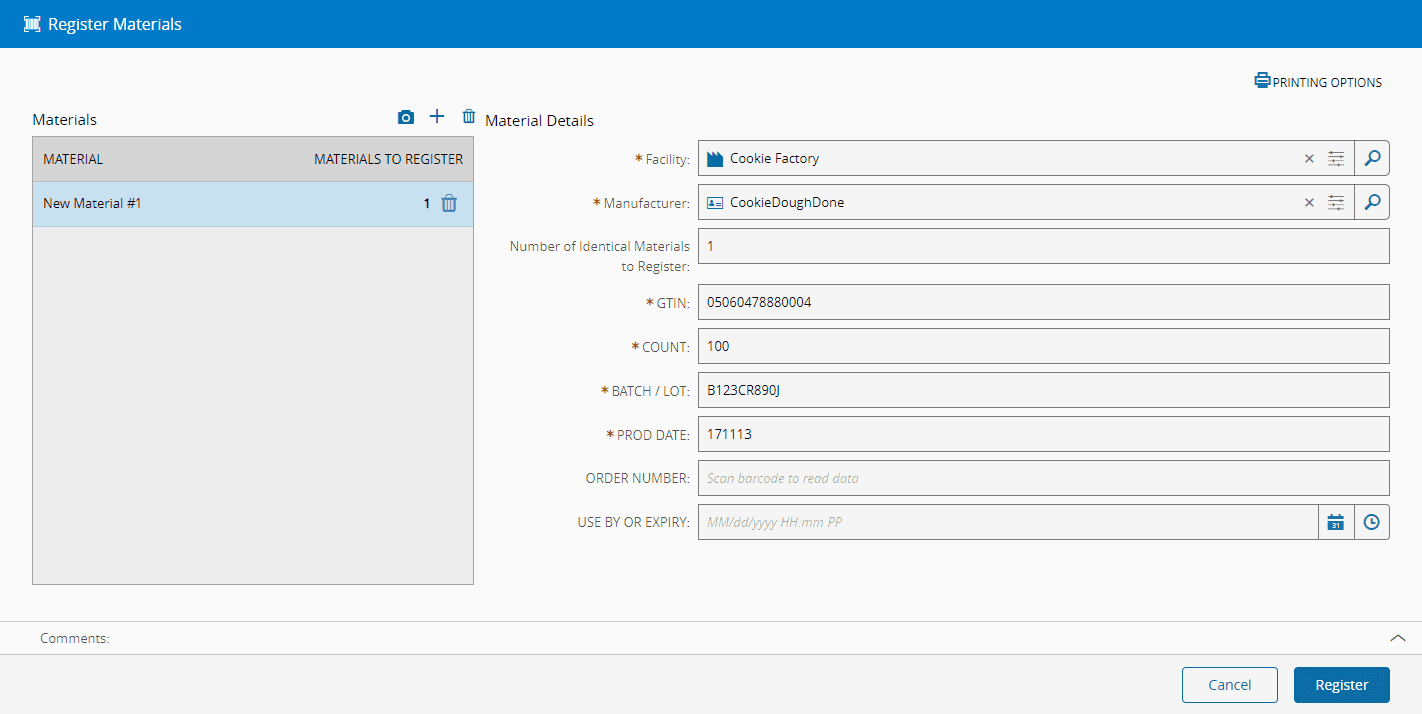
Info
Will also be useful to see the Material Registration tutorial.
Label Specification Mappings#
There are some specific Label Specification mappings that are bound to certain conditions and configurations:
-
If the
/Cmf/System/Configuration/MaterialLogistics/RegisterMaterials/AutopopulateDataFromProductManufacturerconfiguration entry is set totrue, some fields will be automatically filled out:- The Material Primary Quantity property will be filled out with the value from the Standard Quantity property from the matching Manufacturer.
- The Material Moisture Sensitivity Level property will be filled out with the value from the Moisture Sensitivity Level property from the matching Manufacturer.
-
If the field that maps to the Material Moisture Sensitivity Level property has been set with the value
6(Time on Label), an additional mandatory field named Time on Label will be displayed:- The field will be mapped to the Material Floor Life Remaining Hours property.
- The field accepts both manual values, bypassing the requirement for the
Material.RegisterManualfeature, and automatic values (using the barcode scanner or the device camera).
-
If the
/Cmf/System/Configuration/MaterialLogistics/RegisterMaterials/InferManufacturerFromManufacturerPartNumber/configuration entry is set totrue, the system will try to infer the Manufacturer from the Manufacturer Part Number.
Note
If the scanned information does not have a valid mapping, the system should ignore the information.