Event Ingestion through IoT Data Platform#
Estimated time to read: 7 minutes
Event ingestion is the process of obtaining and importing events for the immediate use or storage in a database. Events can be streamed in real time, where each event item is imported as the source emits it, or ingested in batches.
This document will provide a quick guide for the configuration of a mechanism of event ingestion using the IoT Data Platform capabilities of Critical Manufacturing.
Overview#
In this example we will define an event that receives values from different sensors on a shop floor. This event will have a specific structure and so we shall define it, make the system aware of it and able to parse the same event when received as an API call to the system. To create the appropriate structure to receive and adequately ingest and handle the events on Critical Manufacturing, a number of steps will have to be followed:
- Create an IoT Event Definition to specify the event structure.
- Create an IoT Consumer Definition to define which type of consumer will receive the event.
- Ensure that the system ingests and operates on the event through an IoT Consumer.
The steps detailed above will create the objects in the system that will handle the events and the payload contained therein. This way, you can start from there:
Creating an IoT Event Definition#
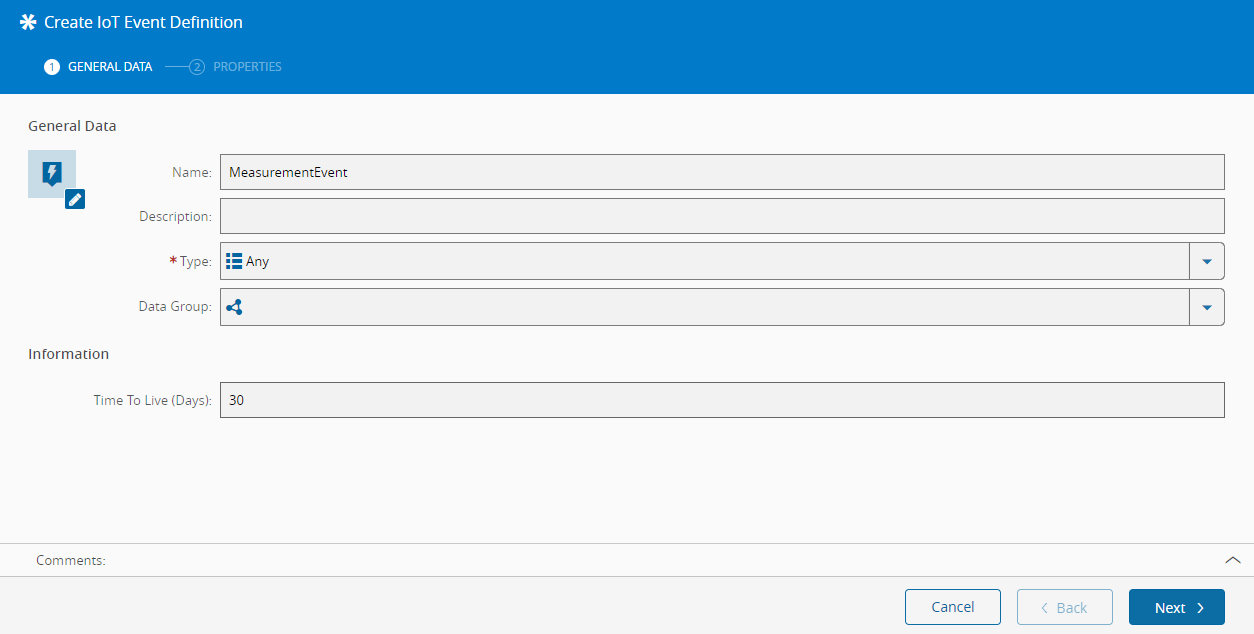
In the Business Data section of the main menu, navigate to the IoT Event Definition tile and create a new entry. Provide a name for the IoT Event Definition. Bear in mind that the name will identify the Event throughout the Data Platform infrastructure so it should be a meaningful name for later reference. An example of the values can be seen below:
The event to be created has the following structure with sample values:
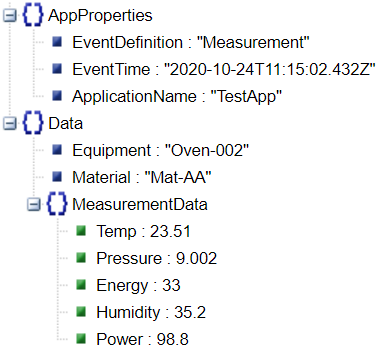
AppProperties is a field included by the Kafka host that is running and receives the event, while Data is the actual event payload.
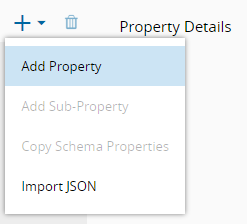
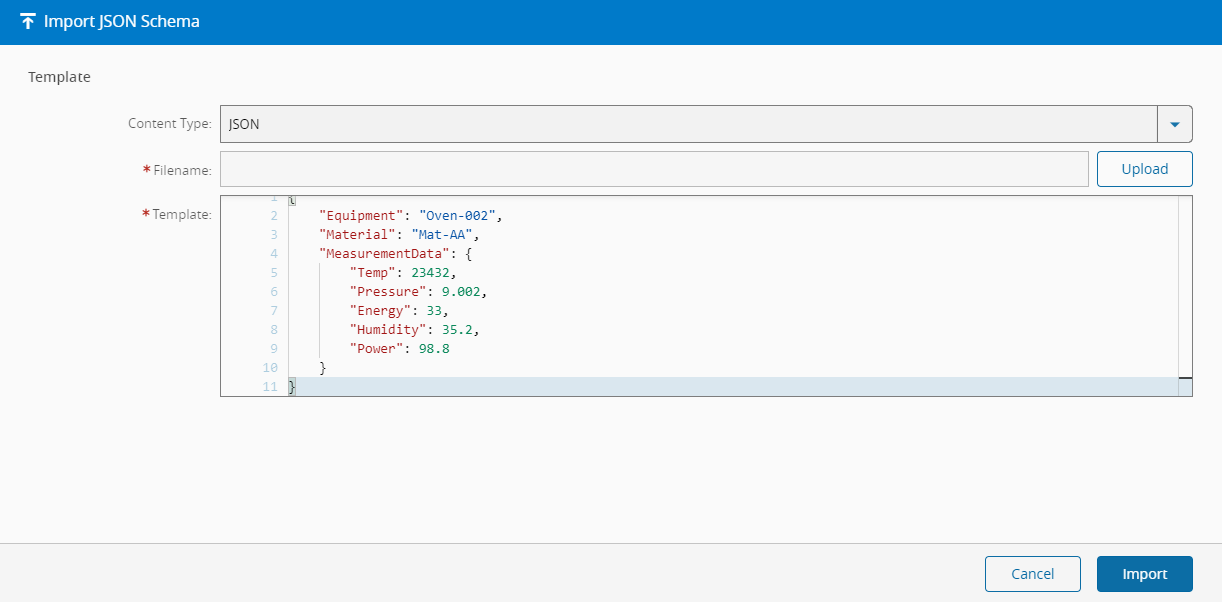
Adding properties to the event definition can be done manually or by importing a JSON structure such as the one shown above. The system will infer the data types from the actual values and generate a property for each of the fields.
Several properties are essential for the proper functioning of the event ingestion, so specify for each property:
- Property name – name that matches the property in the Event JSON document.
- Array – identifies this property as an array of objects.
- Mandatory – identifies if the property is mandatory. If true, this information will be used to validate all the arriving events.
- Indexed – if this value is defined, the fields will be automatically selected in the creation of the IoT Consumer.
- DataType – the data type of the property. Mandatory, an enumeration. Will be mapped to the following JSON types (in parentheses).
- Default Value – specifies the default value of the property. If not present in the received event, this value will be set by the event validation process.
- Shared – a specific IoT Schema can be selected to be matched to a JSON structure and later shared as a separate object in the system.
Info
For more information, see Create IoT Event Definition in the User Guide.
Importing from a sample JSON structure can be simple as well:
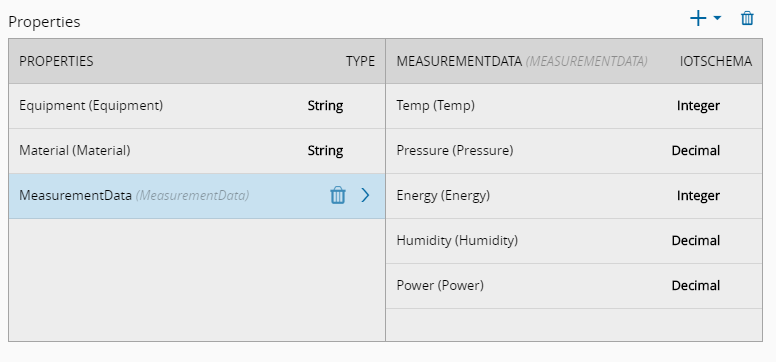
After creating the properties manually or importing from a JSON file, the properties will be generated and the IoT Event Definition can be created.
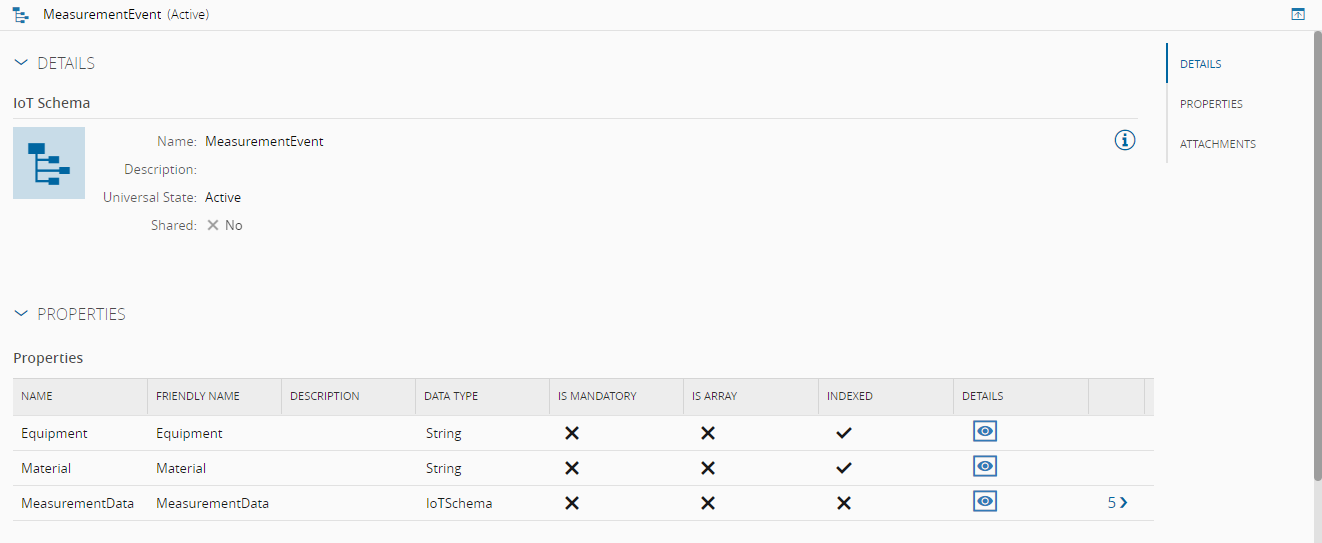
Upon original import, and if the Shared option is not defined above, a new IoT Schema is also created and associated in a one-to-one relationship with this particular event definition, and it could then be used in other definitions.
Creating an IoT Consumer Definition#
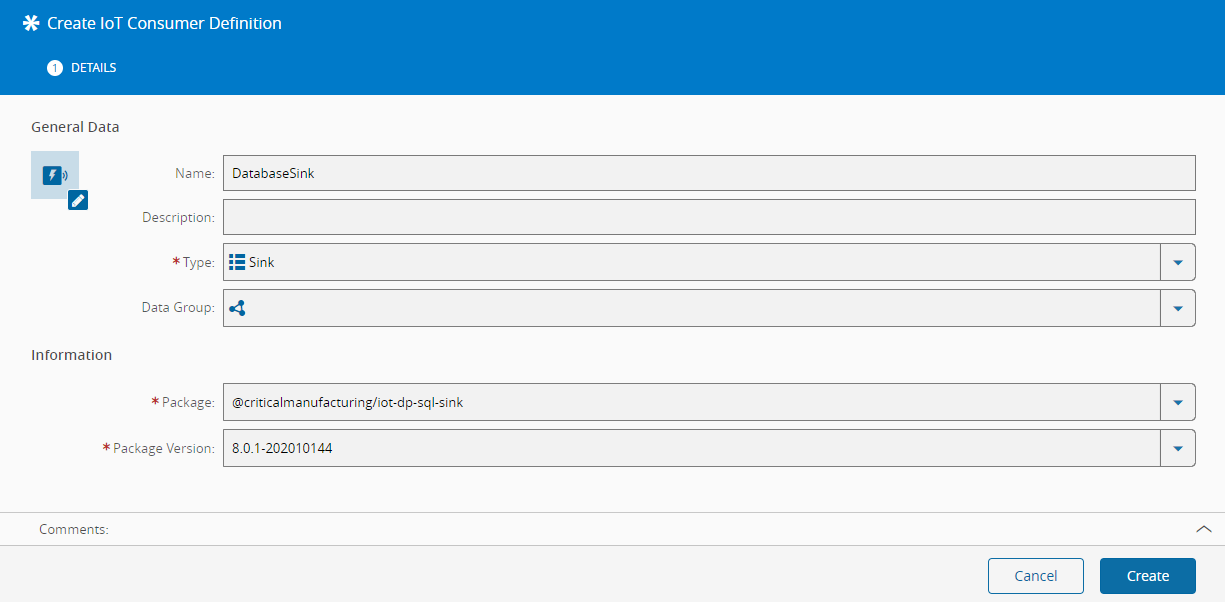
After creating the IoT Event Definition, you must define an IoT Consumer Definition to indicate the type of consumer that will be ingesting the event. Ths system provides different types of possible consumer definitions. For this example select an SQL Database Sink as the destination for the event data that will be received. Both File and a MessageBus sinks are available for usage as well.
Select the @criticalmanufacturing/iot-dp-sql-sink package with whichever version is available and matching with the current installed version of the MES for maximum compatibility and create the IoT Consumer Definition.
Info
For more information, see SQL Sinker IoT Consumer Definition in the User Guide.
Creating an IoT Consumer#
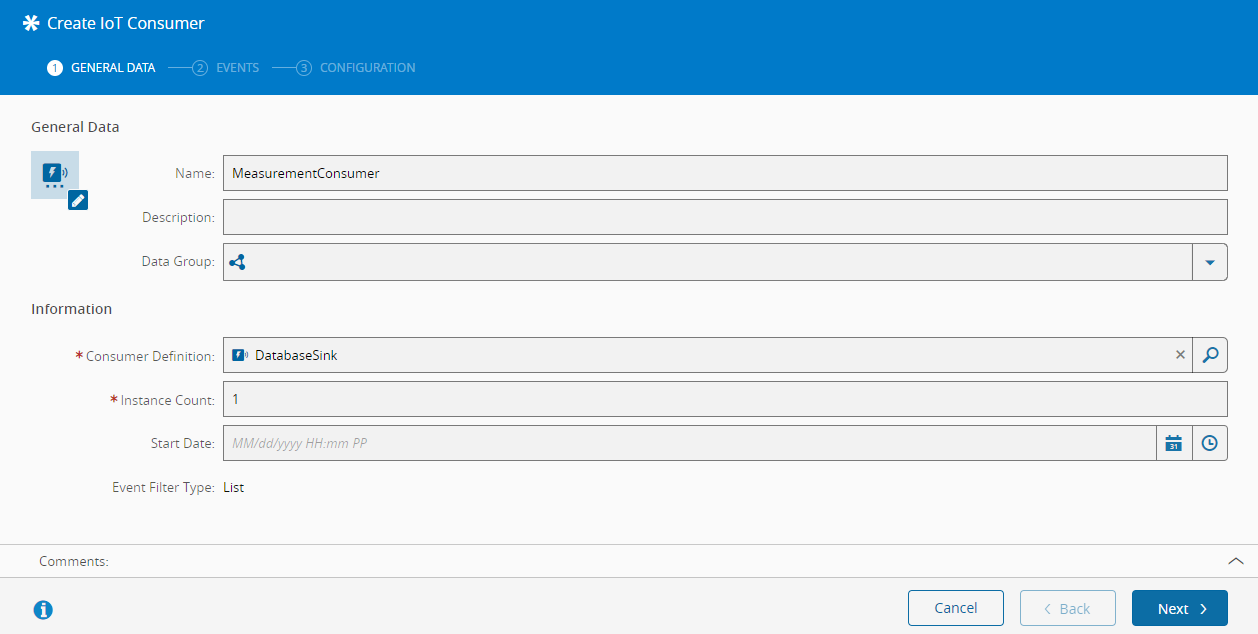
Finally, creating the IoT Consumer will specify the destination for the data that will be retrieved when ingesting the events. Select the IoT Consumer Definition created before and select the number of Instances of the IoT Consumer to be running simultaneously by the system to account for high-availability and scalability purposes.
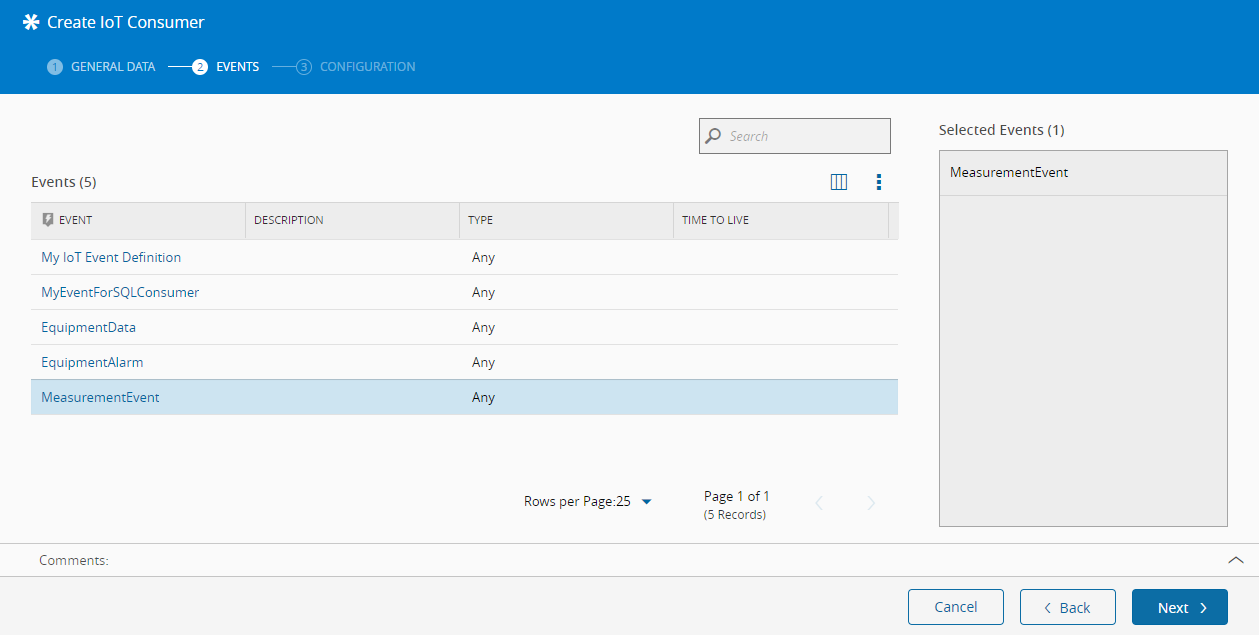
In the next page, select the actual Events that will be ingested by this IoT Consumer. In this case, select the Measurement Event created earlier.
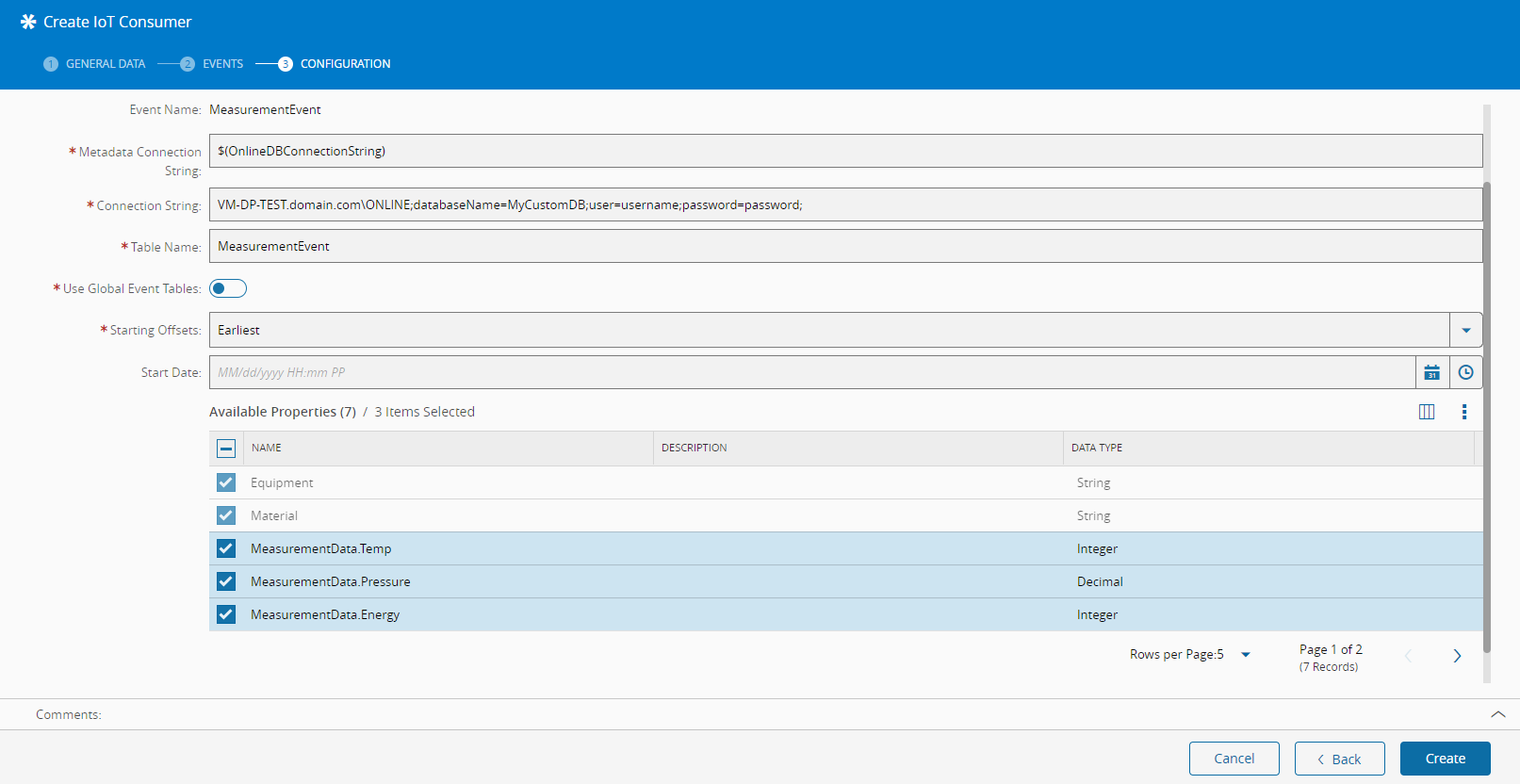
To finish configuring the IoT Consumer, select the following properties:
- Metadata Connection String - where the information will come from regarding the actual object mapping for the MES enrichment and/or interoperability.
- Connection String - connection string to the destination database where the event data will be stored.
- Table Name - name of the table in the destination database that will hold the values. The name of the event is suggested for readability and easy reference.
- Use Global Event Tables - whether the global tables for events should be used, otherwise there will be several tables created to separate the data.
- Starting Offsets - should the event ingestion start from the value in Start Date (Latest) or from the moment of creation (Earliest).
- Start Date - the start date for the event ingestion.
Finally, select the properties that will be retrieved and stored in the database as separate columns. Finish by creating the IoT Consumer that will be running as soon as the dialog closes.
Note
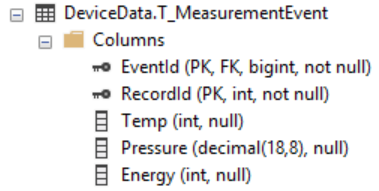
Only the selected fields will be generated into database columns.
Info
If the properties were marked as Indexed upon their creation, they will automatically be selected and cannot be unselected as they will be used in the event ingestion process (and specified in the destination database) as indexes.
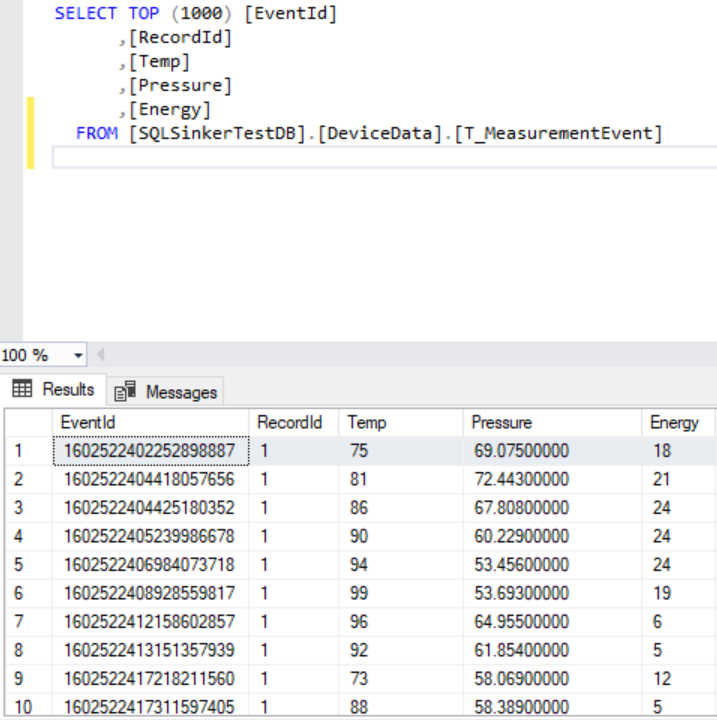
The SQL Sink then generates the appropriate structure in the database, such as the following example:
Monitoring#
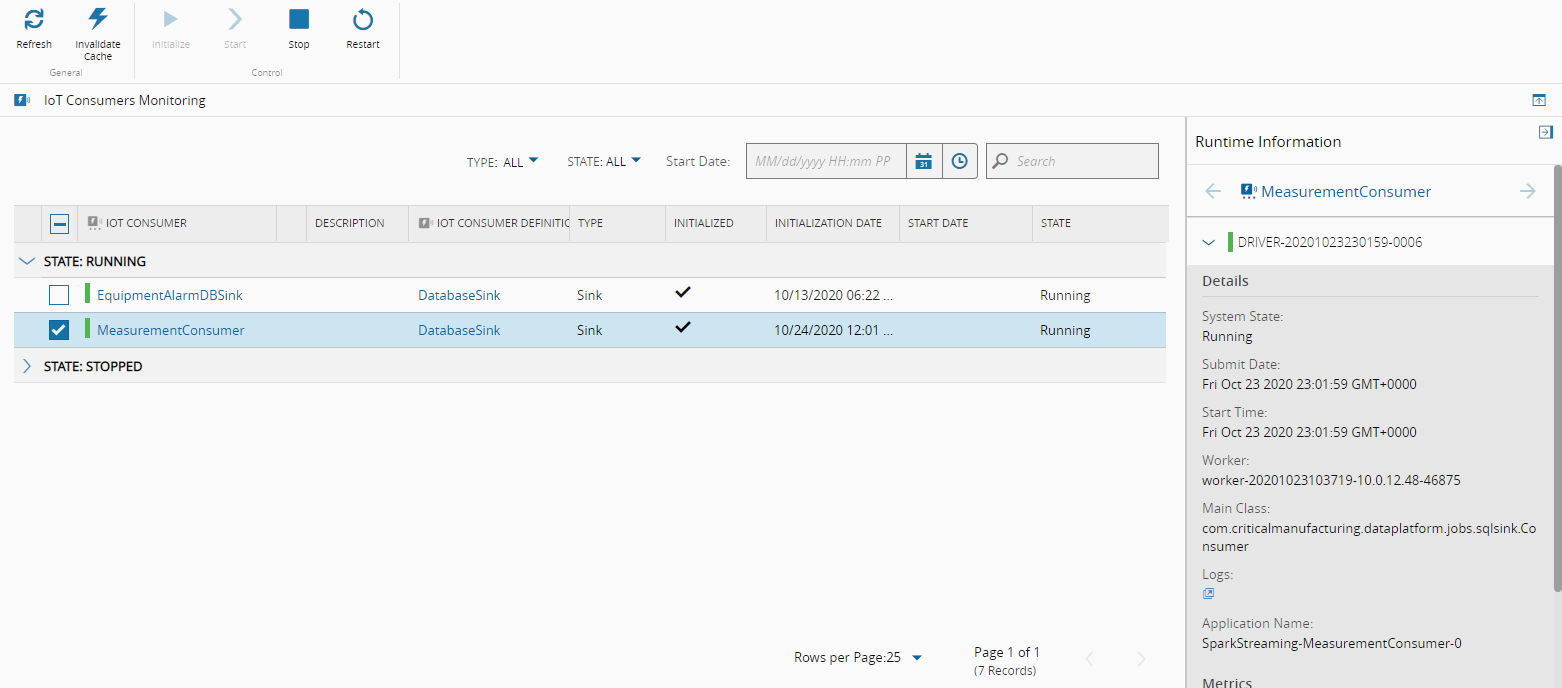
Using the IoT Consumers Monitoring page, accessible through the main MES menu, you can see that the specifically created IoT Consumer is running, and you can also see runtime information on the right-hand panel. Spark logs can be accessed directly by selecting the small icon on that panel, which open a new tab with the available logs.
By using any type of user-defined equipment or Connect IoT workflow action, you can send values to the created Kafka topic, and any values will automatically be stored in the database, with one row per event received, and with the values being stored in the mapped columns.